Progress Bar in Delphi: The TfrProgressBar and TfrxProgressBar Components from FastReport VCL
The progress indicator — one of the most illustrative interface elements — instantly shows how much work has already been done and how much remains until the process is complete. In this article, we will look at how to add such an indicator both to the interface of a Delphi application and to reports, using the new TfrProgressBar and TfrxProgressBar components.
Users of FastReport VCL Ultimate have additional visual interface components available within the FastEditors VCL and FastGrid VCL sets. Now these sets have been expanded with a new useful editor — TfrProgressBar, and the reports — with the TfrxProgressBar component. Moreover, the report component is available not only to Ultimate owners, but to everyone who has access to the main report component — TfrxReport.
Below, we will take a detailed look at the properties and capabilities of the new components, and then show them in action: using the example of a demo project with realistic data that ships with FastReport VCL Ultimate.
The TfrProgressBar Component: Properties and Capabilities
The ProgressBar component is available in the IDE on the FastEditors VCL palette and is designed to display numeric values in the format of a progress indicator. The component:
- supports horizontal and vertical direction of the scale;
- automatically calculates and displays the percentage value relative to the specified boundary range;
- contains a collection of marker lines and threshold values, allowing you to visualize the ranges of the progress scale in various styles: solid fill, gradient fill, texture.
Let us look at the main properties that distinguish this progress component from other editors of the FastEditors VCL set.
- Value — the displayed numeric value. The component automatically formats it depending on the visual style settings and the range of values. If the ProgressBar is used inside a cell of the FastGrid component, the value of that cell is automatically used as the Value.
- Properties.CaptionColor — the color of the displayed text. If this property is set to clDefault, the text color automatically adjusts to the background color so that the caption is visible on any background.
- Properties.CaptionHorizontalAlignment — horizontal alignment of the text.
- Properties.CaptionVerticalAlignment — vertical alignment of the text.
- Properties.CaptionOrientation — horizontal or vertical direction of the text.
- Properties.CaptionType — the text formatting type. It can take the values frpbctPercent (automatic calculation of the percentage value depending on the MinValue/MaxValue range), frpbctPosition (displaying the textual representation of the Value property without formatting) or frpbctCustom (displaying the text stored in the Properties.ProgressCaption property).
- Properties.MarkerLinesVisible — controls the visibility of marker lines on the progress scale. These lines are defined in the Properties.Thresholds collection.
- Properties.MaxValue — the maximum scale value for calculating the progress percentage. It cannot be less than the value of Properties.MinValue.
- Properties.MinValue — the minimum scale value for calculating the progress percentage. It cannot be greater than the value of Properties.MaxValue.
- Properties.Orientation — the direction in which the progress scale level changes depending on the Value: left to right or top to bottom.
- Properties.ProgressBarStyle — the style of the progress scale display. It can take the values frpbsSolid (solid fill with the Properties.ProgressBeginColor color), frpbsGradient (gradient fill with a smooth color transition from Properties.ProgressBeginColor to Properties.ProgressEndColor) or frpbsBitmap (fill with a texture from the Properties.ProgressBitmap property).
- Properties.ProgressBeginColor — the starting color of the progress scale.
- Properties.ProgressEndColor — the ending color of the progress scale.
- Properties.ProgressBitmap — the texture for filling the progress scale for the case Properties.ProgressBarStyle = frpbsBitmap.
- Properties.ProgressCaption — the caption text for the case Properties.CaptionType = frpbctCustom.
- ProgressChunkBorder — controls the visibility of the outline line for the gradient fill style of the main scale and threshold values.
- Properties.ProgressMargin — the amount of indentation of the progress scale from the edges of the component.
- Properties.ShowAsLEDs — turning the visual separation of the progress scale into rectangles on and off.
- Properties.Thresholds — a collection of threshold values (more about it — below).
- Properties.OnGetDisplayText — an event that allows you to manually change, in code, the text displayed on the scale (the AText parameter) depending on the value of the AValue parameter.
Threshold Values: the Properties.Thresholds Collection
All these properties allow you to flexibly configure the visual style of the progress scale display and, if necessary, use several different value ranges and markers:
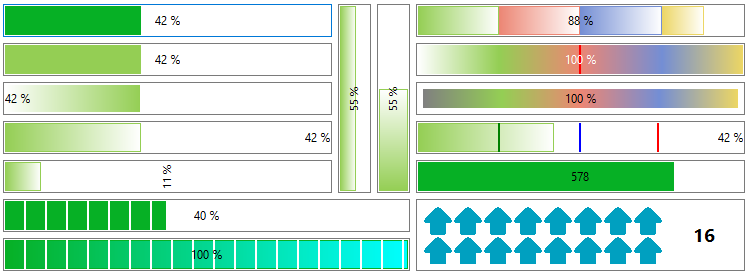
Each threshold value in the Properties.Thresholds collection has the following properties:
- Value — the scale value starting from which the style and fill colors of the scale change to those specified in this threshold value;
- BeginColor — the starting color of the fill for this threshold value;
- EndColor — the ending color of the fill for this threshold value;
- MarkerLineColor — the color of the marker line marking the Value on the scale;
- MarkerLineSize — the thickness of the marker line marking the Value on the scale;
- MarkerLineVisible — controls the visibility of the marker line;
- ProgressBarStyle — the fill style of the progress scale of this threshold;
- ProgressBorderVisible — controls the visibility of the outline line of this threshold;
- ProgressVisible — controls the visibility of the progress scale of this threshold (if the threshold’s progress scale is not visible, the parameters of the main scale are used for it — this is convenient if you only need to show the marker line).
The TfrxProgressBar Report Component
A similar set of properties is offered by the special TfrxProgressBar component available in reports. To embed it in your report:
1. place the non-visual TfrxProgressBarObject component on the form — it will automatically add the necessary modules to your project;
2. open the report designer using the TfrxReport component;
3. select the progress component on the components panel and place it on the report page.
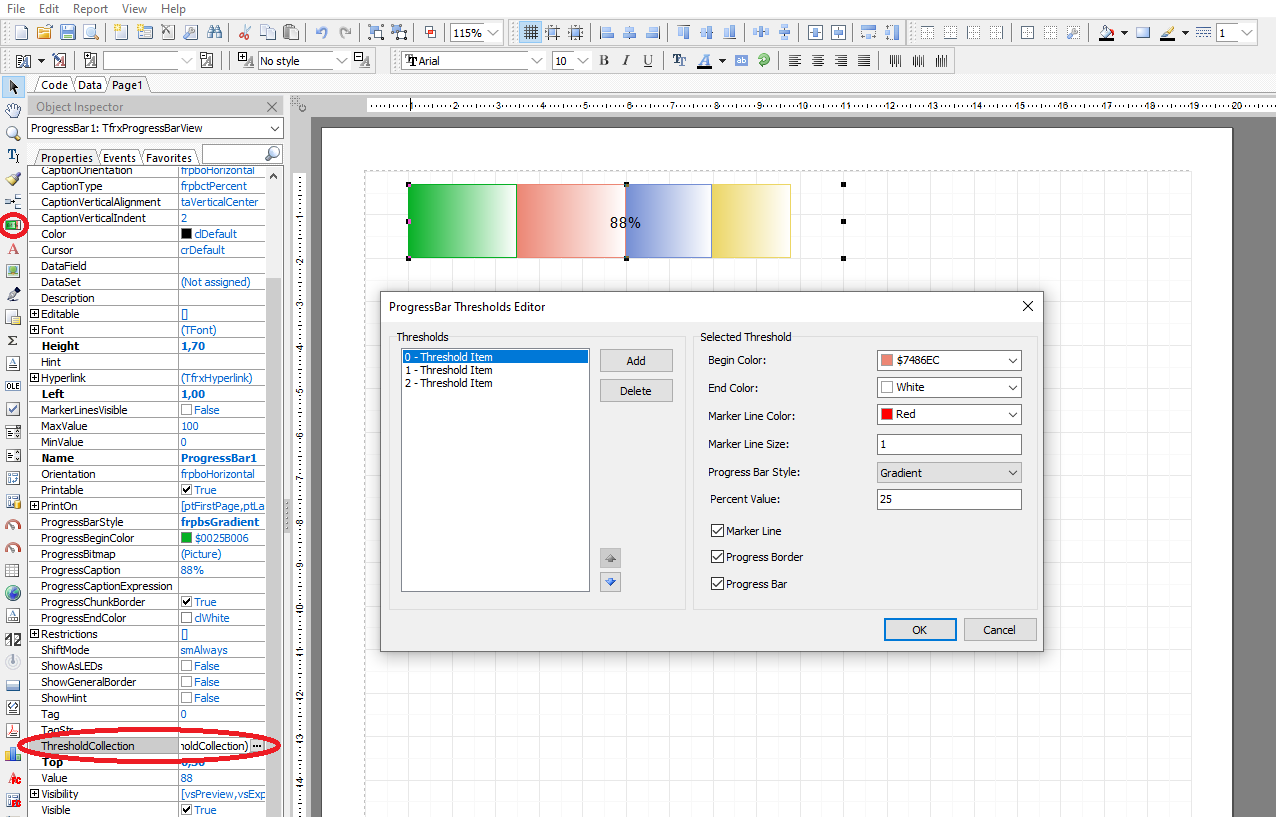
Compared to the interface component, the report component has a number of features:
- ShowGeneralBorder — allows you to show or hide a border around the object;
- DataField and DataSet — allow you to bind the component to one of the dataset fields and automatically take progress values from it;
- ProgressCaptionExpression — allows you to define an expression to manually format the progress value obtained from the data field.
Usage Example: Melting Furnace Temperature Control
The progress display component is convenient to use in applications where you need to visualize values over time in comparison with boundary and threshold values: in process control systems, for KPI tracking, or for monitoring warehouse occupancy.
To demonstrate the capabilities of the ProgressBar, we chose metallurgy. It is precisely in metallurgy that threshold temperature values and the variability of the melting process are important, and data snapshots are well suited for printing. In other words, everything the ProgressBar is good at is here.
Melting Process Simulation
First, we will write a small helper code that simulates the fluctuation of temperature sensors in various zones of the melting furnace: the loading zone, the melting zone, the superheat zone, the discharge zone, and the lining. In each zone, the temperature randomly fluctuates around the nominal values throughout the following stages of the process: heating, melting, superheat, correction. Of course, this is a very simplified scheme that does not correspond to the real process, but it is perfect for demonstrating the capabilities of the component.
You can find the source code of the simulation in the FastGrid demo project, in the frFurnaceZones and frFurnaceSimulator modules, and the main code for working with the component — in the ProgressBarDemo module.
Configuring the FastGrid Column and Progress Components
The main work in this project happens in the OnShow and UpdateUI event handlers.
In OnShow, a dataset is created based on the standard TClientDataSet component, and the binding of this data to FastGrid is implemented. Of course, FastGrid can work with data directly, without an intermediary in the form of a DataSet, but in this project we wanted to demonstrate the capabilities of printing data formatted with the ProgressBar, both directly from the source and via FastGrid. For this, a universal data store in the form of TClientDataSet or a similar component is better suited.
Next, in the OnShow handler, the properties of the FastGrid column responsible for displaying the progress are configured, as well as the properties of the individual TfrProgressBar components located on the melting furnace diagram:
gFurnaceTableView1.Columns.RetrieveMissingColumns;
LColumn := gFurnaceTableView1.Columns[0];
LColumn.Caption := 'Furnace Zone';
LColumn.Options.Editing := False;
LColumn.PropertiesClass := TfrEditProperties;
LColumn := gFurnaceTableView1.Columns[1];
LColumn.Caption := 'Temperature, C';
LColumn.Width := 300;
LColumn.PropertiesClass := TfrProgressBarProperties;
LProperties := TfrProgressBarProperties(LColumn.Properties);
LProperties.CaptionType := frpbctPosition;
LProperties.CaptionColor := clBlack;
LProperties.ProgressBarStyle := frpbsGradient;
LProperties.MaxValue := FConfig.ScaleMax;
LProperties.MinValue := FConfig.ScaleMin;
LProperties.MarkerLinesVisible := True;
LProperties.CaptionType := frpbctPosition;
LProperties.ProgressBeginColor := clWhite;
LProperties.ProgressEndColor := FConfig.Thresholds[0].Color;
LProperties.ProgressChunkBorder := False;
LProperties.OnGetDisplayText := DoGetDisplayText;
for J := 1 to Length(FConfig.Thresholds) - 1 do
begin
  LThresholdItem := LProperties.Thresholds.Add;
  LThresholdItem.MarkerLineVisible := False;
  LThresholdItem.ProgressBarStyle := frpbsGradient;
  LThresholdItem.MarkerLineVisible := FConfig.Thresholds[J].Caption = 'Overheat';
  LThresholdItem.MarkerLineSize := 2;
  LThresholdItem.Value := FConfig.Thresholds[J - 1].UpperBound;
  LThresholdItem.BeginColor := FConfig.Thresholds[J - 1].Color;
  LThresholdItem.EndColor := FConfig.Thresholds[J].Color;
end;
pbLoading.Properties.Assign(LProperties);
pbLoading.Properties.Thresholds.Assign(LProperties.Thresholds);
pbLoading.Properties.CaptionType := frpbctPercent;
pbMelting.Properties.Assign(LProperties);
pbMelting.Properties.Thresholds.Assign(LProperties.Thresholds);
pbMelting.Properties.CaptionType := frpbctPercent;
pbDischarge.Properties.Assign(LProperties);
pbDischarge.Properties.Thresholds.Assign(LProperties.Thresholds);
pbDischarge.Properties.Orientation := frpboVertical;
pbDischarge.Properties.CaptionType := frpbctPercent;
pbOverheat.Properties.Assign(LProperties);
pbOverheat.Properties.Thresholds.Assign(LProperties.Thresholds);
pbOverheat.Properties.Orientation := frpboVertical;
pbOverheat.Properties.CaptionType := frpbctPercent;
pbLining.Properties.Assign(LProperties);
pbLining.Properties.Thresholds.Assign(LProperties.Thresholds);
pbLining.Properties.Orientation := frpboVertical;
pbLining.Properties.CaptionType := frpbctPercent;
For more information on working with the FastGrid component, see the article «A Detailed Overview of the FastGrid Library Capabilities».
Data Updates via Timer
The UpdateUI event handler updates the values in the dataset and in individual components on a timer:
procedure TfrmProgressBar.UpdateUI;
var
  I: Integer;
  LZoneRuntime: TFurnaceZoneRuntime;
  LControl: TfrProgressBar;
  LZoneName: string;
begin
  dmData.cdsZones.DisableControls;
  try
    dmData.cdsZones.First;
    for I := 0 to Length(FProcess.FRuntime) - 1 do
    begin
      LZoneRuntime := FProcess.FRuntime[I];
      dmData.cdsZones.Edit;
      dmData.cdsZones.FieldByName('Temperature').AsFloat := LZoneRuntime.CurrentTemp;
      dmData.cdsZones.Post;
      dmData.cdsZones.Next;
      LZoneName := LZoneRuntime.Zone.Name;
      if LZoneName = 'Loading zone' then
        LControl := pbLoading
      else if LZoneName = 'Melting zone' then
        LControl := pbMelting
      else if LZoneName = 'Overheat zone' then
        LControl := pbOverheat
      else if LZoneName = 'Discharge zone' then
        LControl := pbDischarge
      else
        LControl := pbLining;
      LControl.Value := LZoneRuntime.CurrentTemp;
    end;
  finally
    dmData.cdsZones.EnableControls;
  end;
  // General progress
  lOrders.Caption := ' Furnace Grid - Progress: ' +
    IntToStr(Round(FProcess.Progress01 * 100)) + ' % finished. ' +
    Format('Melting time: %s', [FormatDateTime('nn:ss', FProcess.TotalElapsed / SecsPerDay)]);
end;
Configuring the Report Component
Configuring the report component and binding it to data is done in the report designer as follows:
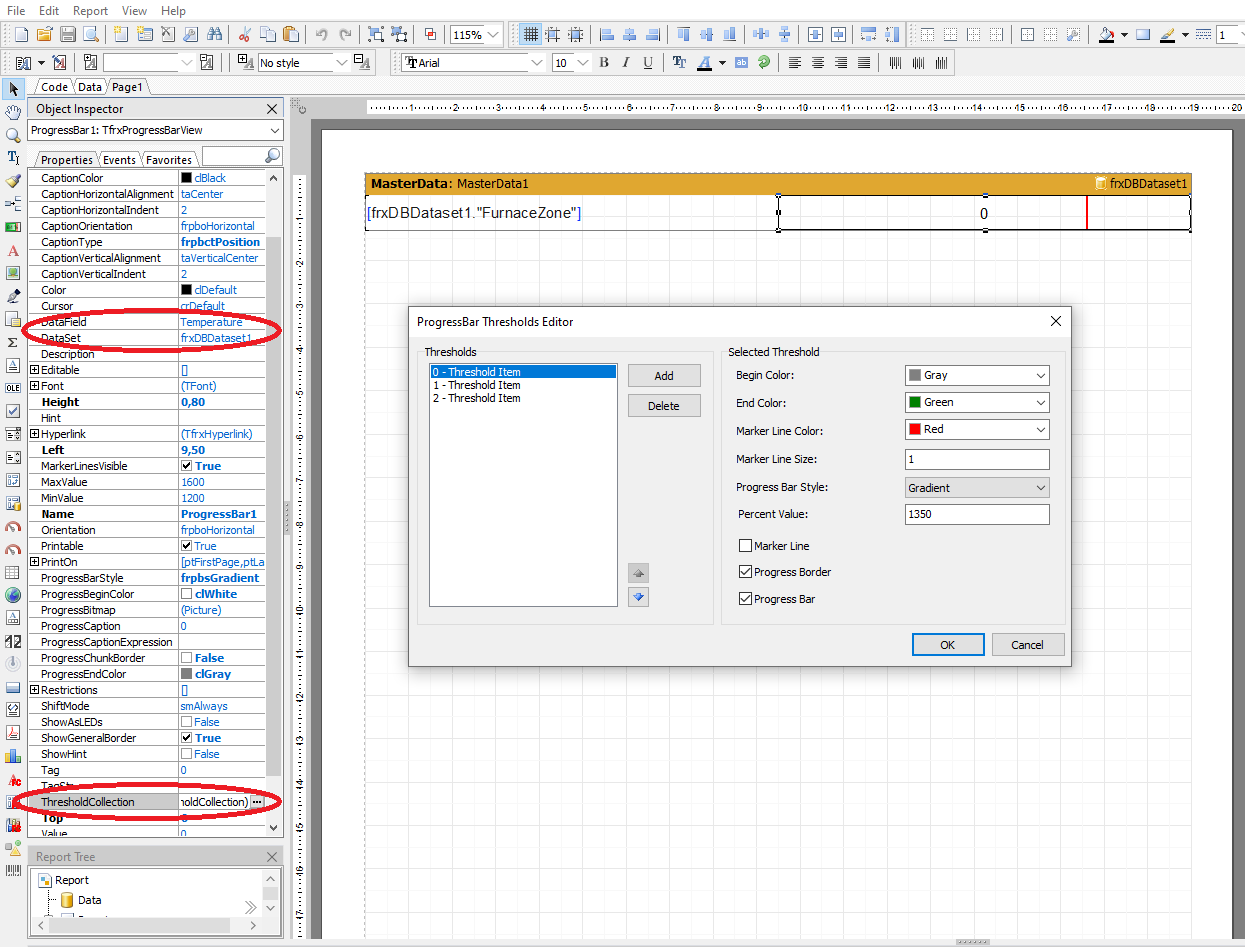
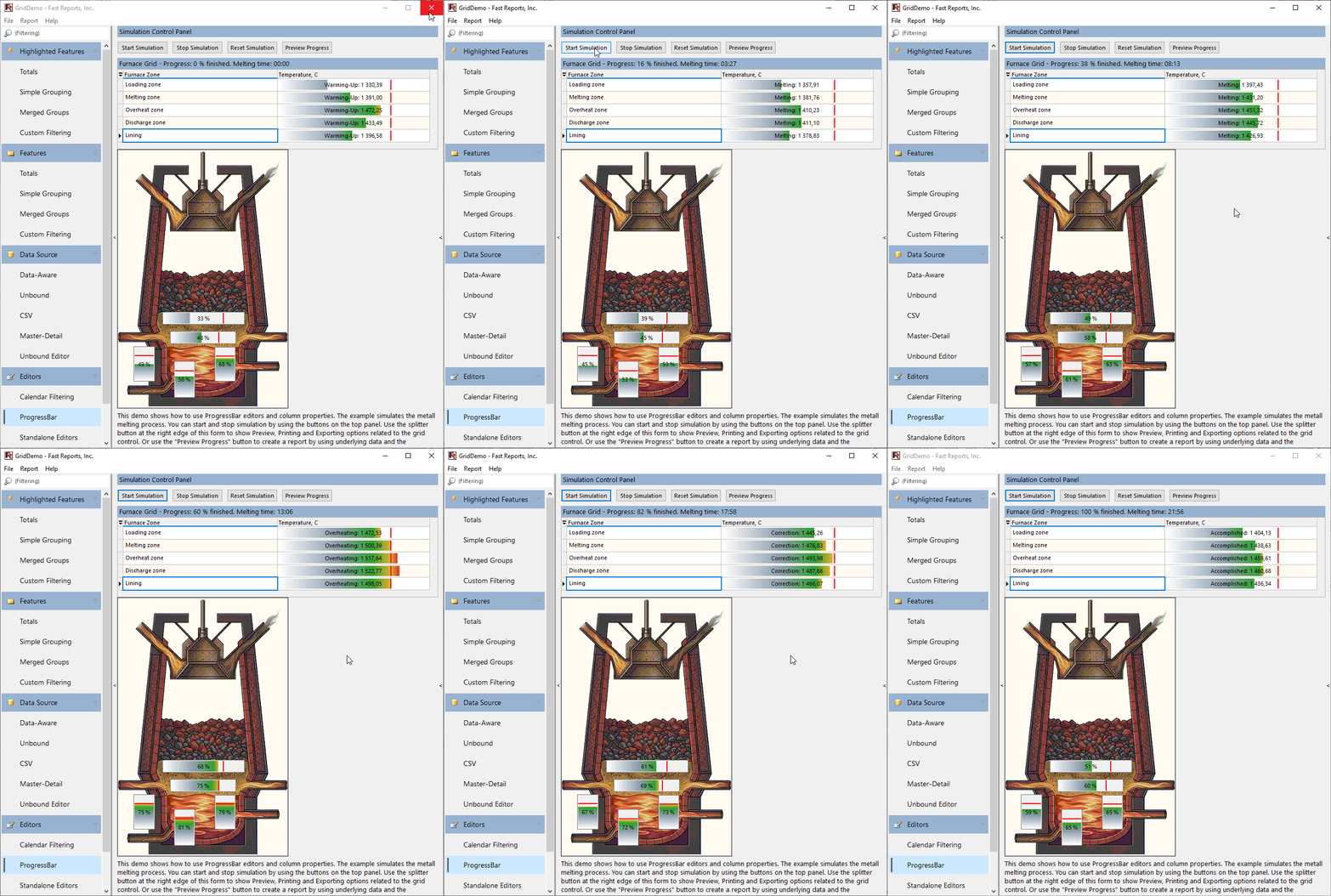
The result is a small application that clearly demonstrates the heating and melting stages in the furnace:
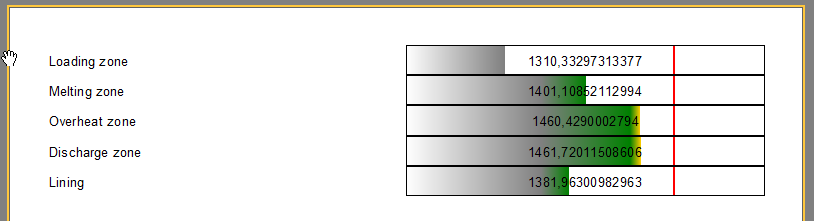
At any moment, you can obtain a snapshot of the temperature data in the form of a report:
Conclusion
The TfrProgressBar and TfrxProgressBar components — convenient tools that allow you to add visual progress indication not only to the user interface of your application, but also to reports. Data binding, embedding in grid cells, flexible settings for scale and text styles — all this makes it easy and quick to present information in a form that is easy to perceive.
If your tasks include process monitoring, KPI dashboards, or task progress reports — download the latest version of FastReport VCL Ultimate, open the FastGrid demo project and try the new progress indicator on your own data.