TfrImageComboBox: A drop-down list with images and text captions in FastReport VCL

A clear visual interface saves the user’s time: when a recognizable icon is displayed next to an option’s text — a country flag, a payment system logo, a color-coded status indicator — selecting the right item takes seconds instead of deciphering plain lines. It is for exactly such scenarios that the FastEditors VCL component suite, which is included in the FastReport VCL Ultimate, has gained a new control — TfrImageComboBox.
TfrImageComboBox — is an editor with a drop-down list in which each item combines a key value, an image from TImageList, and a text caption. It has no direct counterpart in the standard component palette. The component supports horizontal alignment of images and various options for shifting text horizontally and vertically — both in list items and in the editor field.
In this article, we take a detailed look at the component’s properties and events, show typical scenarios for its use in the user interface, and provide a step-by-step example you can start working with today.
Component Features
The ImageComboBox component is available in the IDE on the FastEditors VCL palette and is designed for selecting images with text captions from a drop-down list and then displaying them in the editor field.
Key features of TfrImageComboBox:
- selecting an item from a drop-down list with an image and a caption, and displaying the selected option in the editor field;
- a collection of list items, where each item contains a key value, an image index from the associated TImageList, and a caption for it;
- horizontal alignment of images and flexible options for shifting text horizontally and vertically — both in the list and in the editor field;
- searching and filtering the drop-down list by the text captions of items;
- customizable appearance separately for the editor field and for the list;
- built-in support for FastGrid: the component can work directly in table cells.
Let us look at the main properties that distinguish this component from other editors in the FastEditors VCL suite.
Component Properties
Properties Responsible for Selecting a List Item
Value — the current key value of the selected list item. You can write a value of the Variant type here, and if the component finds this value in the collection of items, it will automatically display the corresponding image and caption in the editor field. If ImageComboBox is used inside a FastGrid component cell, the value of that cell is automatically substituted as the Value.
ItemIndex — the index of the selected item in the drop-down list. If the Value does not match any key value of the list items, this property equals -1.
Selected — the property that contains the selected list item of the TfrImageComboBoxItem type.
Properties Responsible for Drop-Down List Behavior
Properties.AutoDropDown — determines whether the drop-down list can be shown automatically when the user starts typing in the editor field.
Properties.DropDownCount — the maximum number of rows displayed in the drop-down list. If this value is 0, the component will try to display as many list items as fit on the monitor screen.
Properties.ShowDropdownWindow — determines whether displaying the drop-down list of items is allowed.
Properties.IncrementalFiltering — determines whether searching and filtering by the text captions of list items is enabled.
Properties Responsible for the Default Display
These properties determine what the component will show if the Value does not match any of the list items:
- Properties.DefaultCaption — sets the text caption that the component will display by default if the Value does not match any of the list items.
- Properties.DefaultImageIndex — sets the image index in the associated TImageList component. The component will display this image by default if the Value does not match any of the list items.
Properties Responsible for Appearance
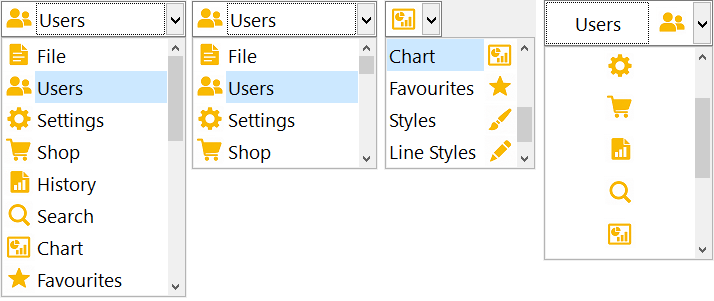
Properties.Layout — a set of properties that control the alignment of text and image in the editor field.
Properties.DropdownItemLayout — a set of properties that control the alignment of text and image in the items of the drop-down list.
Properties.DropDownWidth — the width of the drop-down list. If it is 0, the drop-down list has the same width as the TfrImageComboBox component itself.
Properties.ImageMargin — a margin that adjusts the position of the image in the editor field and in the drop-down list.
Properties.ItemHeight — the height of a list item. With a value of 0, the height is calculated automatically. But if you need to draw a list item manually using the Properties.OnCustomDrawItem event, it is convenient to set this property to a value other than 0.
Properties Responsible for Data
Properties.ItemImages — the ImageList component that contains the images for the collection of drop-down list items. If this property is nil, the images will not be displayed, but the ability to display text will remain.
Properties.Items — the collection of drop-down list items. Each item has the following properties:
- Caption — the text caption or description of the image;
- ImageIndex — the image index from Properties.ItemImages;
- Tag — an additional reserved property of the Integer type;
- Value — the key value of the Variant type that is written to the component’s Value property when this list item is selected.
Events
Properties.OnDropDown — the event fired when the list of items appears.
Properties.OnCloseUp — the event fired when the list of items is closed.
Properties.OnCustomDrawItem — the event for drawing list items manually. For example:
procedure TForm1.frImageComboBox2PropertiesCustomDrawItem(Sender:
  TfrImageComboBoxCustomProperties; ACanvas: TfrCustomCanvas;
  AItemViewInfo: TfrImageComboBoxItemViewInfo; var DefaultDraw: Boolean);
var
  LText: string;
  LTextRect: TRect;
begin
  DefaultDraw := False;
  LText := 'Item ' + Sender.Items[AItemViewInfo.SourceItemIndex].Caption;
  LTextRect := AItemViewInfo.ItemRect;
  ACanvas.FillRect(LTextRect, clWhite);
  ACanvas.DrawFocusRect(LTextRect);
  ACanvas.DrawText(LTextRect, LText);
end;
These properties allow you to configure the visual display style and behavior separately for the editor field and for the drop-down list:
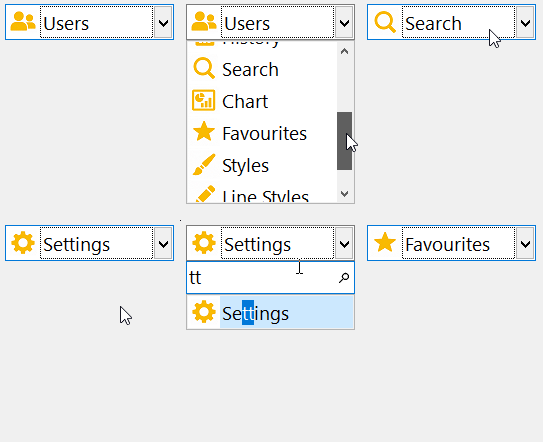
In the drop-down list, you can search and filter images by the content of their captions: just start typing in the editor field, and the list will show only the matching items.
Where to Use the Component: Typical Scenarios
TfrImageComboBox is especially useful wherever choosing from a list benefits from a visual image next to the text. Here are typical user interface elements where the component really shines:
- Selecting a Status or Priority — "New / In Progress / Closed", "Low / Medium / High" with colored icons. A classic for task trackers and CRM systems.
- Selecting a Country or Region — flag + name. Convenient in address forms, user profiles, and delivery settings.
- Selecting a Currency — symbol or flag + code (USD, EUR). In financial and accounting projects.
- Selecting a File or Document Type — Word/Excel/PDF icon + description. In document management and attachment upload modules.
- Selecting a Product or Service Category — category icon + name. In catalogs, price lists, and inventory management.
- Selecting a Payment or Delivery Method — payment system or carrier logo + caption. At checkout.
- Selecting a Language or Locale — flag + language. In application settings.
- Selecting a User Role — role or permission icon + name. In admin panels.
- Selecting the State of Equipment or a Sensor — "Normal / Warning / Alarm" with colored indicators. In SCADA systems and monitoring.
- Selecting a Communication or Contact Type — phone, email, and messenger icons. In customer cards.
How to Quickly Start Using the Component
You can connect TfrImageComboBox to your project in a few steps:
- Find TfrImageComboBox on the FastEditors VCL component palette and place it on the form. If you need to embed TfrImageComboBox in FastGrid cells, instead select the "ImageComboBox" type in the drop-down list of the Properties of the desired column.
- Place a standard TImageList component on the form.
- Fill the TImageList with images.
- Assign the TImageList component to the TfrImageComboBox.Properties.ItemImages property using the drop-down list in the Object Inspector.
- Fill the TfrImageComboBox.Properties.Items collection using the property editing dialog or in code. For example:
procedure TForm1.FormCreate(Sender: TObject);
var
  I: Integer;
  LItem: TfrImageComboBoxItem;
begin
  frImageComboBox1.BeginUpdate;
  try
    for I := 0 to 9 do
    begin
      LItem := frImageComboBox1.Properties.Items.Add;
      LItem.Caption := 'Item ' + IntToStr(I);
      LItem.ImageIndex := I;
      LItem.Value := I;
    end;
  finally
    frImageComboBox1.EndUpdate;
  end;
end;
And that is all — the component is ready to use.
Conclusion
TfrImageComboBox turns an ordinary list selection into a clear and convenient interface element. Images next to captions look better than the plain rows of a standard TComboBox, and filtering the drop-down list by text makes finding the right option fast and natural.
Add to this the flexible customization of the editor field and list appearance, events for manual item drawing, and built-in FastGrid support — and you get a full-fledged tool for modern interfaces of business applications: CRM systems, task trackers, catalogs, and monitoring systems.
If your project needs a neat and modern way to select options with icons and captions — try TfrImageComboBox from the FastEditors VCL suite. To get started, simply place the component on a form, connect a TImageList, and fill the Items collection as shown in the example above.