FastGrid from the Inside: The View Object, Columns, and Events of the Delphi Grid Component

In the previous article we made an overview of the main capabilities of FastGrid — the grid component for Delphi included in FastReport VCL. Now let us go one level down and examine the internal structure of the component: we will study the properties of the grid and of the visual elements it consists of, consider the View object, the columns, their properties and events, and at the end briefly touch on configuring data work.
This material will be useful for developers on Delphi and C++ Builder who use FastGrid as part of FastReport VCL or are only planning to master it.
The grid — a basic control
The grid (TfrGrid) — the main control on which all the other objects ensuring its functioning are located. Almost all the properties and events of the component are standard and are present in most VCL controls. The exception — two events specific to the grid:
- OnActiveViewChanging(Sender: TObject; AView: TfrGridCustomView; var AAllow: Boolean) — occurs before the current active View is changed and allows forbidding its activation.
- OnActiveViewChanged(Sender: TObject) — occurs after the active View has been changed.
Adding and removing various Views on the grid is performed using the component menu. When a grid is created, one View object is automatically added to it.
The grid legend
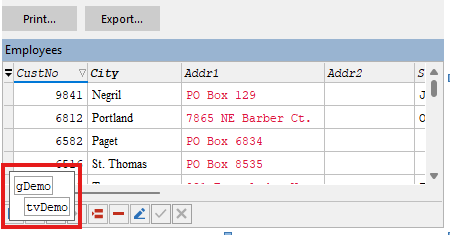
In design time, the grid also displays a legend — a small list of the objects located on the grid. It offers a menu not only for the grid, but also for the components (columns) located on it. In addition, the legend allows quickly activating any of these components. If the legend is not needed, it can be removed by setting the grid property ShowLegend := False.
The View object — the basis of data display
The View object — the main element of the grid responsible for displaying its content. The View objects can be managed using the legend. The menu of each View offers the following options (in the Unbound View some of them are absent):
- Link To DataSource — links the View to one of the available DataSources. In doing so, all the fields present in the linked DataSource are created in the grid, and the missing ones are deleted (not available in Unbound).
- Add Column — adds a new column not linked to data.
- Add Missing Columns — adds the columns that are present in the linked DataSet but are absent in the View (not available in Unbound).
- Delete All Columns — deletes all columns from the grid.
- Delete — deletes the View.
The Appearance property: a single point of configuring the appearance
When working with complex controls, you constantly deal with a large number of properties such as Color and Font, as well as properties like ParentFont. In FastGrid, all these properties are hidden inside the Appearance property. It consists of nested properties, each of which is responsible for the appearance of one or another part of the grid.
Let us consider the operation of these properties using the example of Appearance.Data — it is responsible for the appearance of the data area of the grid.
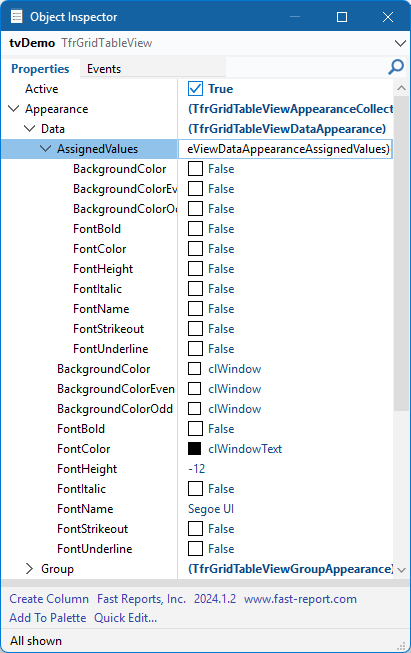
As can be seen in the screenshot, this property consists of nested properties such as BackgroundColor, FontColor, FontName и набора флагов в подсвойстве AssignedValues and a set of flags in the subproperty AssignedValues we indicate what exactly from the set of simple properties is applied directly, and what is inherited from the parent object. For example, if you set AssignedValues.FontColor to True, then when the font color of the grid changes, the font color in the data area will not change.
The Appearance are mainly used to configure the font and color of the objects containing them. In other words, they replace ParentColor, ParentFont and other properties with similar behavior, but provide more flexibility: some of the parameters can be redefined locally, while the rest is inherited from the grid.
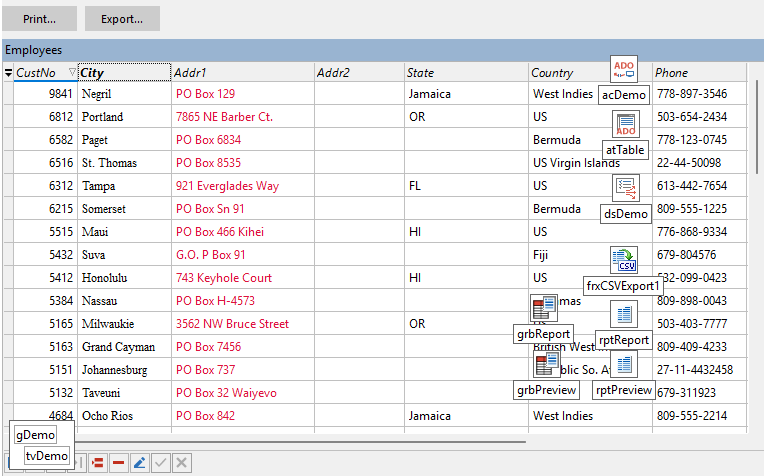
Let us check how this works on the FastGrid demo project. In Delphi, we open the GridDemo.dpr project — it is located in the «Start» menu, in the «FastReport VCL Products» folder, in the «2026.2.0-Sources-Demos» subfolder (the version number in the folder name may differ; besides, the IDE must have installed a version of FastReport that includes FastGrid). We open the DataAwareDemo.pas module and go to the form. Let us change some nested Appearance. Here is the result:
Now let us set the property directly for the grid Font.Name := 'Courier New'. This font is chosen for clarity. The appearance of the grid will become as follows:
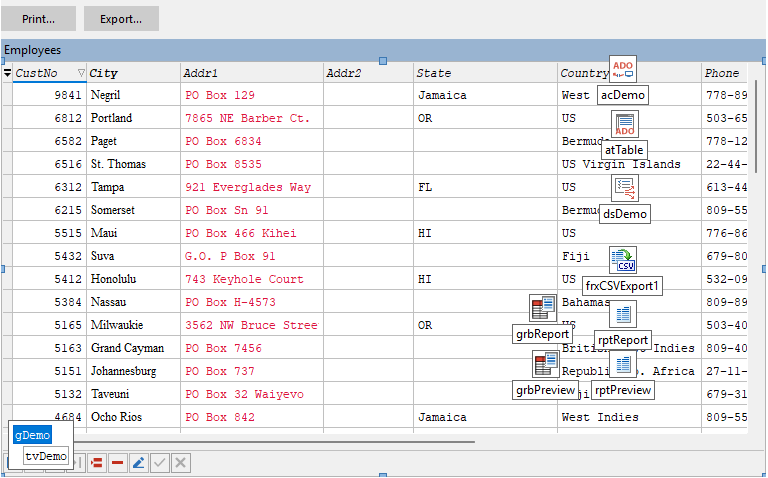
We can see that the font has changed for all the text elements of the grid, but the color and attributes remained the same. And for the City column the font remained unchanged — we set it directly for the column. This approach allows more flexible control over the display of the grid content. Note: by default all AssignedValues are set to False, that is, the values of almost all parameters are taken from the grid.
View properties
All the properties of the View object are grouped into several groups.
Active — allows setting the activity of the current View.
Appearance — determines the appearance of the View object. If the corresponding parameter in AssignedValues is set to False, the value is taken directly from the grid:
- Data — determines the appearance of the data area.
- Group — determines the properties of the groups located in the data area.
- GroupArea — determines the properties of the grouping area.
- Header — determines the properties of the column headers.
DataController — the property that provides access to data. We will consider it in more detail in the next article.
OptionsBehavior — determines the behavior of the grid. Nested properties:
- ConfirmDelete — delete operations require confirmation in a dialog box.
- UseColumnCaptionsForGroupNames — if set, when grouping in the data area, the groups are also output with the column caption.
- WantTabs — the Tab key calls a transition to the next column of the grid, not to the next control of the form.
OptionsCustomization — allows the user to perform certain operations: data filtering, grouping and sorting; hiding, moving and resizing columns, and others. These operations can be overridden by a similar property for each column.
OptionsData — allows the user to perform operations with the grid data: insertion, addition, deletion and editing.
OptionsDataNavigator — allows configuring the data navigator: its position, alignment to the sides of the grid, as well as the size of the buttons, their appearance and the set of displayed buttons.
OptionsView — allows configuring the appearance of the grid. Let us consider some subproperties in more detail:
- EditButtonsVisibility — determines the display of buttons when editing the grid:
- ebvActiveCell — only at the currently edited cell;
- ebvActiveRow — in the cells of the currently active row;
- ebvAlways — at all cells that have buttons.
- By default — ebvActiveCell.
- GroupRowHeight, HeaderHeight, RowHeight — the height of the group row, the header and the data row respectively. If 0 is set (default), the height is calculated based on the height of the installed font.
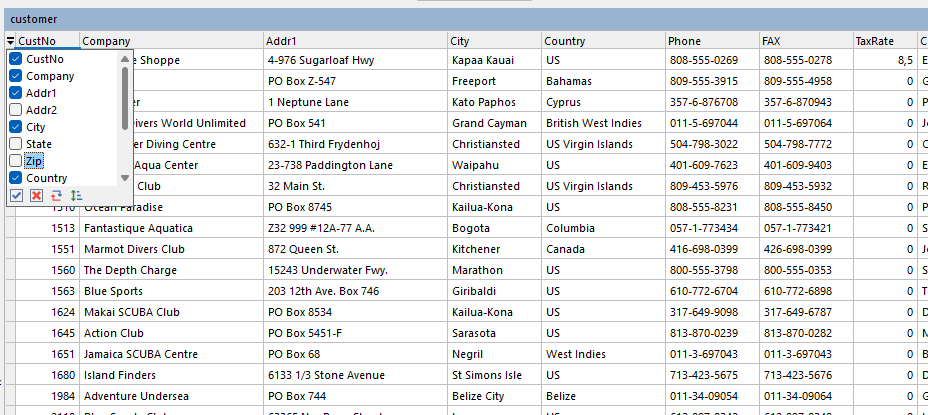
- ShowColumnListButton — allows showing the list of columns for hiding; the button is located in the upper left corner of the grid. By default, the display is allowed. Using this list, the user in run mode can control the visibility of the grid columns.
- ShowDataNavigator — display of the data navigator. The navigator properties themselves are located in OptionsDataNavigator. By default, the navigator is not shown.
- MergedGroupSeparator — the separator that is used if a group is organized from several fields: in this case, the field values are separated by the value of this property.
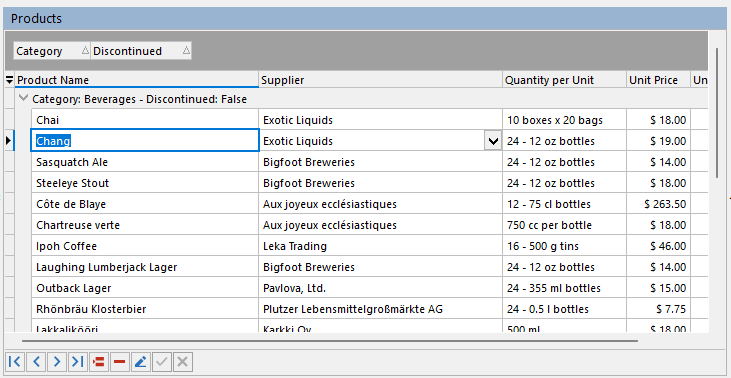
- ShowGroupingArea — allows showing the grouping area. Column headers can be dragged into this area in order to group data by the content of the columns. By default, the area is shown. Note that grouping does not require its visibility: it is only needed so that the user of the program can perform grouping.
- ShowHeaders — allows showing the column headers (enabled by default).
- ShowIndicator — allows showing the data indicator (enabled by default).
- Visible — determines the visibility of the View.
Working with the View from code
The View objects can also be worked with from code. A new object can be created with the following construction: frGrid.Views.CreateView(TfrGridTableView).
For deletion — remove the View from the list of Views of the grid (frGrid.Views.Remove(View)) or simply call View.Free. If it is required to programmatically switch to another View, it is enough to set View.Active := True.
The current active column of the View can be determined using the property View.Controller.FocusedColumnIndex.
The View object provides many events that the programmer can use: both standard ones, such as OnKeyDown, and grid-specific ones — their purpose is generally clear from the names. An interesting feature of the set of View events (and not only of them) — the presence in some events of the parameter var AAllow: Boolean. By setting this parameter to False in the event handler, the programmer can easily forbid one action or another. For example, by setting it in the OnEditing handler, we forbid switching to edit mode for the current cell.
View events
Let us consider some of the View events in more detail.
- OnCellClick(Sender: TObject; AButton: TMouseButton; AShift: TShiftState; var AHandled: Boolean) — occurs when the mouse is clicked on a cell. If AHandled is set to True, the column handler will not be called, and the built-in editor will not open. Such behavior can be useful in order to forbid editing cells under certain conditions or to organize editing of cell values by alternative means.
- OnEditing(Sender: TObject; AItem: TfrGridViewItem; ARowIndex: Integer; var AAllow: Boolean) — occurs when the cell switches to edit mode. When AAllow := False is set, editing of the cell will be forbidden.
- OnFilterPopupDropDown(Sender: TObject; AItem: TfrGridViewItem; APopupWindow: TfrGridItemFilterPopupWindow) — occurs when the user clicks the filter icon in the column header. APopupWindow — the window with information about the filters that will be shown to the user.
- OnFilterPopupCloseUp(Sender: TObject; AItem: TfrGridViewItem) — occurs upon the completion of the user work with the drop-down filter list.
- OnGetCellBackgroundColor(Sender: TObject; AItem: TfrGridItem; ARowIndex: Integer; var AColor: TColor) — allows setting the background color of the grid cell.
These events have common elements. In all the handlers, the AItem parameter — a reference to the table column, and ARowIndex — the number of the data row in the DataController linked to the grid.
Columns: properties and events
The View contains a set of columns. Columns can be added both in the form editor of the IDE and at program run time. Let us consider the main properties of a column.
Appearance — determines the appearance of the column:
- Data — determines the appearance of the data area of the column. If AssignedValues = False, the values are taken from the same-named View property.
- Header — determines the appearance of the column header. If AssignedValues = False, the values are taken from the same-named View property.
Caption — the column caption.
DataBinding — the property that determines the data binding of the column. It will be considered in more detail below.
GroupIndex, MergedGroupIndex — the index of the group in which the column is located, and the index of the column in this group. By default they equal -1 (the column is not included in the group). By changing these properties, you can directly control grouping in the grid — create and delete groups. If the display of the grouping area is allowed, the user in run mode can create and delete groups independently: it is enough to drag the column header into the grouping area. In doing so, the column disappears from the list of visible ones, but the data in the grid will be grouped by the value of the field of this column. Note that the grid will always perform sorting by this column.
Grouping can be multi-level — just drag the required column headers. And if you drag the column header with the Ctrl key pressed, you can create a group based on several columns. If grouping is no longer needed, drag the column header from the grouping area back into the grid.
Index — the visible index of the column on the screen. By changing this property, you can directly change the position of the column in the grid.
MinWidth — the minimum width of the column. Note: by default this value is not 0, but 20.
Options — this property allows configuring which actions exactly the user can perform with the column: switching it to edit mode, filtering by the column data, grouping, hiding the column, resizing it, moving it, changing the column data, sorting, as well as showing it in the column list. As can be seen, this list of actions is practically analogous to the one located in View.OptionsCustomization.
Properties — with this property you can set the editor to be used in the column. If the property is not set, the grid will try to select an editor based on the column data type. And if you assign to this property a value from the drop-down list, it can then be expanded and the properties of the set editor can be configured. The editors will be considered in more detail in a separate article. For now let us note that the editor is responsible not only for editing the value of a single cell, but also for displaying the values of the entire column. The editors are also available as separate components. Note that access to the editor properties is possible only if the editor is set explicitly: for the default editors there is no possibility to configure properties.
SortOrderIndex, SortOrder — these properties can be used to set the sorting of the grid fields. The SortOrderIndex field is responsible for the priority of the field in sorting: sorting is first performed by the field with SortOrderIndex = 0; if the values in this column match, we sort by the column with SortOrderIndex = 1. If you set SortOrderIndex = -1, no sorting is performed by this column.
The property SortOrder determines the sorting order: soNone — no sorting, soAscending — ascending sorting, soDescending — descending. Note that the user can also set the sorting of columns at run time: it is enough to left-click on the column header. On repeated clicking, the sorting order changes to the opposite. The sorting will be performed by the column whose header was clicked. To cancel the sorting, it is enough to click on the column header with the Ctrl key held down. And if the Shift key is held down when clicking, sorting by several columns at once can be performed.
Columns from code
A column can be created from code using the method View.Columns.CreateColumn. An editor for it can be set by assigning to the property Column.PropertiesAlias a string with the editor name, or by setting the property Column.PropertiesClass the class type of the editor.
The list of columns of the View can be cleared using the method View.Columns.Clear. The properties Columns.VisibleCount and Columns.VisibleItems — with their help you can get access only to the visible columns, and the columns themselves in this list will be ordered by their position on the screen.
Column events
Let us consider the events of the data column. As already mentioned, some of the column events are analogous to the View events.
- OnCellClick(Sender: TObject; AButton: TMouseButton; AShift: TShiftState; var AHandled: Boolean) — occurs when clicking on a cell.
- OnGetCellBackgroundColor(Sender: TObject; ARowIndex: Integer; var AColor: TColor) — allows setting the background color of the cell.
- OnGetDisplayValue(Sender: TObject; ARowIndex: Integer; var AValue: Variant) — allows obtaining the value for display in the cell.
- OnGetFilterDisplayText(Sender: TObject; const AValue: Variant; var AText: string) — allows obtaining the value for display in the filtering list.
- OnGetHeaderBackgroundColor(Sender: TObject; var AColor: TColor) — allows setting the background color of the column header.
Configuring data work: the DB and Unbound modes
At the end of the article, we will briefly consider configuring the grid for data work at the level of setting properties. As we already know, the grid can work with data in two modes: DB and Unbound.
Режим DB
In the DB mode, the grid is linked to data using the standard TDataSource component, similarly to how, for example, the standard TDBGrid component does it. After setting in the Object Inspector View.DataController := 'DB' you can expand this property and specify the required TDataSource. And after setting the DataSource, you can go through the columns and in the DataBinding.FieldName property of each column specify the name of the required data field. The DataBinding.FieldType property cannot be changed — its value is taken from the linked data field of the DataSource.
The Unbound mode
In the Unbound mode, the grid works a little differently. After setting View.DataController := 'Unbound' the grid switches to working with the data that is stored in the grid itself. To define the columns of the data set, you first need to create them — for example, from the popup menu of the View in the legend, — then go to the column objects and in the DataBinding.FieldName field of each column set the data field name, and in the DataBinding.FieldType field — the data field type. After that, a corresponding field set is created in the internal storage of the grid, with which you can work.
Conclusion
We have examined the internal structure of FastGrid: the role of the grid as a basic control, the View object and its properties, the Appearance mechanism with the AssignedValues subproperty, the columns with their settings and events, as well as two modes of working with data — DB and Unbound. This is enough to configure the appearance and behavior of the grid both in design time and from code.
One last major question remains — working with data: the DataController, the DataSource binding, editing and navigation through records. It is exactly this one that we will consider in detail in the next article of the series.