How to use FastReport Core in Linux
In the previous article we have considered an example of using a new product of FastReport - the FastReport Core. That was an example for Windows. This time we will overview an example for Linux.
First of all, for Linux need additional libraries, which may not be installed by default:
- Libgdiplus;
- libx11-dev.
Usually, the xserver is not installed on the server OS Linux. However, it is necessary for processing graphics of the FastReport Core. So, we have to install it. It can be, for example: Xvfb, VcXsrv etc.
We will revert to the issue of the xserver later, but for now, let us create the ASP.Net Core application:
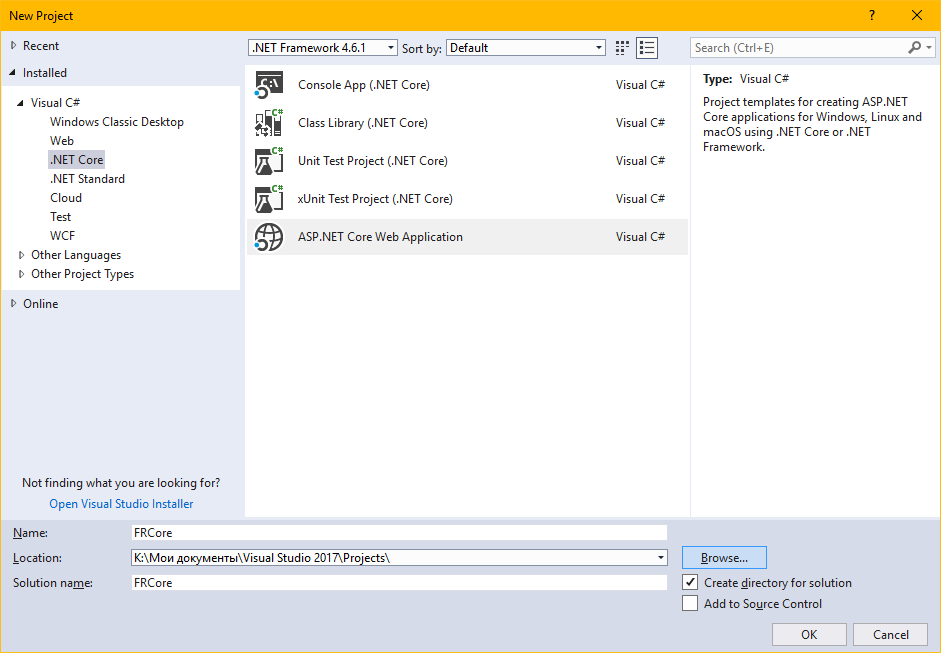
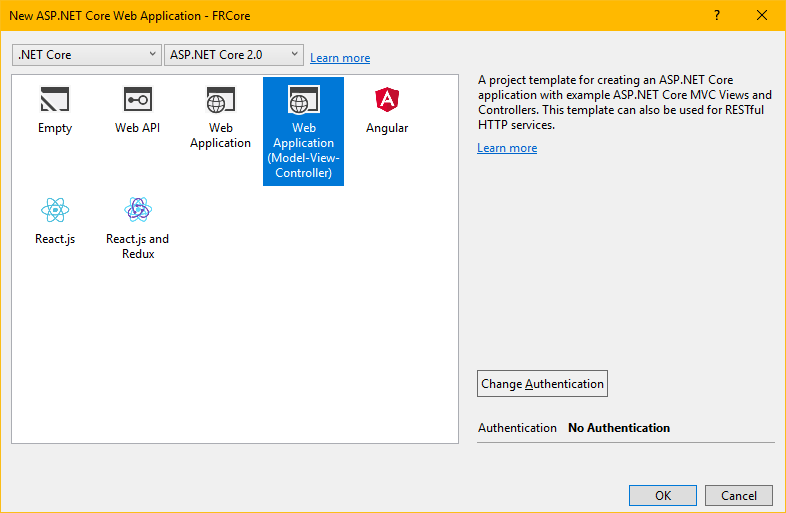
Choose a Web application:
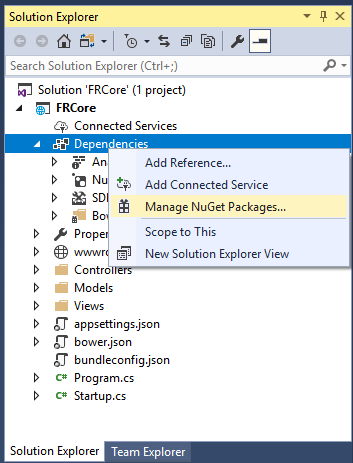
Add the FastReport Core to the project via NuGet.
We add a local repository as the source of the packages in the NuGet options:
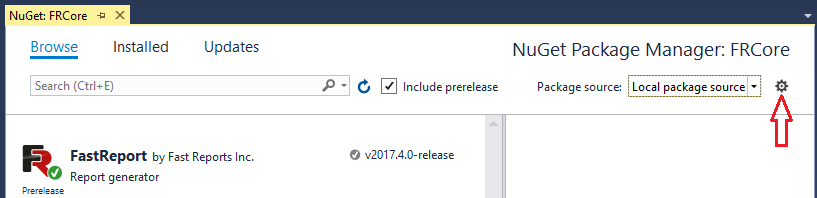
Set a reference to the local repository or a folder Service FastReport.2017.4.0-release.nupkg:
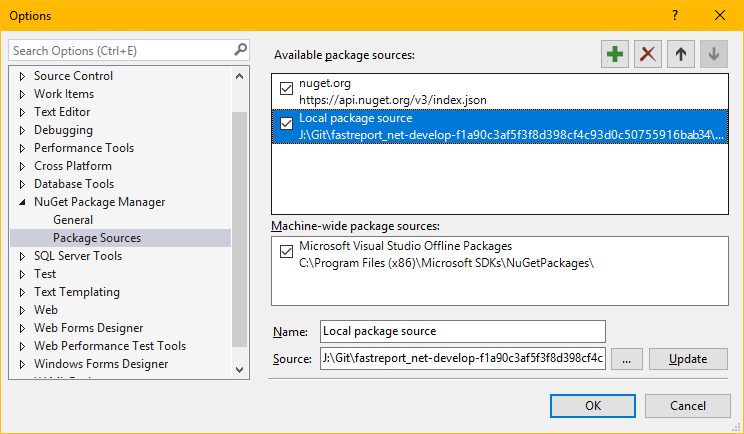
Select the local source of packages in the drop - down list and install the FastReport package.
Open the "HomeController.cs" file from the "Controllers" folder. We add several additional libraries to the uses section:
1 2 3 4 |
using FastReport; using FastReport.Export.Html; using System.IO; using System.Text; |
Let us edit the Index method:
1 2 3 4 5 6 7 8 9 10 11 12 13 14 15 16 17 18 19 20 21 |
public IActionResult Index() { Report report = new Report(); string report_path = ”Reports”; System.Data.DataSet dataSet = new System.Data.DataSet(); dataSet.ReadXml(report_path + "nwind.xml"); report.Report.RegisterData(dataSet, "NorthWind"); report.Report.Load(Path.Combine(report_path, "Simple List.frx")); report.Prepare(); HTMLExport export = new HTMLExport(); export.Layers = true; using (MemoryStream ms = new MemoryStream()) { export.EmbedPictures = true; export.Export(report, ms); ms.Flush(); ViewData["Report"] = Encoding.UTF8.GetString(ms.ToArray()); ViewData["ReportName"] = "Simple List.frx"; } return View(); |
Since the WebReport object is not yet available to us in the FastReport Core, we use a usual Report object. Create a data source and register it in the Report object. Load the report template. Prepare the report, using the Prepare () method. Next, we create an export of the finished report in HTML. We export in the MemoryStream stream (or in a file). Then we pass the report to the view using ViewData or ViewBag.
Now go on to edit the "Views -> Index.chtml" view.
The procedure is simle - we just display the report in HTML format:
1 2 3 4 5 6 7 |
@{ ViewData["Title"] = "Home Page"; } @if (ViewData.ContainsKey("Report")) { @Html.Raw(ViewData["Report"]) } |
As it was said earlier, the FRCore requires the xserver, which is not presented in the server-side Linux.
Here is an example of adjusting Linux using the debian server:
1. Open the console;
2. Update apt-get and install the packages:
- sudo apt-get update;
- sudo apt-get install -y xvfb x11vnc x11-xkb-utils xfonts-100dpi xfonts-75dpi xfonts-scalable xfonts-cyrillic x11-apps libgdiplus libx11-dev.
3. Change the environment variable. DISPLAY =: 99.
We add two methods in the Program class. The LinuxStart method checks if the xserver is being run. If so, it closes it down and creates a new one.
The StopLinux method simply stops the virtual server.
1 2 3 4 5 6 7 8 9 10 11 12 13 14 15 16 17 18 19 20 21 22 23 24 25 26 27 28 29 30 31 32 33 34 35 36 37 38 39 40 41 42 43 44 45 46 47 48 49 50 51 52 53 54 55 56 |
public class Program { static Process xvfb; const string xvfb_pid = "pid.xvfb.fr"; public static void Main(string[] args) { if (RuntimeInformation.IsOSPlatform(OSPlatform.Linux)) LinuxStart(); BuildWebHost(args).Run(); if (RuntimeInformation.IsOSPlatform(OSPlatform.Linux)) LinuxStop(); } private static void LinuxStop() { xvfb.Kill(); if (File.Exists(xvfb_pid)) File.Delete(xvfb_pid); } public static void LinuxStart() { if (File.Exists(xvfb_pid)) { string pid = File.ReadAllText(xvfb_pid); try { xvfb = Process.GetProcessById(int.Parse(pid)); xvfb.Kill(); xvfb = null; } catch { } File.Delete(xvfb_pid); } string display = Environment.GetEnvironmentVariable("DISPLAY"); if (String.IsNullOrEmpty(display)) { Environment.SetEnvironmentVariable("DISPLAY", ":99"); display = ":99"; } ProcessStartInfo info = new ProcessStartInfo(); info.FileName = "/usr/bin/Xvfb"; info.Arguments = display + " -ac -screen 0 1024x768x16 +extension RANDR -dpi 96"; info.CreateNoWindow = true; xvfb = new Process(); xvfb.StartInfo = info; xvfb.Start(); File.WriteAllText(xvfb_pid, xvfb.Id.ToString()); } public static IWebHost BuildWebHost(string[] args) => WebHost.CreateDefaultBuilder(args) .UseStartup<Startup>() .UseUrls("http://[::]:5000") .Build(); } |
The application is ready. Run it: 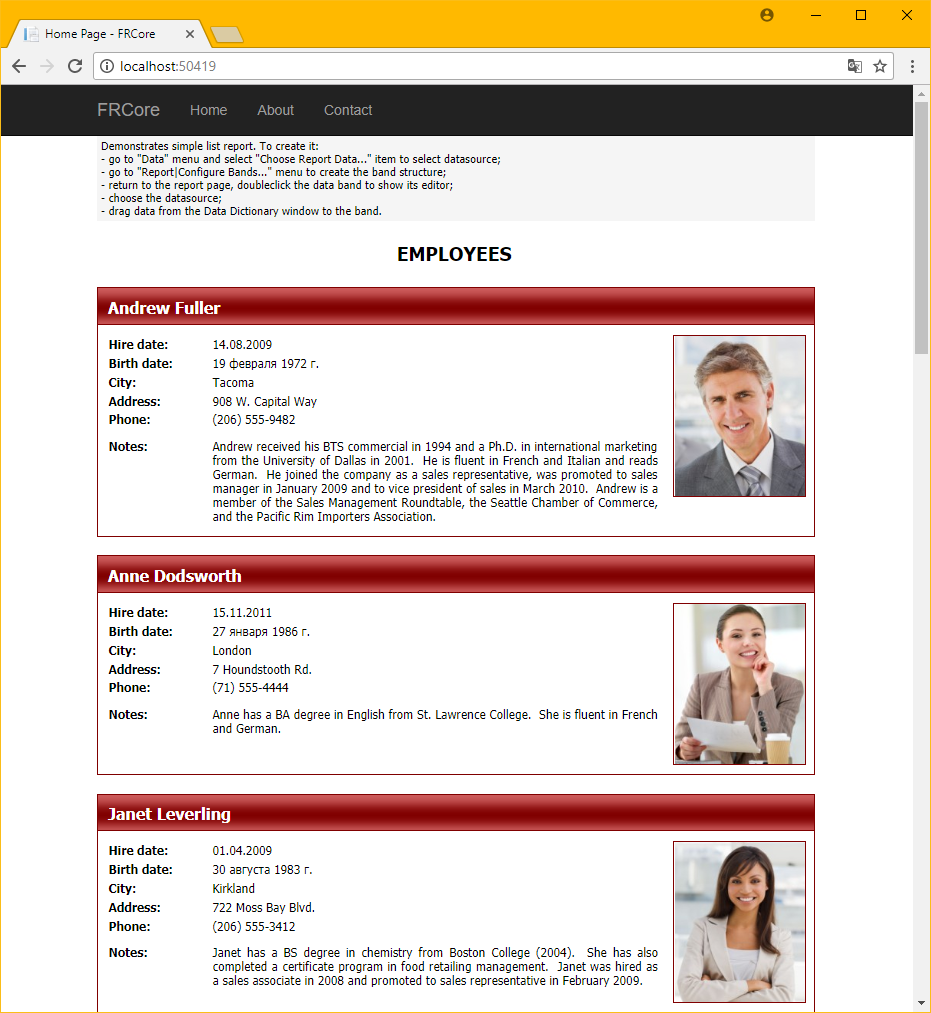
Summing up, we can conclude, that the application for Linux turned out to be just as simple as the Windows application. However, it requires some advanced settings of the operating system to work with .Net Core.