How to export a report from FastReport .NET to DXF

DXF (Drawing Exchange Format) is an open format for exchanging graphic data, developed by Autodesk for storing and transferring two-dimensional and three-dimensional drawings. Due to wide support from
various CAD systems, DXF has become one of the most common formats for exchanging engineering and technical documentation between applications.
The DXF format is used in a wide range of fields: mechanical engineering, architecture, construction, engineering network design, and other areas where working with vector graphics and drawings is required. Files of this format can be opened in AutoCAD and many other CAD applications, which makes DXF a convenient choice for transferring data between different software products.
FastReport .NET supports exporting prepared reports to the DXF format, allowing the graphic elements and text contained in them to be used in CAD systems without the need for manual data transfer.
In this article, we will consider methods of exporting a report to the DXF format, and also see what the resulting output looks like after opening the file in a CAD application.
Exporting a report to DXF through the user interface
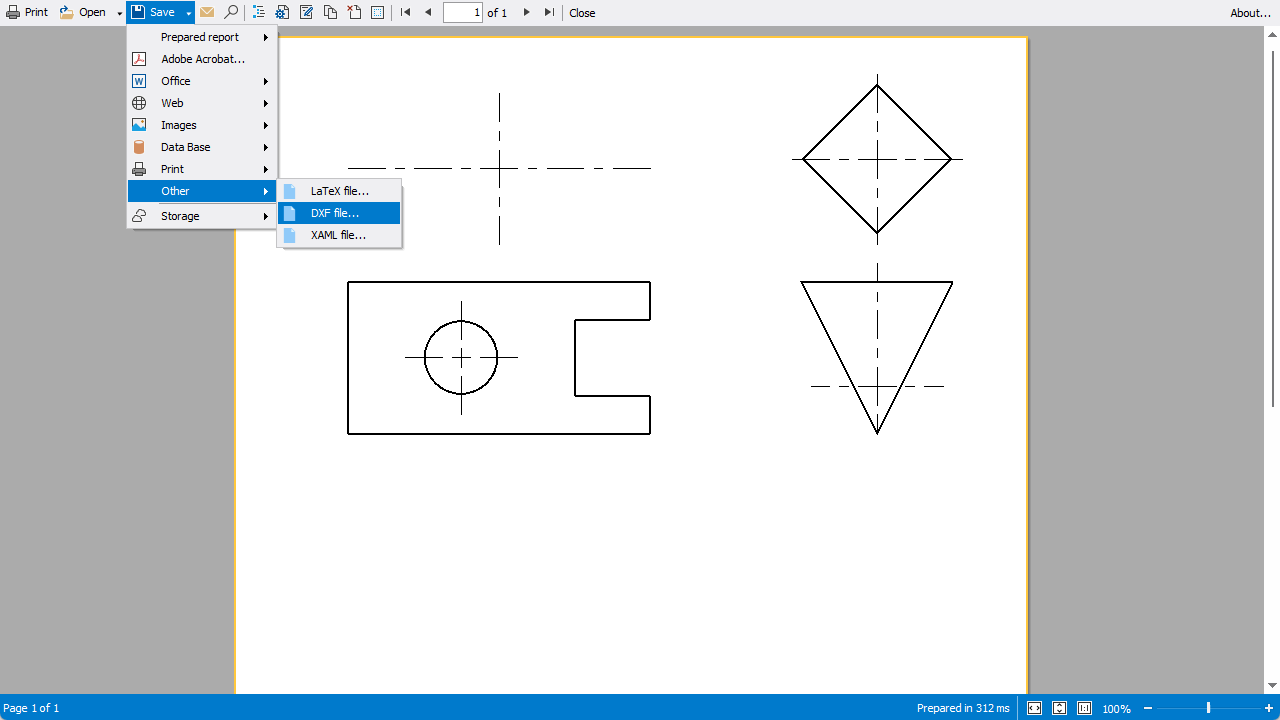
To perform the export, first prepare the report and open it in the preview window. Click the “Save” button, then in the drop-down list select “Other” and “DXF file…”.
After selecting the format, the export settings window will open. If necessary, change the export parameters and click OK.
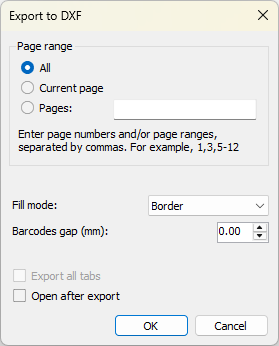
The export settings include:
- Fill mode - determines the method of processing filled objects during export. The drop-down list contains two options: “Borders only” and “Solid”. When the “Borders only” mode is selected, only the outline lines of objects are exported without taking into account the internal fill. This mode is used for preparing files where only object lines need to be displayed, for example, for subsequent cutting or processing. The “Solid” mode saves the object together with its filled area, allowing the complete appearance of document elements to be transferred.
- Barcode gaps (mm) - sets the value of the additional distance between the elements of striped objects during export. The parameter is used to configure technological gaps and prevent the merging of individual elements during subsequent processing. The value is specified in millimeters. When the value is set to 0.00 mm, no additional gap is applied, and barcodes are exported without changes.
In the opened dialog box, specify the directory for saving the file, set its name, and click “Save”. After the export is completed, a file with the .dxf extension will be created in the selected directory, ready to be opened in supported CAD systems.
Exporting a report to DXF through code
FastReport .NET allows saving prepared reports in DXF format programmatically. This method is convenient for automatic document generation, batch processing of reports, or use in server applications.
// Create a new report instance
Report report = new Report();

// Load the report
report.Load(@"C:\Reports\MainReport.frx ");

// Prepare the report
report.Prepare();

// Create a DXF exporter
DxfExport export = new DxfExport();

// Fill mode: Borders only
export.FillMode = DxfFillMode.Border;

// Fill mode: Solid
export.FillMode = DxfFillMode.Solid;

// Barcode gaps
export.BarcodesGap = 0.00f;

// Open after export
// export.OpenAfterExport = true;

// Perform report export
report.Export(export, "Report.dxf");
After executing the code, a file with the .dxf extension will be created in the specified directory, which can be opened in applications supporting this format.
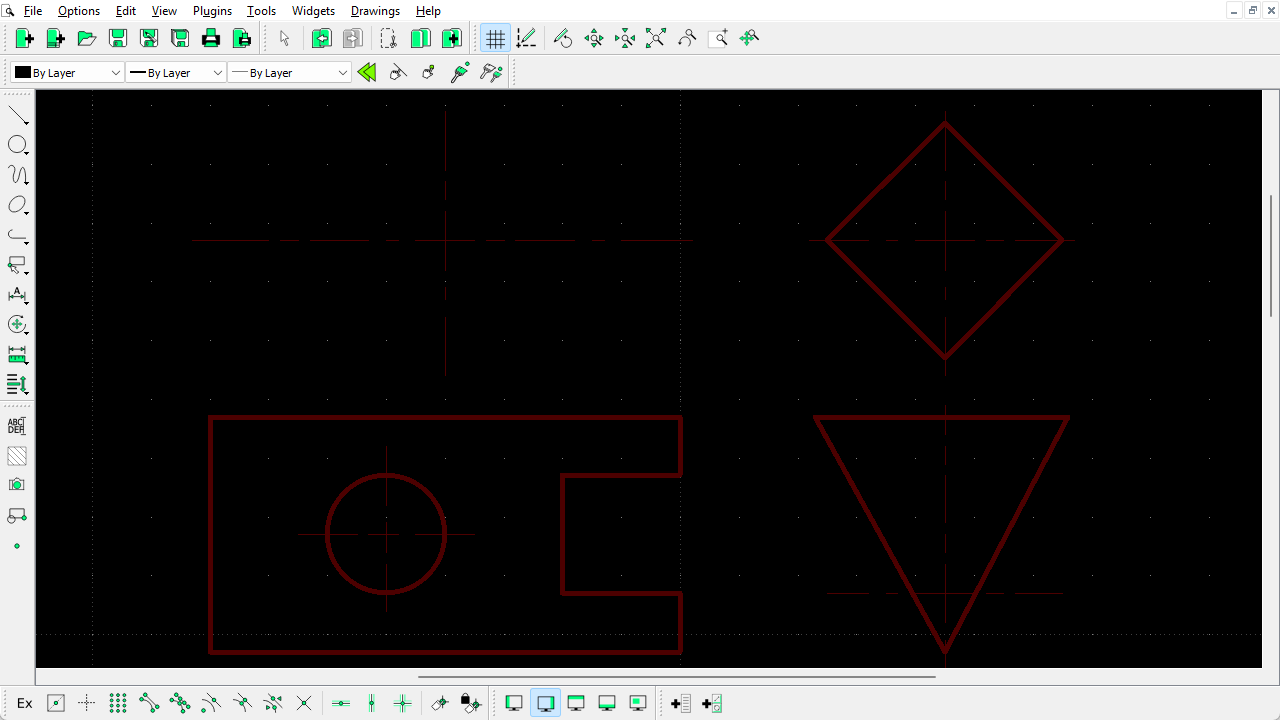
The screenshot shows that the export performed through the dialog window and through program code produces the same result. This confirms that both methods use a single export mechanism and generate identical DXF documents.
Short conclusion
We have reviewed the main capabilities of exporting reports to the DXF format, including performing export through the user interface and program code. Thanks to the support of flexible settings, FastReport .NET makes it easy to create DXF files suitable for further use in CAD systems and other applications working with vector graphics.