Exporting a report to XML from Preview in FastReport .NET
When working with reports, there is often a need to save data in XML format — for example, for further processing, transferring to another system, or integrating with external services. Previously, XML export in FastReport .NET was available only programmatically, via the XMLExport class: it was necessary to write code, set parameters, and specify the name of the resulting file.
Now, exporting a report to XML is available directly from the Preview window. The user just needs to open the report, select the XML format, and save the file. The programmatic method remains available and is suitable for automation.
Exporting XML from the Preview window
In the new version of FastReport .NET, the XML format has been added to the list of available export formats in Preview. This allows saving a report in XML without writing additional code.
To perform the export:
- Open the report in the Preview window.
- Click the Export button.
- Select the XML format.
- Configure the parameters and save the file.
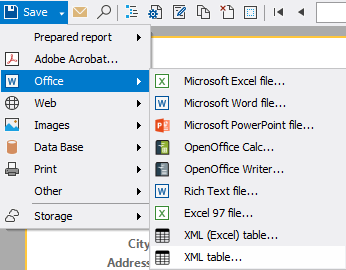
After selecting the format, a standard export settings window will open. Here you can set the required options and save the XML file to the selected folder.
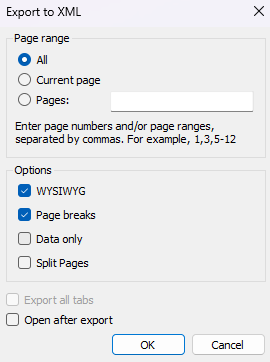
The following parameters are available in the export window:
- Wysiwyg — preserves the appearance of the original report as closely as possible to the original. If this parameter is disabled, the number of rows and columns is optimized.
- Page Breaks — adds page breaks to the resulting XML file.
- Data Only — exports only the report data, without formatting.
- Split Pages — splits the exported data by report pages.
Thus, no additional code is required for a regular export of a report to XML: everything can be done directly from Preview.
Programmatic XML export in FastReport .NET
The ability to export via code is retained. This method is convenient when an XML file needs to be created automatically — for example, when generating a report in an application or during batch data processing.
using FastReport;
using FastReport.Export.Xml;

Report report = new Report();
report.Load(@"Report.frx");
report.Prepare();
XMLExport export = new XMLExport();
export.DataOnly = true;
export.Wysiwyg = false;
export.PageBreaks = false;
report.Export(export, "result.xml");
In this example, the report is loaded from a file, prepared for export, and passed to the XMLExport object. As a result, the result.xml file is generated.
The DataOnly, Wysiwyg, and PageBreaks parameters allow controlling the content and structure of the resulting XML: exporting only data, disabling the preservation of the report’s appearance, and not adding page breaks.
Now the same export can also be performed manually — directly from Preview, without adding such code to the application.
When to use each method
| Method | When it is suitable |
| Export from Preview | For one‑time saving of a report in XML without changing the application code |
| Export via XMLExport | For automatic creation of XML files, integrations, and batch processing |
Adding XML to the list of Preview formats simplifies working with reports and eliminates the need for the user to write programmatic code for standard export.
Conclusion
Exporting a report to XML in FastReport .NET is now available in two ways: manually from the Preview window and programmatically via the XMLExport class. The first option is suitable for quickly saving a finished report, the second — for automation and integration with other systems.
Users can quickly save a report in XML format directly from Preview, configure the parameters of the exported file, and, if necessary, use programmatic export. This makes working with XML more convenient, and the choice of export method depends solely on the specific task.