How to Export a Report from FastReport .NET to Accessible PDF (PDF/UA-1)
Accessibility for people with disabilities is not merely a trend but a legal mandate in numerous countries. In the United States, the Americans with Disabilities Act (ADA) is in force, and in the European Union, the Accessibility Directive (supported by the EN 301 549 standard) applies. Both documents obligate public institutions and private companies to provide information in formats perceivable by assistive technologies.
A standard PDF without accessibility considerations is simply a collection of visual elements on a page. Screen readers (programs that vocalize screen content and are used by people with visual impairments) cannot discern headings, tables, or decorative frames. To address this, the International Organization for Standardization (ISO) developed the PDF/UA (PDF for Universal Accessibility) standard, formally designated as ISO 14289-1. This is the first fully accessible standard published by ISO, and the distributed document itself complies with PDF/UA.
Support for PDF/UA-1 has been implemented in the FastReport .NET report generator starting with version 2027.1, enabling developers to create accessible documents without relying on third-party tools.
In this article, we will:
- Examine what PDF/UA-1 is and how an accessible PDF differs from a standard PDF;
- Demonstrate how to configure report export in FastReport .NET to PDF/UA-1 via the user interface and C# code;
- Explain which document structure FastReport generates automatically and what needs to be configured manually;
- List the tools for verifying the generated file's compliance with the standard.
What is PDF/UA-1?
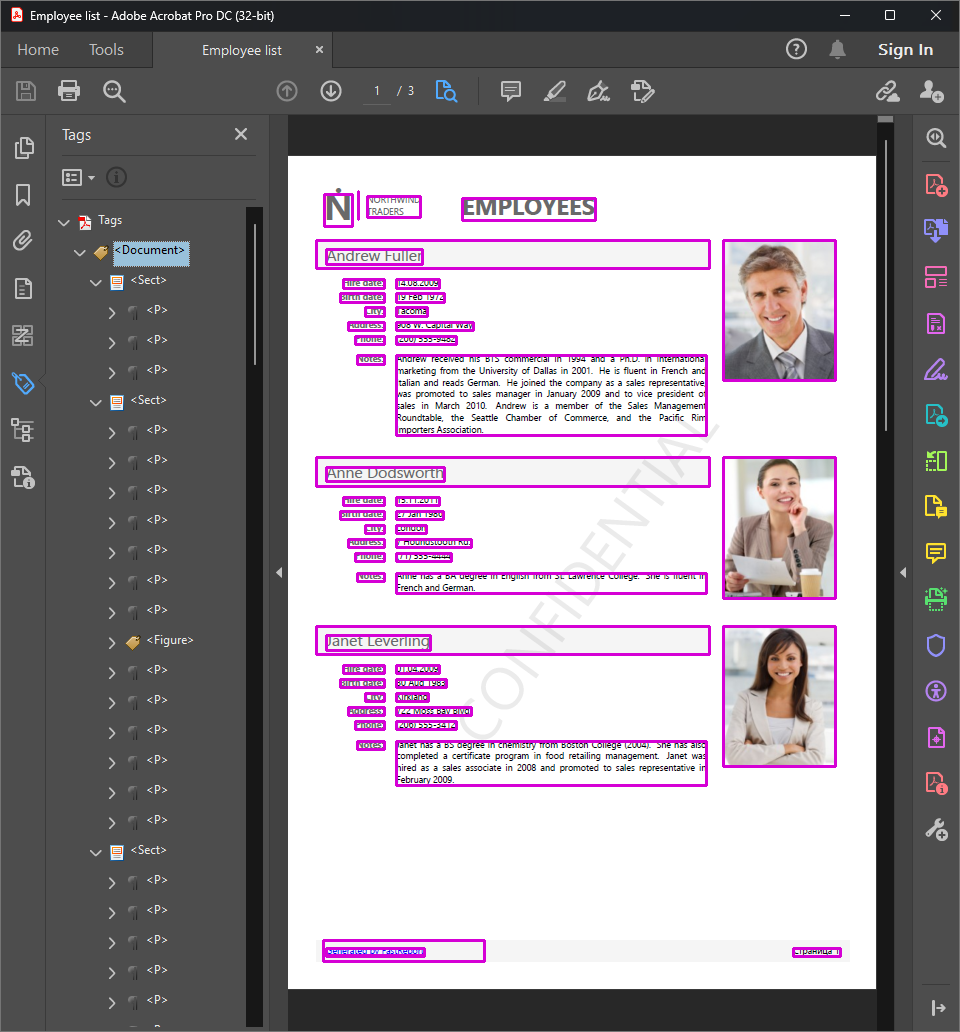
Visually, a PDF/UA document is indistinguishable from a standard PDF: it features the same pages, fonts, colors, and images. The difference lies within the file—it contains a "structural backbone": a tag structure that informs the screen reader where a heading or a table is, what content resides in specific cells, where an image is and what it depicts, where a link begins and ends, and in what order the document should be read. Decorative elements—such as lines, frames, and page backgrounds—are marked separately, ensuring the screen reader ignores them rather than vocalizing them.
Export via the User Interface
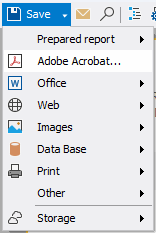
To export a report to PDF, use the "Save" button on the designer toolbar and select "Adobe Acrobat..." from the drop-down menu.
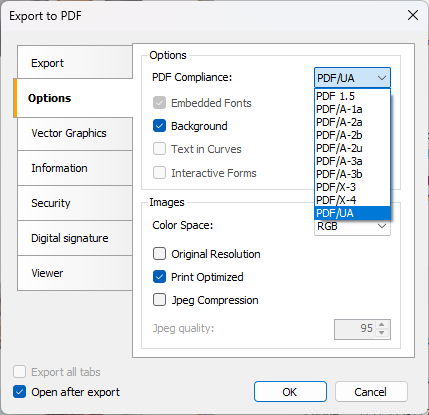
Three parameters must be configured in the export dialog:
- "Options" tab, "PDF Compliance" field — select PDF/UA from the drop-down list. The export process generates a document complying with the PDF/UA-1 standard (ISO 14289-1:2014). Other dialog parameters (font embedding, image compression, etc.) function as usual.
- "Information" tab, "Title" field—the name of the document. This is a mandatory field for PDF/UA; without a title, the document will fail validation by checkers such as PAC (PDF Accessibility Checker).
- "Information" tab, "Document language" field—the language of the document formatted as en-US, de-DE, etc. This field is active only when the PDF/UA standard is selected, as specifying the language is a mandatory requirement of the standard. If left blank, the current system language will be used, though explicitly defining the language is highly recommended.
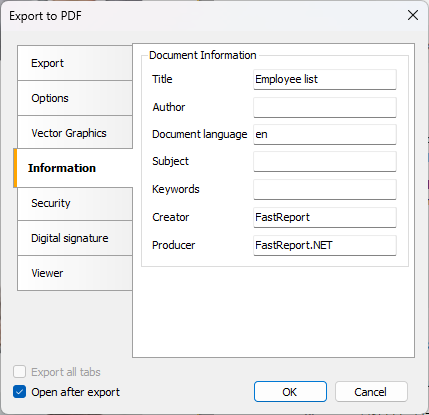
This completes the export configuration; the generated file now fully complies with the PDF/UA-1 standard.
What FastReport Generates Automatically
Exporting to PDF/UA automatically generates the document structure from the report content:
| Report Element | Document Output |
| Text object | Paragraph |
| Table | Full table structure: rows, headers, and data (the first row and first column are treated as headers) |
| Image | Figure with alternative text (if the text is not specified, the object name is used, which is not recommended) |
| Hyperlink | Link (the screen reader vocalizes the link text instead of the URL) |
| Digital signature field | Form element |
| Lines and shapes without a role, empty text objects, page backgrounds, watermarks, and cell borders | Decorative element (Artifact)—the screen reader skips it |
This approach covers most reports without requiring any additional layout adjustments—simply selecting PDF/UA in the export dialog is sufficient.
Configuring Document Structure in the Designer
The automatic structure represents a reasonable minimum, but report developers can refine it. A new PDF/UA category with two properties has been added to the report object properties:
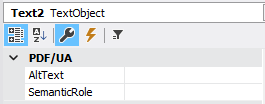
- SemanticRole – the element's role in the document structure.
| Value | Purpose |
| H1…H6 | Document headings. The screen reader builds a table of contents from them, allowing the reader to navigate through the document |
| P | Regular paragraph (the default for text) |
| Figure | A meaningful image or chart |
| Table, TR, TD, TH | Table structure |
| Form | Form field |
| Link | Hyperlink |
- AltText – the alternative text for the element. For images, this is a description of what is depicted (e.g., "Sales chart for 2026"). If a description is not provided, the screen reader vocalizes the object's name, which is typically uninformative. AltText is also used for links; if left blank, the link text itself is vocalized.
Typical use cases:
- Report title—set
SemanticRole = "H1"for the text object. - Logo or brand block—set
AltText = "Company logo". - A line or shape conveying meaning (e.g., a chart or diagram)—set
SemanticRole = "Figure"and provide a descriptiveAltText; without an assigned role, the shape is treated as a decoration and is not vocalized.
Important: If a role is explicitly defined, its suitability for that specific object type is not validated. The responsibility for correct role assignment lies entirely with the report developer.
Export via C# Code
The same result can be achieved programmatically. In the example below, the PDF/UA standard, document title, and document language are defined, along with roles and alternative text for two objects:
// Load the report
Report report = new Report();
report.Load(@"C:\Reports\Invoice.frx");

// Assign roles and alternative text
((TextObject)report.FindObject("ReportTitle")).SemanticRole = "H1";
((PictureObject)report.FindObject("Logo")).AltText = "Company logo";

// Export to PDF/UA
PDFExport pdfExport = new PDFExport();
pdfExport.PdfCompliance = PDFExport.PdfStandard.Pdf_UA;
pdfExport.Title = "Title";
pdfExport.DocumentLanguage = "de-DE";

report.Prepare();
report.Export(pdfExport, "Invoice.pdf");
Verifying the Results
Any PDF/UA document can be verified using free validation tools:
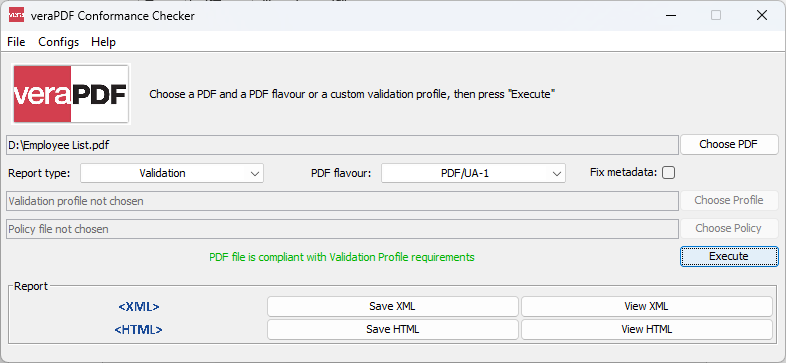
- veraPDF — a command-line validator; for PDF/UA-1, it provides a profile containing 106 rules.
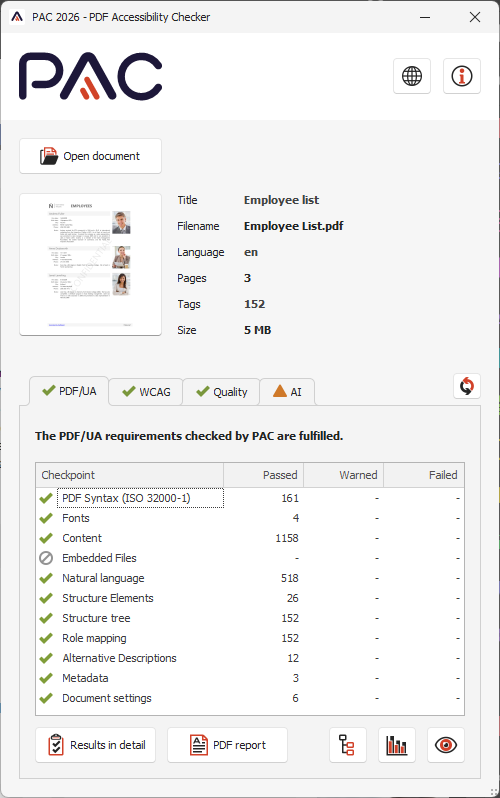
- PAC (PDF Accessibility Checker) — a more stringent validator that performs compliance checks against PDF/UA-1 and WCAG 2.2, assesses quality, and provides an AI-driven accessibility analysis. Note that AI checks can sometimes generate false positives, but this does not affect the document's actual compliance with the PDF/UA-1 standard.
Conclusion
The built-in support for PDF/UA-1 in FastReport .NET enables the generation of fully accessible documents without relying on third-party tools. Document structure tagging is handled automatically, meaning that by default, report developers only need to provide alternative text for meaningful images and select the PDF/UA standard in the export settings. If necessary, these tags can be further refined directly through object properties.