How to Freeze Rows and Columns When Exporting from FastReport .NET

When working with large tabular reports, it is often necessary for row or column headers to remain visible while scrolling. This is especially convenient if the report contains a lot of data: the user can see column names, row numbers, or other important elements even when navigating to the bottom or right part of the table.
In FastReport .NET, you can configure cell freezing when exporting a report to OpenOffice Calc (ODS) and Excel formats. In this article, we will look at how to freeze the first row, the first column, or define a custom freeze area for each page of the report.
Freezing cells when exporting to OpenOffice Calc
Previously, when exporting a report to ODS format, rows and columns were not frozen. After opening the file, the user had to manually configure freezing in the office application. These actions had to be repeated for each exported document.
The new version of FastReport .NET introduces the ability to set cell freezing directly when exporting to OpenOffice Calc. Now you can pre‑specify which rows and columns should remain visible when scrolling through the resulting ODS file.
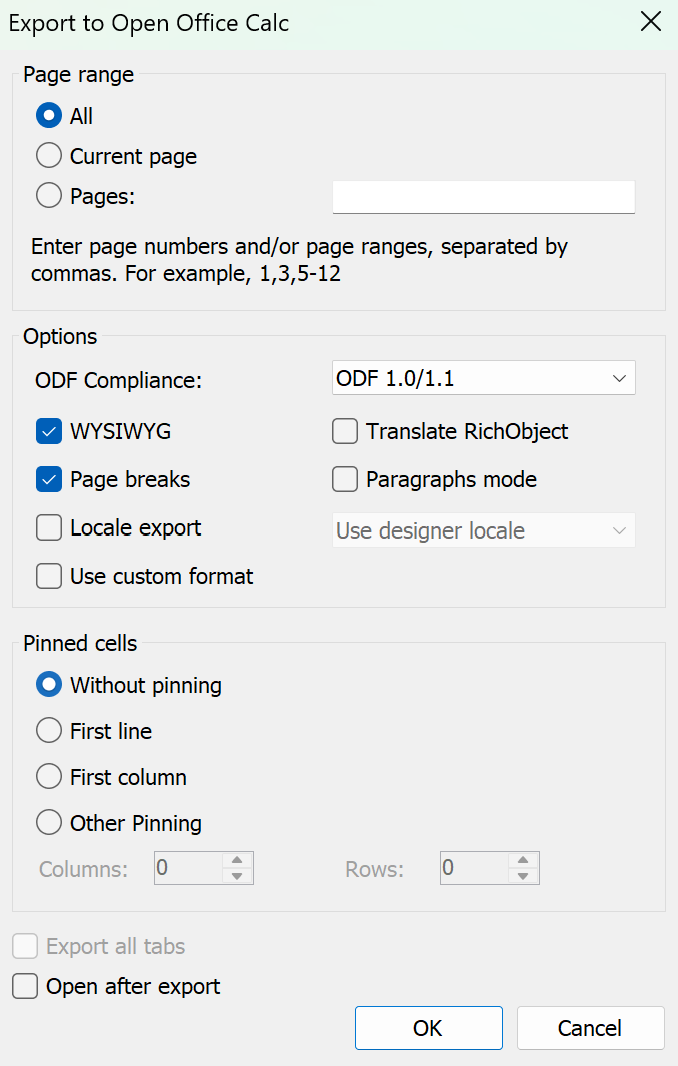
Freezing settings are located in the export window for OpenOffice Calc, in the “Cell Freezing” section.
The following options are available:
- No freezing — rows and columns are not frozen;
- First row — freezes the first row of the sheet;
- First column — freezes the first column of the sheet;
- Custom freezing — allows you to manually specify the number of rows and columns to freeze.
If you select the “Custom freezing” option, the “Columns” and “Rows” fields become available. They indicate how many columns on the left and how many rows at the top should remain visible when scrolling.
This setting makes working with large reports more convenient: table headers, column names, and other important areas of the sheet remain in view for the user even when viewing lower rows or columns located further to the right.
Freezing cells when exporting to Excel
Freezing rows and columns when exporting to Excel was available earlier. In the new version of FastReport .NET, this feature has been improved: now you can set custom freezing parameters for each page of the report.
To do this, a page dropdown list has been added to the “Cell Freezing” section. The user selects the required page and specifies which rows or columns should be frozen specifically for that page.
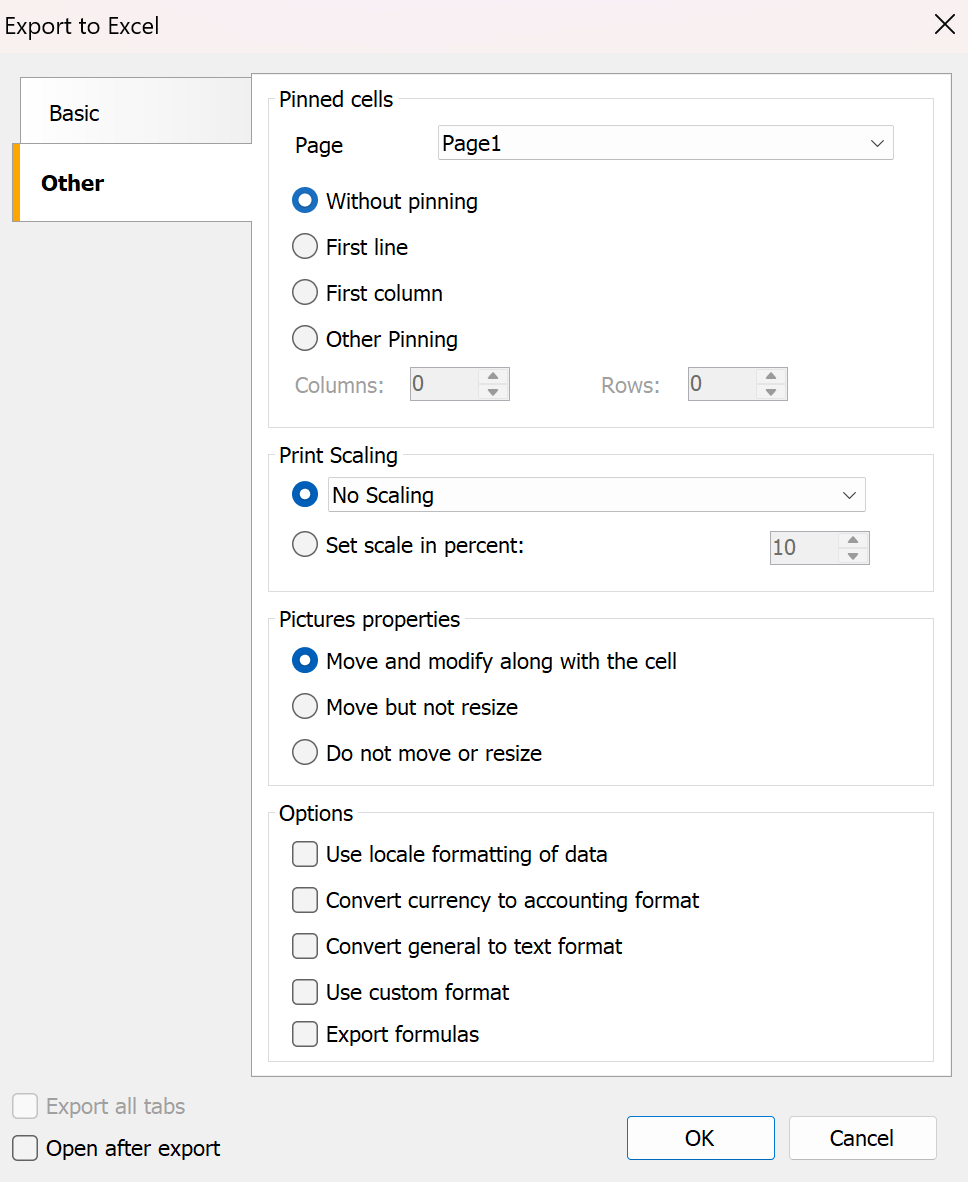
This is especially useful for reports where pages have different structures. For example, on the first page it may be enough to freeze only the header row, while on another page you may need to freeze several rows and the first column.
For each page, the same freezing options are available:
- No freezing — rows and columns are not frozen;
- First row — freezes the first row of the sheet;
- First column — freezes the first column of the sheet;
- Custom freezing — allows you to manually set the number of rows and columns to freeze.
When exporting to Excel, the settings are applied to the corresponding sheets of the file. Thus, different pages of the report can have different freeze areas.
Conclusion
Freezing rows and columns during export makes large tabular reports more convenient to view and analyze. In FastReport .NET, this setting can be configured directly during export to OpenOffice Calc and Excel, without the need to manually adjust the already generated file.
For OpenOffice Calc, freezing of the first row, the first column, or a custom area of the sheet is available. When exporting to Excel, freezing parameters can be set separately for each page of the report, which is especially useful for documents with a complex or non‑uniform structure.