How to set up OLAP in Delphi and use data slicing for analytical tasks

Any developer of business accounting systems faces the challenge of analyzing large volumes of data. Turning "information mush" into structured reports is critical for management decision-making. This applies, for example, to:
- inventory accounting and stock management;
- production analysis and cost calculation;
- sales and time series analysis.
For example, OLAP cubes (FastCube) allow you to solve these tasks quickly, visually, and without writing complex SQL queries. Unlike two-dimensional tables, multidimensional pivot tables let you look at the data from different angles (slices) in real time.
In this article, we will walk step by step through the process of creating an analytical application in Delphi using the TfrGrid component (for source data) and the TfcxSliceGrid component (for building a pivot summary).
Step 1. Visualizing Raw Data with TfrGrid
Before building analytics, you need to see the initial data sample. For an example, let's take data from a machine-building company for the year 2025.
We will need the TfrGrid component; it is included in FastReport VCL and is available for free in the demo version.
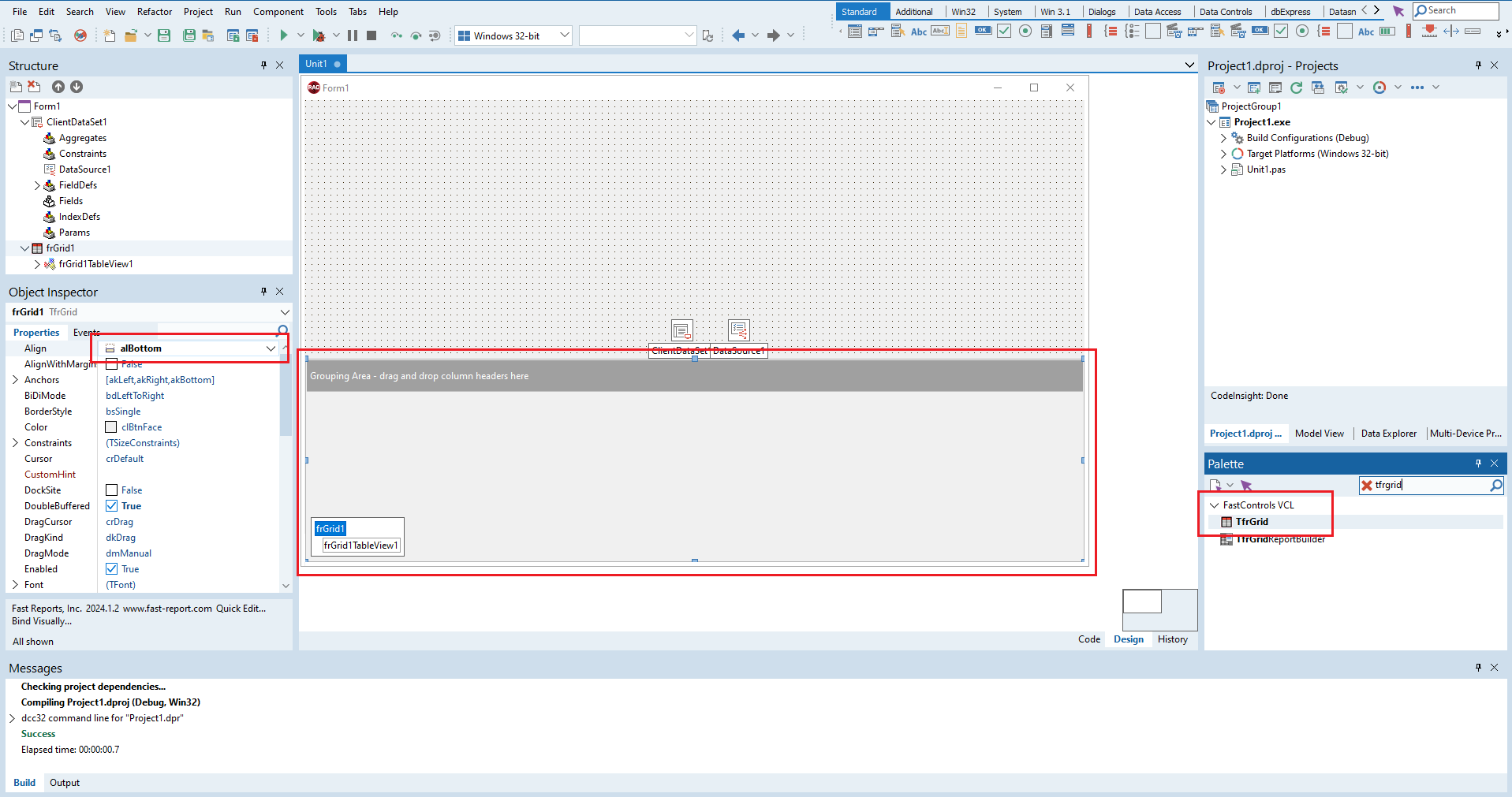
- Find the TfrGrid component in the Delphi tool palette.
- Place it on the form and set the Align = alBottom property (to dock it at the bottom of the form).
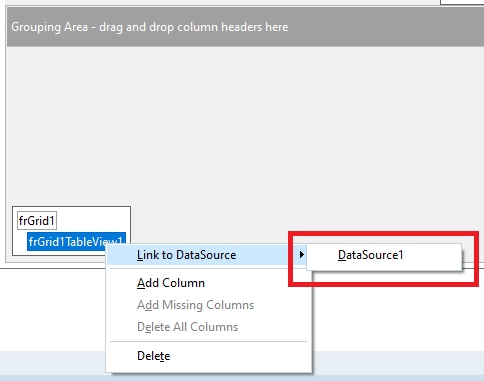
- Bind the grid to a data source (TDataSource) via the context menu of frGrid1TableView1.
Step 2. Configuring Component Display and Editing
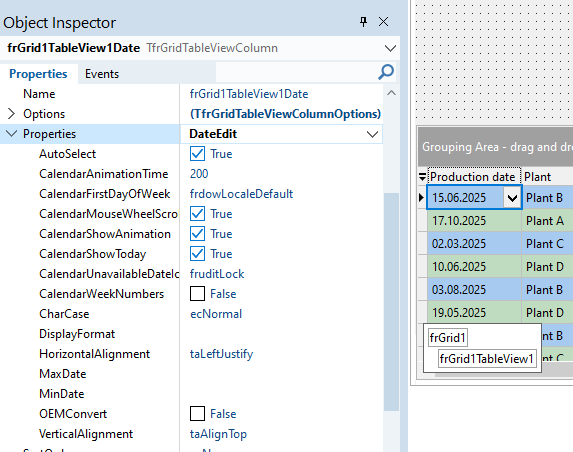
The main feature of the grid component is direct editing of cells (modifying the source data in the database field). In FastGrid this is implemented through automatic substitution of editors depending on the field type. For example:
- for dates – a drop-down calendar.
- for numbers – SpinEdit.
How to Configure Columns
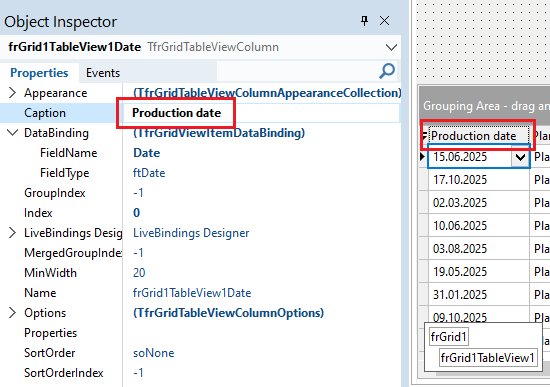
- Localization. Click the column header to rename the fields from technical names to human-readable ones (for example, Product → Part Name).
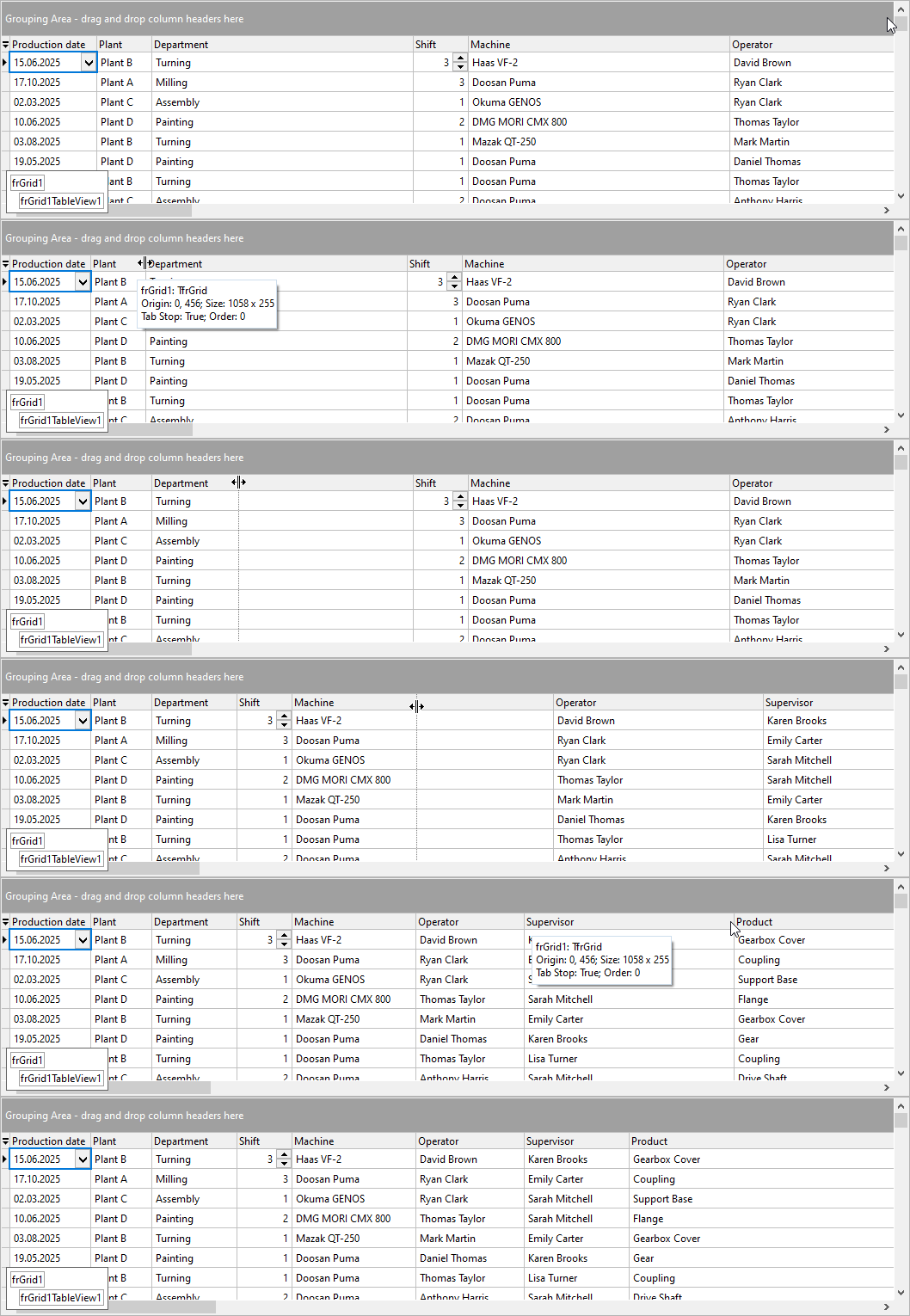
- Width. Adjust the column widths manually (Design-Time mode).
- Style. To improve readability, set different colors for even and odd rows (BackgroundColorEven / BackgroundColorOdd).
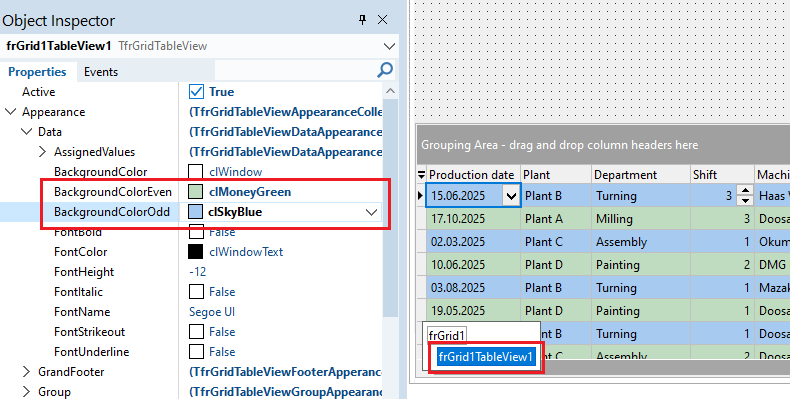
- Fine-tuning editors. If necessary, adjust the properties of each column individually by selecting one of the editor options in the property called "Properties".
Important: at this stage, we have an interface for viewing and manually correcting the source data. This is not yet the final result of the analytics.
Step 3. Building a Multidimensional Cube (OLAP) with FastCube
Now let's move on to the main tool — the pivot table. To do this, we will use the TfcxSliceGrid component and bind it to the same data source as TfrGrid.
- Place TfcxSliceGrid on the form and set Align = alClient (stretch the component over the entire remaining area).
- Add a TSplitter between TfrGrid and TfcxSliceGrid. This will allow the user to resize the components: the size of one object increases at the expense of the other.
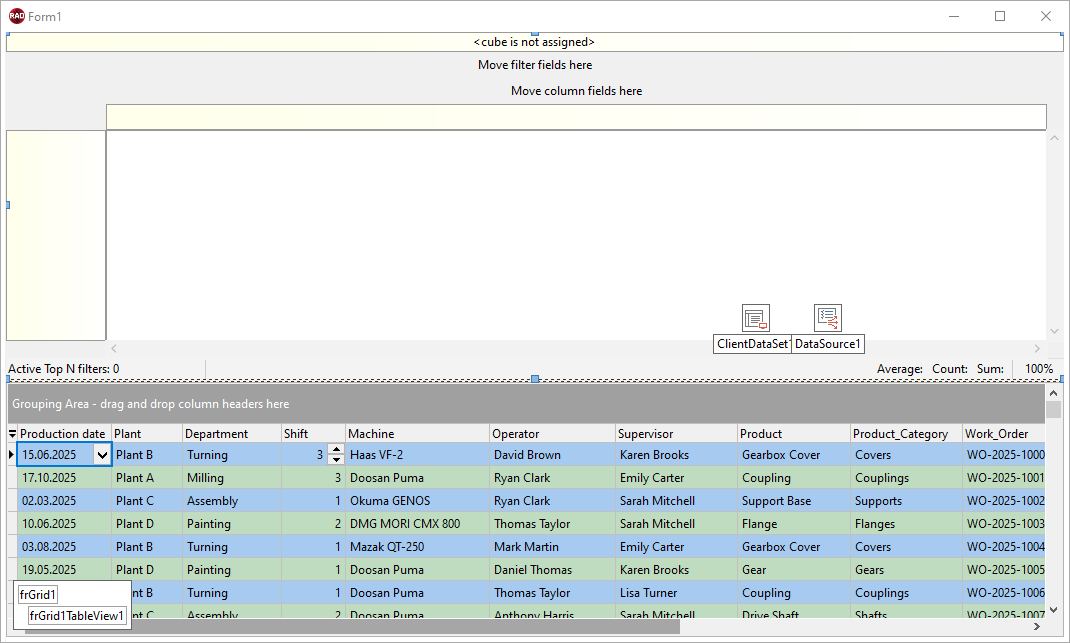
- To link to the data source, place the following chain of components on the form:
- TfcxDBDataSet → specify the DataSet (our main data set).
- TfcxDataSource → link it to TfcxDBDataSet. Right-click and choose "Add all fields" (create all fields).
- TfcxCube → specify the DataSource and set CubeSource = fccs_DataSource. Enable the Active = True property.
- TfcxSlice → link the Cube property with TfcxCube, and TfcxSliceGrid.Slice with TfcxSlice.
Step 4. Fine-Tuning Dimensions (DateSplitPaths)
For convenient work with time periods, you need to configure date splitting:
- In the fcxDataSource.Fields collection, select the Date field.
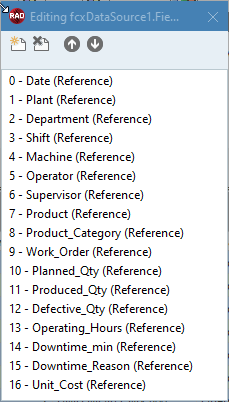
- In the SourceFieldProperties.SplitProperty.DateSplitPaths property, enable the options: Year, Month, Day. This allows using the date for hierarchical grouping (year → month → day).
Step 5. Programmatic Initialization of the Report Structure
Next, we will write an OnShow event handler for the form so that we don't have to drag the fields with the mouse every time we launch the application.
Initialization code:
uses …, fcxTypes;
procedure TForm1.FormShow(Sender: TObject);
var
  LIndex: Integer;
begin
  fcxSlice1.BeginUpdate;
  try
// Adding fields to the Filters area
    fcxSlice1.PageContainer.AddFilterField(fcxSlice1.SliceFields.ItemByName['Machine'], 'Machine', 'Machine');
    fcxSlice1.PageContainer.AddFilterField(fcxSlice1.SliceFields.ItemByName['Date'], 'Date', 'Date');
    fcxSlice1.PageContainer.AddFilterField(fcxSlice1.SliceFields.ItemByName['Department'], 'Department', 'Work Area');
    fcxSlice1.PageContainer.AddFilterField(fcxSlice1.SliceFields.ItemByName['Shift'], 'Shift', 'Shift');
    fcxSlice1.PageContainer.AddFilterField(fcxSlice1.SliceFields.ItemByName['Operator'], 'Operator', 'Operator');
    fcxSlice1.PageContainer.AddFilterField(fcxSlice1.SliceFields.ItemByName['Product'], 'Product', 'Product');
    fcxSlice1.PageContainer.AddFilterField(fcxSlice1.SliceFields.ItemByName['Product_Category'], 'Product_Category', 'Product Category');
    fcxSlice1.PageContainer.AddFilterField(fcxSlice1.SliceFields.ItemByName['Work_Order'], 'Work_Order', 'Product Order');
    fcxSlice1.PageContainer.AddFilterField(fcxSlice1.SliceFields.ItemByName['Downtime_Reason'], 'Downtime_Reason', 'Downtime Reason');
    fcxSlice1.PageContainer.AddFilterField(fcxSlice1.SliceFields.ItemByName['Plant'], 'Plant', 'Workshop');

// Adding fields to the Rows area
    fcxSlice1.YAxisContainer.AddDimension(fcxSlice1.SliceFields.ItemByName['Supervisor'], 'Supervisor', 'Foreman');

// Setting up data fields
    LIndex := fcxSlice1.MeasuresContainer.AddMeasure(fcxSlice1.SliceFields.ItemByName['Planned_Qty'], 'Planned_Qty', 'Plan, pcs', af_Sum);
    fcxSlice1.MeasuresContainer.Measures[LIndex].Visible := False;
    fcxSlice1.MeasuresContainer.AddMeasure(fcxSlice1.SliceFields.ItemByName['Produced_Qty'], 'Produced_Qty', 'Produced, pcs', af_Sum);
    fcxSlice1.MeasuresContainer.AddMeasure(fcxSlice1.SliceFields.ItemByName['Defective_Qty'], 'Defective_Qty', 'Defects, pcs', af_Sum);
    LIndex := fcxSlice1.MeasuresContainer.AddMeasure(fcxSlice1.SliceFields.ItemByName['Operating_Hours'], 'Operating_Hours', 'Operating Time, h', af_Sum);
    fcxSlice1.MeasuresContainer.Measures[LIndex].Visible := False;
    LIndex := fcxSlice1.MeasuresContainer.AddMeasure(fcxSlice1.SliceFields.ItemByName['Downtime_min'], 'Downtime_min', 'Downtime, min', af_Sum);
    fcxSlice1.MeasuresContainer.Measures[LIndex].Visible := False;
    LIndex := fcxSlice1.MeasuresContainer.AddMeasure(fcxSlice1.SliceFields.ItemByName['Unit_Cost'], 'Unit_Cost', 'Unit Cost', af_Sum);
    fcxSlice1.MeasuresContainer.Measures[LIndex].Visible := False;

// Adding fields to the Data area
    fcxSlice1.XAxisContainer.AddMeasuresField;
  finally
// The table is rebuilt only here
    fcxSlice1.EndUpdate;
  end;
end;
Using BeginUpdate and EndUpdate is critically important for performance, as it prevents the UI from being repainted multiple times when each field is added.
Step 6. Business Insights Based on the Generated Slices
Once the report is generated, we can instantly spot anomalies simply by dragging fields with the mouse (drag and drop). Let's look at 3 examples of how OLAP helps with real-world tasks.
Example 1. Identifying the Best Employees
In the resulting grid, we set up the following groupings: "Foreman" on the Y axis, "Defects" on the X axis.
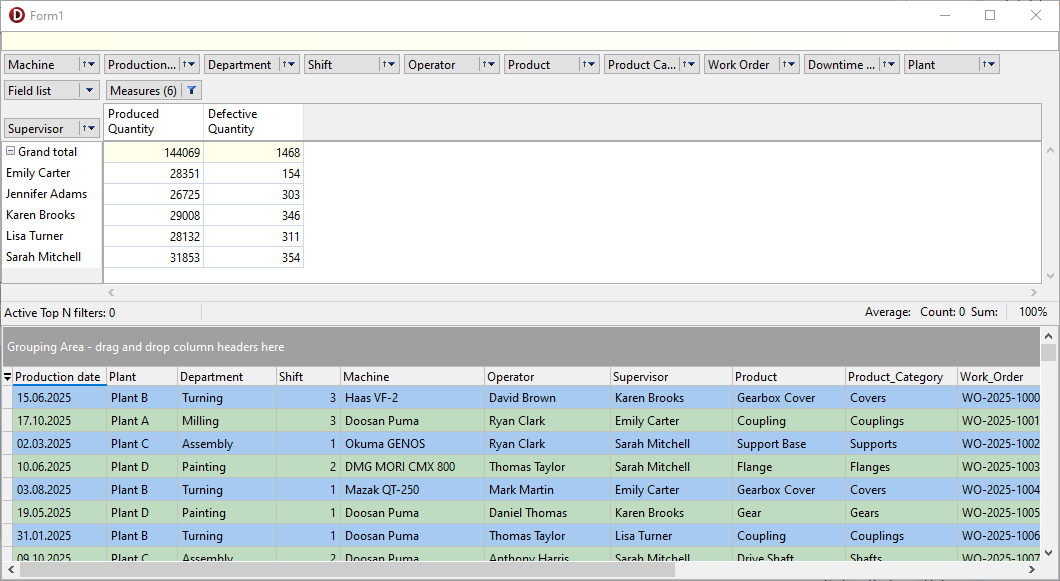
Drawing a conclusion: if Foreman Smirnov's defect level is suspiciously low, this is a signal to study his working methods or a reason for a bonus. The data tells us where to look for best practices.
Example 2. Evaluating Shift Efficiency
We change the grouping rules. Now "Shift" is on the Y axis, while "Plan, Produced, Defects" are on the X axis.
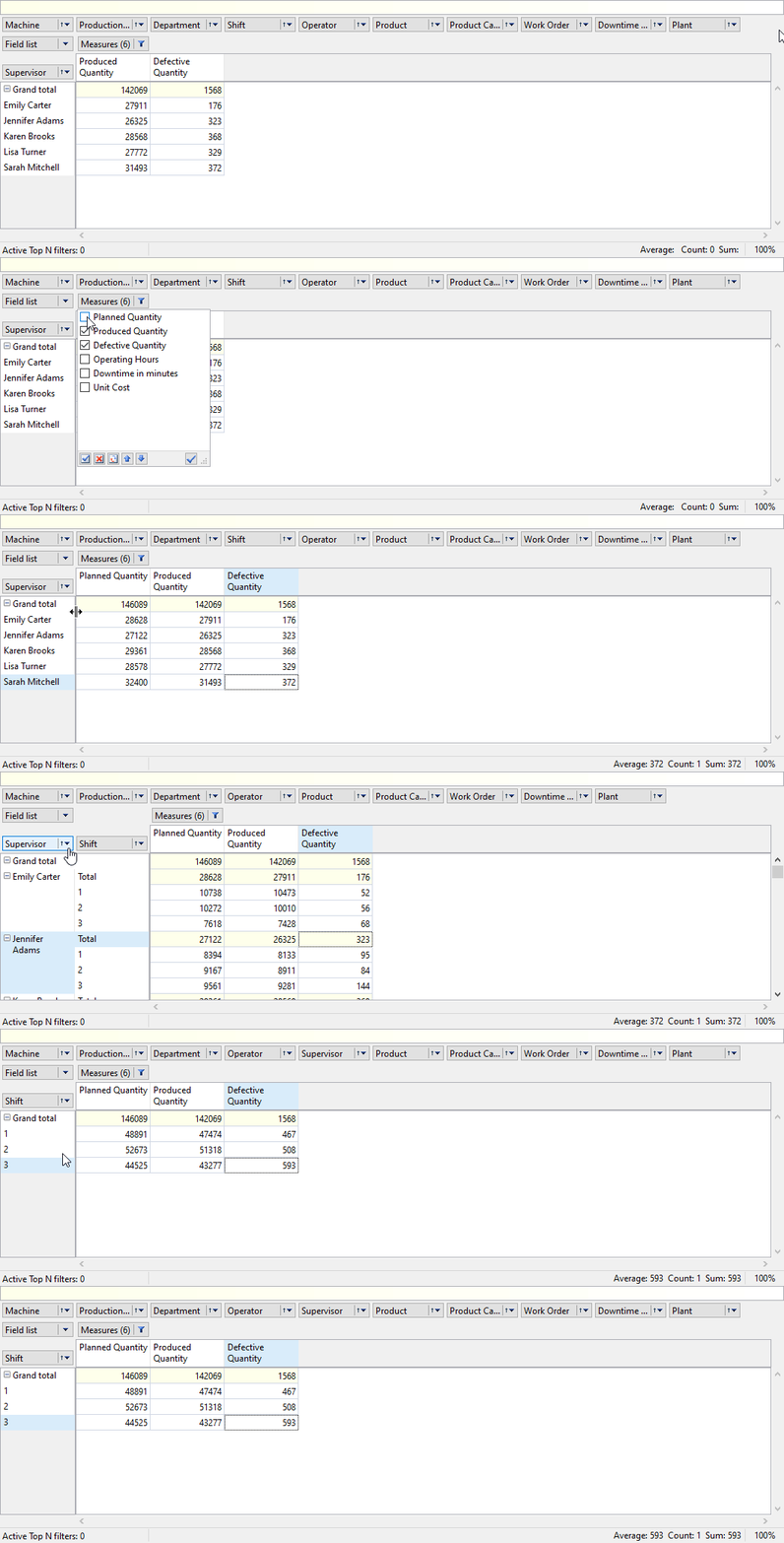
Based on this data, we conclude that the third shift shows a low plan but a high defect rate. This may indicate inefficient labor organization at night.
Example 3. Equipment Analysis (Defect Rate)
Once again, we change the grouping parameters. This time, "Machine Type" is on the Y axis and "Defects" on the X axis.
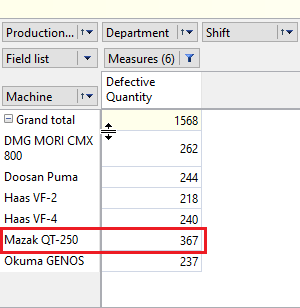
To sum up: if a particular machine type shows a defect value that significantly exceeds the average, tooling replacement or repair is needed.
Options for In-Depth Analysis
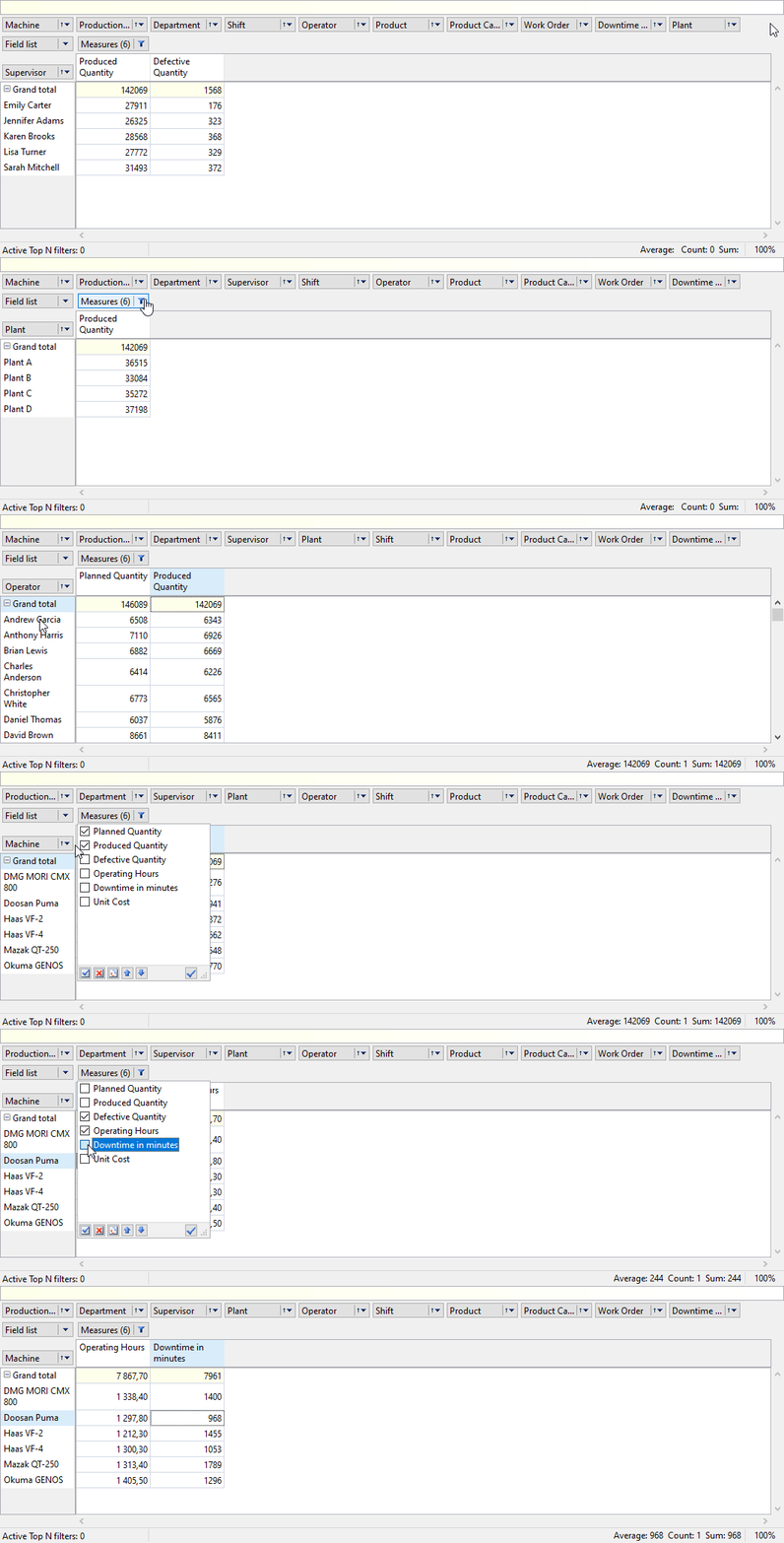
FastCube allows you to build numerous slices of varying complexity:
- unit cost by product categories and product names;
- downtime dynamics (for example, an increase in downtime in summer due to vacations);
- factor analysis (the gear turned out to have the highest unit cost).
Key features:
- Drill-down. Double-clicking a pivot table cell shows the list of source rows that make up the aggregate.
- Aggregation in FastGrid. TfrGrid can also display sums and averages, but FastCube does this more flexibly.
Conclusion
The FastGrid + FastCube combination in Delphi/Lazarus is a ready-made solution for embedding BI analytics into corporate applications. You get:
- Editing raw data via FastGrid.
- Instant multidimensional analytics via FastCube without the hassle of SQL.
- Visualization of hidden patterns for decision-making.
Try all the features listed above in the demo version of FastReport VCL on our website.