Connecting to the Greenplum Database in FastReport .NET
FastReport .NET, version 2027.1, now supports working with the Greenplum Database DBMS. In this article, we will take a detailed look at how to configure a connection to Greenplum from the report designer using a special plugin and how to register the connector in your own .NET application. The plugin is built on the Npgsql.dll library: Greenplum is architecturally compatible with PostgreSQL, so the connection works via the standard PostgreSQL protocol.
From this article, you will learn:
- how to build the FastReport.Data.Greenplum plugin from the source code;
- how to connect the plugin to the FastReport report designer;
- how to create a Greenplum data source in the designer;
- how to register the connector in the application’s C# code.
Part 1. Building the FastReport.Data.Greenplum Plugin
First, you need to compile the connector for connecting to Greenplum Database.
Step 1. Navigating to the project directory
Open the folder where FastReport .NET is installed and navigate to the path:
Extras\Core\FastReport.Data\FastReport.Data.Greenplum
Step 2. Opening the project
Open the FastReport.Data.Greenplum.csproj project file in Visual Studio.
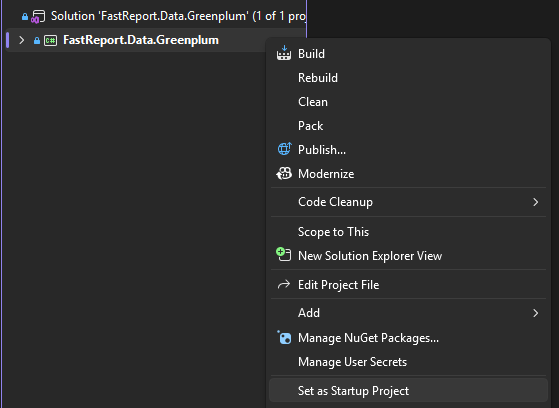
Step 3. Resolving reference errors (if they appear)
When opening the project for the first time, build errors may occur due to a missing or corrupted reference to the FastReport library. To resolve the issue, perform the following steps:
- Delete the corrupted or missing dependency (the reference to the FastReport project) from the project’s dependency list.
- Right‑click the “Dependencies” (or “References”) section and select “Add Reference...”.
- Click the “Browse...” button and navigate to the root directory of the installed FastReport .NET.
- Select the FastReport.dll file from the file list and confirm the addition.
- Build the project (Build / Rebuild). After this, all errors will disappear, and the compiled FastReport.Data.Greenplum.dll file will appear in the target folder.

Part 2. Connecting the Plugin to the Report Designer
Now that the Greenplum connector has been compiled, let’s add it to the FastReport report designer.
Open the FastReport report designer.
Go to the File → Settings menu and select the “Plugins” tab.
Click the “Add” button and specify the path to the compiled file:
Extras\Core\FastReport.Data\FastReport.Data.Greenplum\bin\Debug\net452\FastReport.Data.Greenplum.dll
(or the path to the corresponding target framework).
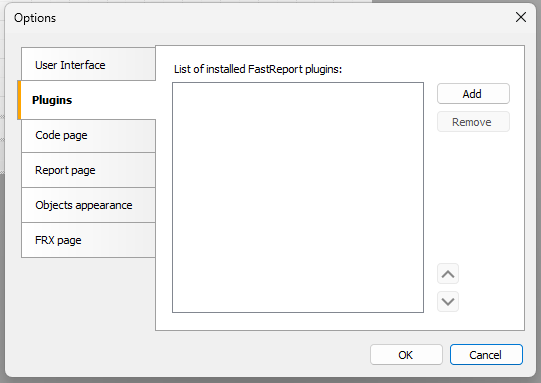
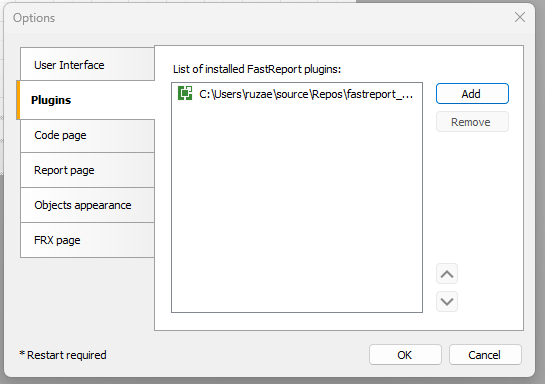
Restart the report designer so that the plugin loads correctly.
Part 3. Creating a Connection to Greenplum
After restarting the designer, go to the “Data” tab and select the “New Data Source” option.
In the wizard that appears, click the “New Connection...” button.
In the list of connection types, select Greenplum Database.
Enter the connection parameters: host, port, database name, login, and password.
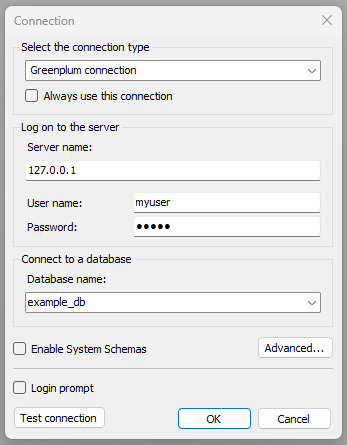
Click “Test Connection” to verify a successful connection to Greenplum.
Part 4. Connecting Greenplum via C# Code
If you are working with reports directly from your own .NET application (without the visual designer or when embedding it), the connector must be registered programmatically before loading or executing the report.
Step 1. Adding a reference to the library
Add the compiled FastReport.Data.Greenplum.dll library to your project’s dependencies (References / Project References).
Step 2. Registering the connector at application startup
Call the RegisteredObjects.AddConnection method before starting work with reports — for example, in Program.cs, Startup.cs, or before calling the Report.Load() method:
RegisteredObjects.AddConnection(typeof(GreenplumDataConnection));
Conclusion
In this article, we have reviewed the full workflow with Greenplum Database in FastReport .NET: from compiling the connector’s source code and integrating the plugin into the report designer to registering the connection in C# code. Thanks to FastReport’s flexible plugin system, connecting to the Greenplum analytical DBMS is quick and does not require complex manipulations — now you can generate reports directly from your Greenplum database.