How to merge several csv files into one
This article aims to provide the insight into how to use FastReport.Net to merge two logically related CSV files into one. Storing data in CSV files is often very convenient. You can always open such files by any text editor and tweak them. But what if in one document there are references to data from the other document? You have to merge two files into one, for further convenient work with the CSV document. It can be done manually, which is rather time - consuming, or you can use Excel, that requires some knowledge of the macros. The third way is the most easy-to-handle - to use FastReport.
So, we have two CSV files. One contains a list of orders, the second one - a list of customers. We need to display the customers' names and phone numbers for each order. The Orders table has a foreign key "CustNo' to the Customers table. In turn, the Customers table has the primary "CustNo" key. As you understand, we will link the two tables to this field.
Create a new report in the designer. Add a new data source - a CSV file:
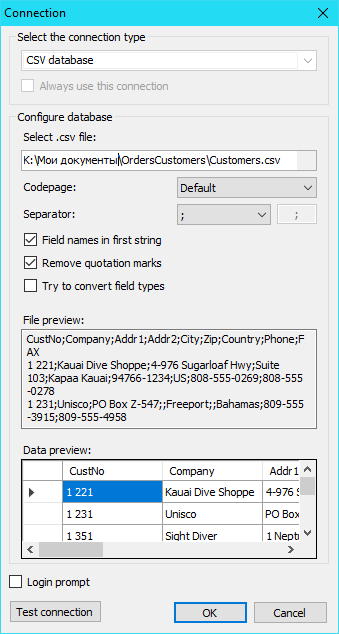
One more data source is the second file.
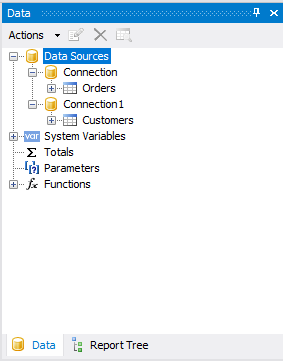
As a result, we get two connections:
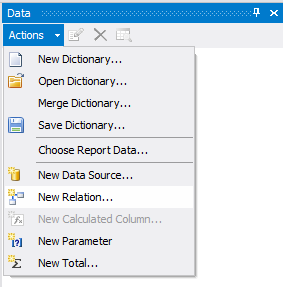
Now we need to link two tables. To do this, click the drop-down menu "Actions" and select "New relation".
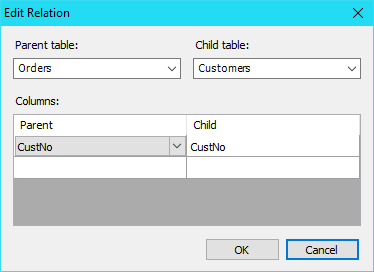
We select the main table, for example "Orders". The subordinate table is "Customers". For both tables we define the key fields. In our case, in both tables the keys are called "CustNo":
Now look at the window "Data":
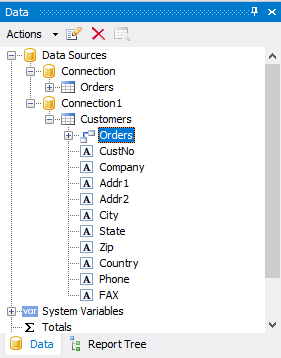
For the Customers table now there is an associated table "Orders".
We place the Company field in the Customers table on the Data band. We also place all fields there, except the CustNo fields, which are from the linked table " Orders". As there are a lot of fields, they do not fit on the report page. Open the page settings in the top toolbar "Report":
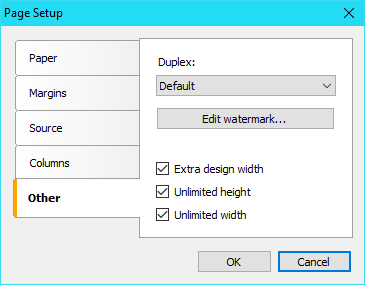
On the "Other" tab we set properties: Extra design width, unlimited height, unlimited width. The last two properties allow you to expand your report page to the required size in the report view mode.
Before exporting the report to a CSV file, let us consider some useful tips on formatting. To prevent the addition of blank lines and columns in the export, try to place the margins on your page close to each other. For the header of the data, we reduce the height to a minimum:

Now run the report in preview mode.
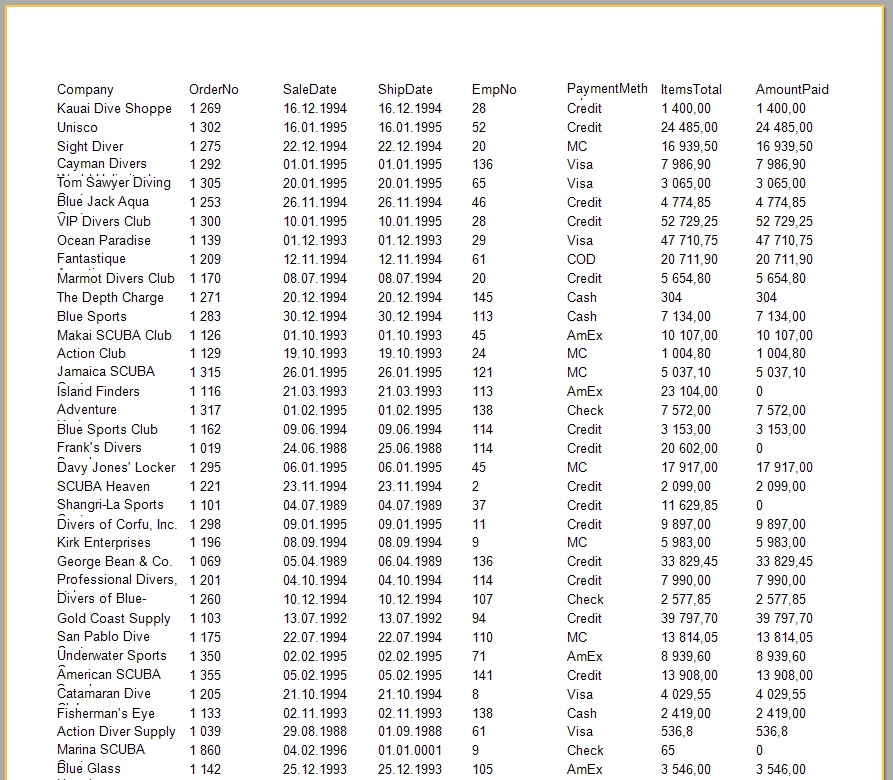
Click "Save" and choose "CSV file...". Now agree with the default export settings and set the location of the file saving. As a result, we have a CSV file with information about orders and the company name instead of the CustNo identifier.
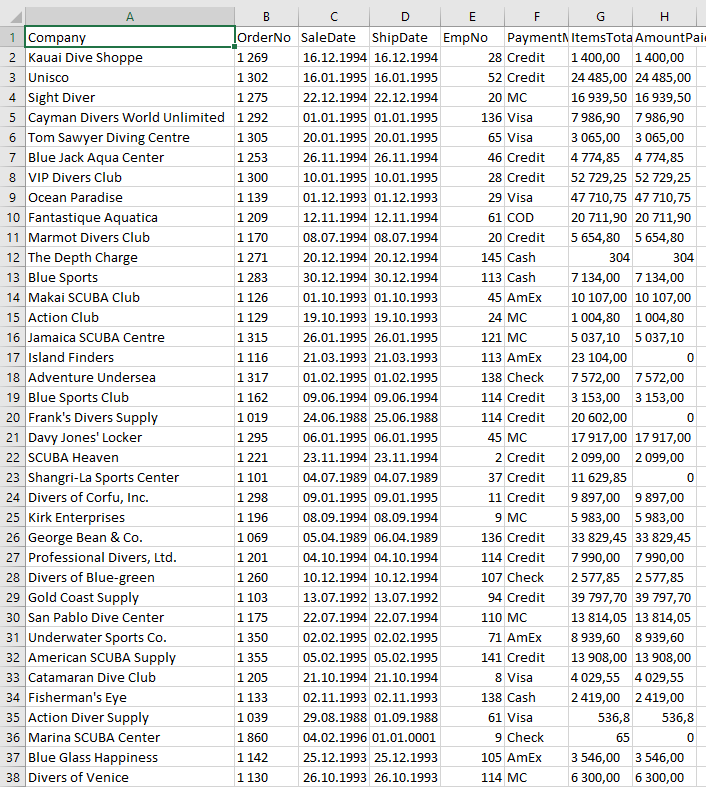
Using the introduced way, you can merge as many tables as you need from different CSV files, which is really time - saving. Creation of a merged file takes about 10 minutes.