How to use the new TextObject.TextRenderType property
The new property came to replace the obsolete HtmlTags. Now the TextRenderType property is responsible for processing html tags, and not only. This property has three possible values:
- Default – just text, without any tag transformations;
- HtmlTags – applying html tags. Their list is rather limited: b, i, u, strike, br, sub, sup, img;
- HtmlParagraph - allows you to adjust the line spacing, the first line indent and all the same tags as the HtmlTags;
Previously, the HtmlTags property allowed some HTML tags to be used in the TextObject. One of the available tags was the FONT tag. This tag is obsolete, and not all browsers adequately support it. Therefore, a new visualization handler was added, which allows you to use some CSS styles, in the style attribute of the span tag.
Now let's consider in more details the new modes of processing Html tags:
HtmlTags
As previously mentioned, the Text object supports the following html tags:
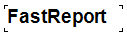
- • b - bold text style.
Example of use:
1 |
<b> FastReport </ b>
|
Result:
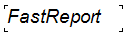
- • i - italic text style.
Example of use:
1 |
<i> FastReport </ i>
|
Result:
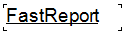
- • u - text style underlined.
Example of use:
1 |
<u> FastReport </ u>
|
Result:
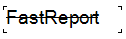
- • strike - crossed out text style
Example of use:
1 |
<strike> FastReport </ strike>
|
Result:
- • br - line break
Example of use:
1 |
Fast<br>Report
|
Result:

• sub - displays the text in the lower index
Example of use:
1 |
<sub> Fast </ sub> Report
|
Result:

- • sup - displays the text in the upper index
Example of use:
1 |
<sup> Fast </ sup> Report
|
Result:

- • img - insert images into text. The img tag only supports the src (http, https, base64) attribute and the width and height attributes (values in pixels). So you can insert images directly into the text. The http and https image sources are relevant for web reports.
Example of use:
<img src="data:image/png;base64,iVBORw0KGgoAAAANSUhEUgAAADwAAAAyCAIAAACPlC9VAAAAAXNSR0IArs4c6QAAAARnQU1BAACxjwv8YQUAAAAJcEhZcwAADsMAAA7DAcdvqGQAAAGkSURBVGhD7dDRjoMgEAXQ/v9Pd417poEVBBRttul569yRuenjOc+jxd5pEx7SaIQvjzr+vfvneGvQkc8cnMe73cY+cOQabnQYWe1gtcTGLqst3Xu7LHXzWYmNXX1LFeKjvLIhruvYKJHN4MWcrKIVl8jm8W5OVrKblchm83pOtlEPSmTXcCMnyw2UFlzJpYQgV5luCK7nXkKQ6CptehdXg2miNNoQ3MXVhCC0S5vey+1gGja/NwT3cjshWDVKm76DBsF09S09lQYJwZ/SwmD6PnoE02/p+fQIpt/S8+kRTL+l59MjmH5C6YU8mL6DBgnBPyptuvrE0gvBvdxOCFaFTraC6b3cDqahXXohuIurCUEoF7IbTO/iakIQukovBNdzLyFIVNv4IiG4kksJQW6g9EJ2DTdystxeD9/lZLN5PSfbaJTwdU42j3dzspJ2A2/kZDN4MSer6DrvpQ3xUV4psVHRe9hjJTZG+LLExq6Bk17dZbXExi6rLWP/k7ev4UaHsdK/HJnHu92OlP7l4DneGnS89Iv7g3x8yITSL+rU2Tvp+fwB+FeG5yXqCcoAAAAASUVORK5CYII=" alt="" />
Result:

HtmlParagraph
This mode enables a new html renderer. It works with the same set of tags as HtmlTags, plus a new span tag. Despite the fact that the set of tags for this mode is almost the same, they are drawn differently. This is especially noticeable on the <sub> and <sup> tags.
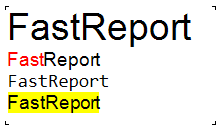
The added span tag allows you to set the display style of the text. You can specify the simplest CSS styles in the style attribute. This is enough not to remember the obsolete tag Font.
Examples of use:
1 2 3 4 |
<span style="font-size:20pt;">FastReport</span> <span style="color:red;">Fast</span>Report <span style="font-family:Consolas;">FastReport</span> <span style="background-color:yellow;">FastReport</span> |
Result:
ParagraphFormat
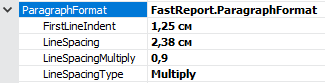
Separately it is necessary to talk about the new property ParagraphFormat. It works in conjunction with the HtmlParagraph property, and is a setting for displaying paragraphs (line spacing, indent of a red line). Namely:
- FirstLineIndent - indent of the first line;
- LineSpacing - distance between lines in centimeters;
- LineSpacingMultiple - multiplier by previous parameter value. Works with the Multiple type;
- Type of line spacing:
- Single;
- At least;
- Exact;
- Multiple.
Example settings:
Result:
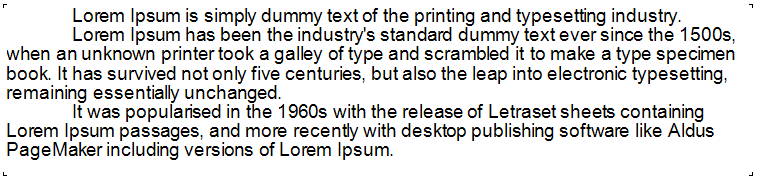
Thus, the Text object turns into a full replacement for the RichText object, which allows you to load formatted Rtf documents.