Verbindung zu SQLite DB aus einem Bericht
In this article I would like to see a connection to a SQLite database from a report. We will look at this in two examples. The first - with the help of plug-in for Report Designer, the second - with the help of ODBC SQLite driver.
- So, to use a plugin from FastReports, you must first make it. To do this, open solution FastReport.Net\Extras\Connections\FastReport.SQLite. The references need to fix two links - at the library FastReport.dll and System.Data.SQLite.dll. The last one will have to download from the Internet. Build the solution. We get FastReport.SQLite.dll library in the bin \ Debug folder.
Now open the report designer. On the File menu, select Options. Open the Plugins tab in the form that appears.
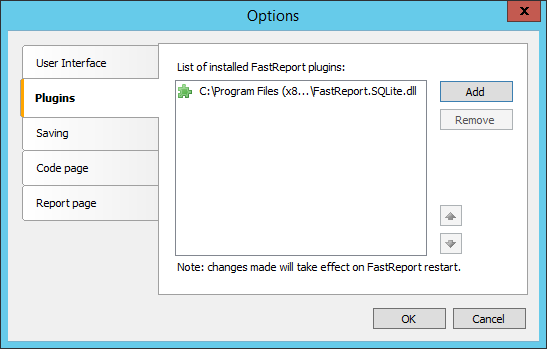
Use the Add button to add libraries created above. Restart the report designer.
On the toolbar, select the Report tab and add a new data source using the icon  . In the appeared Data Wizard, click the button “New connection...”.
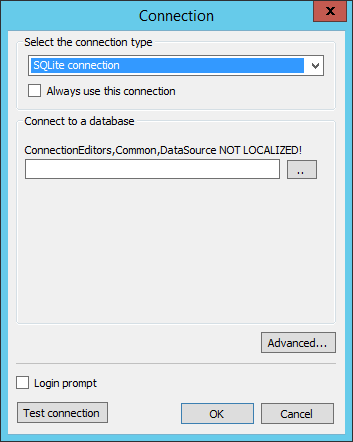
Select the type of connection - SQLite connection. Below, we specify the path to the database. By default, the filter is set to extension "* .db3" in the window opening. My database has an extension of db, so that changes to ".".

As a result, to connect the database only need to select a database file. Click OK. In the Data Wizard click Next and proceed to the selection of tables:
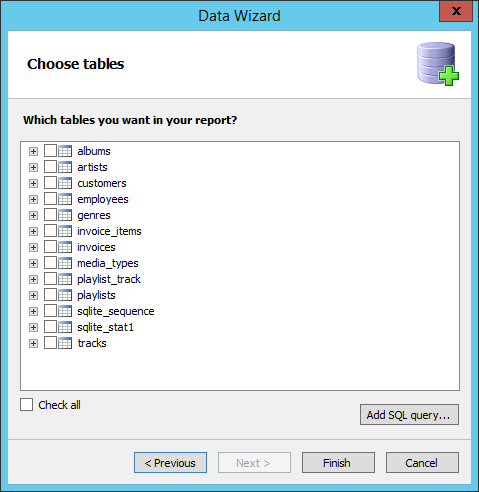
That's all.
2. Now look at the second method - using SQLite ODBC Driver.
First you need to download and install this driver.
Open the report designer. Create a new data source, as above, by means of icon . Next, in the Data Wizard click the button “New connection ...”.
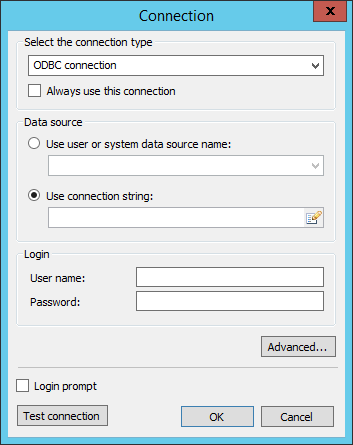
Select the ODBC connection. In the data source switch to the “Use connection string”. And sets the connection string using the icon .
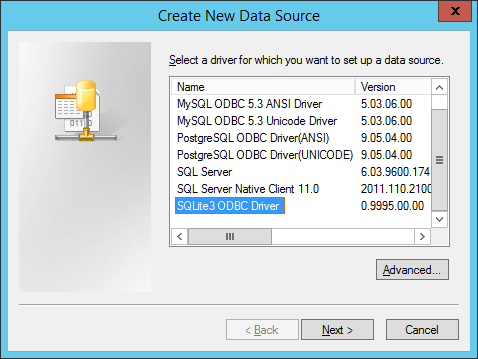
In the window of selection data source, you need to create new data source. Select the SQLite3 ODBC Driver. Click Next.
We set database connection.
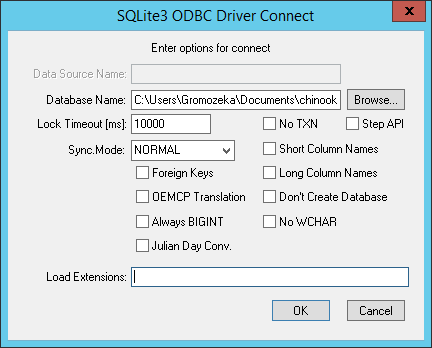
Here we only need to select the database file using the Browse ... button. Click OK. Here is the configured connection:
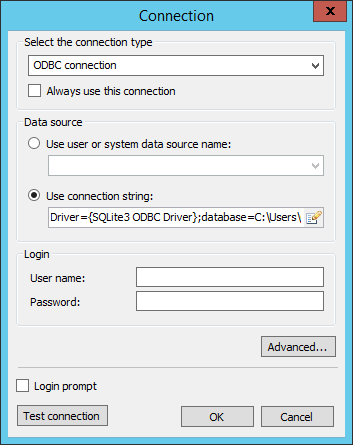
Click OK and return to the Data Wizard. Click the Next button. And proceed to the choice of tables.
Thus, we have considered two ways to connect to the database SQLite. If you will often use this connection, I advise you to use the plug-FastReport.SQLite.dll - faster and more enjoyable to use. If you do not want to bother with the assembly - use ODBC. But the second option will run a bit slower due to the extra layer.