How to use WebReport in the Knockout.js application
The Knockout.js library is used to create web applications. Due to the support of this library in Microsoft Visual Studio, we can use TypeScript and backend based on ASP .NET Core MVC. The last means that we will be able to use FastReport .NET reports. It remains only to display the report in the client application. That is exactly we will do in this article.
To use knockout with .NET Core, you must have .NET Core SDK 2.0 or MS Visual Studio installed. By default, the application template with the knockout library is not available to you. Therefore, you need to install it with just one command. At the Windows command promt, enter:
dotnet new — install Microsoft.AspNetCore.SpaTemplates::*
After that, you can create a spa application based on knockout. In the desired folder, open the command line and enter the command:
dotnet new knockout –o KnockWebReport
After creating the application, go to the folder with the created application and restore the necessary packages using the command:
npm install
Now you can open the created project. Our goal is to create a Web report of FastReport. Therefore, we install the FastReport packages. To do this, open the package manager and configure the local package source to the Nuget folder in the FastReport.Net installation directory. After that, we have a set of FastReport packages available for installation. Install FastReport.Core and FastReport.Web.
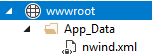
Add the App_Data folder to the wwwroot directory. In it we place the database file for reports:
Let's use the existing SampleDataController controller. Remove all the methods from it and add our own:
1 2 3 4 5 6 7 8 9 10 11 12 13 14 15 16 17 18 19 20 21 22 23 24 25 26 27 28 29 30 31 32 33 34 35 36 37 38 39 40 41 42 43 44 45 46 47 48 49 50 51 52 53 54 55 56 |
using System; using System.Collections.Generic; using System.Linq; using System.Threading.Tasks; using Microsoft.AspNetCore.Mvc; using FastReport.Web; using Microsoft.AspNetCore.Hosting; using Microsoft.AspNetCore.Http; using System.IO; namespace KnockWebReport.Controllers { [Route("api/[controller]")] public class SampleDataController : Controller { private IHostingEnvironment _env; public SampleDataController(IHostingEnvironment env) { _env = env; } [HttpGet("[action]")] public IActionResult ShowReport(string name) { var webRoot = _env.WebRootPath; WebReport WebReport = new WebReport(); WebReport.Width = "1000"; WebReport.Height = "1000"; WebReport.Report.Load(System.IO.Path.Combine(webRoot, (String.Format("App_Data/{0}", name)))); // Load the report into the WebReport object System.Data.DataSet dataSet = new System.Data.DataSet(); // Create a data source dataSet.ReadXml(System.IO.Path.Combine(webRoot, "App_Data/nwind.xml")); // Open the xml database WebReport.Report.RegisterData(dataSet, "NorthWind"); // Registering the data source in the report ViewBag.WebReport = WebReport; // pass the report to View return View(); } [HttpPost("[action]")] public async Task<IActionResult> Upload(List<IFormFile> files) { long size = files.Sum(f => f.Length); var webRoot = _env.WebRootPath; var filePath = System.IO.Path.Combine(webRoot, (String.Format("App_Data/{0}", files[0].FileName))); if (files[0].Length > 0) { using (var stream = new FileStream(filePath, FileMode.Create)) { await files[0].CopyToAsync(stream); stream.Close(); } } Task.WaitAll(); return Content(Path.GetFileName(filePath)); } } } |
The ShowReport method loads the specified report template into the WebReport object and displays it. And the Upload method gets the file from the client, saves it to the server and returns the name of the saved file.
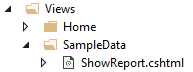
For the ShowReport method we create a view:
With the following code:
1 |
@await ViewBag.WebReport.Render()
|
We now turn to the client application. It is located in the ClientApp folder:
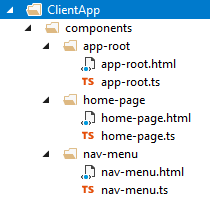
Let’s use the home page to display the report. Edit the code in the file home-page.html:
We display the button that opens the standard open file window. And also, depending on the value of the logical parameter ‘show’, we output the frame with the web object of the report.
Now we will write a script for this template in the home-page.ts file:
1 2 3 4 5 6 7 8 9 10 11 12 13 14 15 16 17 18 19 20 21 22 23 24 25 |
import * as ko from 'knockout'; class HomePageViewModel { public show = ko.observable(false); public url = ko.observable(''); upload(file: Blob) { var files = new FormData(); files.append("files", file) console.log(files); if (file != null) { fetch('api/SampleData/Upload', { method: 'POST', body: files }) .then(response => response.text()) .then(data => { this.url("api/SampleData/ShowReport?name=" + data) }); this.show(true); } } } export default { viewModel: HomePageViewModel, template: require('./home-page.html') }; |
In this script, we implemented the function of uploading a file to the server. POST request is executed, as a result of which we receive the name of the saved file from the server. Next, assign the url variable to the path of the report display method, taking into account the report name received. As a result, we get a web report.
Let's run our application and see what we have.
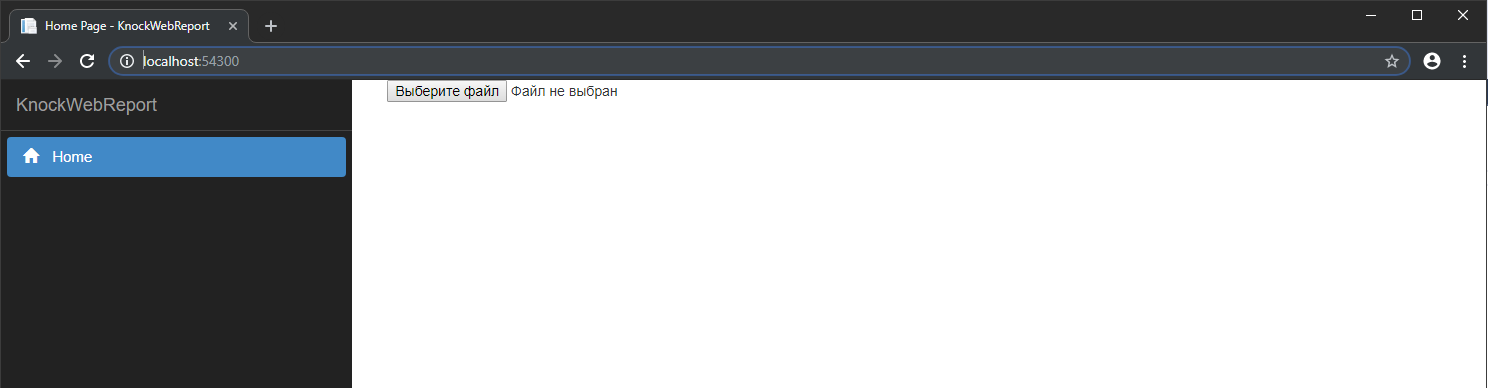
Select the report file in frx format.
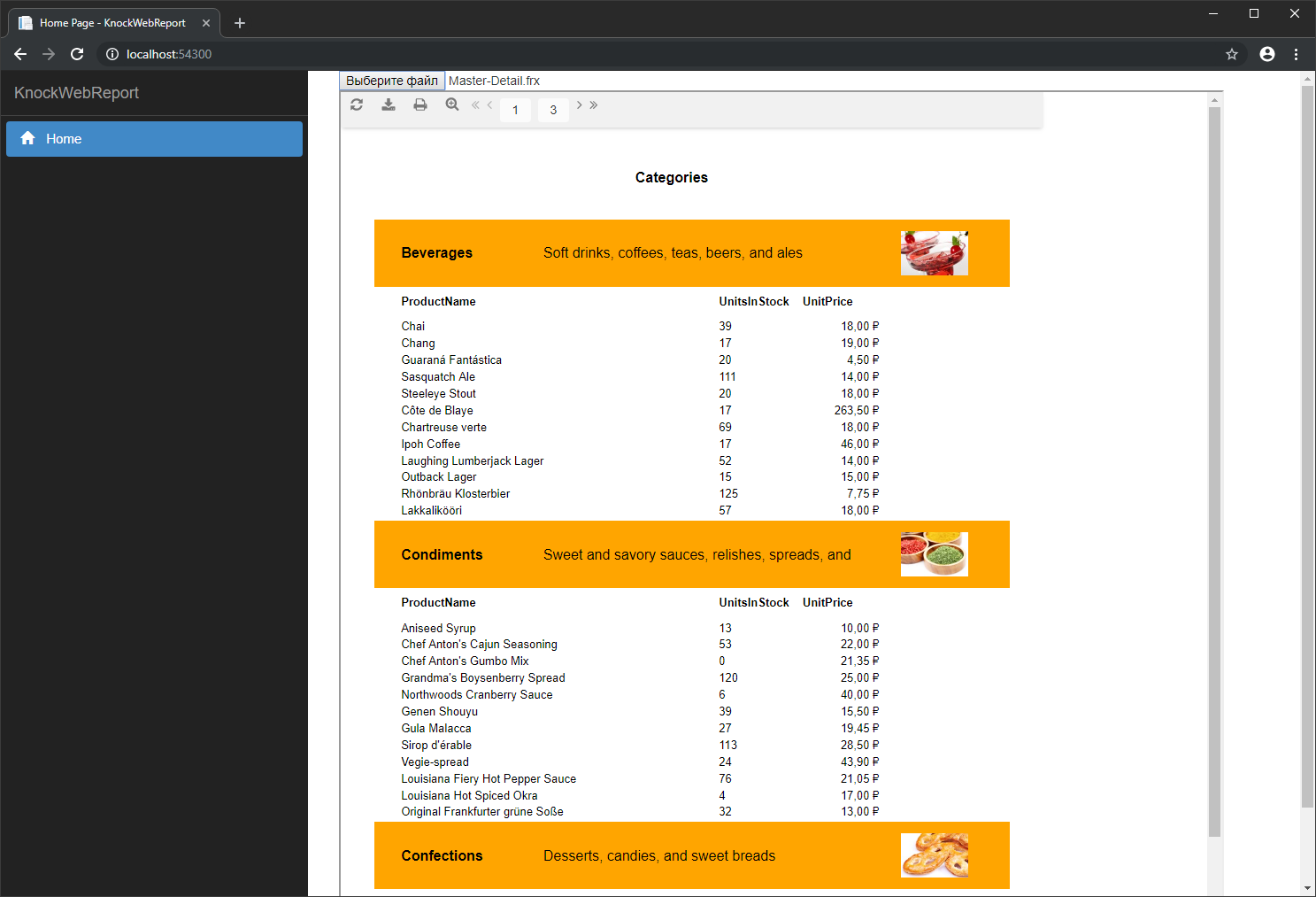
And we get a report on your web page.
Thus, we were convinced that displaying the FastReport .NET report in a knockout-based web application is easy.