How To Connect a Plugin to Google Sheets in FastReport .NET
Google Sheets is a cloud-based spreadsheet application. Like Microsoft Excel, Google Sheets can be used as a data source for reports. However, unlike desktop solutions, it's a web application, so connecting to it requires some specific setup.
In this article, we'll cover how to get started with Google Sheets in FastReport .NET. You'll learn how to set up API access via the Google Cloud Console, obtain the necessary credentials, and build and connect the plugin. We'll also show you how to set up the connection in the report designer and from code.
To get started with Google Sheets, you need to prepare your login credentials. Three types of credentials are supported:
- Client ID and Client Secret — a pair of keys for identifying the application via the OAuth 2.0 protocol;
- API key — a unique token for direct access to Google API;
- .json file with client data — a configuration file containing the Client ID and Secret.
You can get this data through Google Cloud Console. After logging into the console, create a new project: in the top panel, click the drop-down list of projects ("Select a project"), and in the window that opens, select "New project", give the project a name (for example, FastReport) and click "Create". Once created, the project will automatically become active. If this does not happen, select it manually from the list of projects.
Next, open the side menu and go to the "APIs & Services" section, subsection "Library." Here, you need to enable access to the Google Sheets API—this permission will allow your app to programmatically interact with Google Sheets.
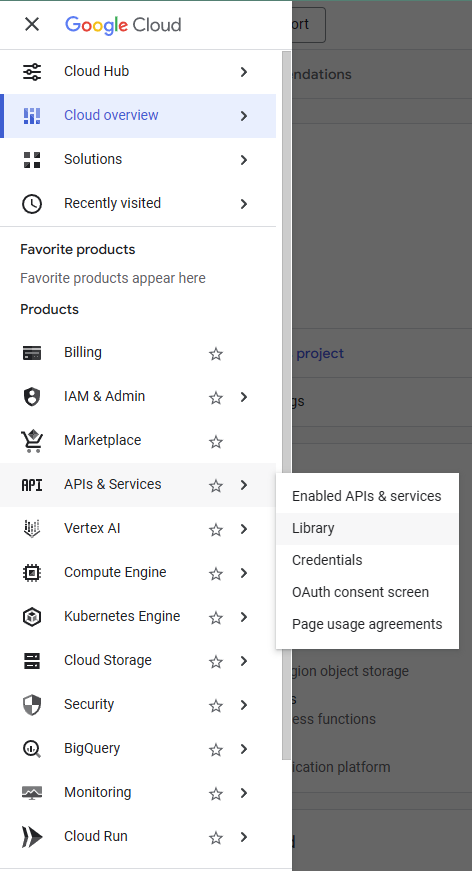
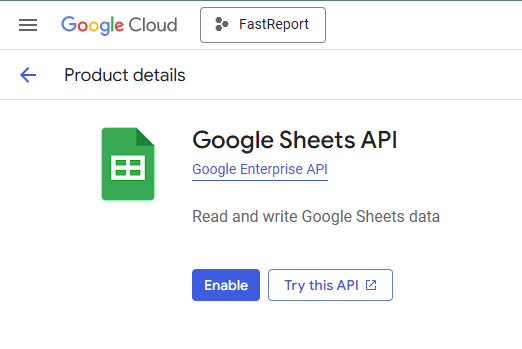
Enter "Google Sheets API" in the search bar, select the service, and click "Enable." Once the API is activated, the app will be able to read and write data to Google Sheets, which is a prerequisite for the plugin to work.
Then we go to the subsection "OAuth consent screen."
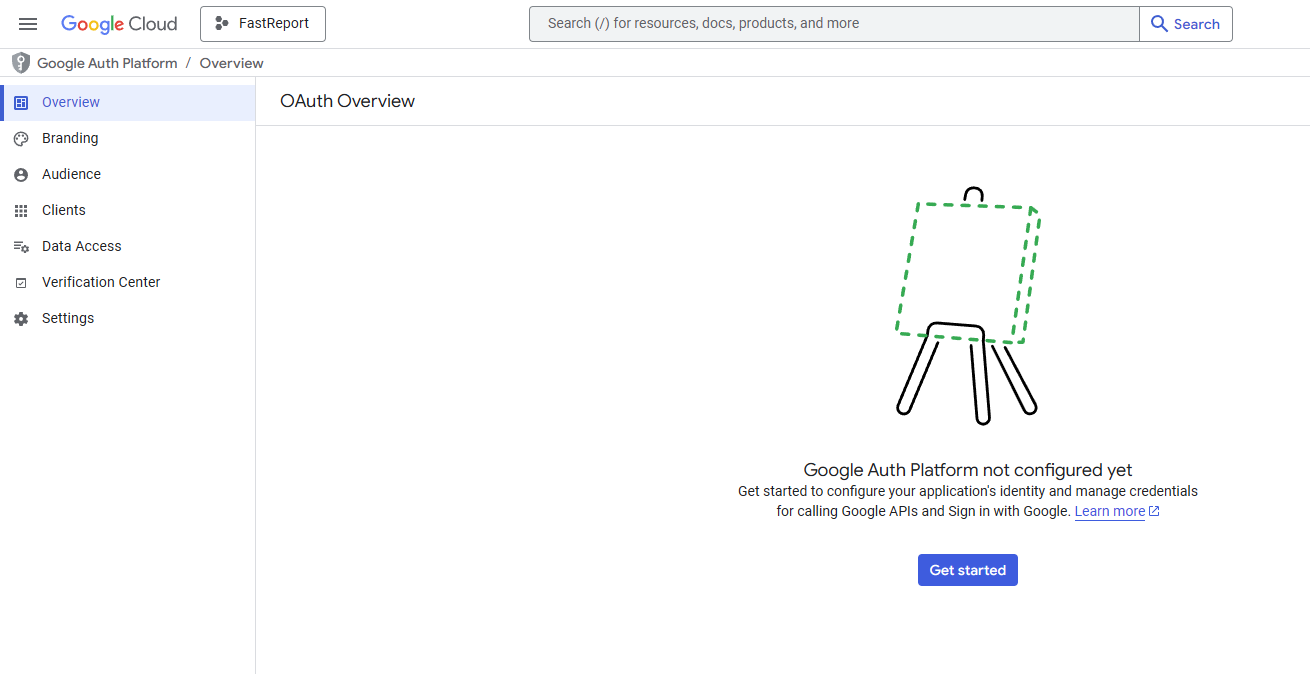
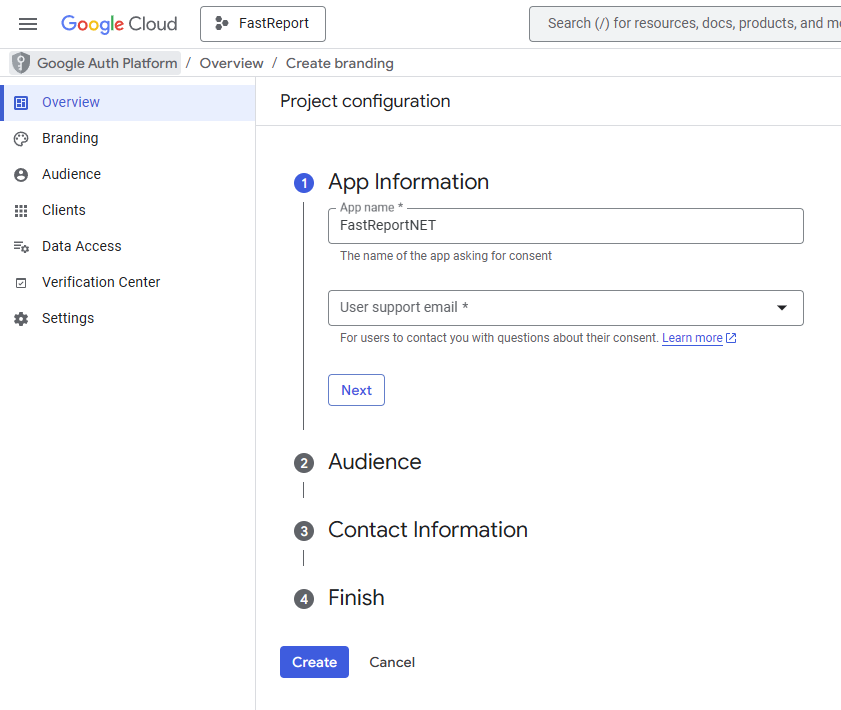
This step will configure OAuth for our application. After clicking the "Get started" button, the Google Auth Platform setup wizard will open.
In the first step, fill in the information about the application: specify the name (for example, FastReportNET) and the email address for user support, then click the "Next" button.
Next, select the user type. Since we're creating a testing application, we'll select "External" and proceed to the next step by clicking "Next."
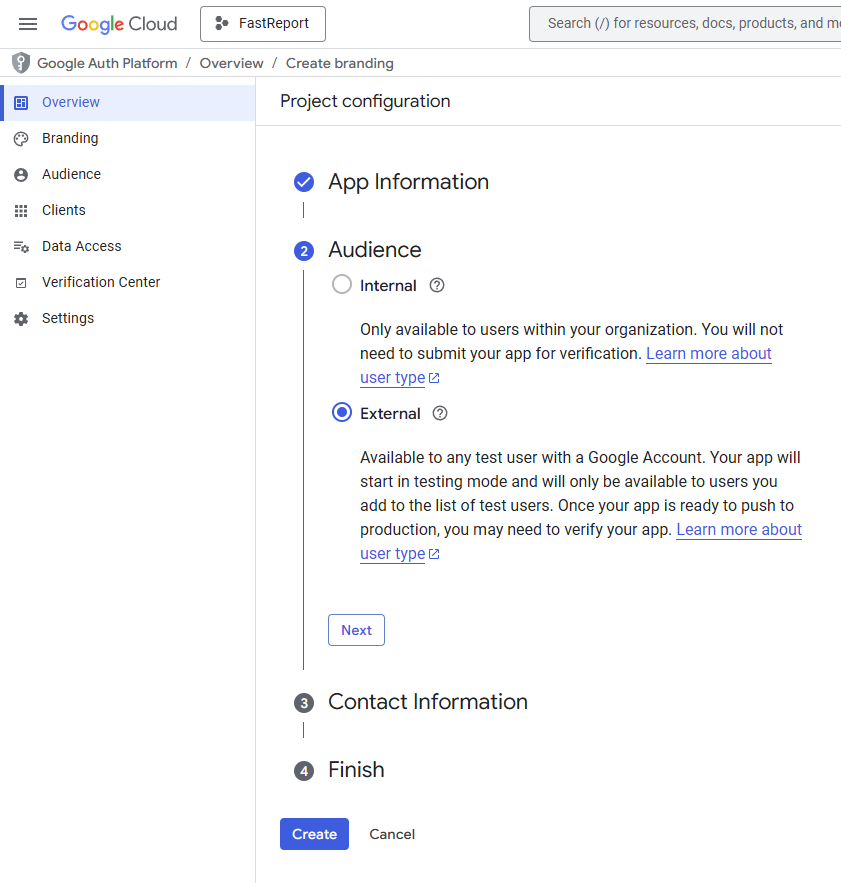
In the next step, we set up contact emails for notifications about changes in the project.
In the final step, we confirm our agreement with the Google API Services User Data Policy by checking the appropriate box, and complete the setup by clicking the "Create" button.
After creating the OAuth configuration, go to the "Audience" subsection. At this point, you need to add your Google account to the list of test users. Click the "Add users" button, enter your email (Gmail) and save the changes.
This is a Google security requirement: while an app is in the "Testing" status and hasn't been officially verified, only explicitly specified users have access to it. Without adding your account to this list, authorization will fail.
It is important to note that before verification, an application can have no more than 100 test users during its entire existence.
Next, go to the "Data Access" subsection. At this stage, we will define the access rights that our application will request from the user when connecting.
Click the "Add or remove scopes" button to open the list of available permissions. In the filter field, enter "API: Google sheets API”, and select the option with the description “See all your Google Sheets Spreadsheets" (read-only access). This option is sufficient for generating reports and is more secure: the application will not be able to modify or delete data from the spreadsheets. Check the box for the desired permission, click "Update," and then "Save."
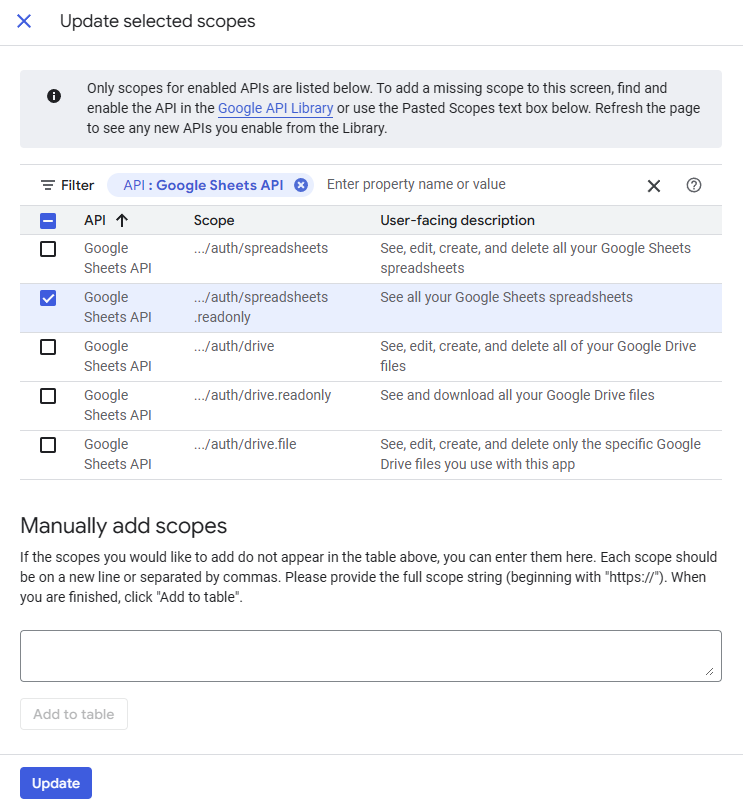
Once you have completed the setup of "OAuth consent screen" and adding test users, we move on to creating credentials. At this stage, we'll obtain the access keys needed to connect to Google Sheets from FastReport .NET.
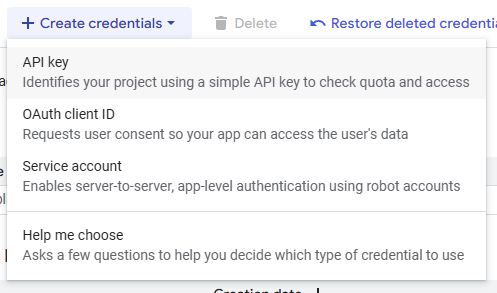
Go back to the "APIs & Services" section and navigate to the "Credentials" subsection. Here, click the "Create credentials" button at the top of the page.
The system will offer three options for creating credentials, but two main ones are suitable for our task: API Key and OAuth Client ID. We'll discuss each option in more detail below. The third available option, Service Account, won't be discussed as it's intended for server applications and automated processes without user intervention.
Both options have their advantages: API Key is easier to use, but OAuth 2.0 provides a higher level of security since it does not store keys in cleartext, but uses an access token mechanism.
Creating Credentials via API Key
Let's start with the API Key—it's the simplest authentication method, suitable for basic API access. Important: The API Key is only suitable for public Google Sheets. Use OAuth 2.0 for access to private sheets.
In the drop-down list, select the API key option.
A key creation window will open. In the Name field, enter a name for the key. Leave the "Authenticate API calls through a service account" unchecked—it is not required for our purposes.
Select None in the "Application restrictions" section (no restrictions), since FastReport .NET runs as a local desktop application.
Select Restrict Key in the "API restrictions"—it is an important security setting. Once selected, a list of available APIs will appear, where you should find and select Google Sheets API. This will prevent unauthorized use of the key to access other Google services.
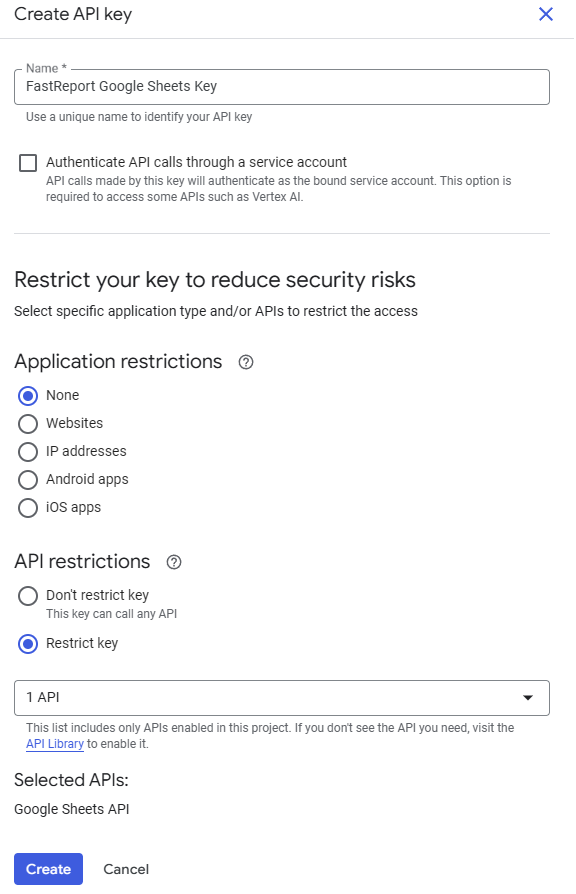
After setting up, click the “Create” button.
Creating Credentials via OAuth Client ID
The second type of credential is OAuth Client ID. This is a more secure method that uses the OAuth 2.0 protocol for authorization.
In the "Create credentials" drop-down list select the option "OAuth Client ID" field, specify the application type as "Desktop app" (since FastReport .NET runs as a local application) and enter a client name. Once created, the system will display the Client ID and Client Secret and prompt you to download a .json file containing this data. These credentials will be required when connecting to Google Sheets in the FastReport designer.
Connection to Google Sheets is implemented via a plugin, so it must be built before configuration. The project is located in the folder "Extras\Core\FastReport.Data\FastReport.Data.GoogleSheets."
After the project assembly, we connect the plugin to FastReport. To use it in the report designer, we add the compiled DLL file using the settings menu:
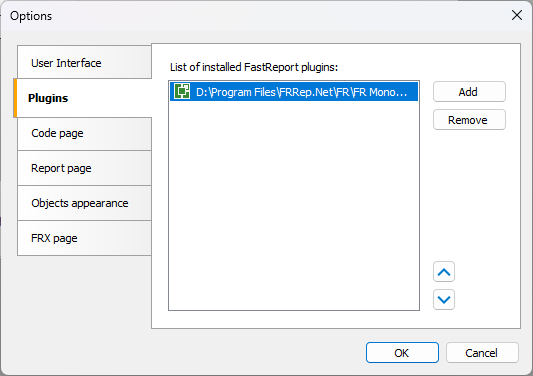
For programmatic integration, we add the assembly to the project's dependencies and register the connection using the following code when initializing the application:
FastReport.Utils.RegisteredObjects.AddConnection(typeof(GoogleSheetsDataConnection));
A detailed description of how to create a connection from code is provided in the readme.txt file that comes with the plugin project.
To create a connection, go to the "Data" tab and select "New Data Source." In the wizard window, click "New Connection" and select "Google Sheets Connection."
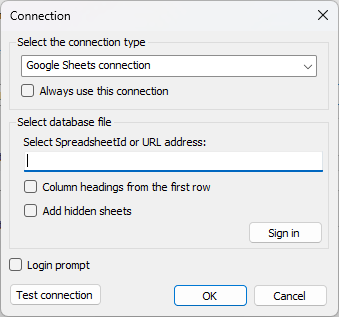
In the "Select Spreadsheet ID or URL address" field, enter the spreadsheet ID or URL. For example, for the URL https://docs.google.com/spreadsheets/d/1BxiMVs0XRA5nFMdKvBdBZjgmUUqptlbs74OgvE2upms the spreadsheet ID would be "1BxiMVs0XRA5nFMdKvBdBZjgmUUqptlbs74OgvE2upms".
- The "Column headings from the first row" option uses the first row of your Google Sheets spreadsheet as column names.
- The "Add hidden sheets" option includes sheets that are hidden in the Google Sheets interface in the list of spreadsheets.
To log in, simply click "OK." If you don't have any saved credentials, the login form will open automatically. Alternatively, you can open the login form manually by clicking "Login" and entering your credentials. Please note that your entered data is only verified after you click "OK" on the main form.
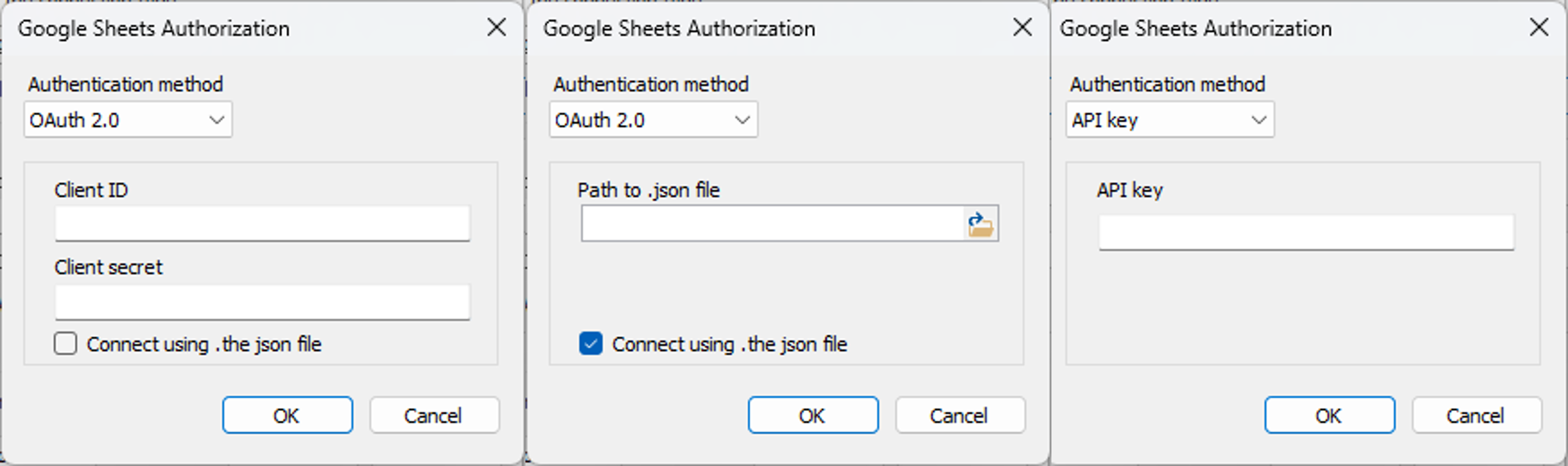
The choice of authorization method affects the further process:
- When connecting via the API Key, browser authorization is not required—the key is passed directly in the request, but the method only works with public tables.
- When connecting via OAuth 2.0, browser authorization is required—this method is suitable for both public and private tables.
If the OAuth 2.0 method is selected, a placeholder form is displayed in the designer during the authorization process, which can be used to cancel the process:
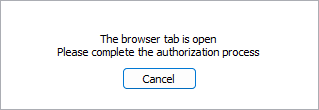
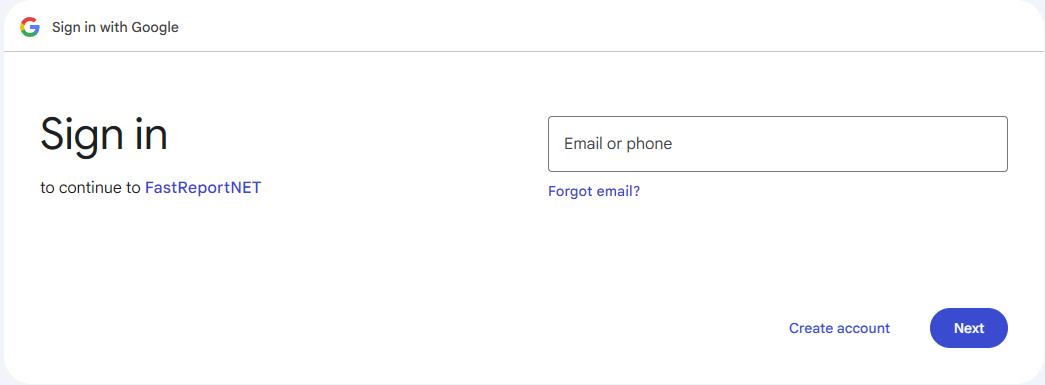
To log in to the browser, follow these steps: in the browser window that opens, you need to sign in to the Google account whose email was added to the list of test users during the OAuth setup stage. If you attempt to sign in with a different account that isn't in the list of test users, you'll see an access error message stating that the application is only available to test users.
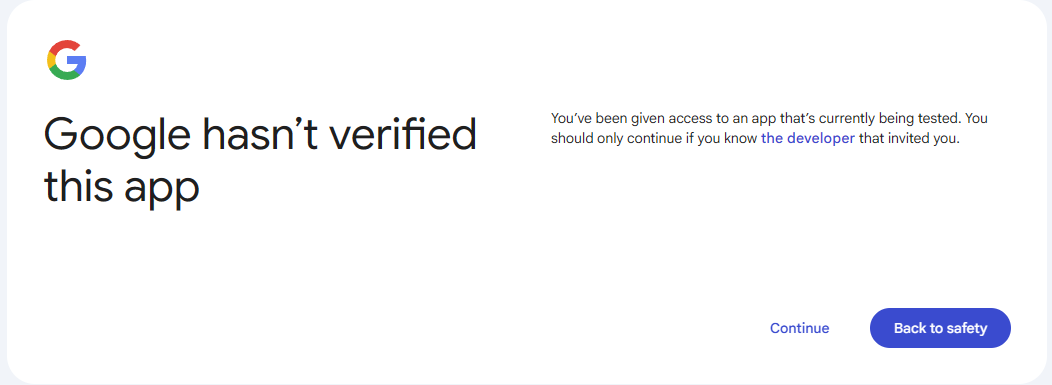
The next step will display a warning that the app hasn't passed Google's review. This is a standard message for apps in testing mode. Click "Continue" to grant access.
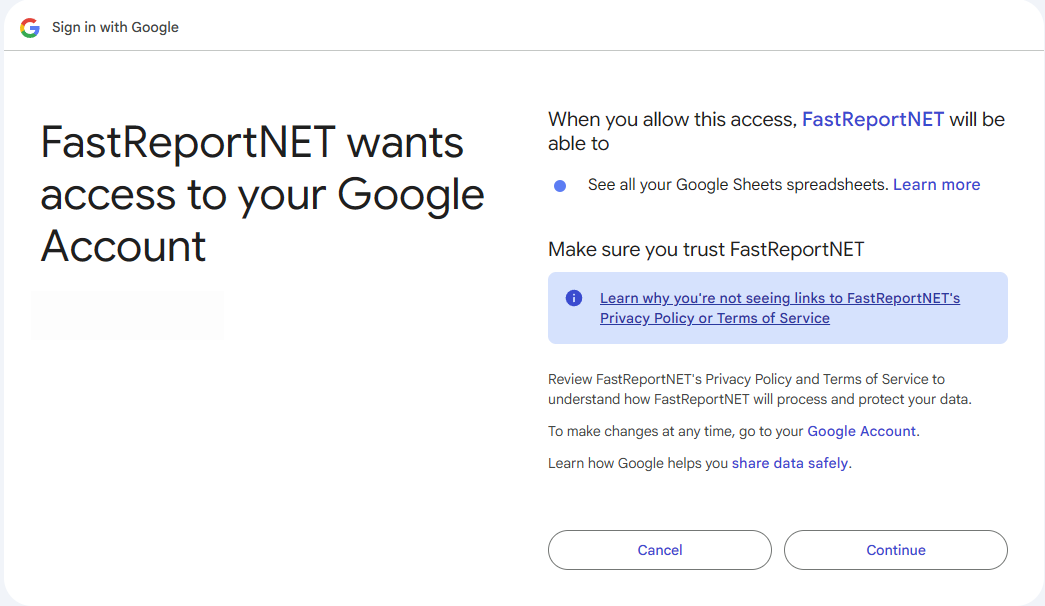
A permissions request screen will appear, indicating that the FastReportNET app requires permission to view all Google Sheets. Review the requested permissions and click "Continue" to confirm.
After successful authorization, a tab will open with the text “Close the window"—this means that the credentials have been successfully saved and the browser can be closed.
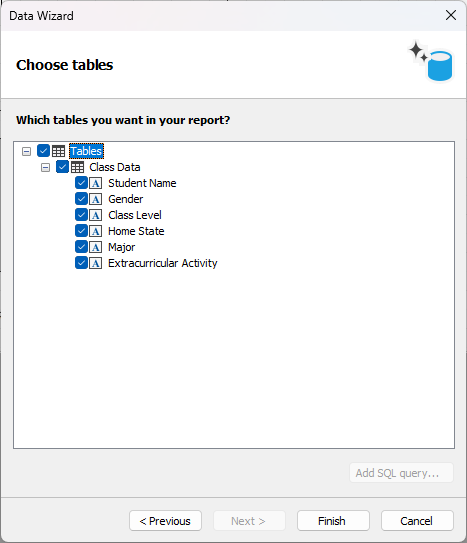
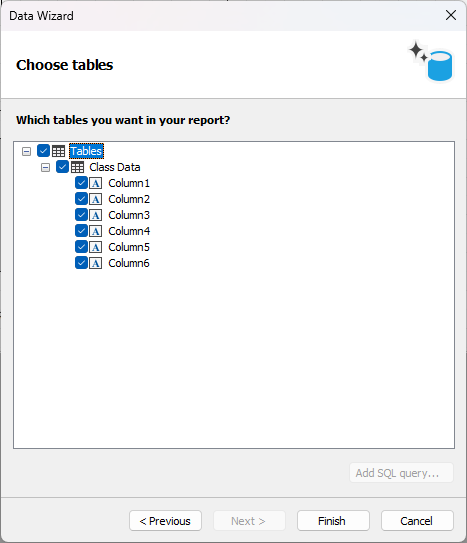
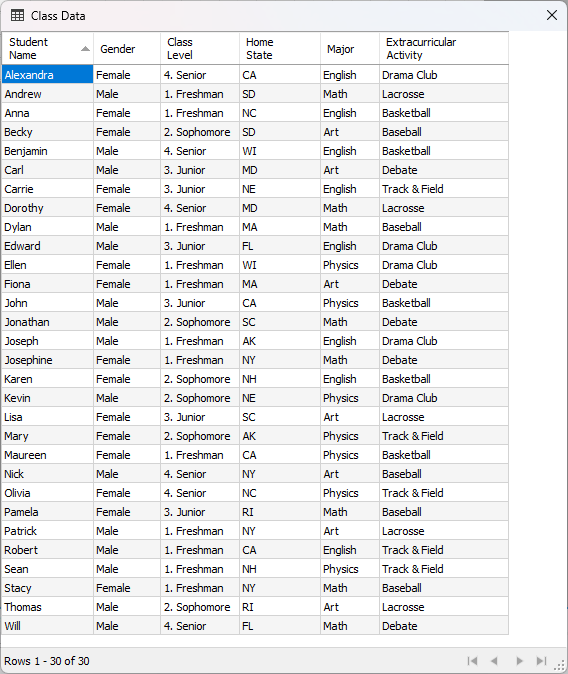
Return to the FastReport .NET designer. If the connection is successful, the next window will display a list of Google Sheets tables available for selection. The screenshots below show how the list of fields changes depending on the "Column Headings from the First Row" option:
- If this option is enabled, the first row of the table is used as column names (Student Name, Gender, etc.).
- If the option is disabled, the columns receive standard names (Column1, Column2, etc.).
Data from Google Sheets is imported as it appears in the spreadsheet—as text and numbers. Visual objects are completely ignored: images, charts, graphs, and drawings (shapes, lines, buttons). Interactive objects are converted to text: checkboxes are displayed as text (true/false), and drop-down lists will display the value displayed in Google Sheets.
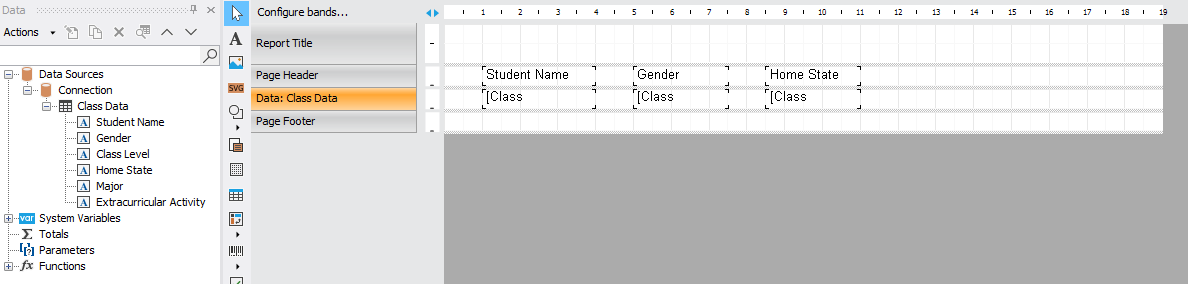
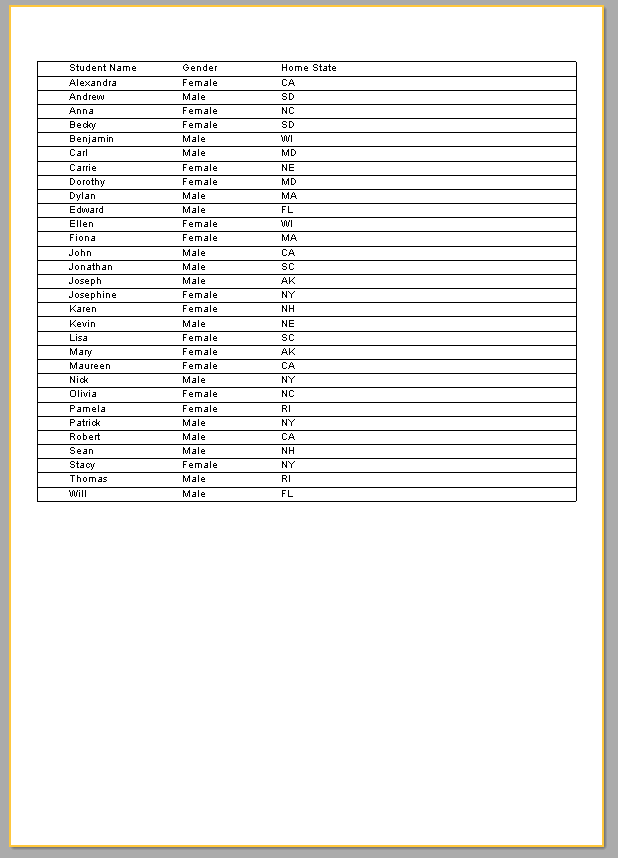
An example of the final result of working with Google Sheets in FastReport .NET—data successfully retrieved from a cloud spreadsheet is displayed in the report.
The article covered in detail the process of connecting the plugin to Google Sheets in FastReport .NET—from setting up API access via Google Cloud Console before final authorization and data import. After successful authorization, data from Google Sheets is correctly imported into the report designer—except for visual and interactive objects, which are either ignored or converted to text.