How to Export a Report from FastReport .NET to PostScript
FastReport .NET supports exporting reports to many popular formats, such as PDF, Excel, Word, and others. However, professional printing, plotters, and specialized printing equipment often require the PostScript (.ps) format.
PostScript is a page description language developed by Adobe Systems. It provides highly accurate rendering of vector graphics and text, making it a standard in the printing and industrial publishing industries. Unlike PDF, PostScript consists of a set of instructions for the output device, allowing precise control over every element of the page layout.
In this article, we will look at exporting a FastReport .NET report to the PostScript format, using a practical example to examine parameter configuration and programmatic implementation.
Export via the User Interface
As an example, let's use the "Employee List" report:
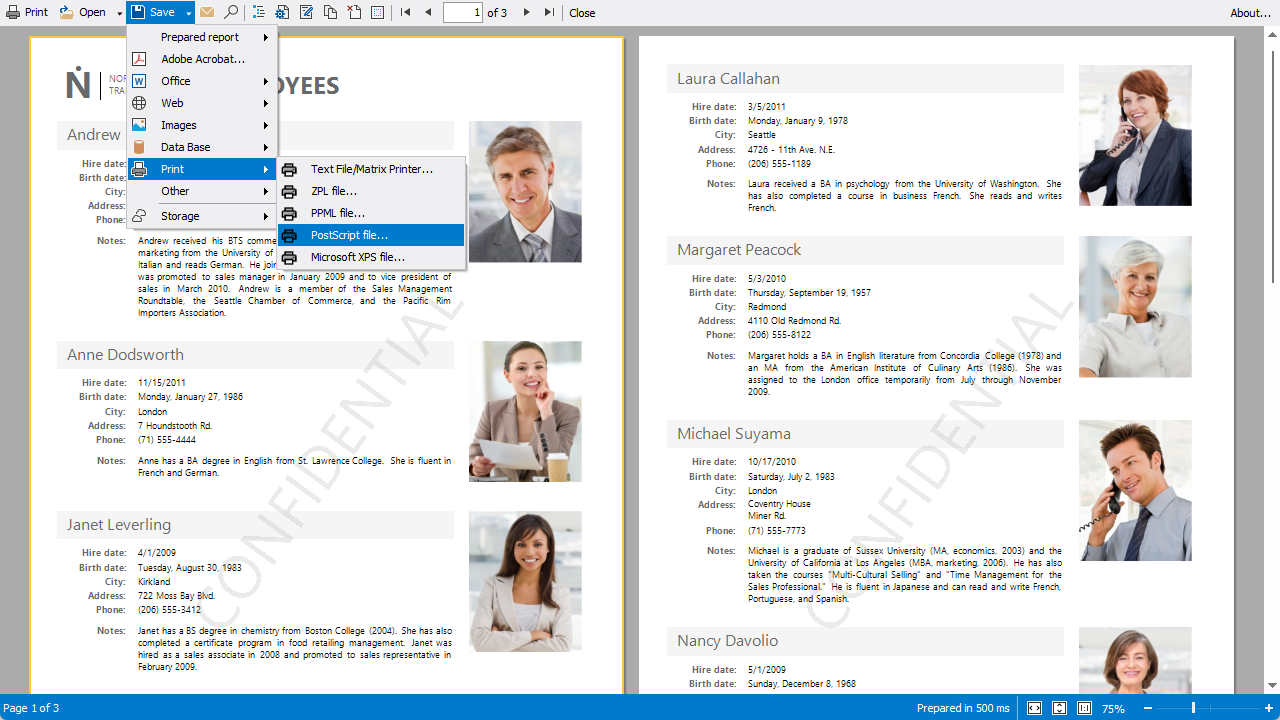
On the toolbar, click the "Save" button. Then, in the drop-down menu, point to "Print" and select "PostScript file...".
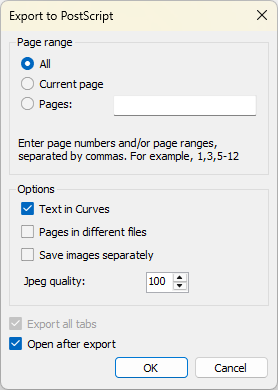
The export settings include:
- Text as Curves - when enabled, all text elements are converted into vector outlines (Bézier curves). This ensures that the text is displayed correctly on any device, even if the fonts used in the report are not installed. (The text is no longer editable, and the file size may increase.)
- Separate Files for Pages - if the report contains multiple pages, this option saves each page as a separate .ps file instead of a single document. This is useful for batch processing or printing different parts of the report on different devices.
- Save Pictures Separately - images from the report are saved as separate files, while the main .ps file contains only references to them. This reduces the size of the main file and speeds up processing. (When transferring the file to another device, remember to copy the image folder as well; otherwise, the images will not be displayed.)
- JPEG Quality - specifies the compression level for raster images in the report.
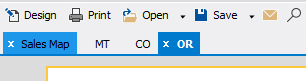
- Export All Tabs - if the report contains multiple tabs, this option exports the contents of all tabs instead of only the active one.
- Open After Export - automatically opens the report in the application associated with the .ps file extension immediately after the export is completed.

Export via Code
The same result can also be achieved programmatically. The following example demonstrates how to configure and export the "Employee List" report using code:
// Create a new report instance
Report report = new Report();

// Load the report
report.Load(@"C:\Reports\MainReport.frx");

// Prepare the report
report.Prepare();

// Create a PostScript export object
PSExport psExport = new PSExport();

// Text as Curves
psExport.TextInCurves = true;

// Separate Files for Pages
psExport.PagesInDiffFiles = false;

// Save Pictures Separately
psExport.SaveImagesSeparately = false;

// JPEG Quality
psExport.Quality = 100;

// Export All Tabs
psExport.ExportAllTabs = false;

// Open After Export
psExport.OpenAfterExport = true;

// Export the report to a file using the specified settings
report.Export(psExport, "ResultReport.ps");

As shown in the screenshot, the file created programmatically is identical to the one produced through the interactive export process.
Conclusion
We have explored two ways to export reports to PostScript: through the user interface for one-time tasks and through code for automation. The PostScript format remains an essential tool for professional printing, and FastReport .NET makes it easy to integrate PostScript export into your applications.