How to Configure a Report with Business Objects in Code and the FastReport .NET Designer
FastReport .NET provides multiple ways to access and work with data, including databases, DataSet, JSON, and Business Objects (regular C# classes in your application).
This article demonstrates a practical example of creating and using an .frx report template that connects to hierarchical Business Objects (Category → Products).
Why Use Business Objects as a Data Source?
Business Objects offer several advantages over traditional data sources:
- Support for complex object models — Works seamlessly with nested collections, making it ideal for Master-Detail reports (demonstrated later in this article).
- Database independence — Reports can be generated without a direct database connection.
- Easy maintenance — Changes to the data model typically require little or no modification to existing reports.
- High performance — Data is serialized directly from application objects.
- Flexibility — Suitable for WinForms, WPF, ASP.NET Core, microservices, and other .NET applications.
Preparing the Business Objects
1. Create the model classes
First, install the FastReport.Net.Demo NuGet package (or the licensed FastReport.Net package from our private NuGet server), then create the following model classes:
public class Category
 {
 public string Name { get; set; } = string.Empty;
 public string Description { get; set; } = string.Empty;
 public List<Product> Products { get; set; } = new List<Product>();

 public Category() { }

 public Category(string name, string description)
 {
 Name = name;
 Description = description;
 }
 }

 public class Product
 {
 public string Name { get; set; } = string.Empty;
 public decimal UnitPrice { get; set; }

 public Product() { }

 public Product(string name, decimal unitPrice)
 {
 Name = name;
 UnitPrice = unitPrice;
 }
 }
2. Populate the Business Objects
Next, implement a simple method to populate the data:
static private void CreateBusinessObject()
{
 FBusinessObject.Clear();

 Category category = new Category("Beverages", "Soft drinks, coffees, teas, beers");
 category.Products.Add(new Product("Chai", 18m));
 category.Products.Add(new Product("Chang", 19m));
 category.Products.Add(new Product("Ipoh coffee", 46m));
 FBusinessObject.Add(category);

 category = new Category("Confections", "Desserts, candies, and sweet breads");
 category.Products.Add(new Product("Chocolade", 12.75m));
 category.Products.Add(new Product("Scottish Longbreads", 12.5m));
 category.Products.Add(new Product("Tarte au sucre", 49.3m));
 FBusinessObject.Add(category);

 category = new Category("Seafood", "Seaweed and fish");
 category.Products.Add(new Product("Boston Crab Meat", 18.4m));
 category.Products.Add(new Product("Red caviar", 15m));
 FBusinessObject.Add(category);
}
3. Designing the Report
To create a report based on the Categories BusinessObject data source, use the following code:
 [STAThread]
 static void Main(string[] args)
 {
 Report report = new Report();
 CreateBusinessObject();
 report.RegisterData(FBusinessObject, "Categories BusinessObject");
 report.Design();
 }
Important: Call RegisterData after loading the report (report.Load) and before calling report.Prepare().
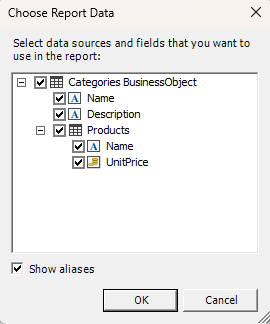
After launching the report designer, select the data source by opening "Data → Choose Report Data".
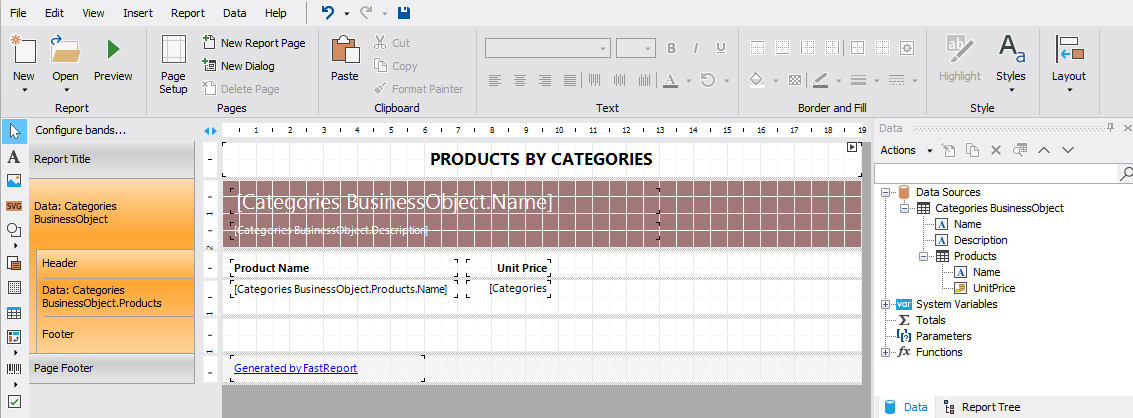
Next, create a simple Master-Detail report, or use one of the sample templates included with the FastReport demo projects.
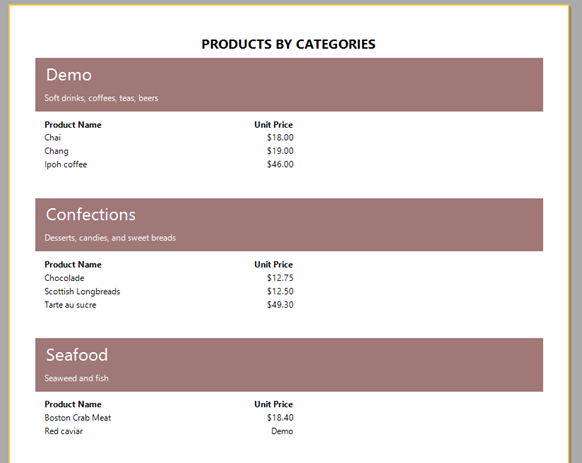
Once the report is ready, run it in Preview mode to verify the output.
4. Displaying the Report in a Console Application
Once the report template has been created, you can display it from a Console application using the following code:
[STAThread]
 static void Main(string[] args)
 {
 Report report = new Report();
 report.Load(@"Business Objects.frx");
 CreateBusinessObject();
 report.RegisterData(FBusinessObject, "Categories BusinessObject");
 report.Prepare();
 report.Show();
 report.Dispose();
 }
Complete WinForms Application Example
public partial class Form1 : Form
 {
 static private List<Category> FBusinessObject = new List<Category>();

 public Form1()
 {
 InitializeComponent();
 CreateBusinessObject();
 }

 private void CreateBusinessObject()
 {
 FBusinessObject.Clear();

 Category category = new Category("Beverages", "Soft drinks, coffees, teas, beers");
 category.Products.Add(new Product("Chai", 18m));
 category.Products.Add(new Product("Chang", 19m));
 category.Products.Add(new Product("Ipoh coffee", 46m));
 FBusinessObject.Add(category);

 category = new Category("Confections", "Desserts, candies, and sweet breads");
 category.Products.Add(new Product("Chocolade", 12.75m));
 category.Products.Add(new Product("Scottish Longbreads", 12.5m));
 category.Products.Add(new Product("Tarte au sucre", 49.3m));
 FBusinessObject.Add(category);

 category = new Category("Seafood", "Seaweed and fish");
 category.Products.Add(new Product("Boston Crab Meat", 18.4m));
 category.Products.Add(new Product("Red caviar", 15m));
 FBusinessObject.Add(category);
 }

 private void btnCreateNew_Click(object sender, EventArgs e)
 {
 // create report instance
 Report report = new Report();

 // register the business object
 report.RegisterData(FBusinessObject, "Categories BusinessObject");

 // design the report
 report.Design();

 // free resources used by report
 report.Dispose();
 }

 private void btnRunExisting_Click(object sender, EventArgs e)
 {
 // create report instance
 Report report = new Report();

 // load the existing report
 report.Load(@"..\..\Business Objects.frx");

 // register the business object
 report.RegisterData(FBusinessObject, "Categories BusinessObject");

 // run the report
 report.Show();

 // free resources used by report
 report.Dispose();
 }
 }


 public class Category
 {
 public string Name { get; set; } = string.Empty;
 public string Description { get; set; } = string.Empty;
 public List<Product> Products { get; set; } = new List<Product>();

 public Category() { }

 public Category(string name, string description)
 {
 Name = name;
 Description = description;
 }
 }

 public class Product
 {
 public string Name { get; set; } = string.Empty;
 public decimal UnitPrice { get; set; }

 public Product() { }

 public Product(string name, decimal unitPrice)
 {
 Name = name;
 UnitPrice = unitPrice;
 }
 }
Conclusion
Business Objects are one of the most modern and convenient ways to work with data in FastReport .NET. They allow you to integrate report generation into your application's architecture in a clean and maintainable way, without introducing unnecessary complexity into your codebase.
This approach is especially well-suited for medium-sized and large projects, where clear separation of concerns, maintainability, and rapid report development are essential.
By using Business Objects, you gain maximum flexibility and full control over how data is supplied to your reports, while keeping your reporting layer closely aligned with your application's domain model.