Using Watermarks in FastReport VCL
The latest versions of FastReport VCL now feature watermarking functionality. Watermarks are labels embedded in electronic documents, images, videos, audio, or other digital content. Their purpose is to confirm authorship, protect against copying, and track file distribution.
In this article, we'll take a detailed look at creating and using watermarks in FastReport VCL reports. An example of watermark use is available in the Demo included with FastReport VCL.
Creation and Editing
Creating and editing watermarks in a report is available both in the report designer and in the report preview. Editing is done using the appropriate editor. To access the editor, click "Report -> Watermarks..." in the report designer menu. To edit watermarks in the report preview, use the corresponding button on the toolbar. The watermark editor looks like this:
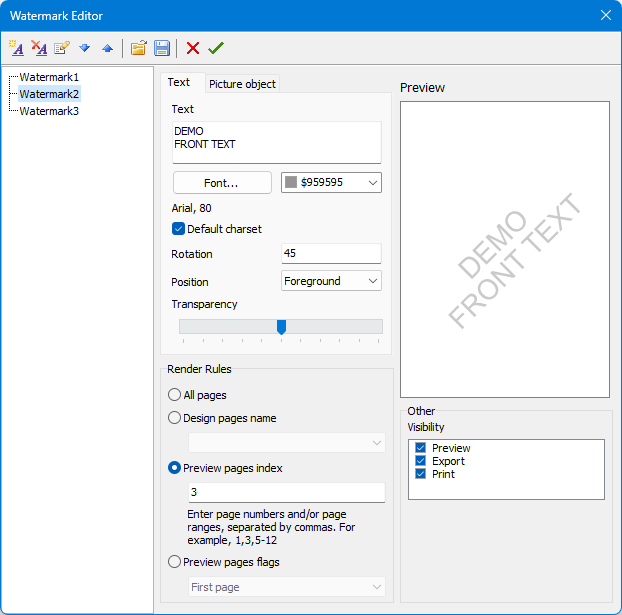
At the top of the window is a toolbar that allows you to create a new watermark, delete an existing one, and change its name. You can also move a watermark up or down within the list. The set of watermarks can be uploaded from a file or saved to a file for later use in other reports. The last two buttons allow you to exit the watermark editor without saving or with saving the changes.
On the right side is a list of watermarks available in the report. For ease of use, you can assign custom names to them.
A watermark can be defined using either text or an image. It is also permissible to use both simultaneously. In the figure above, the editor is shown on the text settings tab. As you can see, you can specify the text displayed in the watermark, as well as its color, font, rotation, and transparency. You can also set the watermark's positioning—whether it appears in front of or behind the main report content. The text used as a watermark is automatically centered on the page and uses center alignment—this cannot be changed.
To select an image to use as a watermark, go to the “Image” Object tab.
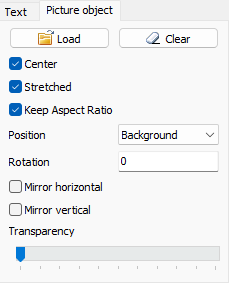
Main Buttons and Their Purpose
Upload button—calls up a dialog for uploading an image from a file (supported formats are wmf, emf, gif, tiff, svg, png, ico, bmp, jpg).
Clear button—deletes the uploaded image. Use the checkboxes to adjust the position and size of the selected image.
"Center" flag—places the image in the center of the page. If unchecked, the image will be positioned in the upper left corner.
"Stretchable" flag means the watermark image will be stretched to fill the entire page. Otherwise, the original image size will be used.
"Keep aspect ratio" flag —makes the image to keep its aspect ratio when stretching to avoid distortion.
"Position" menu allows you to set the position of the image: in the background or in the foreground.
Using the "Orientation" field, you can set the rotation angle of the drawing.
"Horizontal Flip" and "Vertical Flip" checkboxes allow you to flip the watermark image along the horizontal or vertical axis.
"Opacity" slider adjusts the image's transparency. The left slider represents 0% transparency, while the right slider represents full 100% transparency for the selected image.
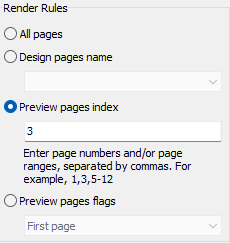
"Rendering Rules" radio button group allows you to assign the currently edited watermark to report pages. The following values can be set for rendering rules:
- “All pages”—in this case, the watermark will be located on all pages of the report.
- "Designer Page Name" can be specified if a report in designer mode contains multiple pages. Selecting a specific page is enabled.
- "Preview Page Index"—you can specify page numbers in the generated report, including page ranges.
- "Preview Page Flags"—you can set the location of the watermark depending on the page type of the finished report—first or last, even or odd.
At the top right is a preview of the watermark, and below it is a set of flags that can be used to set the visibility of the resulting watermark during preview, export, and printing.
Working with Watermarks from Code
Watermarks are essentially a TfrxWatermarks collection of TfrxWatermark objects. The report contains two such collections.
- TfrxReport.Watermarks — this collection contains watermarks specified by the user in the report template.
- TfrxReport.PreviewPages.Watermarks — this collection contains the watermarks of a prepared report. It is empty if the report has not yet been generated or if no pre-generated report has been loaded.
In most cases, these collections will match, but it's important to consider the possibility that watermarks are created or removed in a script. Also, if a composite report is built, TfrxReport.PreviewPages.Watermarks will contain the watermarks of all reports included in the composite one.
Thus, if the report has not yet been launched for generation, then use TfrxReport.Watermarks. If you need to change an already built report, use TfrxReport.PreviewPages.Watermarks. Objects of this collection can be accessed in Delphi code using a construct like this:
frxReport1.Watermarks.Items[1].TextSettings.Text := 'Random text';
Only the collection located in TfrxReport.PreviewPages.Watermarks is accessible in the report script. This collection is copied there at the beginning of the PrepareReport() method. You can use it in the report script as follows:
PreviewPages.Watermarks.Items[1].TextSettings.Text := 'Random text';
A new watermark can be added using the following code either in Delphi or in a script:
NewWatermark := Watermarks.Add
In a report script, even if it is composite, only those watermarks that are in the currently processed report are available.
The remaining properties and methods of the TfrxWatermarks class are identical to those of the Delphi TCollection object. Additionally, the TfrxWatermarks class has the LoadFromFile, SaveToFile, LoadFromStream, and SaveToStream methods, which allow reading and writing to a file and stream, respectively.
TfrxWatermark class stores data for displaying a watermark and has the following properties, which can be edited using the watermark editing form.
| Property | Description |
| PagesSetupMode | Determines on which pages the watermark will be displayed on. Possible values: psmAll, psmDesignPagesName, psmPreviewPagesIndex, psmPreviewPagesFlags |
| PageName | The name of the page (in the designer) on which the watermark will be shown if PagesSetupMode = psmDesignPagesName |
| PagesIndex | A string containing the indexes of the pages of the finished report where the watermark will be displayed. This is used if PagesSetupMode = psmPreviewPagesIndex |
| PagesFlags | The page types on which the watermark will be displayed if PagesSetupMode = psmPreviewPagesFlags. Possible values: pfFirstPage, pfLastPage, pfOddPages, pfEvenPages |
| VisibilityTypes | Determines the visibility of the watermark depending on where the report is output. Can contain a combination of the following values: vsPreview, vsExport, vsPrint |
| PictureSettings | Properties of an image used as a watermark. These are discussed below |
| TextSettings | Properties of text used as a watermark. These are discussed below |
Properties of the text used as a watermark: TextSettings
| Property | Description |
| Text | Contains the text to be displayed |
| Font | The used font |
| Rotation | Rotation angle in degrees |
| Position | The position of the watermark—before or after the printed data |
| Transparency | Sets the transparency of the watermark. The value can range from 0 (opaque) to 100 (transparent) |
Properties of the image used as a watermark: PictureSettings
| Property | Description |
| Picture | Contains the image to be displayed |
| Center | If True, the image is located in the center of the page, otherwise in the upper left corner |
| Stretched | If set, the image is stretched to fit the page, otherwise the original image size is used |
| KeepAspectRatio | If set, the image is stretched while keeping the image proportions |
| Position | The position of the watermark—before or after the printed data |
| Transparency | Sets the transparency of the watermark. The value can range from 0 (opaque) to 100 (transparent) |
As you can see, the same properties as in the watermark settings dialog are available programmatically from the code. Note that the class stores several properties that define the pages on which the watermark will be displayed. However, only the property referenced by PagesSetupMode will be used.
Let's emphasize once again that PictureSettings and TextSettings are different properties of the Watermark object! Although they are very similar, changing any parameter of the PictureSettings property will not affect the text watermark, and vice versa, changing TextSettings will not change the parameters of the watermark image.
Sample Code for Building Watermarks in Report Scripts
For clarity, let's take 3.fr3 report from the FastReport DemoCenter. It has quite a few pages, and we'll place a text watermark containing the page number on each page. For the Band1—TfrxPageFooter band, we'll create an OnBeforePrint handler and add the following code:
procedure Band1OnBeforePrint(Sender: TfrxComponent);
var W: TfrxWatermark;
 P:string;
begin
 P := IntToStr(<Page>);
 W:= PreviewPages.Watermarks.Add;
 W.Name := 'W' + P;
 W.PagesIndex := P;
 W.PagesSetupMode := psmPreviewPagesIndex;
 W.TextSettings.Text := 'Page_' + P;
 W.VisibilityTypes := vsPreview + vsPrint + vsExport;
 W.TextSettings.Rotation := 45;
 W.TextSettings.Font.Size := 72;
 W.TextSettings.Font.Style := fsBold;
 W.TextSettings.Position := wpFront;
 W.TextSettings.Font.Name := 'Times New Roman';
 W.TextSettings.Transparency := 70;
end;
begin
end.
This code creates a watermark when printing the footer of each page. Using the PagesSetupMode property, the watermark is assigned to display on a specific page of the finished report. The page number is specified using the PagesIndex property. The remaining watermark properties are then set using the TextSettings property.
You should get a report like this:
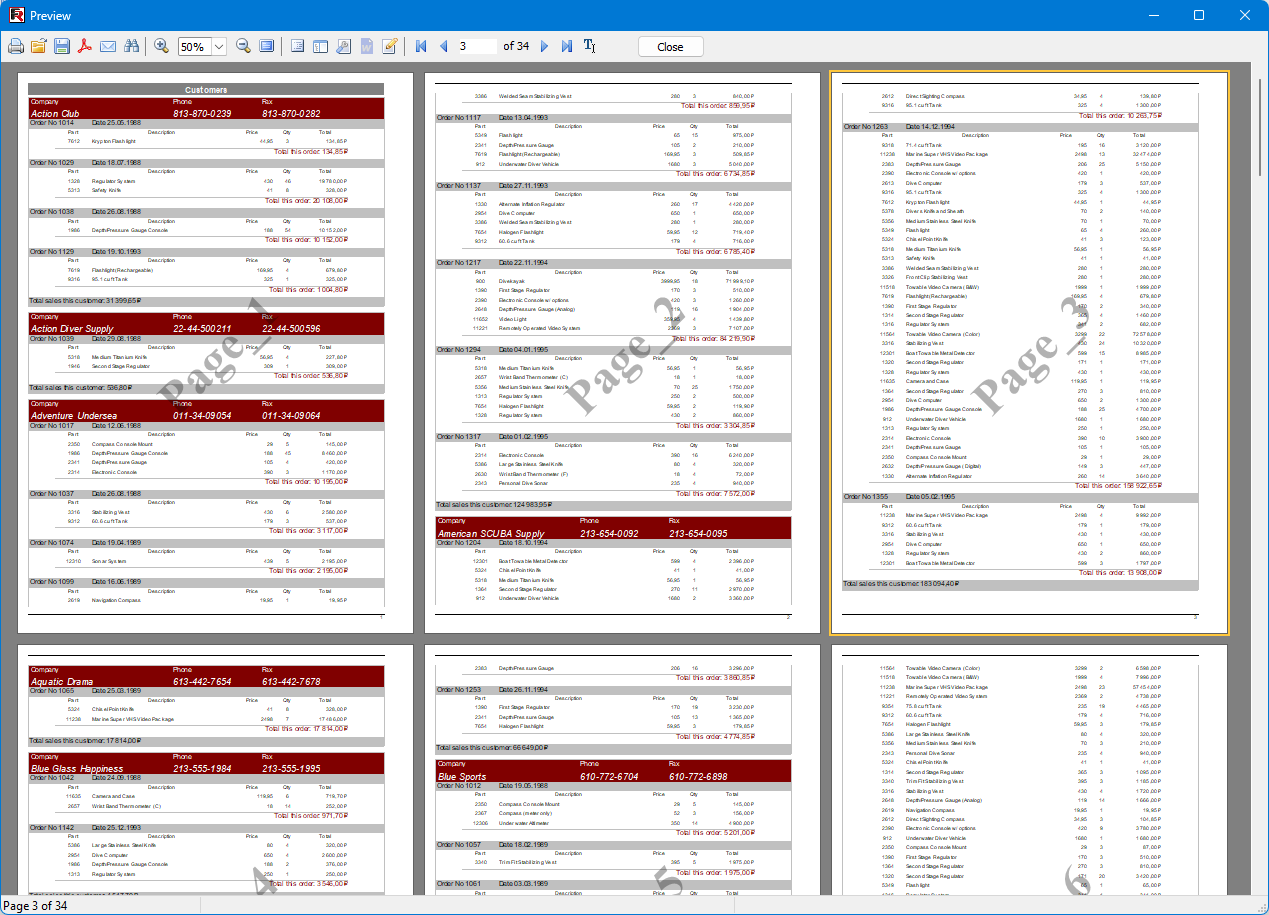
This script can be used in other reports as well. Band1OnBeforePrint handler must be assigned to an element that is printed only once on each page, such as TfrxPageHeader or TfrxPageFooter.
Similar methods can be used to create graphic watermarks. For example, since an SVG image is essentially text, you can generate an image for each page in the report script or upload watermark images based on the page content.
When using watermarks, keep in mind that they may not be visible due to the background color. For example, a gray watermark on a gray background.
Additional Features
When using watermarks during export, keep in mind that not all export formats support watermarks. Some exports offer only partial support for watermarks. Full support is available only for exports to graphic formats: PDF and HTML5. Export to Microsoft Word documents has only partial watermark support—this is a limitation of Microsoft Word itself.
When exporting to PDF, to achieve semi-transparent watermarks, be sure to check the "Transparency" option in the export dialog.
Conclusion
The article provides a detailed overview of the watermark functionality in FastReport VCL—covering both the visual interface and programmatic methods using Delphi code and report scripts. It describes the capabilities of the watermark editor: configuring text and graphic marks, adjusting their transparency, rotation, positioning, and visibility, as well as rendering rules—including binding to specific pages (first/last, even/odd, by page number range, etc.). A practical code example is provided for automatically creating text watermarks with page numbers, which can be adapted for other reports.
These tools enable flexible content protection and report labeling in accordance with business requirements. However, it is important to consider certain limitations: not all export formats fully support watermarks. Full support is available for PDF and HTML5 exports, whereas export to Microsoft Word offers only partial compatibility.