How to Export a Report to JPEG / PNG / BMP / GIF / TIFF / EMF from FastReport .NET
In the world of modern software development, creating high-quality and informative reports plays a key role in ensuring effective data analysis and informed decision-making. FastReport .NET is a powerful library for creating reports in .NET applications, providing a wide range of tools for creating and customizing reports.
One of the key aspects of this library is the ability to export reports to various graphic formats, such as JPEG, PNG, BMP, GIF, TIFF, and EMF. In this article, we will examine how easily and efficiently reports from FastReport .NET are exported to each of these formats and open up new possibilities for visualizing and presenting data.
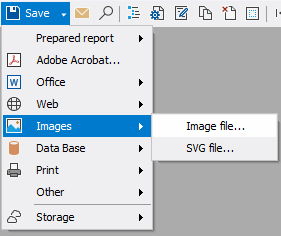
To begin, we will export reports through the designer. To do this, we need to go to Preview >> “Save” >> “Images” >> “Image File…”.
After that, we will see a window with export settings to an image.
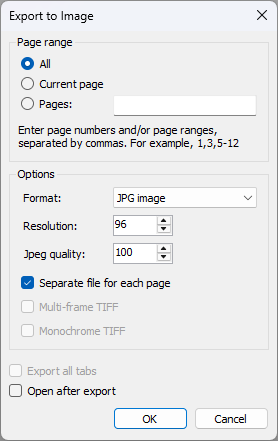
Basic Settings for Exporting to Images
The page block is designed to save the necessary pages of the report.
Basic settings:
- Format — used to select the desired format (JPEG, PNG, BMP, GIF, TIFF, EMF).
- Resolution — the resolution of the resulting image, 96 is the standard screen resolution.
- JPEG Quality — the quality of the final file will be available when this format is selected in the Format field. This value is specified as a percentage. The larger the number entered, the higher the quality of the file and the less its compression.
- Separate file for each page — when this checkbox is selected, as many files will be created as there are pages.
- Multi-frame TIFF — if the export generates several images, then a multi-page single file will be generated when the TIFF format is selected.
- Monochrome TIFF — black and white image when selecting the TIFF format.
- Open after export — when this checkbox is selected, the file will be opened after saving.
After we have selected the settings we need, click “OK,” select the location to save the desired image, and open it.
Let’s now try to save the report, but through code. We launch Visual Studio and create a project on WinForms. Next, we need to write the code in the form.
using FastReport;
using FastReport.Export.Image;
...
 private void Form1_Load(object sender, EventArgs e)
 {
 ImageExport imageExport = new ImageExport();
 Report report = new Report();
 report.Load(“Simple List.frx”);
 report.Prepare();
 //Selecting the format of the image to be saved
 imageExport.ImageFormat=ImageExportFormat.Tiff;
 //Resolution of the resulting image
 imageExport.Resolution = 96;
 //Jpeg file quality
 imageExport.JpegQuality = 100;
 //If the export generates several images, then when the TIFF format is selected
 //a multi-page single file will be generated
 imageExport.MultiFrameTiff = true;
 //Monochrome image when selecting the TIFF format
 imageExport.MonochromeTiff = false;
 report.Export(imageExport, “img.tiff”);
 }
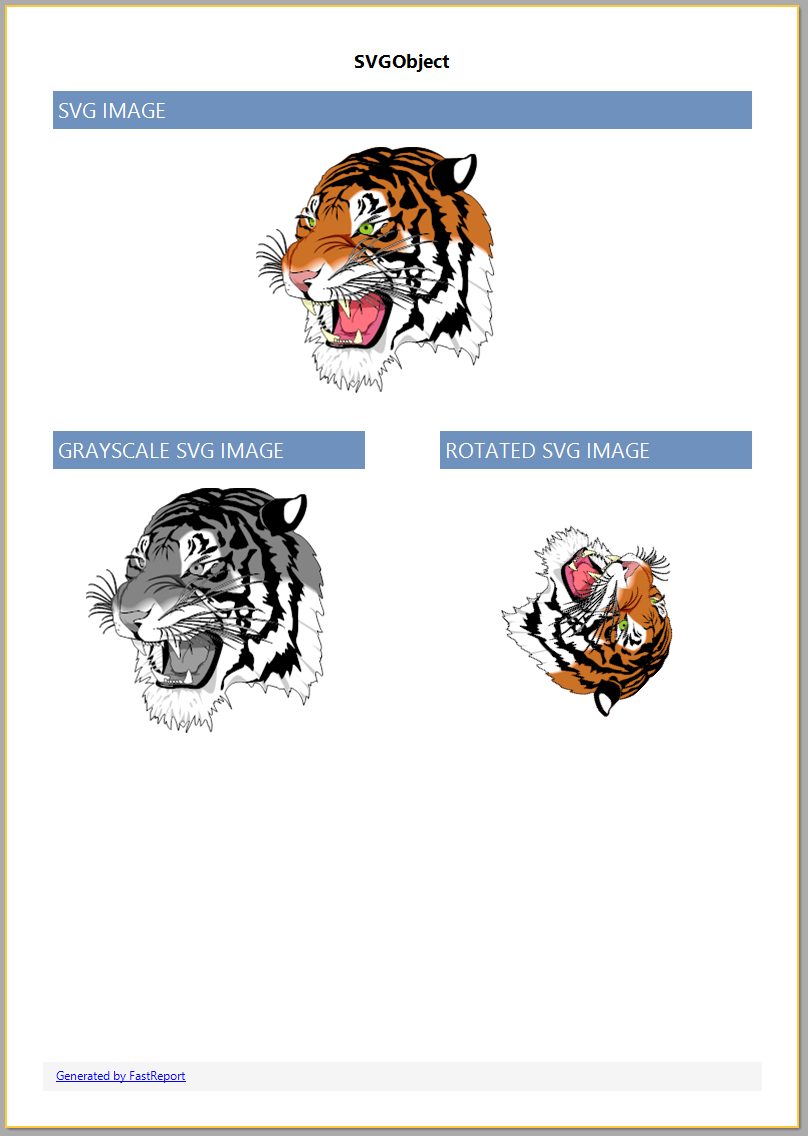
We launch our project and open the resulting image.

Thus, we managed to export the report to images both through code and through the designer itself. And also, we examined in detail each property of the export settings. The FastReport .NET library can become an indispensable tool for developers who want to create high-quality and informative reports.