Respostas às perguntas frequentes sobre o formato FP3

O formato FP3 costuma gerar dúvidas — especialmente entre usuários que precisam abrir, visualizar ou converter rapidamente um relatório preparado sem se aprofundar nos detalhes de desenvolvimento. Ao mesmo tempo, a confusão pode surgir logo de início: a extensão FP3 é utilizada em diferentes ambientes de software e pode se referir a tipos de arquivos completamente distintos. Por exemplo, desde relatórios do FastReport até projetos de planejamento 3D e até mesmo dados médicos.
Reunimos as 11 perguntas mais frequentes encontradas pelos usuários e preparamos respostas claras que levam em consideração tarefas do mundo real. Você descobrirá como o FP3 difere de outros formatos (em particular, do modelo FR3), quais ferramentas podem ajudar você a trabalhar com esses arquivos, como convertê-los para PDF e outros formatos e como resolver problemas técnicos comuns.
1. O que é o formato FP3?
Os arquivos com a extensão FP3 podem estar associados a vários programas, dependendo de seu conteúdo. No entanto, esse formato é mais comumente associado a relatórios preparados criados com as ferramentas do FastReport.
Nesse caso, FP3 é um formato proprietário desenvolvido pela Fast Reports e utilizado para armazenar dados de relatórios previamente preparados para visualização, que podem ser facilmente transferidos ou salvos para análises posteriores.
Esse arquivo FP3 contém:
- um relatório pronto para visualização,
- uma estrutura de dados,
- configurações de formatação,
- imagens e outros elementos adicionais de design.
A principal característica do FP3 (em comparação com os modelos no formato FR3) é que o arquivo já está totalmente preparado e não requer uma conexão com o banco de dados de origem, um novo processamento dos dados ou os modelos de relatório originais.
2. Onde mais o FP3 é utilizado?
Além das ferramentas do FastReport, a extensão FP3 pode incluir arquivos que contêm imagens tridimensionais para prototipagem, imagens de raios X, arquivos para impressão 3D e outros documentos médicos. No entanto, na maioria das vezes, trata-se simplesmente de uma coincidência de extensão de nome de arquivo, e não do uso de um formato de dados real. Geralmente, FP3 refere-se a restaurações da classe FP3 e aos implantes dentários correspondentes.
Além disso, o formato FP3 é utilizado no projeto de estruturas arquitetônicas.
Ele também é utilizado em programas baseados em componentes do FastReport que oferecem suporte automático a esse formato. Por exemplo, em sistemas CRM e ERP.
3. Quais programas podem trabalhar com o formato FP3 da Fast Reports?
Para abrir e visualizar arquivos FP3 no formato FastReport, você pode usar um programa especial — FastReport Viewer. Este é um aplicativo gratuito desenvolvido para a visualização e impressão convenientes de arquivos FP3. Graças à sua interface intuitiva e ampla variedade de recursos, o Viewer permite trabalhar de forma eficiente com relatórios preparados sem recorrer a softwares complexos.
Você pode saber mais sobre este aplicativo no artigo "Abrimos arquivos com a extensão FP3 usando o FastReport Viewer".
O formato FP3 também é compatível com o aplicativo FastConverter, que pode ser usado para converter esses arquivos para outros formatos populares.
E, é claro, os arquivos FP3 podem ser abertos e visualizados usando componentes de software do FastReport, criando seu próprio projeto e aplicativo baseado neles em um ambiente de desenvolvimento (RAD Studio ou Lazarus).
4. Quais outros programas podem trabalhar com arquivos FP3?
Também existem outros formatos de arquivo FP3 que não estão relacionados às ferramentas do FastReport:
- Arquivos de banco de dados criados no FileMaker Pro versão 3. Para converter esses arquivos para um formato compatível com versões mais recentes do programa, pode ser necessário usar versões intermediárias do FileMaker Pro.
- Plantas baixas e arquivos de visualização 3D de edifícios criados no FloorPlan 3D e no TurboFLOORPLAN, da IMSI Design.
- Em casos raros, arquivos com essa extensão podem ser arquivos de música proprietários do FP3 Player — um reprodutor de música para crianças.
5. Como os arquivos FP3 podem ser convertidos para outro formato?
Para isso, você pode usar a ferramenta FastConverter. Mais informações sobre o processo de conversão e os formatos compatíveis podem ser encontradas no artigo "Como Abrir e Converter um Arquivo FP3 Usando o FastConverter .FP3".
6. Quais são as características específicas dos arquivos FP3 do FastReport?
A principal característica dos arquivos FP3 do FastReport é que eles não são um modelo para descrever e posteriormente criar um relatório, mas sim um arquivo pronto para visualização e impressão.
Quando um arquivo FP3 está completo e todas as ações necessárias já foram realizadas:
- as instruções de criação do relatório (formato FR3) foram concluídas,
- os dados foram solicitados ao banco de dados e posicionados corretamente,
- as expressões foram verificadas e calculadas,
- e o conteúdo e os objetos internos foram distribuídos pelas páginas.
Tudo o que resta é carregar o relatório preparado em um programa adequado e, em seguida, visualizá-lo ou imprimi-lo.
Se você precisar carregar ou salvar um arquivo FP3 usando o componente TfrxReport em seu aplicativo desenvolvido em um dos ambientes de desenvolvimento compatíveis com o FastReport (RAD Studio, Lazarus), use os métodos da propriedade TfrxReport.PreviewPages:
function LoadFromFile(const FileName: String; ExceptionIfNotFound: Boolean = False): Boolean;
procedure SaveToFile(const FileName: String);
procedure LoadFromStream(Stream: TStream);
procedure SaveToStream(Stream: TStream);
7. Como um arquivo FP3 do FastReport pode ser convertido para PDF?
Para isso, é conveniente usar um programa especial desenvolvido pela Fast Reports — FastConverter. O processo passo a passo para criar um documento PDF nesse programa executado localmente é simples e está descrito em detalhes no artigo "Como Abrir e Converter um Arquivo FP3 Usando o FastConverter .FP3" article.
Uma abordagem mais flexível e visual é usar o designer de relatórios e a janela de visualização do produto comercial FastReport VCL:
- Coloque os componentes TfrxReport, TfrxPDFExport e TButton no formulário.
- No manipulador de eventos OnClick do botão, carregue o arquivo FP3 no componente TfrxReport.
frxReport1.PreviewPages.LoadFromFile('C:\fr\Demo\PreparedReport.fp3');
frxReport1.ShowPreparedReport;
- Na janela de visualização do relatório que será exibida, clique no botão mostrado no exemplo abaixo para iniciar a exportação para PDF.
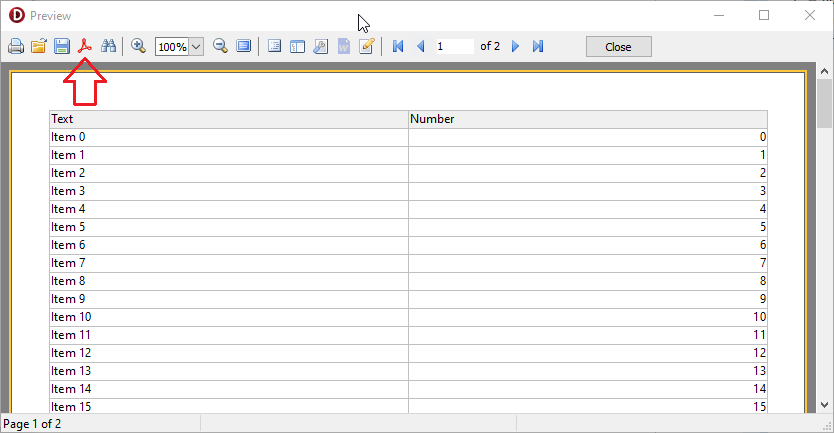
Como alternativa, você pode converter o relatório diretamente no código do aplicativo usando o componente TfrxReport. Mais informações sobre esses métodos podem ser encontradas nos seguintes artigos:
- Como fazer um PDF a partir do Delphi / C++Builder / Lazarus
- Trabalhando com PDF / A do FastReport VCL designer
8. Um arquivo FP3 do FastReport pode ser aberto em outro sistema de relatórios?
Sim, mas não diretamente — são necessárias várias etapas. O FP3 é um formato desenvolvido pela Fast Reports, e não há garantia de que outro sistema de relatórios será capaz de interpretar corretamente todas as especificidades de sua estrutura interna.
Para essas tarefas, é conveniente usar um formato intermediário. Por exemplo, PDF, CSV, XLS, XLSX, XML ou HTML — dependendo do conteúdo do seu relatório.
Primeiro, verifique se o outro sistema (por exemplo, Crystal Reports ou JasperReports) é compatível com o formato selecionado. Em seguida, converta o arquivo FP3 para o formato necessário, conforme descrito no artigo mencionado no ponto 7. Por fim, abra o arquivo convertido no sistema de relatórios de terceiros.
9. Um arquivo FP3 do FastReport pode ser aberto online?
No momento, essa funcionalidade não está disponível. Para abrir e visualizar arquivos FP3 no formato FastReport, você pode usar localmente um programa gratuito especial — FastReport Viewer.
No futuro, poderá ser possível visualizar relatórios preparados online com base na solução em nuvem — FastReport Cloud.
Importante: não use visualizadores online de FP3 de terceiros desenvolvidos por empresas que não sejam a Fast Reports, especialmente para relatórios que contenham informações confidenciais. Isso pode ser inseguro!
10. Estou carregando um arquivo FP3 usando o componente TfrxReport e recebendo a mensagem de erro «Class preparedreport not found»
Muito provavelmente, você está chamando o método LoadFromFile não na propriedade PreviewPages, mas diretamente no componente TfrxReport. Você precisa usar um código como este:
frxReport1.PreviewPages.LoadFromFile('C:\MyReports\FileName.fp3');
11. É possível combinar programaticamente vários relatórios FastReport preparados no formato FP3 em um único relatório grande?
Sim, isso pode ser feito usando duas instâncias do componente TfrxReport.
- Coloque dois componentes TfrxReport no formulário.
- Carregue o primeiro relatório no primeiro componente TfrxReport usando o método
PreviewPages.LoadFromFileouPreviewPages.LoadFromStream. - Carregue o segundo relatório no segundo componente TfrxReport usando os mesmos métodos.
- Use o método a seguir para “mesclar” o segundo relatório com o primeiro:
frxReport1.PreviewPages.AddFrom(frxReport2)
- Repita o procedimento para cada relatório subsequente.
O artigo "Como combinar vários relatórios em um arquivo PDF no Delphi / Lazarus / C ++ Builder" descreve outra solução, igualmente útil.
Conclusão
O formato FP3 da Fast Reports é uma solução conveniente e confiável para armazenar dados que já estão preparados para visualização e não requerem acesso aos bancos de dados e modelos de origem. Com ferramentas como Viewer e Converter, você pode trabalhar facilmente com esses arquivos.
Se necessário, você pode visualizar e editar formatos FP3 em seus aplicativos usando componentes do FastReport. Esperamos que nossas respostas tenham ajudado você a entender melhor o formato e a tornar o trabalho com relatórios preparados ainda mais fácil e simples.