Novo sistema de validação de relatórios no FastReport VCL
No suporte técnico, fomos frequentemente solicitados a adicionar funcionalidade para verificação automática de relatórios, e fizemos isso no release 2026.2. No menu “Arquivo” do Designer de relatórios, apareceram os itens “Validar” (Validate) e “Configurações de regras de validação” (Validation Rule Settings). Agora é possível não apenas verificar relatórios, mas também gerenciar o conjunto de regras, incluindo as personalizadas.
Neste artigo, explicaremos como funciona a verificação de relatórios, como configurá-la, como escrever regras personalizadas com exemplos e compartilharemos novidades interessantes.
Termos
Vamos nos limitar a três termos básicos que serão usados repetidamente neste artigo.
Validação — é a verificação da corretude da construção do relatório e de sua conformidade com regras predefinidas, sem sua construção propriamente dita. A validação é realizada aplicando-se sequencialmente ao relatório um conjunto de regras predefinidas.
Regra (Rule) — é uma função de verificação individual, executada durante o processo de validação do relatório. O validador armazena um conjunto de regras. Uma regra pode ser desativada ou ativada. Durante a validação, apenas as regras ativadas são executadas. Durante a execução, a regra pode enviar múltiplas mensagens.
Mensagem — é um registro que a regra forma durante a verificação do relatório. A mensagem contém informações sobre o problema encontrado, incluindo o nível de gravidade, uma descrição textual e uma reação ao duplo clique.
Como verificar relatórios no Designer
A validação do relatório é executada ao selecionar o item “Validar” (Validate) no menu ou ao pressionar a combinação de teclas Shift+F9. A validação do relatório também pode ser vinculada à ação de salvar ou construir o relatório. Isso pode ser configurado no menu “Exibir → Configurações...” (View → Options), na aba “Validação” (Validation).
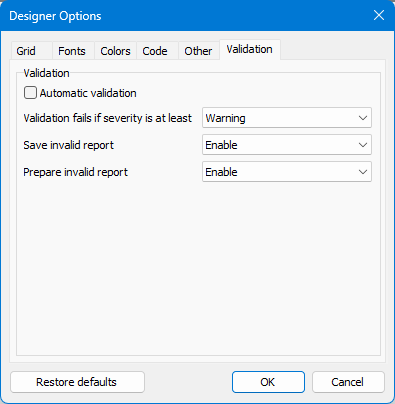
A caixa de seleção “Validação automática” (Automatic validation) permite a execução automática da verificação do relatório ao construir ou salvar o relatório.
A configuração “Falha na validação se a gravidade for pelo menos” (Validation fails if severity is at least) define a partir de qual nível de erro a validação será considerada malsucedida. Os valores possíveis são: “Dica” (Hint), “Aviso” (Warning), “Erro” (Error).
Se você escolher “Aviso”, a validação será considerada malsucedida se pelo menos um aviso ou erro for encontrado durante a verificação. O padrão é “Erro”.
As duas últimas configurações controlam as ações com relatórios que falham na validação ao salvar ou construir. É possível permitir a ação, notificar o usuário ou proibi-la.
Configuração da lista de regras
No menu “Configurações de regras de validação” (Validation rule settings), você pode configurar o conjunto de regras aplicadas ao relatório. Esta janela tem a seguinte aparência:
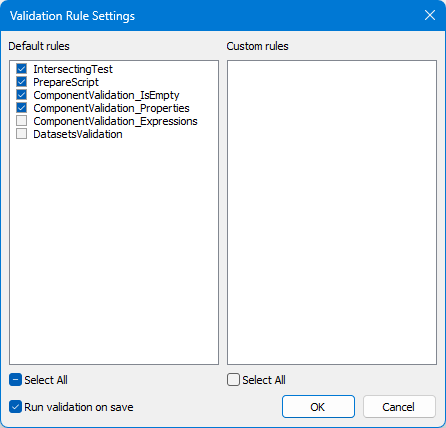
Na lista esquerda “Regras padrão” (Default rules) estão as regras embutidas. A lista direita “Regras personalizadas” (Custom rules) é destinada a regras criadas pelo usuário para tarefas específicas. Essa divisão é condicional: o usuário pode colocar suas próprias regras também na lista de regras padrão.
As caixas de seleção abaixo das listas permitem marcar ou desmarcar todos os itens da lista de uma só vez. A caixa de seleção “Executar validação ao salvar” (Run validation on save) permite executar a validação ao fechar a janela de configurações de regras pressionando o botão OK.
Nas validações subsequentes, apenas as regras marcadas serão usadas. As listas de regras aplicadas são preservadas mesmo após o fechamento do Designer de relatórios.
Lista de regras padrão
Por padrão, as seguintes regras estão disponíveis:
- IntersectingTest — detecta sobreposições de componentes do relatório. Em alguns casos, isso pode ser feito intencionalmente, mas, para exportações tabulares, tais sobreposições podem causar dificuldades. Portanto, recomendamos manter esta regra ativada ao usar exportações tabulares.
- PrepareScript — verifica o script do relatório. Atualmente, a verificação se limita à compilação do script.
- ComponentValidation_IsEmpty — encontra componentes vazios não vinculados a fontes de dados. Às vezes, esses componentes são preenchidos via script, portanto sua presença nem sempre é um erro.
- ComponentValidation_Properties — verifica a corretude das propriedades dos componentes. Por exemplo, a regra verifica a existência de bands filhas (Child bands) não vinculadas e a sintaxe de expressões nas propriedades.
- ComponentValidation_Expressions — verifica a corretude das expressões nos componentes, calculando seus valores. Desativada por padrão.
- DatasetsValidation — verifica a corretude da configuração dos datasets do relatório. Desativada por padrão.
Observe que a lista de regras pode ser ampliada no futuro.
Validação de relatórios pelo Demo Center
Vamos tentar executar a validação de um relatório. Lembre-se: ela será considerada malsucedida se houver avisos ou erros mais graves (se você esqueceu como fazer isso, consulte a seção “Como verificar relatórios no Designer”).
Vamos pegar o relatório 1.fr3 do Demo Center e iniciar a validação:
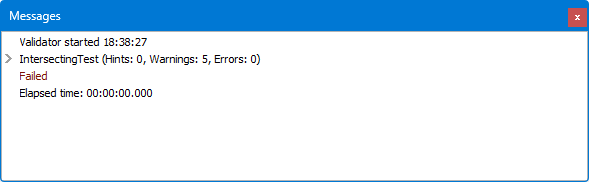
A validação do relatório falhou. A regra IntersectingTest identificou cinco avisos. Isso era esperado, pois um MemoView vazio é usado para preenchimento de fundo das linhas pares.
Para ver a lista de avisos, expanda o nó da regra. Clicando duas vezes em uma linha com aviso, o componente que gerou o problema será destacado no designer. É importante notar que não apenas as páginas do relatório podem ser verificadas, mas também o script e os diálogos. Todo o relatório está disponível para validação.
Saída de depuração via DebugLn
Observe a janela de saída de mensagens do validador. Decidimos usá-la para outros fins, como mensagens de depuração e exibição do tempo de construção do relatório.
Como isso pode ser usado? No script do relatório, use a nova função — DebugLn. Chame-a com um parâmetro do tipo string. O valor do parâmetro aparecerá na janela “Messages” junto com um carimbo de data/hora durante a execução do relatório. Vamos ver um exemplo.
Abra qualquer relatório no “FastReport Demo”, por exemplo, 1.fr3. Crie alguns eventos nos componentes e, no código do manipulador de eventos, chame DebugLn() com o nome do evento. Execute o relatório e, na janela “Messages”, você verá as seguintes informações:
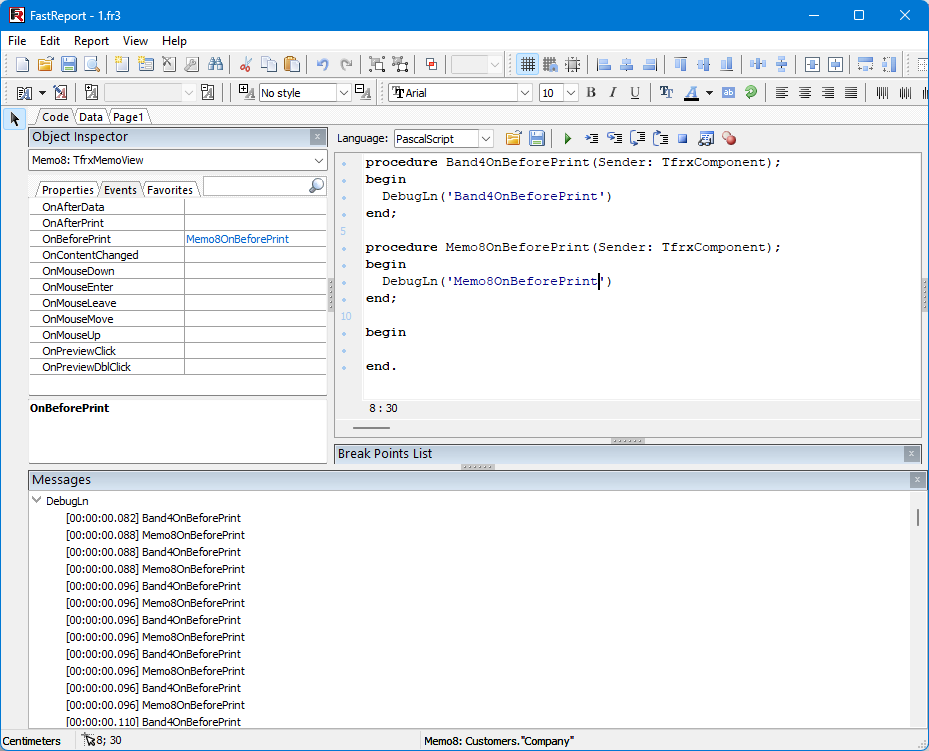
Esperamos que esta função ajude você a depurar relatórios de forma mais eficaz.
Como escrever sua própria regra
Mencionamos anteriormente que você pode criar suas próprias regras de validação de relatórios. Vamos detalhar como fazer isso. Qualquer regra de validação deve ser descendente de uma das seguintes classes:
TfrxValidationRule — classe base para regras de relatório. Para trabalhar com a classe, é necessário sobrescrever o método abstrato Validate(AReport: TfrxReport).
TfrxValidationPageRule — classe projetada para validação página por página do relatório. Nos descendentes, é necessário sobrescrever o método ValidatePage — este método será chamado para cada página do relatório.
TfrxValidationComponentRule — classe projetada para validação componente por componente do relatório. Na classe, é necessário sobrescrever o método ValidateComponent — este método será chamado para verificar cada componente do relatório.
Para notificar que um erro de validação foi encontrado, a classe base TfrxValidationRule fornece o método:
procedure DoMessage(ASeverity: TfrxValidationSeverity;
const AText: string;
ADoubleClickData: TObject = nil);
Este método envia uma mensagem com informações sobre o erro aos destinatários registrados. Vamos examinar os parâmetros deste método em detalhe:
- ASeverity: TfrxValidationSeverity — este parâmetro define o tipo de erro enviado na notificação de validação e pode assumir os valores vsHint, vsWarning, vsError.
- const AText: string; — string com a mensagem de erro.
- ADoubleClickData: TObject = nil — parâmetro responsável pela ação ao dar duplo clique.
Vamos examinar um pouco mais detalhadamente o terceiro parâmetro ADoubleClickData. No momento, ele pode receber apenas uma instância da classe TfrxDoubleClickSetSelectionData. Pode ser estendido no futuro.
Esta classe possui os seguintes campos:
- ComponentName: string — nome do componente onde ocorreu o erro de validação.
- PropName: string; nome da propriedade do componente onde ocorreu o erro de validação.
- SelStart: TPoint — posição inicial do código com erro no editor de código.
- SelEnd: TPoint — posição final do código com erro no editor de código.
Para o correto tratamento, existem 3 opções de preenchimento deste objeto:
- ComponentName — ao dar duplo clique, ocorrerá a navegação para o componente.
- ComponentName + PropName — a propriedade será destacada no inspetor de objetos. É possível ativar propriedades aninhadas — você verá isso no exemplo abaixo.
- SelStart + SelEnd — ao dar duplo clique na mensagem, ocorrerá a navegação para o editor de código com o texto destacado.
Após enviar a mensagem de erro de validação, o objeto responsável pelo duplo clique deve ser destruído. Para usar a regra, a classe escrita deve ser registrada. Isso é feito chamando o seguinte código:
frxValidationSettings.RegisterRule(ABucket: TfrxRuleBucket;
ARuleClass: TfrxValidationRuleClass; AActive: Boolean = True);
O objeto frxValidationSettings está definido no módulo TfrxValidator. Este é um singleton para armazenar as regras de validação.
Os parâmetros da chamada são:
- ABucket: TfrxRuleBucket — serve para definir o valor da regra (sistêmica ou criada pelo usuário). Pode assumir os valores rbCustom, rbDefault.
- ARuleClass: TfrxValidationRuleClass — classe da regra criada.
- AActive: Boolean — define se a regra está ativa por padrão (isso pode ser alterado posteriormente no diálogo de configuração de regras).
Com base no exposto, vamos tentar formular uma regra de validação de relatório. Suponha que criamos relatórios para uma corporação, em que todos os textos devem estar nas cores corporativas — preto e vermelho. O uso de outras cores é considerado um erro. As bordas dos textos também devem ser pretas ou vermelhas, e o fundo branco. Como estamos verificando componentes individuais, a classe TfrxValidationComponentRule é adequada para herança.
A declaração da nossa classe de regra é a seguinte:
type
 TCorporateRule = class(TfrxValidationComponentRule)
 private
 procedure SendMessage(AComponent: TFrxComponent; APropertyName, AText:string);
 public
 procedure ValidateComponent(AComponent: TfrxComponent); override;
 class function GetName: string; override;
 end;
Também é necessário sobrescrever o método GetName para retornar o nome da regra. Implementação dos métodos:
class function TCorporateRule.GetName: string;
begin
 Result := 'Corporate_Colors';
end;


procedure TCorporateRule.SendMessage(AComponent: TFrxComponent;
 APropertyName: string);
var
 LSelData: TfrxDoubleClickSetSelectionData;
begin
 LSelData := TfrxDoubleClickSetSelectionData.Create;
 try
 LSelData.ComponentName := AComponent.Name;
 LSelData.PropName := APropertyName;
 DoMessage(vsError, AComponent.Name + ': Invalid color of property ' + APropertyName, LSelData);
 finally
 LSelData.Free;
 end;
end;


procedure TCorporateRule.ValidateComponent(AComponent: TfrxComponent);
var LMemo: TfrxMemoView;
 function CheckColors(AValue: TColor): Boolean;
 begin
 Result := (AValue = clBlack) or (AValue = clRed) or (AValue = clWhite) or (AValue = clNone) ;
 end;
begin
 if not (AComponent is TfrxMemoView) then Exit;
 LMemo := TfrxMemoView(AComponent);
 if not CheckColors(LMemo.Font.Color) then
 SendMessage(LMemo, 'Font.Color');
 if (not CheckColors(LMemo.Frame.TopLine.Color)) and (ftTop in LMemo.Frame.Typ) then
 SendMessage(LMemo, 'Frame.TopLine.Color');
 if not CheckColors(LMemo.Frame.BottomLine.Color) and (ftBottom in LMemo.Frame.Typ) then
 SendMessage(LMemo, 'Frame.BottomLine.Color');
 if not CheckColors(LMemo.Frame.LeftLine.Color) and (ftLeft in LMemo.Frame.Typ) then
 SendMessage(LMemo, 'Frame.LeftLine.Color');
 if not CheckColors(LMemo.Frame.RightLine.Color) and (ftRight in LMemo.Frame.Typ) then
 SendMessage(LMemo, 'Frame.RightLine.Color');
 if not CheckColors(LMemo.Color) then
 SendMessage(LMemo, 'Color');
end;
E registramos a regra:
initialization
 frxValidationSettings.RegisterRule(rbCustom, TCorporateRule);
Executamos nossa aplicação, abrimos o designer de relatórios e verificamos a lista de regras.
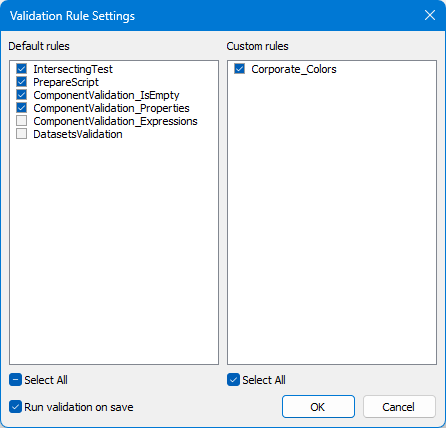
Agora vamos verificar algum relatório usando nossa regra. Por exemplo, o relatório do Demo Center chamado 1.fr3.
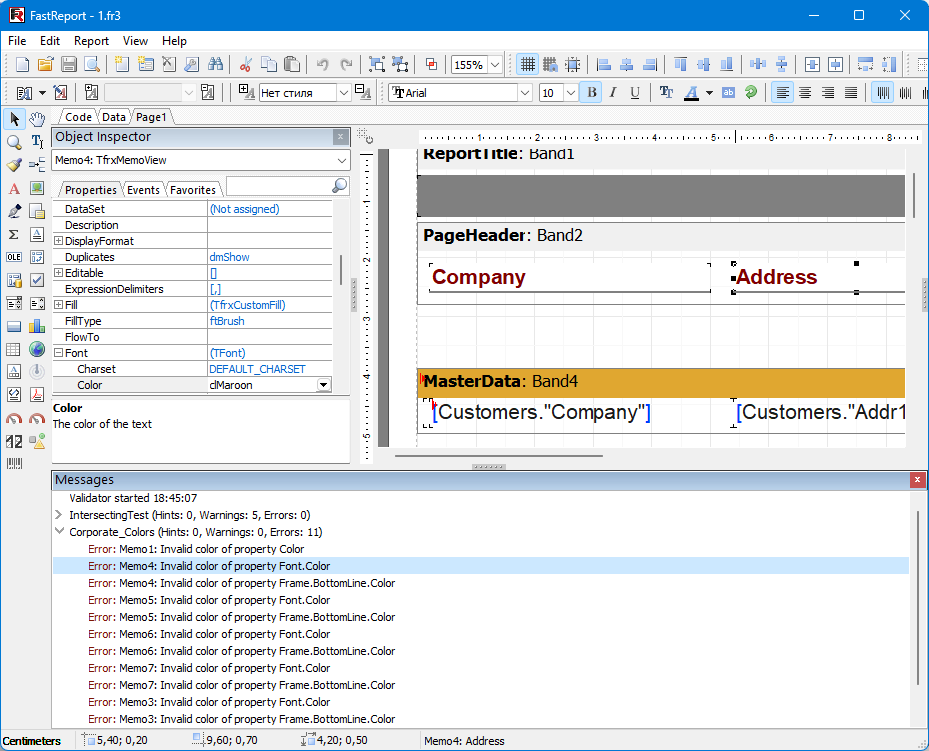
No log de verificação, vemos que a regra é acionada. Ao dar duplo clique no erro, navegamos imediatamente para o componente com a cor incorreta. No inspetor de objetos, a propriedade desejada fica destacada.
Validação fora do Designer
Por meio do FastReport, a verificação de relatórios é implementada apenas no designer. No entanto, se tais verificações forem necessárias em outros casos, o usuário pode implementá-las por conta própria. Ou seja, é possível validar centenas de relatórios com um único clique. Isso pode ser implementado da seguinte forma:
- Primeiro, é necessário criar uma classe de validador
TfrxValidator. - Em seguida, carregar a lista de regras usando o método
frxValidationSettings.ApplySettings(AValidator:TfrxValidator). - Se não for necessário usar todas as regras disponíveis, mas apenas algumas específicas, é necessário preencher manualmente as listas
DefaultRuleseCustomRulesdo objeto validador com os objetos de regra (exemplo de implementação está emfrxValidationSettings.ApplySettings). - Usando o método
TfrxValidator.AddListener(constAListener: IfrxValidationListener), adicionamos os destinatários das mensagens de erro de validação. - Em seguida, executamos o método
TfrxValidator.Validate(AReport:TfrxReport)para verificar o relatório.
Esta é uma instrução bastante geral. Um exemplo de implementação pronta pode ser visto no projeto de demonstração ConsoleValidate.
Como podemos ver, a validação de relatórios é simples e muito útil. Estaremos abertos a sugestões para a criação de novas regras.