Using reports when developing MVC applications
If you create a Web project on the MVC pattern is a reasonable question - how to use the web-reports FastReport.Net?
In this article I will tell you about it. Since MVC architecture View separated from the Logic, then we can't use the visual WebReport component. We'll have to work with report in controller's code, and then transfer report into View. For example, I used the standard MVC web application. To begin with the necessary libraries to connect to the project:
• FastReport.dll;
• FastReport.Web.dll.
They can be found in the folder FastReport.Net application.
I decided to publish a report on the Home page of the site. Therefore, we will work with the report in HomeController.cs.
Declare the libraries:
1 2 3 4 5 6 7 |
using System; using System.Collections.Generic; using System.Linq; using System.Web; using System.Web.Mvc; using FastReport.Web; using System.Web.UI.WebControls; |
For the method Index () add the following code:
1 2 3 4 5 6 7 8 9 10 11 12 |
public ActionResult Index() { WebReport webReport = new WebReport(); string report_path = "C:\\Program Files (x86)\\FastReports\\FastReport.Net\\Demos\\Reports\\"; System.Data.DataSet dataSet = new System.Data.DataSet(); dataSet.ReadXml(report_path + "nwind.xml"); webReport.Report.RegisterData(dataSet, "NorthWind"); webReport.Report.Load(report_path + "Simple List.frx"); ViewBag.WebReport = webReport; return View(); } |
Consider the details. In the first line we create an instance of the class WebReport.
Next, create a variable to store the path to the folder with the reports. For our report required data, so we create a dataset and load xml database to it.
Now you need to register a data source in the report object using the method RegisterData (). Use Load () method to load a report template.
ViewBag is a wrapper around the object ViewData, and is designed to transmit data from the controller to the view. In this case, we will transmit the report to the view Index, which essentially is the Home page.
Go to the presentation:

Page code is:
1 2 3 4 |
@{ ViewBag.Title = "Home Page"; } @ViewBag.WebReport.GetHtml() |
I removed the unnecessary and leave only the title page, and our report, presented in HTML format.
That is, to display the report on the page, you just add the code:
1 |
@ ViewBag.WebReport.GetHtml()
|
Corresponding to this page the controller will give a report to it.
We need to add scripts in the view initialization:
1 2 3 4 5 6 7 |
<head> … @WebReportGlobals.Scripts() @WebReportGlobals.Styles() … </head> |
In our case in the file _Layout.cshtml:
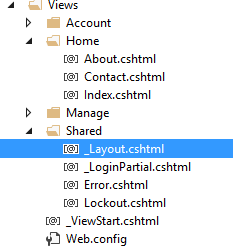
It remains only to correct Web.config which is located in the Views folder.
Add the namespace for the Web reports:
1 2 3 4 5 |
<namespaces> … <add namespace="FastReport" /> <add namespace="FastReport.Web" /> </namespaces> |
There is another Web.config in the project root. Add handler to it:
1 2 3 4 |
<handlers> … <add name="FastReportHandler" path="FastReport.Export.axd" verb="*" type="FastReport.Web.Handlers.WebExport"/> </handlers> |
We run the application and get our report:
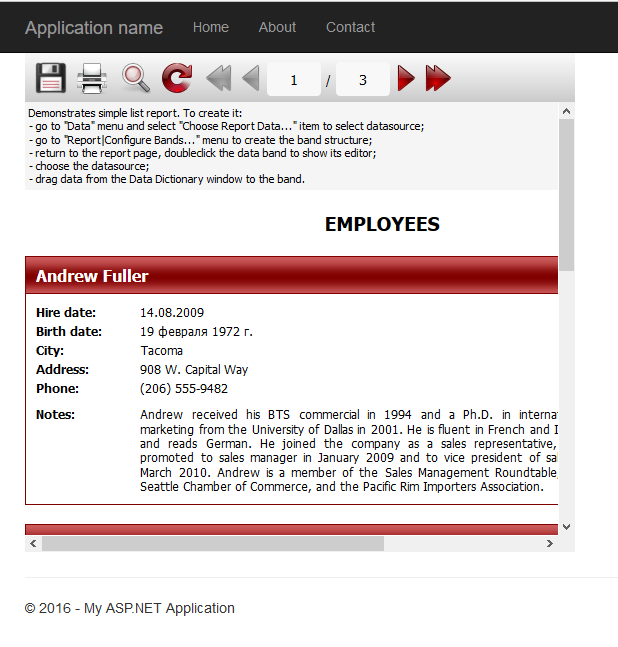
Thus, you can use the web reports in MVC projects.