How to use SQL functions in FastReport.Net
To obtain data in MS SQL, you can use sql queries, stored procedures, and stored functions. We have already discussed how to use dynamic queries and stored procedures as a report data source. In this article, we will create a table and scalar function and use them in the report.
I recall that table functions return tables, and scalar functions return single values.
Let’s create a table function in MS SQL
1 2 3 4 5 6 7 8 9 10 11 12 13 14 15 16 17 18 19 20 21 22 23 |
USE [testdb] GO SET ANSI_NULLS ON GO SET QUOTED_IDENTIFIER ON GO -- ============================================= -- Description: Returns customers who live in the specified city -- ============================================= CREATE FUNCTION [dbo].[GetCustomersFromCity] ( @city VARCHAR(20) ) RETURNS TABLE AS RETURN ( SELECT * FROM dbo.CUSTOMER WHERE CITY = @city ) |
The function takes one parameter - the name of the city, and returns a list of customers in this city.
Let's add one more, now scalar function:
1 2 3 4 5 6 7 8 9 10 11 12 13 14 15 16 17 18 19 20 21 22 23 |
USE [testdb] GO SET ANSI_NULLS ON GO SET QUOTED_IDENTIFIER ON GO -- ============================================= -- Description: Returns last added customer -- ============================================= CREATE FUNCTION [dbo].[GetLastCustomer] () RETURNS VARCHAR(30) AS BEGIN DECLARE @Name VARCHAR(30) SELECT TOP 1 @Name = CONCAT(ind.FIRST_NAME, ' ', ind.LAST_NAME) FROM dbo.Customer cus JOIN dbo.Individual ind ON ind.CUST_ID = cus.CUST_ID ORDER BY cus.CUST_ID RETURN @Name END |
This function does not accept parameters, but returns the last registered client name.
Now let's move on to the report.
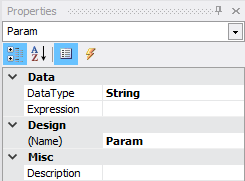
First of all, create a parameter in the report. We will use it to transfer the city name to the function, to retrieve the data.
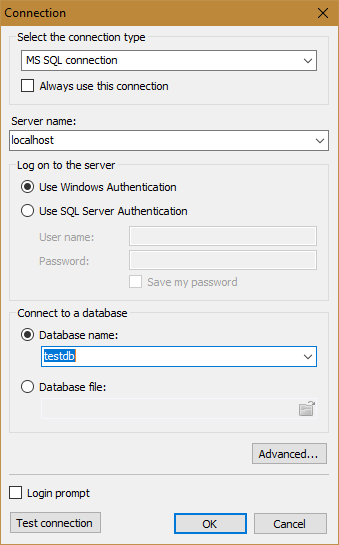
Add a connection to the MS SQL database:
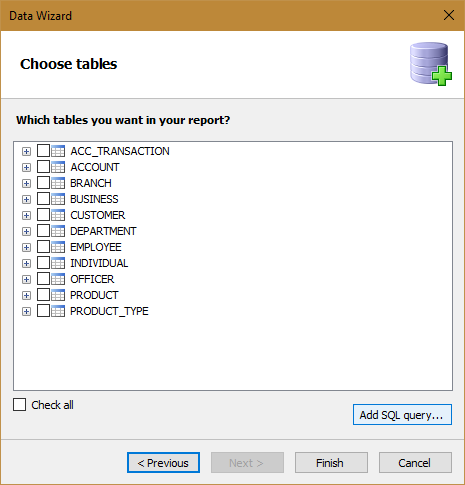
Then, in the next step we are asked to select the tables, but we will use the Add SQL query ... button
In the next step, set the name of the new table - TableFunction. Click Next.
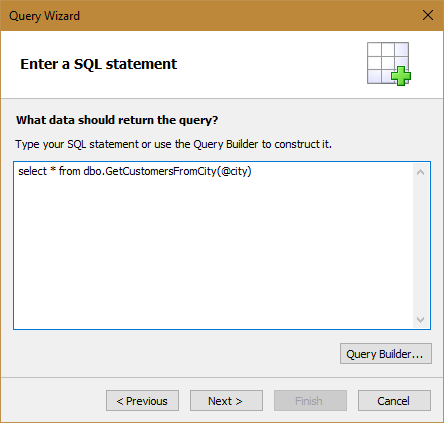
Functions, unlike stored procedures, are used as tables. That is, you need to use Select to get the data.
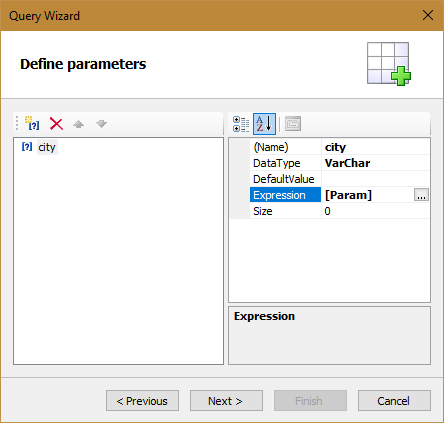
In the next step, we need to add the city query parameter. In its Expression property, select the Param parameter of the report. We go further and click Finish.
And we get a new data source:
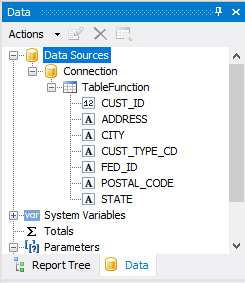
Now add the dialog form and drag the Param parameter of the report to it.
Drag the fields from the TableFunction table to the Data band.
Run the report. Enter the value in the dialog form:
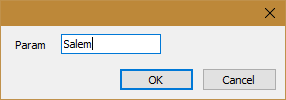
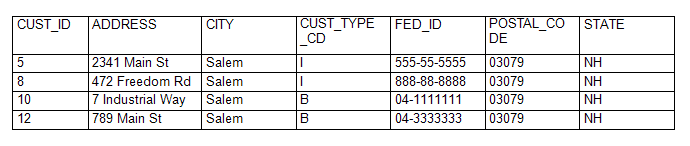
And we get a sample from the table function:
Did you forget that at the beginning of the article we created two functions? This example is even simpler, because I did not add an incoming parameter to this function. Let's create one more data source. Also, as for the first time - connection to MS SQL. And again click the Add SQL query ... button.
Calling a scalar function is slightly different from calling a table function:
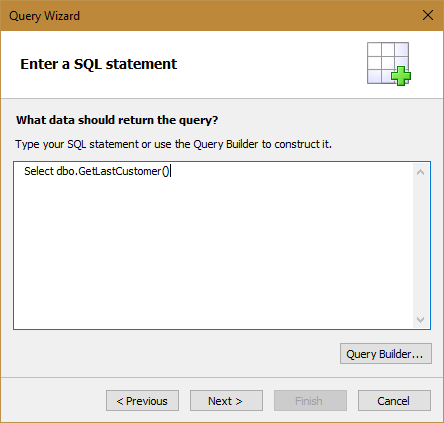
We skip all the other steps.
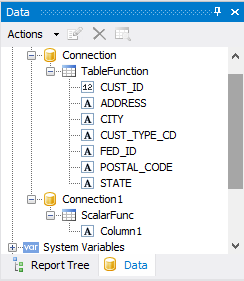
Add one more page of the report and drag the data to a single field from the new data source - ScalarFunc.
Run the report. Go to the second page:
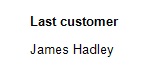
As you can see, using the functions to get the data is very simple, and they will help you save time while developing the report and its execution.