How to make a label type report in FastReport .NET
In this article, I want to review the label master in FastReport.Net:
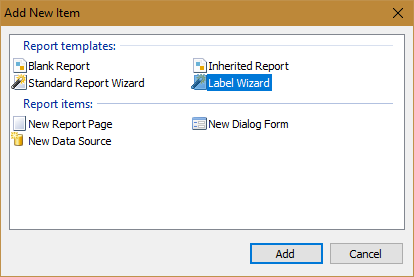
Labels can be bar codes, business cards, addresses, transport waybills, etc. They can be printed on self-adhesive or plain paper. You can use the built-in FastReport templates of labels or create your own. The label template is a report template with the specified page size and the number of labels on the printed page.
For the selected label template, you must specify two sizes - the size of the label and the size of the paper to be printed on. Two more parameters "String" and "Columns" allow you to set the number of labels on the printed page. Here's how it looks like:
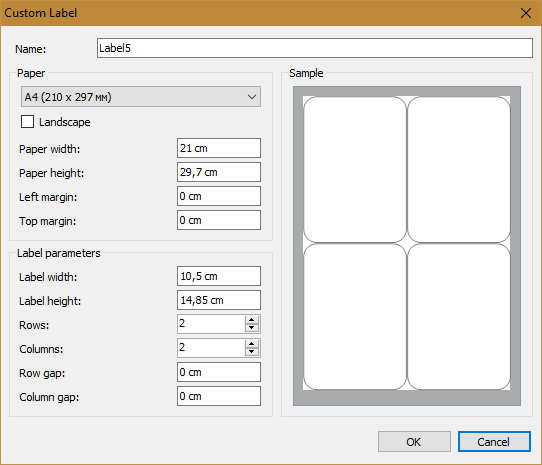
That is, on paper size 14.81x21.01 can be placed 4 labels with a size of 7.4x10.5. Labels are placed in two lines and in two columns. Now add one more line:
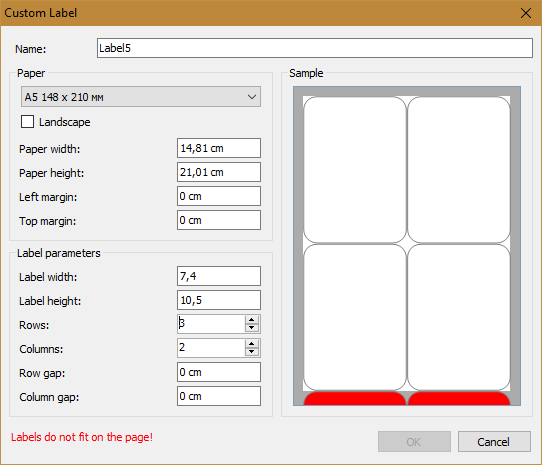
We will see a message that the labels do not fit on the page. You either have to reduce the number of lines, or increase the paper size. I think the mechanism of adding labels to the page is clear from this example.
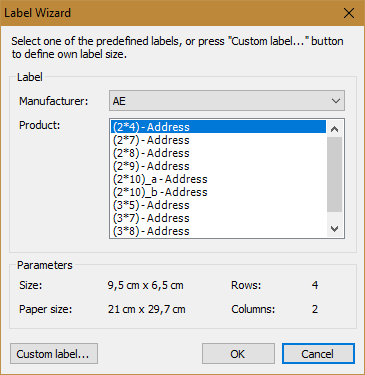
Let's go back to the master of labels. We have at our disposal a very impressive database of label templates for various manufacturers:
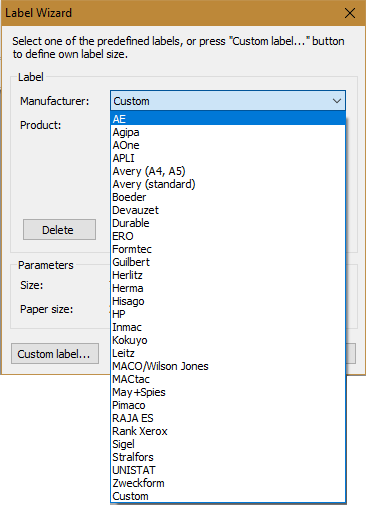
At the bottom of the list, there is a "Custom" item, to select a previously created custom template. Let's choose the manufacturer Formtec:
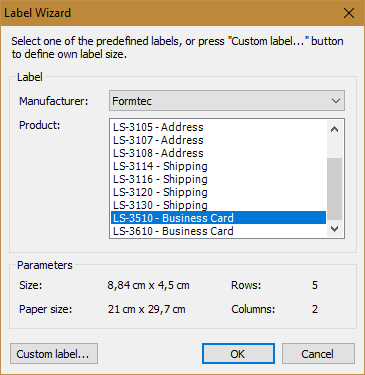
Among the templates available for this manufacturer are Address, Shipping and Business Card.
Close the current window. The label wizard has a New button. Click it to create your own template:
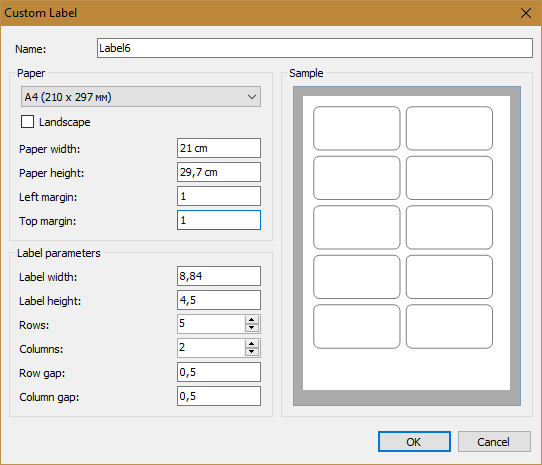
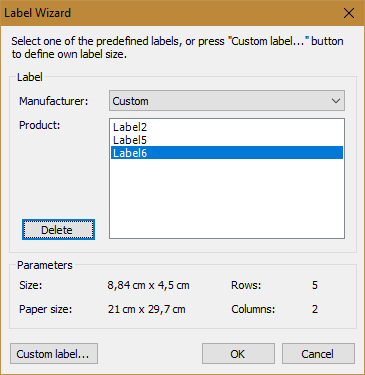
Having adjusted a template, we press OK and we return to the master of labels. Now, if you select "Custom" in the manufacturers, you will see a list of templates created by us. Choose "Label6" and click Ok.
Now the report template is empty.
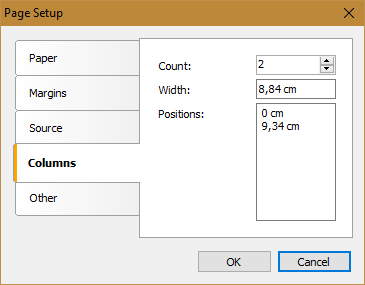
According to the label settings, the report template has two columns with a width of 8.84 cm.
Fill the template with data:
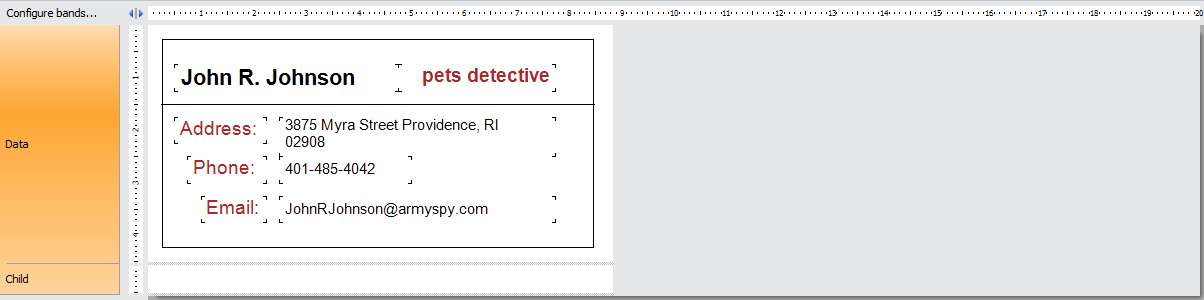
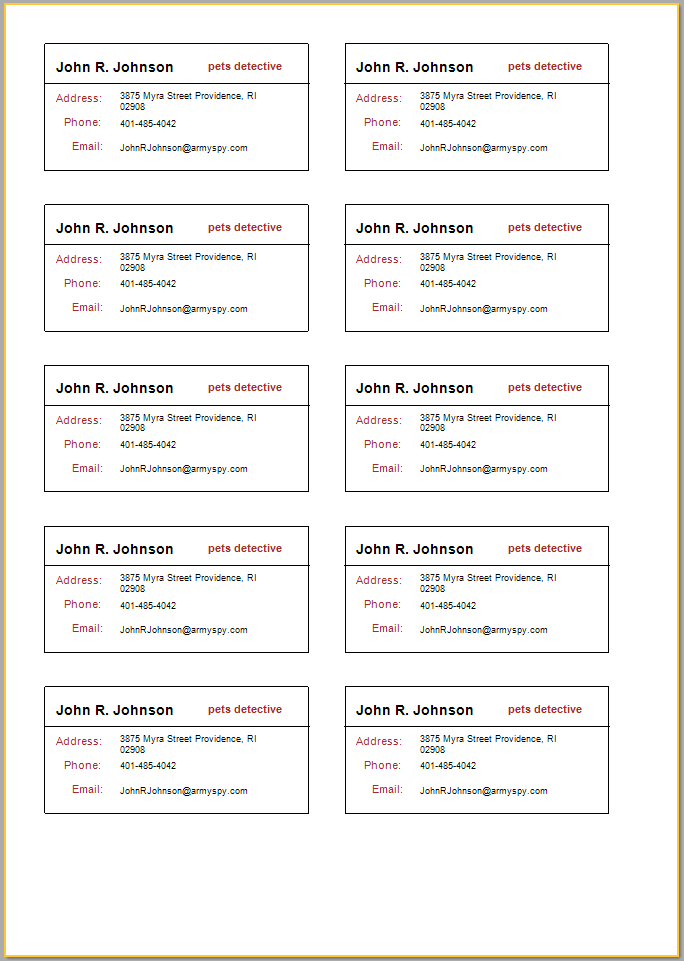
If you fill the label with data from the database, each data line will generate a new label. Thus the entire page will be filled with labels, according to the template. However, in our case, we filled the data manually, and we get only one label when printing. Let's correct this situation. In the settings of the "Data" band, change the value of the RowCount property to 10. Run the report in the preview mode:
Agree, it is very convenient to store the report page templates in the labels. There is no need to save a separate report file with the correct page sizes.