How to Install FastReport Desktop on Windows and Linux
FastReport Desktop allows users to work with reports and data in a convenient interface on their local computers running Windows or Linux. The application installation is supported on current versions of both operating systems. In this article, we will outline the detailed steps for installing, configuring, and launching the FastReport Desktop installer, with examples for each platform.
Online Installation of FastReport Desktop on Windows
To install the FastReport Desktop software, you need to download the installer distribution from your personal account and run it. If you are using an operating system with UAC (User Account Control), you will need to agree to run the software.
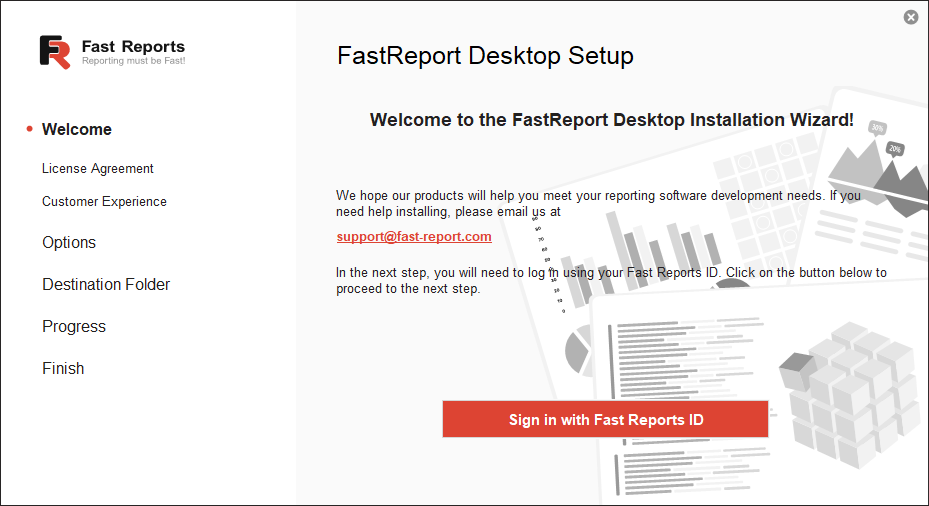
The default web browser application will open on the system. Use your account's login and password to authorize and access the purchased products.
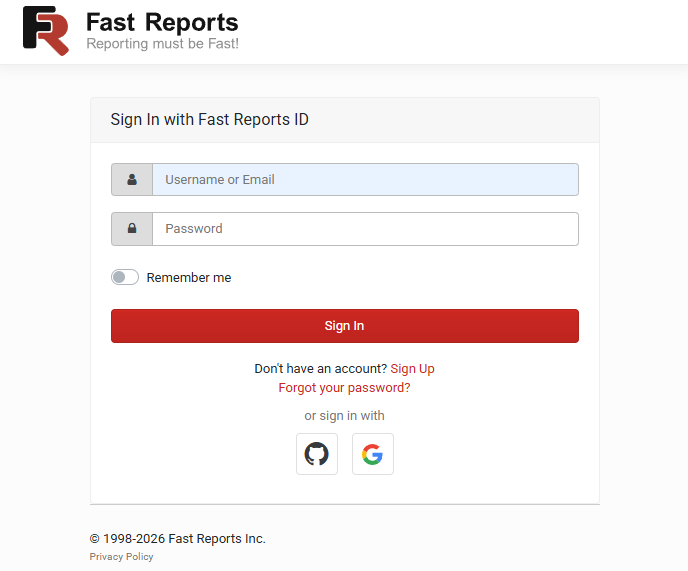
After authorization, a message indicating successful authorization will be displayed. You can close the web browser application and switch back to the FastReport Desktop installer. If you were unable to authorize, please contact technical support.
In the next step, review the license agreement for the use of the FastReport Desktop software. The current version of the license agreement is available at this link: https://www.fast-report.com/license/license-desktop
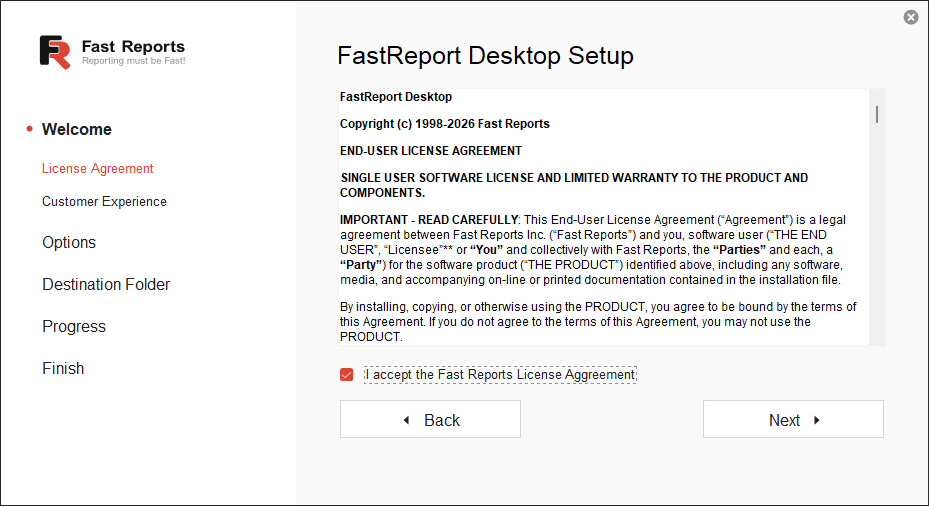
If you agree to the terms of the license agreement, you must check the box "I accept the terms of the license agreement." After that, click on the active "Next" button. If you do not agree to the terms of the license agreement, close the FastReport Desktop installer and delete the downloaded files.
At the next stage of the installation, we invite you to join the service quality improvement and notification program of Fast Reports Inc. This will help our company improve the quality of products, overall reliability, as well as the performance of all tools and libraries. This step is optional, and you are not required to join our program. Choose "Yes" or "No" depending on your decision, and then continue with the installation of the software product.
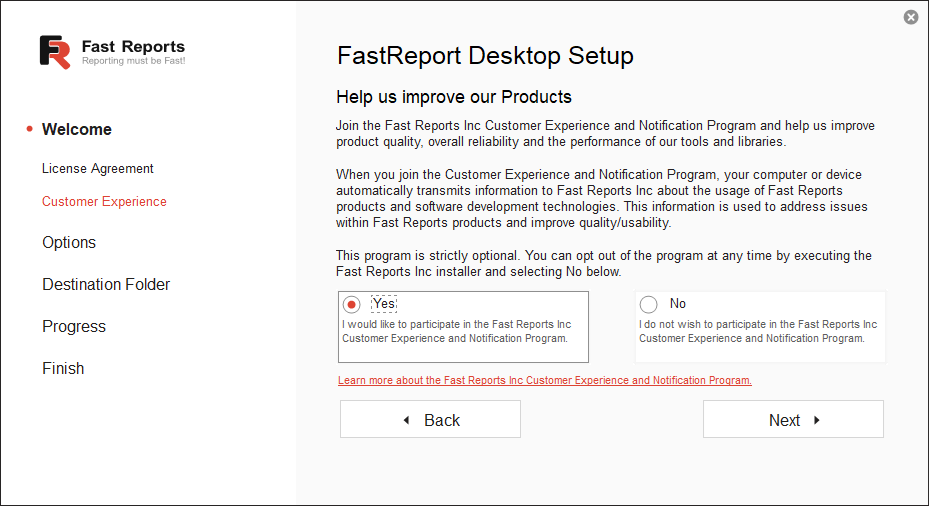
When you join the "Quality Service Improvement and Notification Program," your computer or device automatically transmits information about the usage of products from Fast Reports Inc. and software development technologies to Fast Reports Inc. For more details about the personal data processing policy, please read this link.
Select the product you need in the installer window.
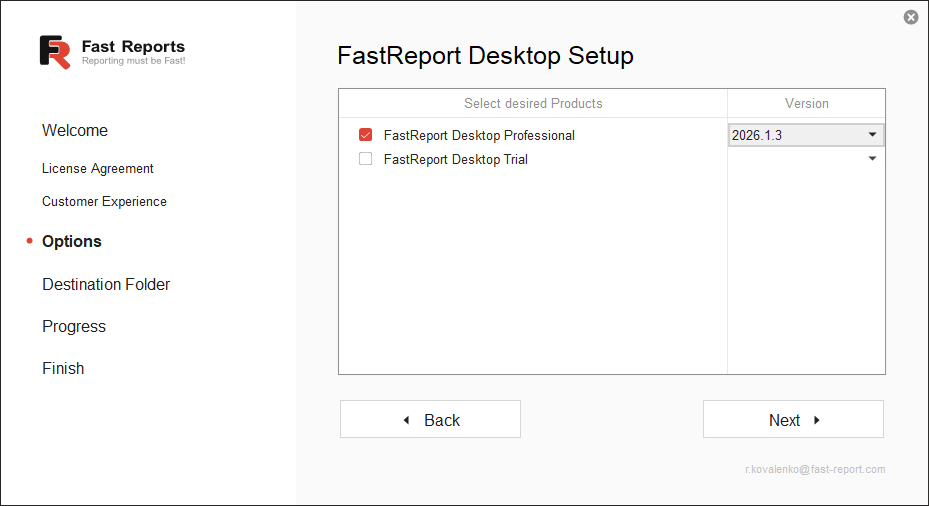
Messages such as "Unavailable" or "Old Product Version Detected" indicate that an old version of the product is installed via an old installer. If you wish to upgrade the old version, close the installer, remove the old version using the standard "Add or Remove Programs" tools, and then start the installation of the new version from the beginning.
If you encounter this message after removing all old versions, please contact technical support.
In addition, at this stage, you can select the version of the product.
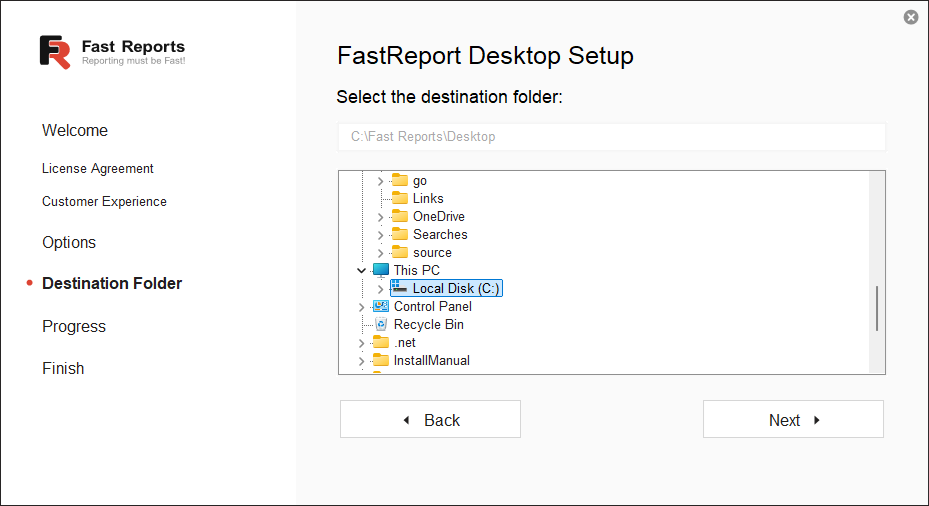
Next, you can choose the path where the FastReport Desktop software will be installed.
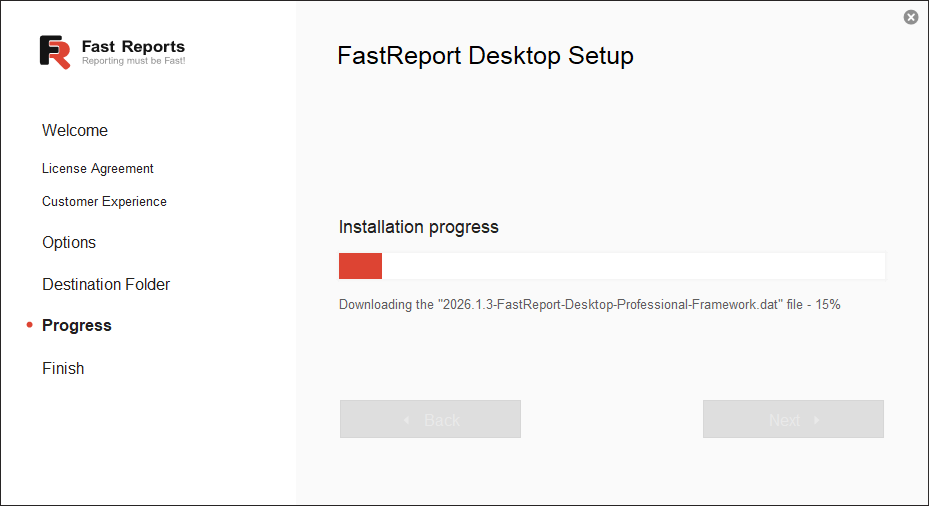
Everything is now ready for installation; click "Next" to start the installation process. This may take some time, depending on the selected components and the speed of your internet connection. At this stage, you can monitor the progress of the installation.
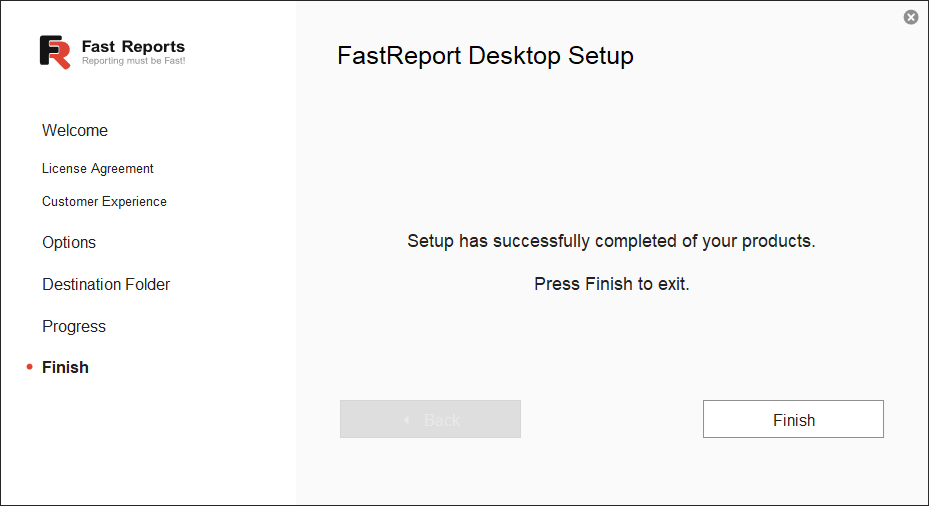
The installation completion dialog will be displayed after all selected components have been installed. To close the installer, click the "Finish" button.
Offline Installation of FastReport Desktop on Windows
In rare cases, installing the "FastReport Desktop" software on computers without direct internet access requires the ability to perform an offline installation. Our installer allows for this type of installation with remote activation.
First, you will need the data packages, so it is recommended to do a preliminary installation on a computer with internet access. After installation, navigate to the installation directory and copy all .dat files and the setup.exe file to a temporary storage device.
Connect the temporary storage device to the computer without internet access and start the installation. If you are unable to authenticate via the internet, the following dialog will be available to you.
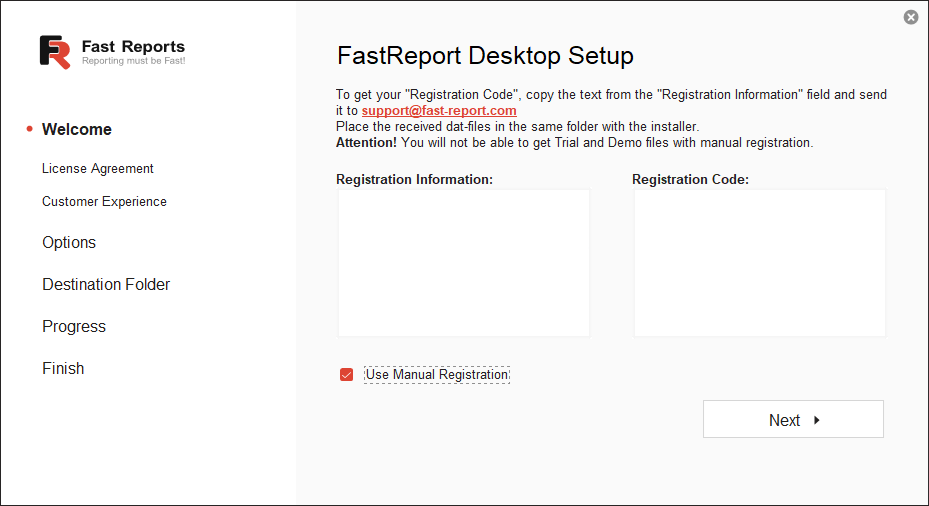
Check the box "Use Manual Registration." Then, copy the key from the "Registration Information" field and send it to the technical support service with a request for activation.
Paste the response from the technical support service into the "Registration Code" field and click "Next." The subsequent installation process will be similar to the standard "Installation of FastReport Desktop Components."
Uninstalling FastReport Desktop
Uninstallation is carried out using the standard Windows tools ("Apps - Installed Apps," select the desired application, and click "Uninstall").
Installation of FastReport Desktop on Linux
To install the FastReport Desktop software, you need to download the installation package from your personal account. The following package options are available: deb and rpm, for x64 and arm64 architectures.
Download the package option that is supported by your Linux distribution:
- deb (Ubuntu, Mint).
- rpm (RedHat, CentOS, SUSE, Fedora).
Launch the installation of the package (please note that an administrator password is required for installation):
- by double-clicking on the downloaded file (if the window manager supports this);
- or from the terminal by executing the installation command (which depends on the package manager used in your distribution).
Below are examples of installation commands for various types of distributions:
Ubuntu, Mint:
sudo apt install ./fastreport-desktop-professional_ru-2026.1.0-x64.deb
Fedora:
sudo dnf install ./fastreport-desktop-professional_ru-2026.1.0-x64.rpm
After installing the package, an application called "FastReport Desktop Install/Uninstall" will be added to the applications menu. The exact location depends on the window manager used in your distribution:
- Ubuntu, Fedora: in the general application list;
- RedHat: in the applications menu under the "Other" category.
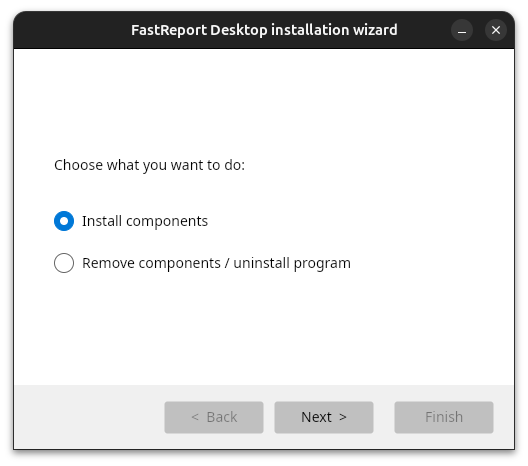
Launch it to complete the installation. In the first step, select the action type—"Install components" and click "Next":
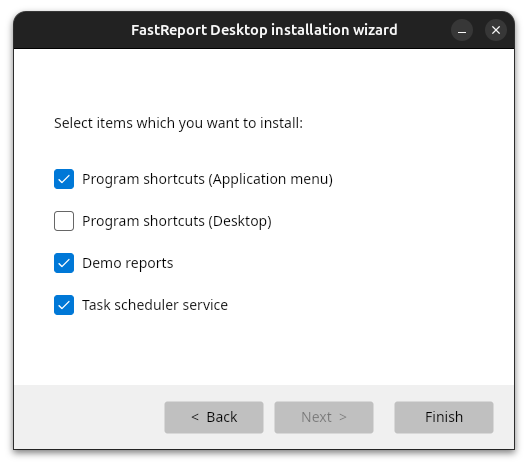
In the second step, select the necessary components and click "Finish":
Uninstalling FastReport Desktop on Linux
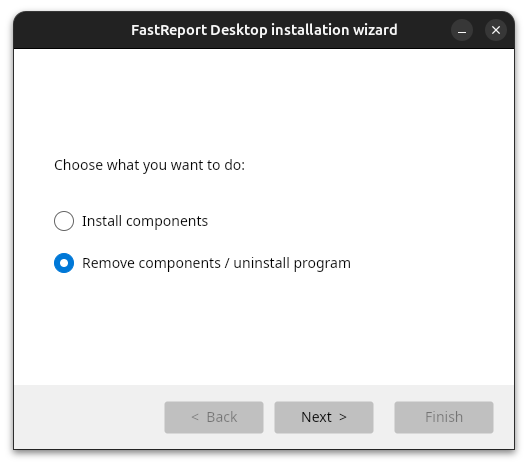
To uninstall the installed application, use the "FastReport Desktop Install/Uninstall" program. In the first step, select the action type—"Uninstall components/program" and click "Next."
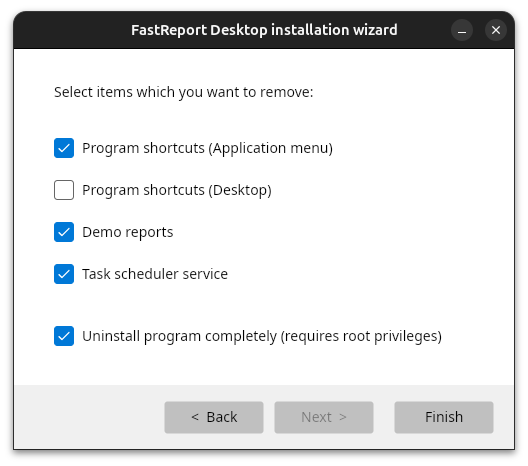
In the second step, select the necessary components, check the "Uninstall program" box, and click "Finish." The system will prompt for the administrator password and will uninstall the installed package.
Manual Uninstallation of FastReport Desktop on Linux
The package name for FastReport Desktop is `fastreport-desktop`. To uninstall the package, use the package manager specific to your Linux distribution. Below are examples of commands for uninstalling the package in different Linux distributions:
Ubuntu, Mint:
sudo apt remove fastreport-desktop
Fedora:
sudo dnf remove fastreport-desktop
Removing User Files on Linux
FastReport Desktop uses the following locations to store user files. You can clear them if necessary.
Configuration files folder:
~/.local/share/FastReport
Folder for reports, tasks, schedules, and logs:
~/FastReport
Conclusion
Now that you've wrapped up the installation of FastReport Desktop, you're all set to dive into this powerful tool for crafting top-notch reports. Keep in mind that FastReport Desktop provides a wealth of customization options and report generation features, making it a must-have for users. So, explore all its capabilities, get creative, and design reports that meet your needs.