Guides in the FastReport .NET designer
When designing a report template, you often need to build controls on the same layer. In FastReport VCL, for example, this applies to the grid on the report page. In FastReport.Net grid represents only a point of intersection of the lines in the ground. This is not so distracting as the line but at the same time helps to build objects.
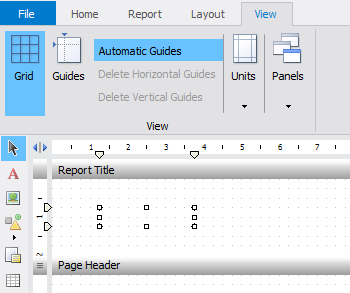
And yet, for these purposes, there is another, much more convenient tool - guide lines. You can add a thin dotted line in the vertical and horizontal planes that help build controls. These lines are only visible in the Report Designer, and will not be displayed when the report is run. Here is the View toolbar on which the guide lines of the controls:
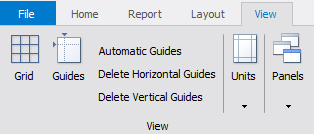
You can add these lines manually or use the option: Automatic Guides.
First of all, I want to tell you about the automatic backlighting guide lines when adding components to the page of the report, in the style of Microsoft Visual Studio:

That is, if you have at least one control on the report page, you can align it with respect to other controls.
To manually add guide lines, choose a location on the vertical or horizontal line, and double-click the mouse. You can add any number of tracks.
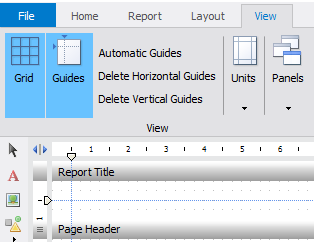
To move the line you should click on the slider (when you move the slider will be dark) on the scale holding it move to the desired position. If the line goes through the boundary of the object, it will move together with line. This is useful when you need to place all objects on the same line. You should move the line with object until it will be at the boundary of the other object. Let go the slider of the line. Now the second object "bonded" to the line. And if you move the slider now, both objects will move together the line. So you can "catch" the third, fourth, etc. items.:
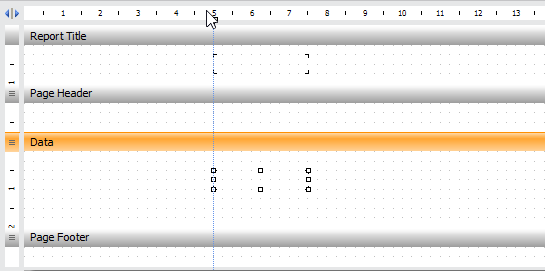
To delete the desired line, press and hold the slider and move it out of the page. No matter in which area.
We remember that when you move the line that passes through the object's border, it will move together the line. It is better to remove such lines by moving the slider up or down, not sideways.
To quickly remove the designer provides two buttons on the toolbar: "Delete the horizontal guides" and "Delete vertical guides." Their designation is clear from the titles.
Now consider the option "Automatic Guides". If you enable it, all added objects will be framed by the guide lines, ie, two vertical and two horizontal:
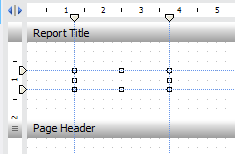
It should be noted that if the option "Automatic Guide," then there is no way to manually add a line. Moreover, previously written lines are removed. But, all the objects previously added, will be provided with guides automatically.
If the abundance of guide lines prevents you, you can disable them using the "Guides" button. Moreover, all sliders will be saved, and you can always revert to the line again by pressing the button.
Many novice report developers neglect such means as "guides", but in fact it makes designing of template is much simpler and faster. Still, nice to deal with a simple and convenient tool.