Relatório de Evento.Calc Personalizado - pré-processamento dos dados de entrada
New CustomCalc event for the Report object is called when evaluating an expression in an object or when you receive data back from the data source. So we can use this event to intercept the data and spoofing. When this can be useful? For example, when you need to filter the values in the incoming data or to replace any row.
Let's look at an example. Сreate a simple WindowsForms application. Add the data source to the project, and the DataSet component. Also, place the component Report on the form.
In the drop-down menu of the Report component, select the item “Select Data Source”:
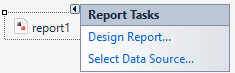
And choose our data source.
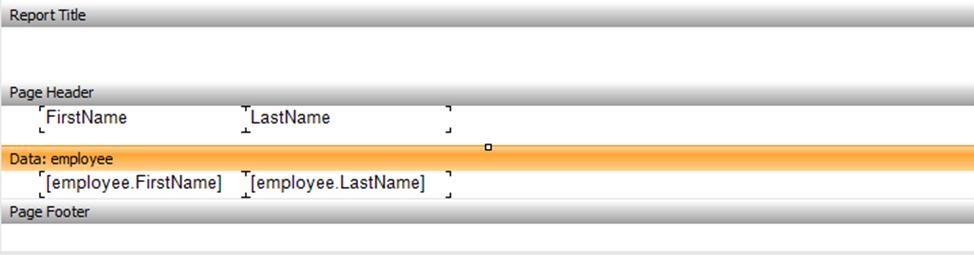
Now, select the item “Design Report” from the same menu. To demonstrate, I added a couple of fields from the Employee table:
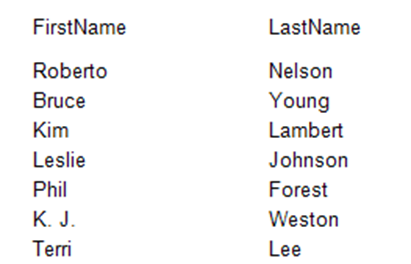
For interest's see how the report looks now:
Save the report and close the Report Designer. Add a button to the form. And click event for it:
1 2 3 4 5 6 7 8 9 10 11 |
private void Run_Click(object sender, EventArgs e) { report1.Load("D://Reports//Simple.frx"); report1.Prepare(); report1.ShowPrepared(); } |
Here, everything is banal. I have uploaded created earlier report. Then prepared it and showed.
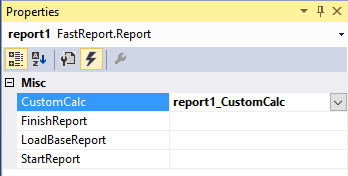
And now, add the event CustomCalc for the report1 object:
1 2 3 4 5 6 7 8 9 10 11 12 13 |
private void report1_CustomCalc(object sender, FastReport.CustomCalcEventArgs e) { if (e.CalculatedObject.Equals("Roberto") ) { e.CalculatedObject = "Test Name"; } } |
Here we intercept the needed data and replaces them. All data passes through CalculatedObject object during construction of the report. We catch the needed information "Roberto". And replace them.
You can replace the entire data field. In this case, the condition would look like this:
1 |
if (e.Expression.IndexOf("employee.FirstName") != -1)
|
We wrote the code for the data substitution directly in the event handler CustomCalc. You can also assign the event handler directly in the code, for example in MVC application. With a convenient location in the application code we write:
1 |
report1.CustomCalc += FReport_CustomCalc;
|
And the event handler:
1 2 3 4 5 6 7 8 9 10 11 12 13 |
private void FReport_CustomCalc(object sender, CustomCalcEventArgs e) { if (e.Expression.IndexOf("Employees.FirstName") != -1) { e.CalculatedObject = "Test Name"; } } |
Run the application. Click the button and see our report:
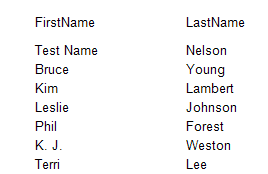
Let's compare this screenshot with one that was made earlier. As you can see, the first entry and the name of the employee Roberto put in a condition and has been replaced by Test Name.
Thus, we have a way to replace some of the data in the report. It probably will be used at sophisticated users of FastReport.