Como usar consultas dinâmicas no FastReport .NET
Most users of FastReport .NET build reports receiving data from SQL DBMS, and would like to take advantage of Sql in their reports. Nothing prevents you from using dynamic queries, stored procedures and functions. In this article, we will have a look at how to use dynamic queries when creating a report data source.
This type of query is used to bypass the syntactic restrictions of the SQL language. But such requests can be performed longer due to a suboptimal query plan, and security needs to be built differently. But now it's not about that. Dynamic queries are convenient, and so we want to use them in FastReport.
Let's look at the example. Let’s suppose you want to filter the data before the report is displayed. It seems that everything is pretty simple. But, if you want to change the field on which the data will be filtered? Using a dynamic query, you can add variables to the query body. One of which is the field name for imposing the condition, and the second is the value of this field.
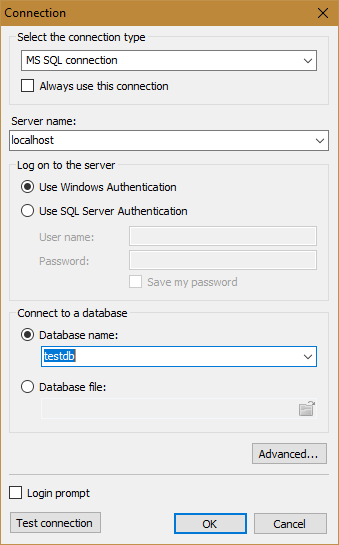
Create a report. Previously, we need to create two report parameters. Add ParamName and ParamValue of the string type. Now create a connection to the database. We connect to the SQL server:
At the stage of selecting tables, click the button  . It runs the query wizard:
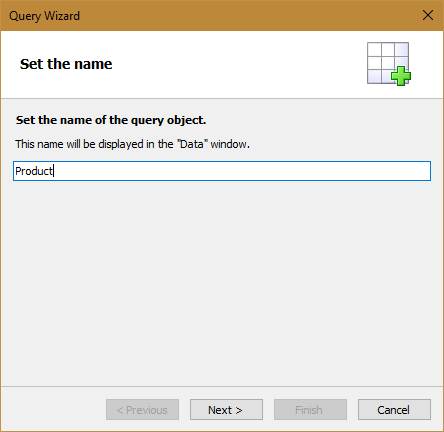
Set the name of the future table and click Next.
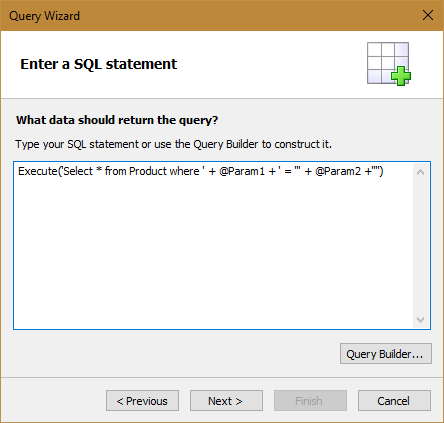
Enter a dynamic query manually. This query has two parameters: @ Param1 - field name, @ Param2 - field value. Here you can add the third parameter - the operation sign ( =, in, <, >, <, >).
But we will limit ourselves to two. Since the query is represented as a text value, we use the Execute statement to execute. Click the Next button.
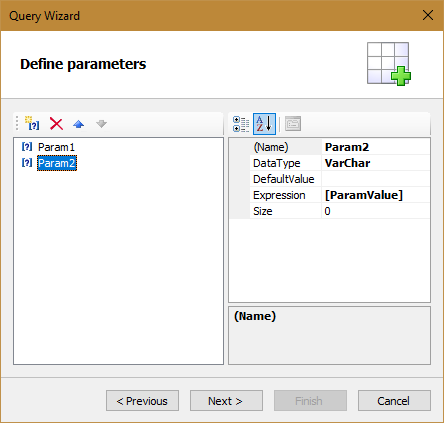
In the parameter definition window, create two with the same names as in the SQL query. You must specify Expression. For the first parameter, this is [ParamName], and for the second parameter - [ParamValue]. As you guessed, these are the report parameter names that we created earlier. Click the Finish button.
We got the data source:
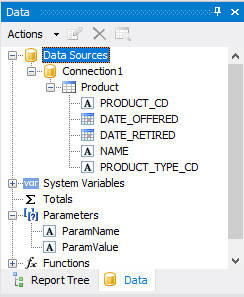
Drag the fields from the Product table to the band's data.

And now, let's add a dialog form. Drag two parameters from the Data window to it.
Now we can specify the name of the field and its value for filtering the sample. Run the report.
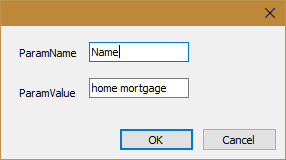
Set the parameter values and click Ok.
And we get the records we need. In our case, it is one. Let's try to filter the report on a different field. Run the report again.
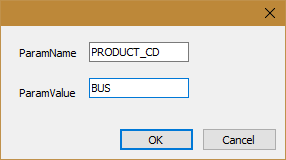
And the result:

Thus, you can use dynamic queries to help you avoid unnecessary code or report settings. And if you work with large amount of data, you can speed up the time of report generation, by cutting off unnecessary data at the stage of receiving them.