How to convert csv: remove columns, sort, filter

MS Excel spreadsheet editor handles editing CSV files perfectly. You can sort and filter data, remove unnecessary columns, add numbering etc. But what if you do not have a spreadsheet editor? Editing a CSV file becomes a nightmare. One has to track the delimiters to understand what column this or that data refers to. Process of sorting in general becomes almost impossible, especially when working with large amount of data.
How can this situation be solved? We have FastReport .NET or FastReport Desktop, so we can use CSV as a data source for our report. First, inside the report, perform data conversions. Then, export back to the CSV file.
Let us overview a small CSV file with a list of names and addresses:
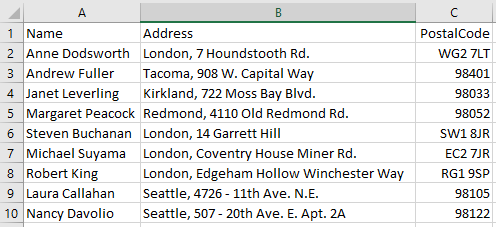
Determine the transformations that we want to make:
1. Remove the PostalCode column;
2. Remove from the address the name of the city in a separate field;
3. Sort records by name;
4. Remove the surname Robert King from the data set.
Create a new report. Add a new CSV data source file.
On the report page, place the FIO and Address fields, where add the Address field twice. The first of the added Address fields is edited the following way: [Substring ([Addresses .Address], 0.6)]. Consequently, we single Moscow out of the rest of the addresses. If the names of the cities were different, we would need more complex processing. To do this, you need to use the report script. For the text object, added to the band, you need to create the BeforePrint () event. To the script we add the usage of the library: using System.Text.RegularExpressions;
Here is the event handler code:
1 2 3 4 5 6 7 8 9 |
private void Text5_BeforePrint(object sender, EventArgs e) { Regex rgx = new Regex("([^,]|\n)+", RegexOptions.IgnoreCase); Match match = rgx.Match(Report.GetColumnValue("Адреса.Address").ToString()); if (match.Success) { Text5.Text = match.Value.ToString(); } } |
As it is seen, we used a regular expression to select the data before the comma.
Now let us get back to the second Address field, which has been added. Since we divided the name of the city into a separate column, the rest of the addresses must remain here. Let us use the script for the Text3 object.:
1 2 3 4 5 6 7 8 9 |
private void Text3_BeforePrint(object sender, EventArgs e) { Regex rgx = new Regex(@"(?<=,\s).*", RegexOptions.IgnoreCase); Match match = rgx.Match(Report.GetColumnValue("Addresses.Address").ToString()); if (match.Success) { Text3.Text = match.Value.ToString(); } } |
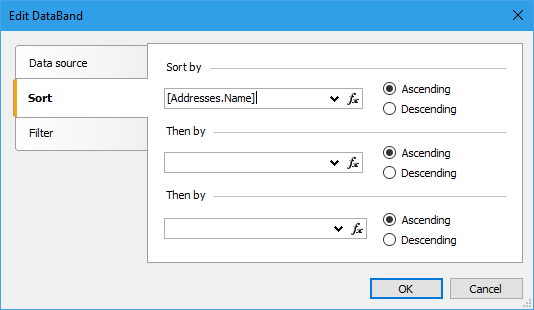
Now we sort the data according to names. To do this, double - click the "Data" band. Select the "Sort" tab. We have three fields for sorting. Specify only the first value - Name:
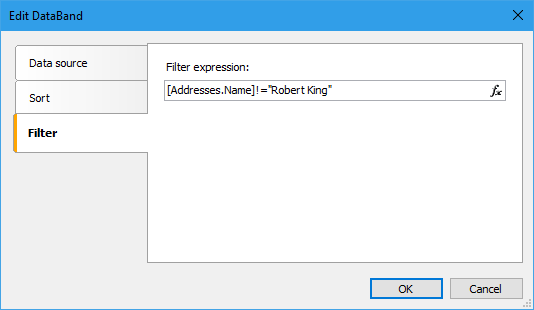
The only we need is to filter the data by name Robert King. To do this, again double - click the Data band. In the window that appears, select the "Filter" tab and enter the expression
[Addresses.Name]!="Robert King"
Run the report in preview mode:
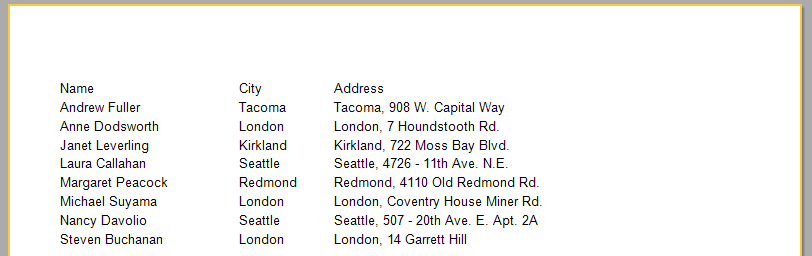
So, we removed the ZIP column, sorted the list by name, divided the address into a city and street, removed the line for the name Robert King. Now let us export to CSV. For this, in the preview mode press the button:  .
.
Choose "CSV format ...". In the dialog box, click "Ok" and select the location, where the file will be saved. In the end, we get the following CSV file:
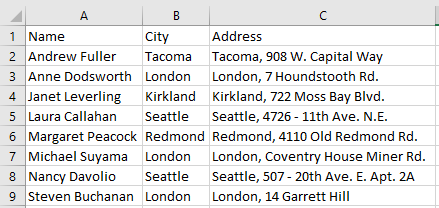
As you can see, it was accessible to convert a document using FastReport. It is commensurate with work in Excel in time. Thus, FastReport becomes an alternative tool for processing CSV files.