Conectando ao DB PostgreSQL a partir do relatório
In this article we will look at ways to connect to a PostgreSQL database from FastReport .NET report.
FastReport provides a plug-in report designer that allows you to connect to Postgres. At the core of this plugin is Npsql.dll library. But first things first.
First, we consider the connection to the database by FastReport plugin. And then, with the usual ODBC connector.
The first method
Open the solution Program Files (x86) \ FastReports \ FastReport.Net \ Extras \ Connections \ FastReport.Postgres \ FastReport.Postgres.sln. From it we will build FastReport.Postgres.dll library that will be used as a plug-in report designer. To build the project is required npgsql.dll library. Npgsql installer can be downloaded from here: https://github.com/npgsql/npgsql/releases.
After installation of the connector, the library can be found in the GAC.
build the solution FastReport.Postgres and obtain the required library.
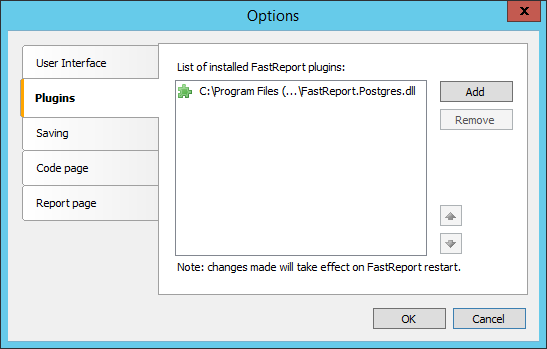
Open the report designer. In the menu File open the Options. Add the library built earlier in the Plugins tab:
Restart the report designer.
Now you can create a report. Add a new data source. In the wizard, the data source, select New Connection ... In connection settings, select the type of connection: Postgres connection.
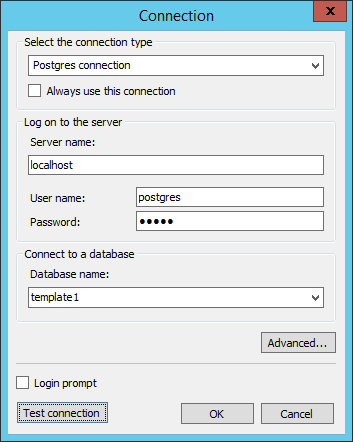
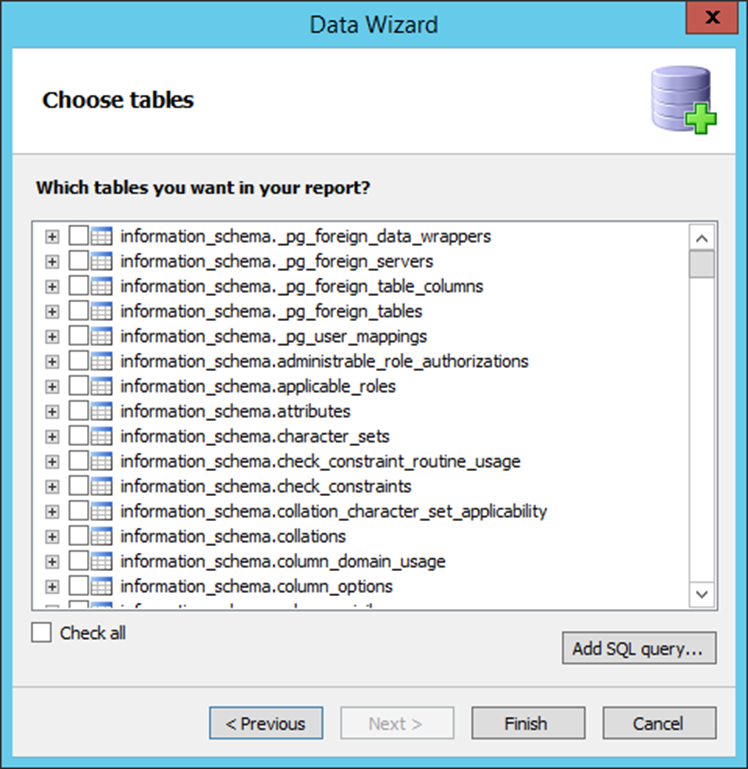
And define the settings of connecting to the database. Click OK. In the Data Wizard click Next. And select the desired table:
Now consider the second method. For it we need the ODBC connector, which can be downloaded here: https://odbc.postgresql.org/.
Install the ODBC driver and go to the creation of the report. In the Report Designer add a new data source. In the Data Wizard select New connection ....
In the settings of the connection string, select the type of connection: ODBC connection.
In the section Data source, select “use connection string”. And open the connection string builder with the button  .
.
In the window that appears, we click the button “New ...”:
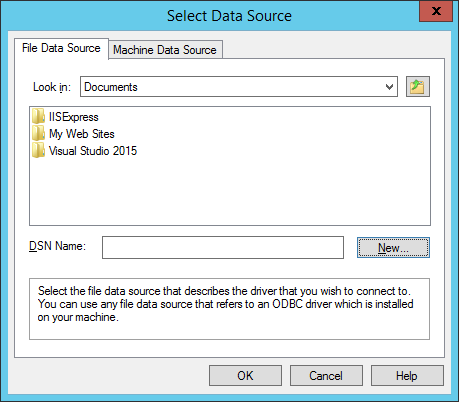
Choose PostgreSQL ODBC Driver:
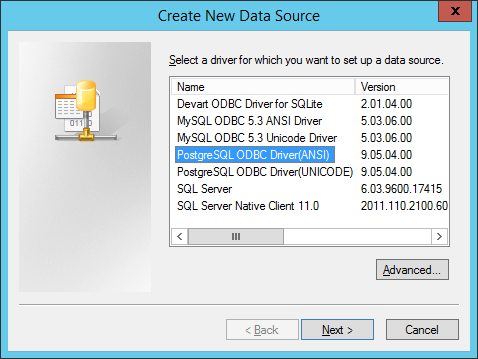
Click Next. Define the name of the connection:
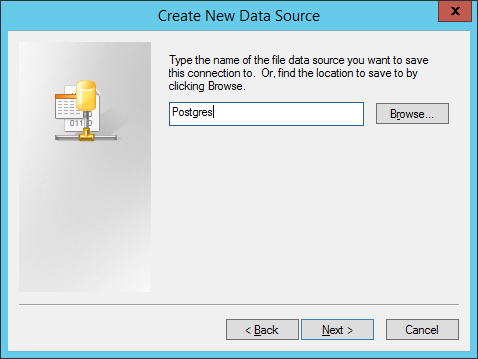
Click Next. And move on to the connection settings:
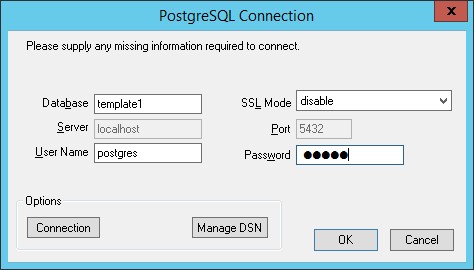
Click OK. Then OK again. And back in the Data Wizard. Click the Next button and proceed to the selection tables:
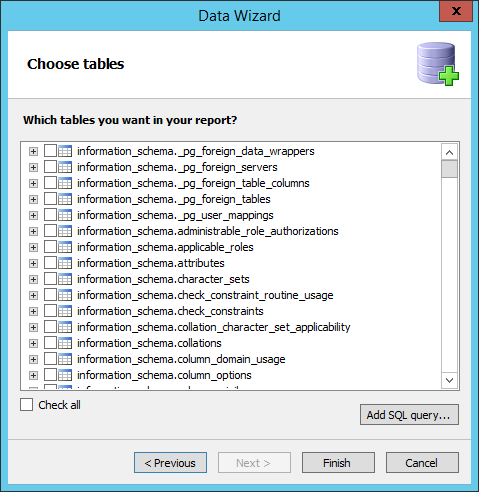
That's all. We have reviewed with you two methods of connecting to the data within the report. Note that the first method is more convenient in the subsequent use of the PostgreSQL database in your reports. Also, it works faster than the connection via ODBC connector.