Combine multiple reports into one
This article aims to establish a strategy to combine two or more reports into one by using the code of your application. This can be useful when you want to combine similar reports according to their category.
To append a report to the previous one use the method Prepare of the Report object. It is necessary to provide value TRUE as a parameter of the method.
Let us consider an example.
Create an application WindowsForms. Add a reference to FastReport.dll library to the project.
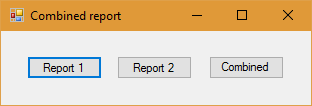
Then, add three buttons on the form: Report 1, Report 2, Combined report. Next, double click on the first button.
Now we are using the library FastReport:
1 |
using FastReport;
|
Set the report's path:
1 |
string report_path = @"K:\MyDocuments\";
|
Now add the code to the first button:
1 2 3 4 5 6 7 |
private void button1_Click(object sender, EventArgs e) { Report report1 = new Report(); Report1.Load(report_path + "report1.frx"); Report1.Prepare(); Report1.ShowPrepared(); } |
Here, we have created a report instance, downloaded the report, prepared it and showed. The report template looks like this:

Now double click on the second button:
1 2 3 4 5 6 7 |
private void button2_Click(object sender, EventArgs e) { Report report2 = new Report(); Report2.Load(report_path+"report2.frx"); Report2.Prepare(); Report2.ShowPrepared(); } |
The procedure here is the same as with the first button. A report template is also similar:

Add the code to the third button:
1 2 3 4 5 6 7 8 9 |
private void button3_Click(object sender, EventArgs e) { Report report1 = new Report(); report1.Load(report_path + "report1.frx"); report1.Prepare(); report1.Load(report_path + "report2.frx"); report1.Prepare(true); report1.ShowPrepared(); } |
As you can see, we have created a report object - report1. Then, we loaded the first report and prepared it. After that, we have loaded the second report and prepared it as well. In the last line of the code we have displayed the report object. Bring the line report1.Prepare(true) to notice. As a function parameter we provide the value TRUE. This means that the current report is joined to the previous one. Using this example you can consistently join any number of reports to each other.
Let us start our application:
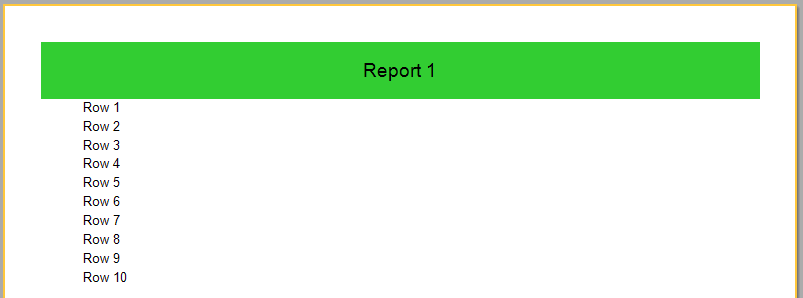
If we click the Report 1 button, we get our first report:
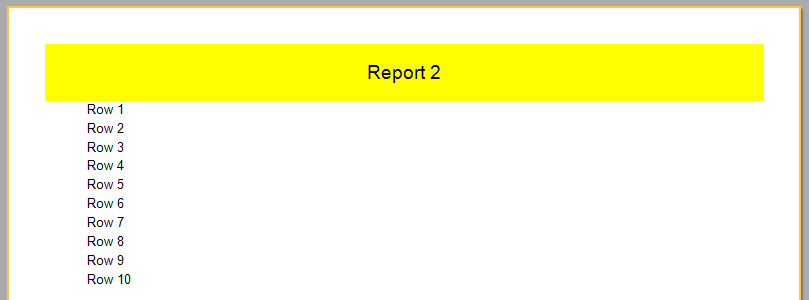
Click the second button to see the second report:
And finally, click the third button:
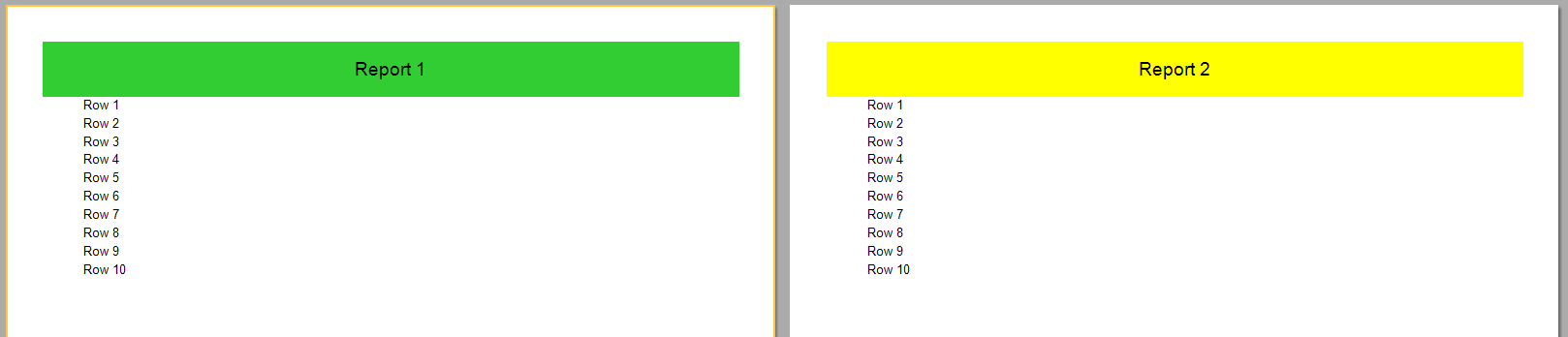
In this case, we get a report of two pages. The first one displays the first report, the second one shows the second report.
As can be seen from the above, the process of combining two reports into a single report does not present any difficulties and troubles.