How to Create a PDF Report in FastReport Cloud
Recently, we launched the FastReport Cloud service, which allows you to create, store, and export reports directly from the cloud storage. In this article, we will look at an example of exporting a report to PDF using FastReport Cloud.
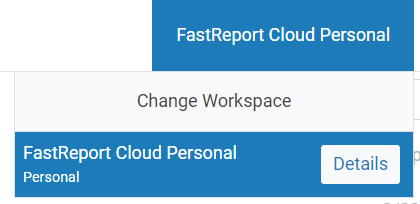
First, we need to navigate to the workspace. You can do this by clicking the "FastReport Cloud Personal" button.
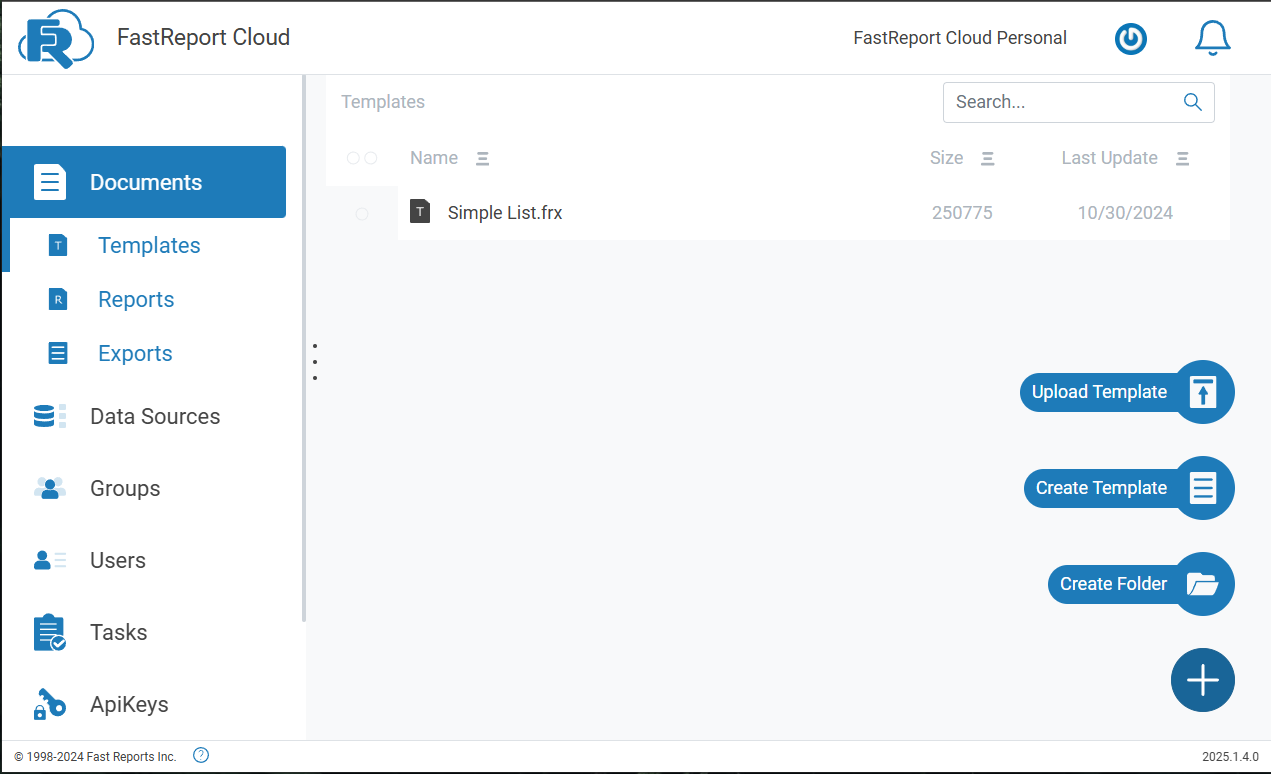
Once we are in the workspace, we need to create a template. To do this, go to the "Documents" tab, right-click, and select "Create Template."
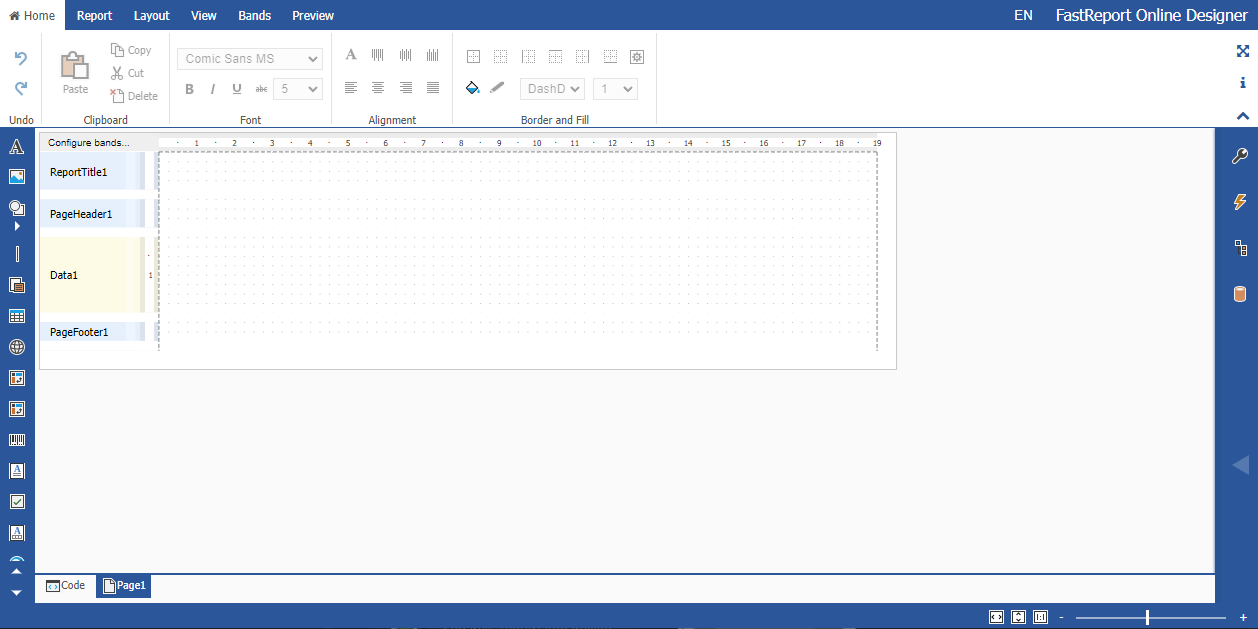
After creating the template, we will be automatically redirected to the Online Designer editor, where we can begin the design process.
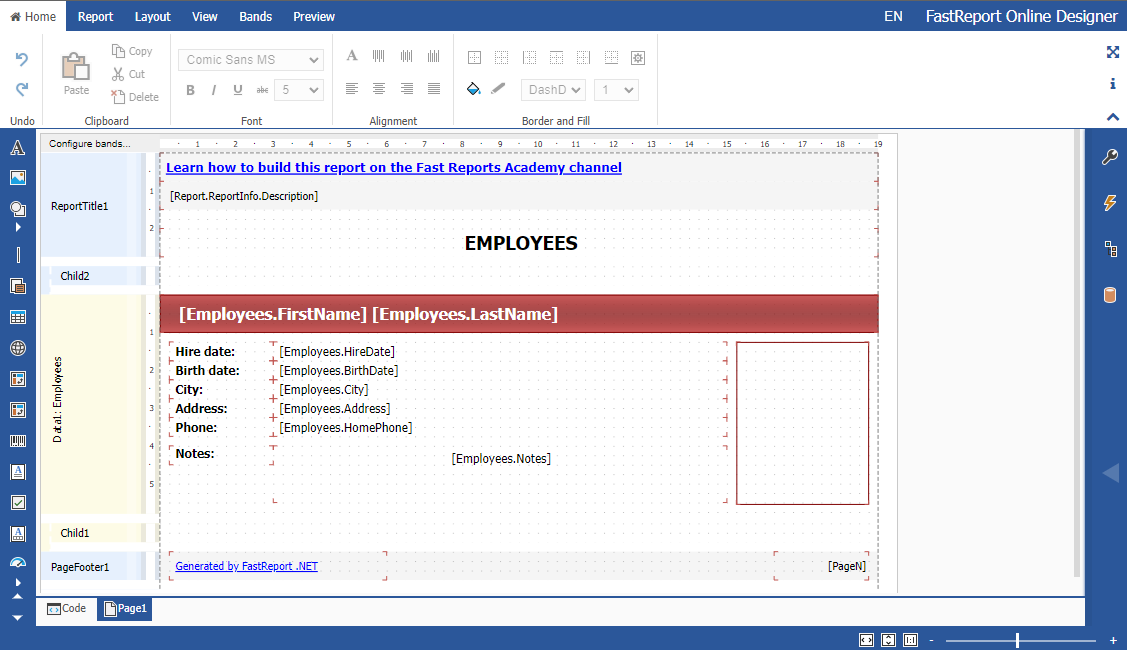
Now let’s create a simple report. We will take an already prepared template for clarity.
After creating the template, we go to the list of our templates. We select the one we need, right-click, select "Export," and choose PDF.
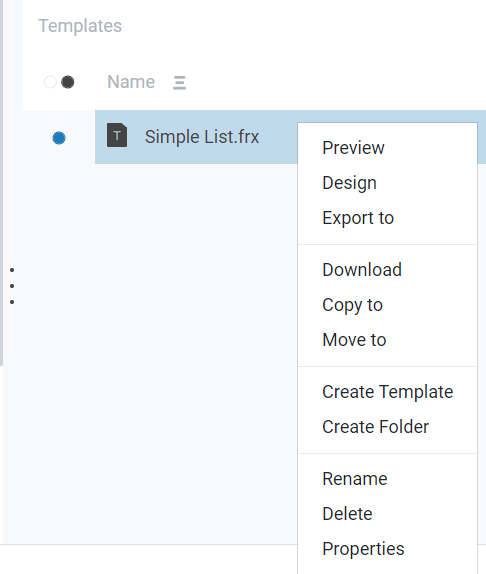
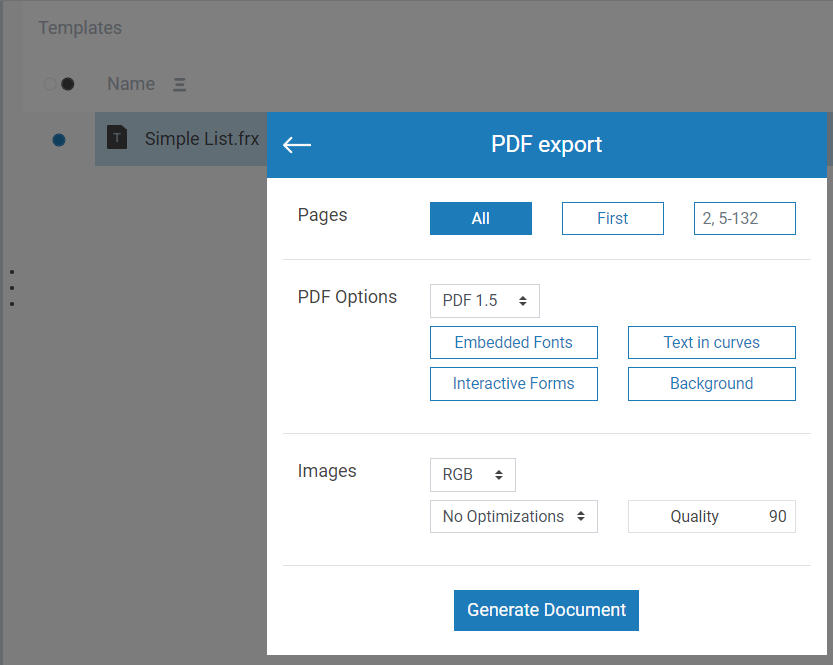
When we select export to PDF, a settings window will appear. We choose the appropriate settings according to our requirements and click to generate the document.
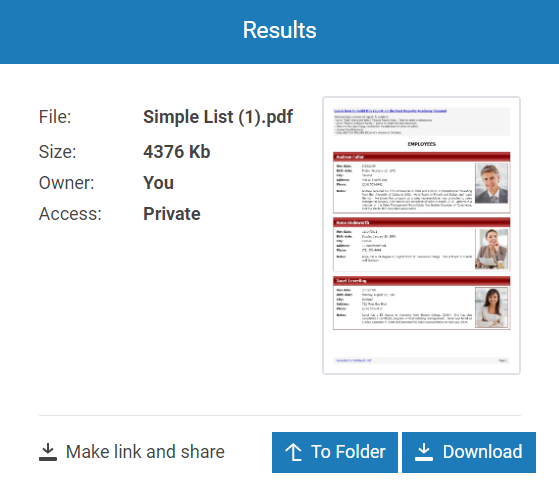
The next step is to choose the folder where we will save our PDF file. And that's it, we have successfully exported our template.
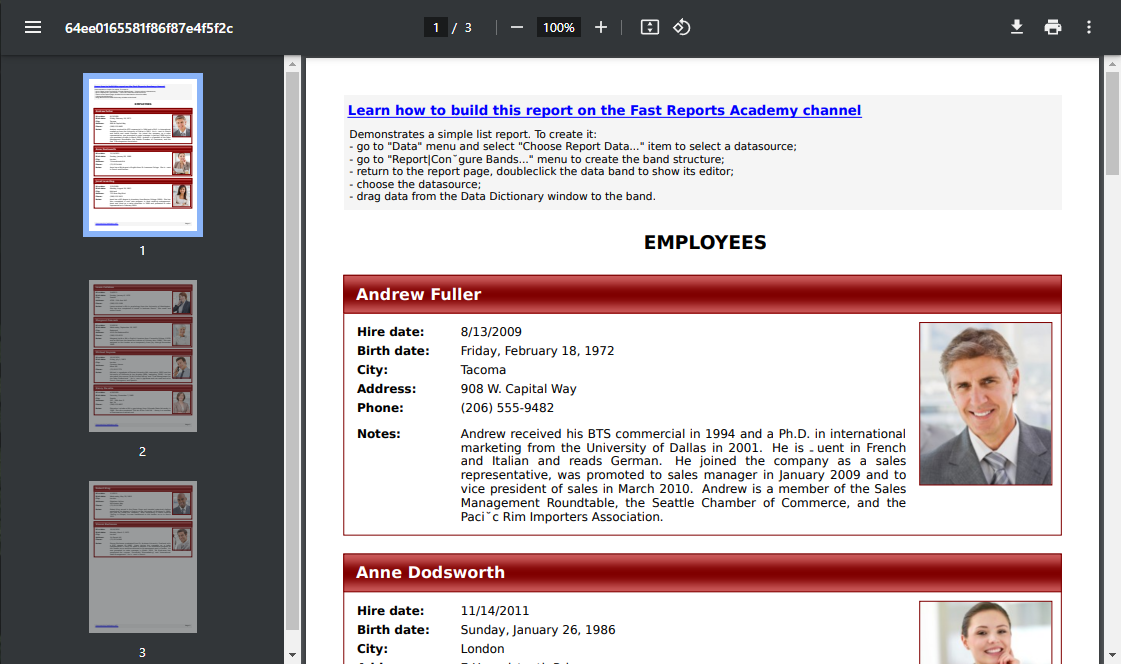
Let's open our completed PDF file.
In this article, we learned how to create a report and how to export it to PDF. The interface of the service is intuitive and user-friendly, making it easy to understand how to work with FastReport Cloud.