Register Json data in FastReport.NET
If you need to register Json as data source in FastReport.NET, this can be done through the registration of business objects.
For parsing json you need to describe the data scheme in the C# classes, for example:
1 2 3 4 5 6 7 8 9 10 11 12 13 14 15 16 17 18 19 20 |
public class Product { public string Name { get; set; } public double UnitPrice { get; set; } } public class Category { public string Name { get; set; } public string Description { get; set; } public List<Product> Products { get; set; } } string json = "..."; // your json List<Category> categories = JsonConvert.DeserializeObject<List<Category>>(json); // using the Newtonsoft.Json library for deserialization Report report = new Report(); report.Load(@"C:\report.frx"); report.RegisterData(categories, "Categories"); |
If you do not know the scheme or if it is changing during the work of the program, it can be generated dynamically. For this we use the library JSON C# Class Generator, you can download it from https://jsonclassgenerator.codeplex.com.
Code to generate C# classes:
1 2 3 4 5 6 7 8 9 10 11 12 13 14 15 16 17 18 19 20 21 |
 string json = "..."; // your json

 if (json.StartsWith("[")) // if json is an array, then it would be better if we name it
{
json = "{\"Data\":" + json + "}"; // Under this name the data will be displayed in designer, so you can add multiple data sources
} JsonClassGenerator gen = new JsonClassGenerator() { Example = json, UseProperties = true, Namespace = "__JSON__", MainClass = "__JSON__", }; string source = ""; using (StringWriter sw = new StringWriter()) { gen.OutputStream = sw; gen.GenerateClasses(); sw.Flush(); source = sw.ToString(); } |
As a result we obtain the generated classes in a string. Now we need to access them from the code; in order to do this compile them using CSharpCodeProvider and get Type:
1 2 3 4 5 6 7 8 9 10 |
Type type = null; using (CSharpCodeProvider compiler = new CSharpCodeProvider()) { CompilerParameters parameters = new CompilerParameters() { GenerateInMemory = true, }; CompilerResults results = compiler.CompileAssemblyFromSource(parameters, source); type = results.CompiledAssembly.GetType("__JSON__.__JSON__"); } |
Note: This example shows a compilation in the current AppDomain. This means that it can not be unloaded from memory, and each compilation will eat off memory. To avoid this, you can use CSharpCodeProvider in another AppDomain.
Deserialize json using the generated classes. The easiest way to do this is to use the library Newtonsoft.Json; You can get it through NuGet with the command "Install-Package Newtonsoft.Json".
1 |
object obj = JsonConvert.DeserializeObject(json, type);
|
Now we have objects, so let's register them in FastReport.NET:
1 2 3 4 5 6 7 8 9 |
PropertyInfo[] properties = type.GetProperties(); Report report = new Report(); report.Load(@"C:\report.frx"); foreach (var prop in properties) { report.RegisterData((IList)prop.GetValue(obj, null), prop.Name); } |
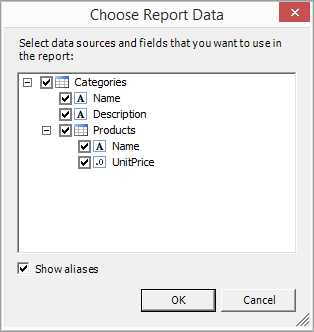
So now you can run designer and see the results.