FastReport.Net WCF - simple example
2013-06-20
Today we review the simplest way to use the library FastReport.Service.dll as WCF service.
This example does not require programming and is intended for testing of library and configuration file. To complete the task, we use the program WcfSvcHost.exe, that comes with Visual Studio:
- Create a folder for our experiments anywhere on the disk, such as C:\WCF\FastReport
- Copy the files in the folder FastReport.Service.dll, FastReport.Service.dll.config, FastReport.dll, FastReport.Bars.dll.
- Create two sub-folders Data and Reports
- Copy the database file in the Data folder from the examples \FastReport.Net\Demos\Reports\nwind.xml
- Copy the contents of a folder \FastReports\FastReport.Net\Demos\WCF in Reports – It contains test reports with built-in connections to the database, which is a necessary requirement when used with a library FastReport.Service.dll
- Open configuration file FastReport.Service.dll.config in any text editor.
- Change path to the reports in section <appSettings>:
<add key="FastReport.ReportsPath" value="C:\WCF\FastReport\Reports" /> - Change connection string in section <connectionStrings>:
<add name="FastReportDemo" connectionString="XsdFile=;XmlFile=C:\WCF\FastReport\Data\nwind.xml"/> - Create service.bat with line:
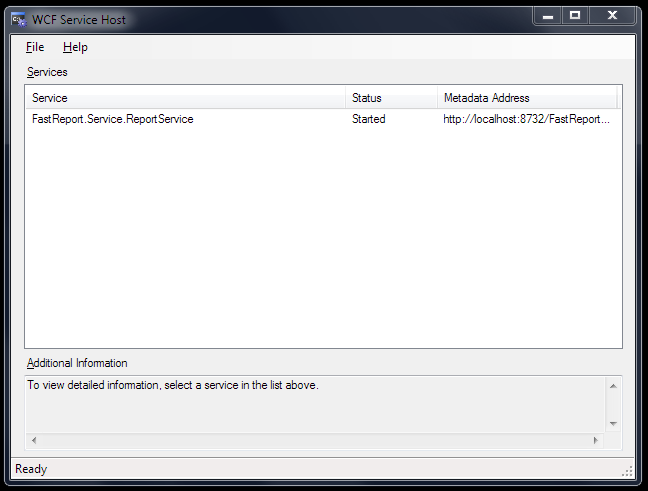
"C:\Program Files (x86)\Microsoft Visual Studio 10.0\Common7\IDE\WcfSvcHost.exe" /service:C:\WCF\FastReport\FastReport.Service.dll /config:C:\WCF\FastReport\FastReport.Service.dll.config - Run service.bat from Explorer with administrator rights (Run as administrator). You will see an icon of WCF Service Host in system tray. Double-click on it:
- Open web browser and go to address http://localhost:8732/FastReportService/
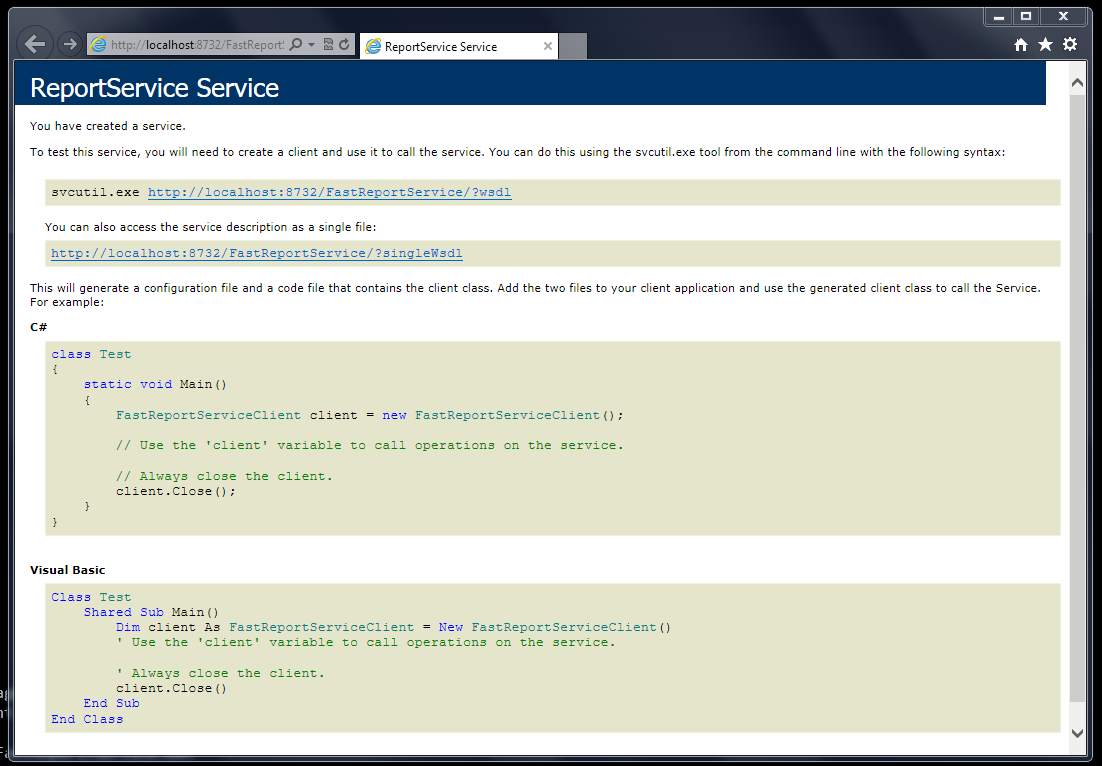
Service works normally. You can change port number of service in configuration file:
<add baseAddress="http://localhost:8732/FastReportService/" />
Let's connect to our service from demo example \FastReport.Net\Demos\C#\WCFClient
- Open WCFServiceClient.csproj in Visual Studio
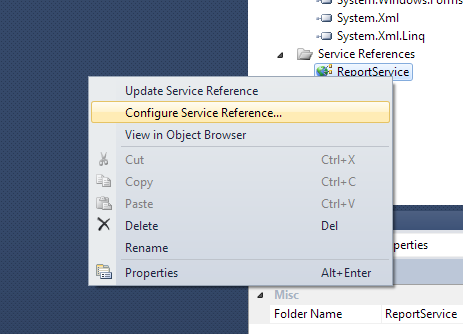
- Click in Solution Explorer by right-button on "Service References–ReportService" and select "Configure Service Reference"
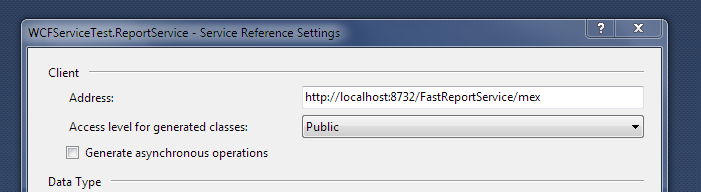
- Review our service address. Address should end on “/mex” (metadata exchange)
- Compile and run an example.
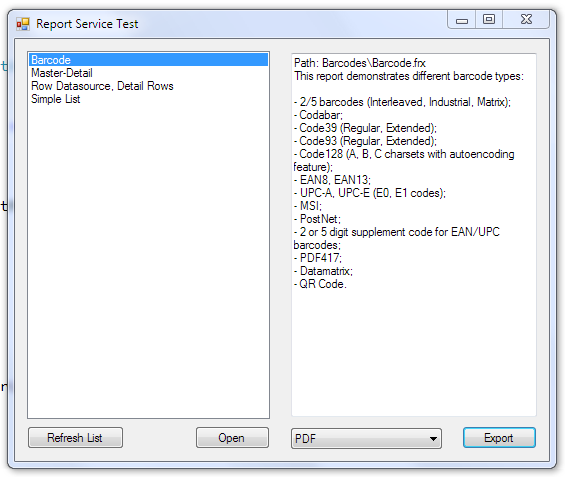
To be continued.
12 Ekim 2026, Pazartesi
FastReport .NET'te Greenplum Database'e bağlanma
Greenplum Database’i FastReport .NET’e nasıl bağlayacağınızı öğrenin: Npgsql ile eklentiyi derleme, rapor tasarımcısına entegre etme ve bağlayıcıyı uygulamanın C# kodunda kaydetme.
12 Ekim 2026, Pazartesi
FastReport .NET'ten Erişilebilir PDF'ye Bir Rapor Nasıl Dışa Aktarılır (PDF/UA-1)
FastReport .NET'ten bir raporu PDF/UA-1 uyumlu bir dosya olarak dışa aktarma: kullanıcı arayüzü ve C# kodu aracılığıyla yapılandırma, SemanticRole ve AltText rolleri ile doğrulama.
12 Ekim 2026, Pazartesi
FastReport .NET’te Önizleme’den bir raporu XML formatına aktarma
FastReport .NET'te bir raporu XML biçiminde nasıl kaydedeceğinizi öğrenin: kod kullanmadan Önizleme'den dışa aktarma ve parametreleri ayarlayarak XMLExport aracılığıyla programlı dışa aktarma.