FastReport .NET and Visual Studio 2017
In this article, I would like to do a test of compatibility of FastReport .Net and the latest version of MS Visual Studio Enterprise 2017.
In the function of the first test, I will create a simple application in WindowsForms. Then, I will add the Report component and launch a report in the designer.
First of all, you need to add FastReport components into the Toolbox.
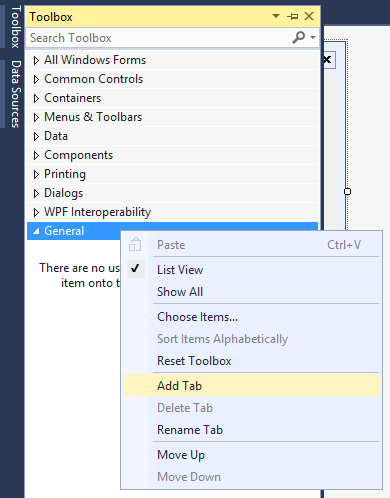
To do this, open the Toolbox, and right-click on it. In the context menu select "Add Tab":
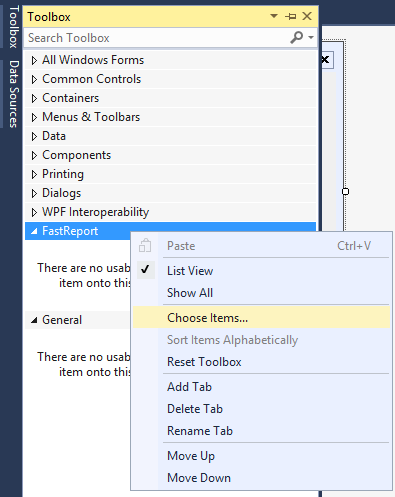
I named the tab "FastReport". Now you need to add components to this tab. Right-click on the tab. Select the “choose items“ from the context menu:
There will a window of components selection for the toolbox appear:
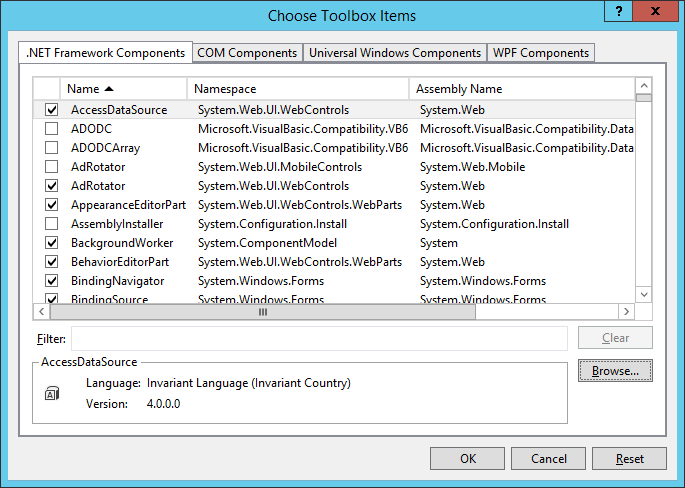
Click the "Browse" button:
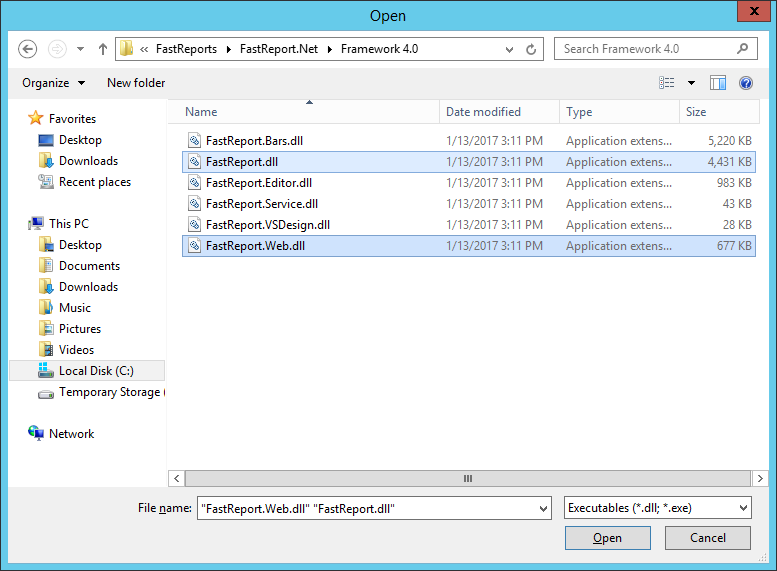
Then, select the libraries FastReport.dll and FastReport.Web.dll from the folder "FastReports/FastReport.Net/Framework 4.0".
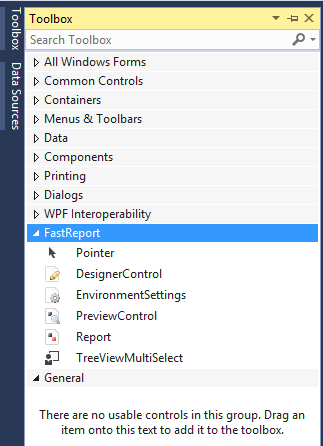
FastReport.Net components have been added to the tool palette.
Drag the Report component and two buttons to the form:
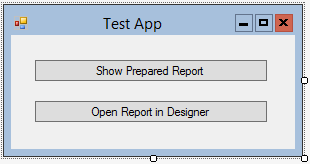
Double-click on the first button, and add the following code:
1 2 3 4 5 6 |
private void button1_Click(object sender, EventArgs e) { report1.Load(@"C:\Program Files (x86)\FastReports\FastReport.Net\Demos\Reports\Text.frx"); report1.Prepare(); report1.Show(); } |
Here, we load a report into the Report object. Then, we build a report, and ,f inally, we display it.
Now double-click the second button, and add the following code:
1 2 3 4 5 |
private void EditReportBtn_Click(object sender, EventArgs e) { report1.Load(@"C:\Program Files (x86)\FastReports\FastReport.Net\Demos\Reports\Text.frx"); report1.Design(); } |
Also, load the report into Report object, and call the editor for this report.
Now run the application and test it.
First, click the first button. This way, we are getting our report in preview mode:
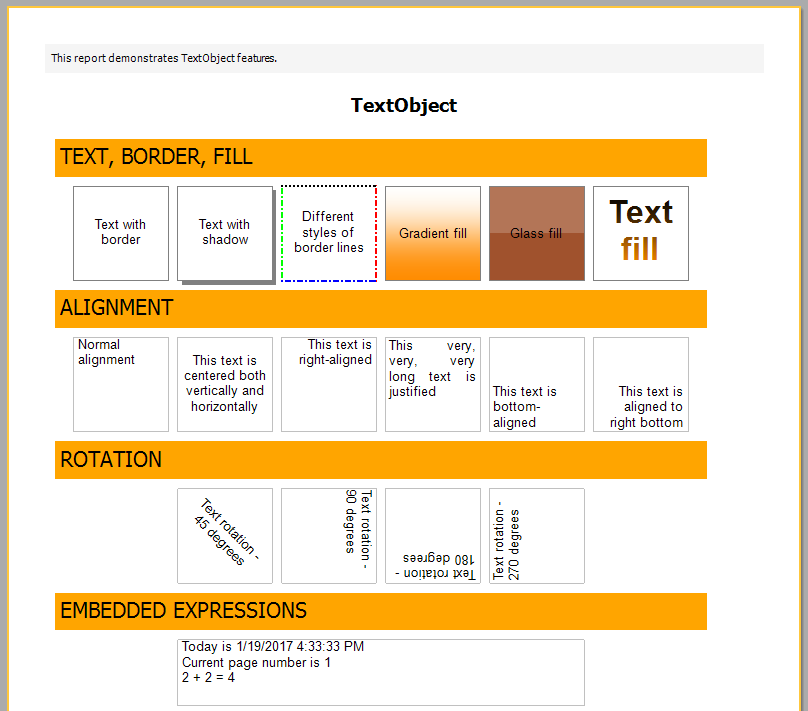
If you click the second button, the report designer will be launched:
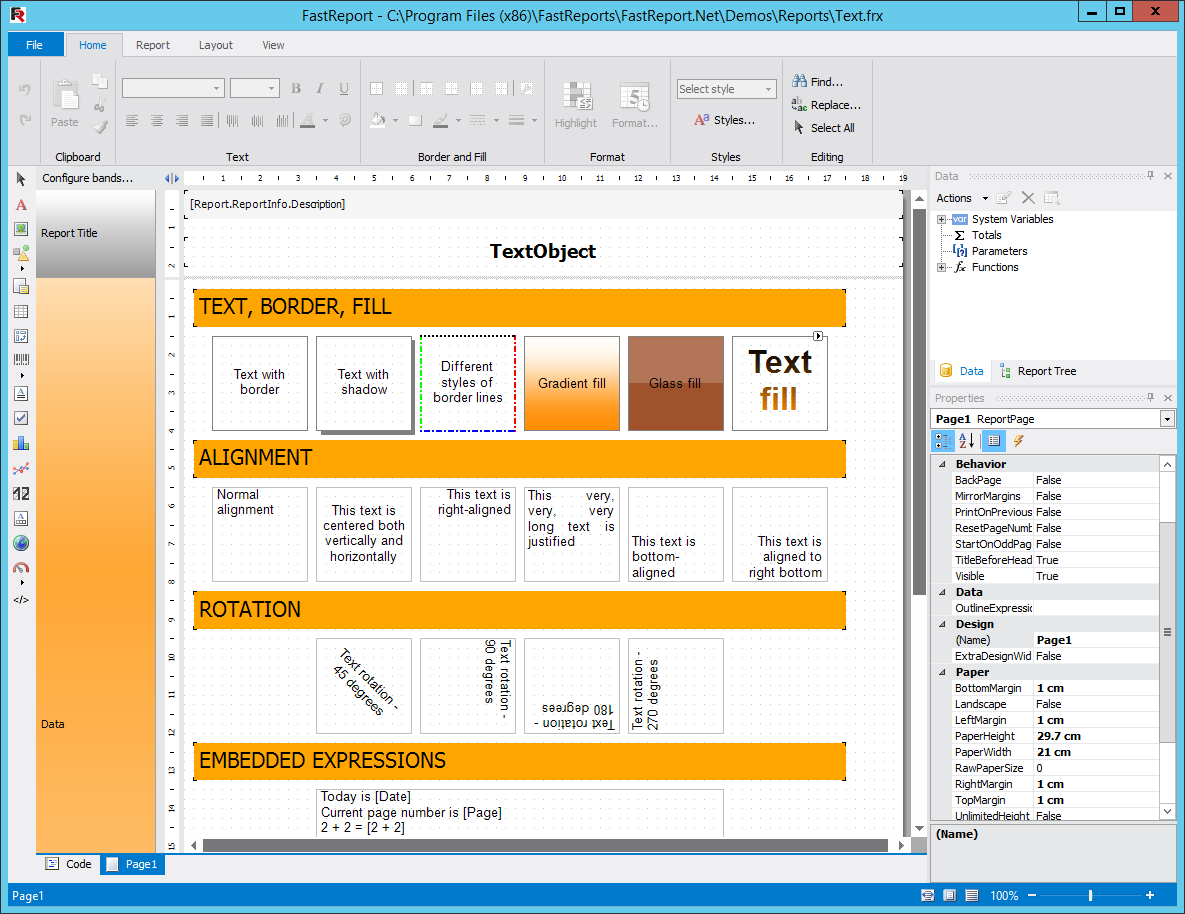
So, we are convinced, that FastReport.Net reports are built and run in the designer in the new version of MS Visual Studio 2017.
Now let us examine website reports. To do this, create an ASP.Net application, filled with examples.
Open a Default.aspx Web page and witch to a visual editing mode:
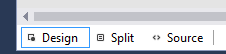
Now, drag a WebReport component on a Web page from the toolbox: 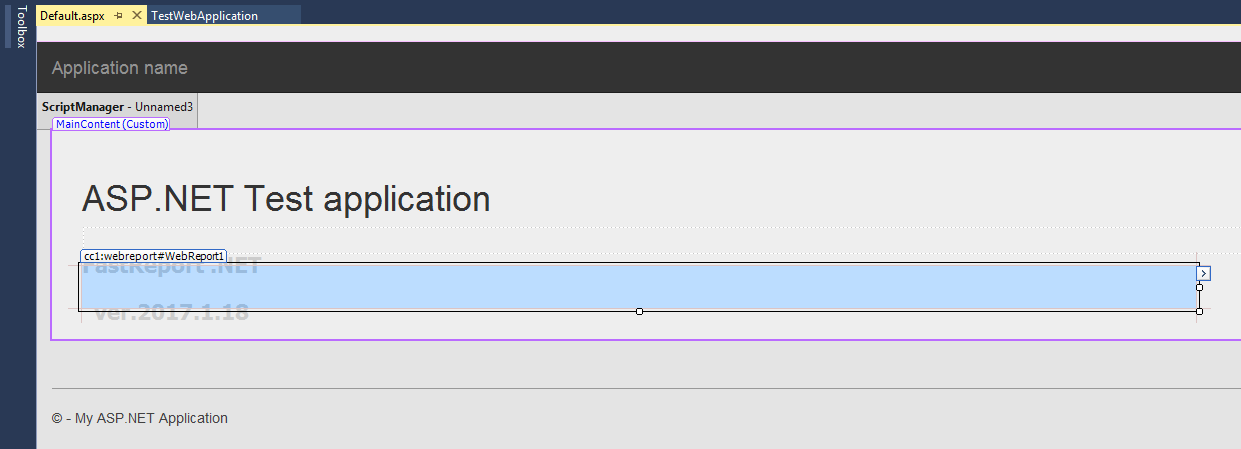
I deleted unrequired content from this page and left only the title and the report object.
In the upper right corner of the WebReport object there is a dropdown menu. Click it and select the Design Report.
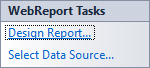
In the Report Designer open the desired report and close the designer. The report has already got into cache. Now run the Web application:
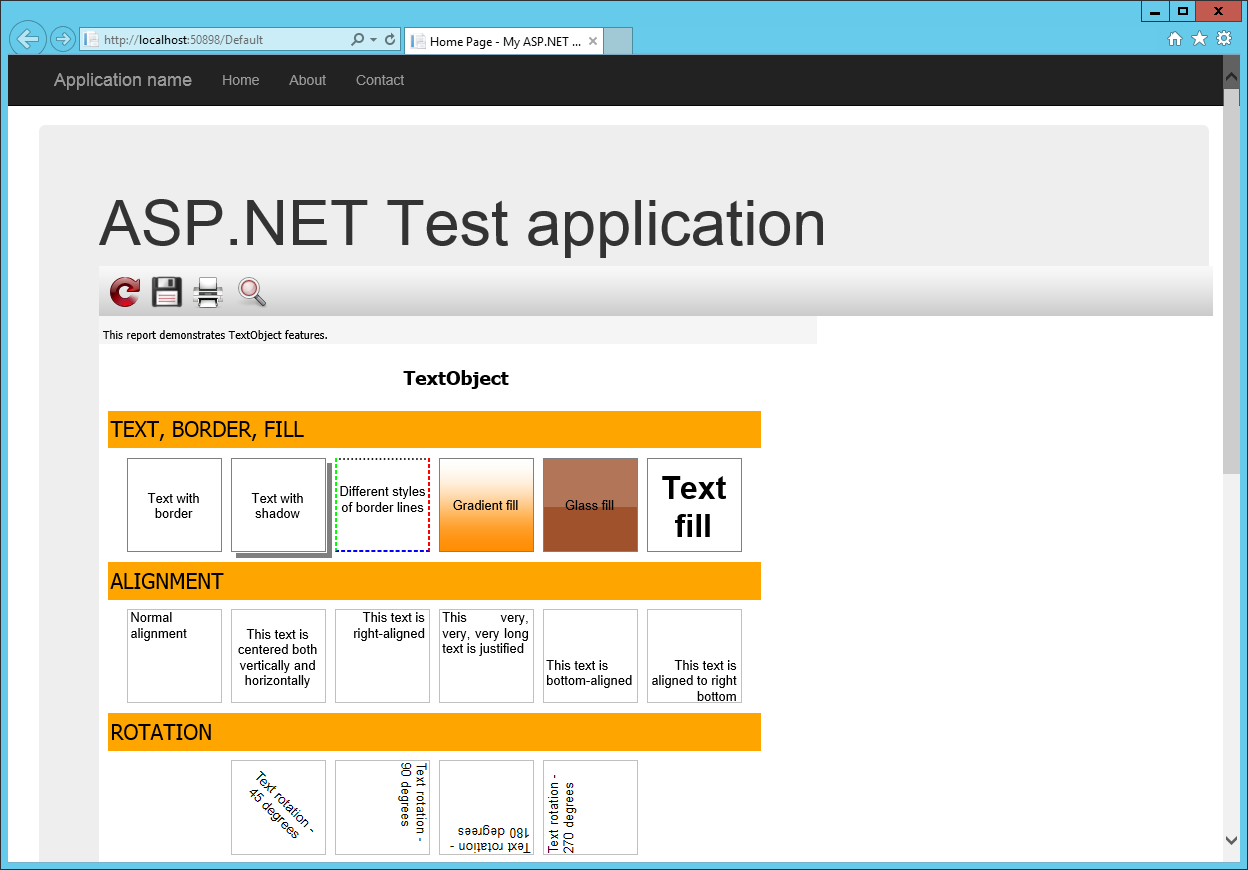
Well, a web report can also work in VS 2017 without any problems.
The article has increased our knowledge in the basic functions FastReport.Net, and all of them successfully work in the new version of Visual Studio. Summing up the results of the test in the article, it is possible to conclude, that there is a full compatibility of FastReport.Net 2017.1.18 and Microsoft Visual Studio 2017 RC Enterprise.