How to create and sign PDF files in Delphi with multiple digital signatures

Some people need to create PDF documents and at the same time sign them with a digital signature. To solve this issue, you can use FastReport VCL versions 2021.1-2021.4. But what if you need to sign a PDF document with more than one digital signature? This feature was integrated into the new version of FastReport VCL 2022.1.
Next, we will look at the generation of a PDF document and how to sign it with several digital signatures.
You can find this example, without using the PDF export dialog with the code in the Demos/SignWithoutDialog folder of our FastReport VCL product after its installation.
But we will look at this functionality by signing the generated PDF document with two digital signatures using the PDF export dialog, without writing any code.
To use multiple digital signatures, you must perform the following steps:
Step 1. Place two TfrxDigitalSignatureView objects on the template in its lower part and select for them the necessary picture, inscription or empty space. We will put our Fast Reports logos on the report, as shown in the figure below.

Step 2. Specify the description of the First signature in the first digital signature.

Step 3. Specify the description of the Second signature for the second digital signature.

Step 4. Next, build the report and click “Export to PDF”.

Step 5. After clicking, you will open the export to PDF dialog. You can read more about all the PDF format settings in the article “How to create PDF from Delphi/C ++ Builder/Lazarus”. But now we only need the Signature tab.
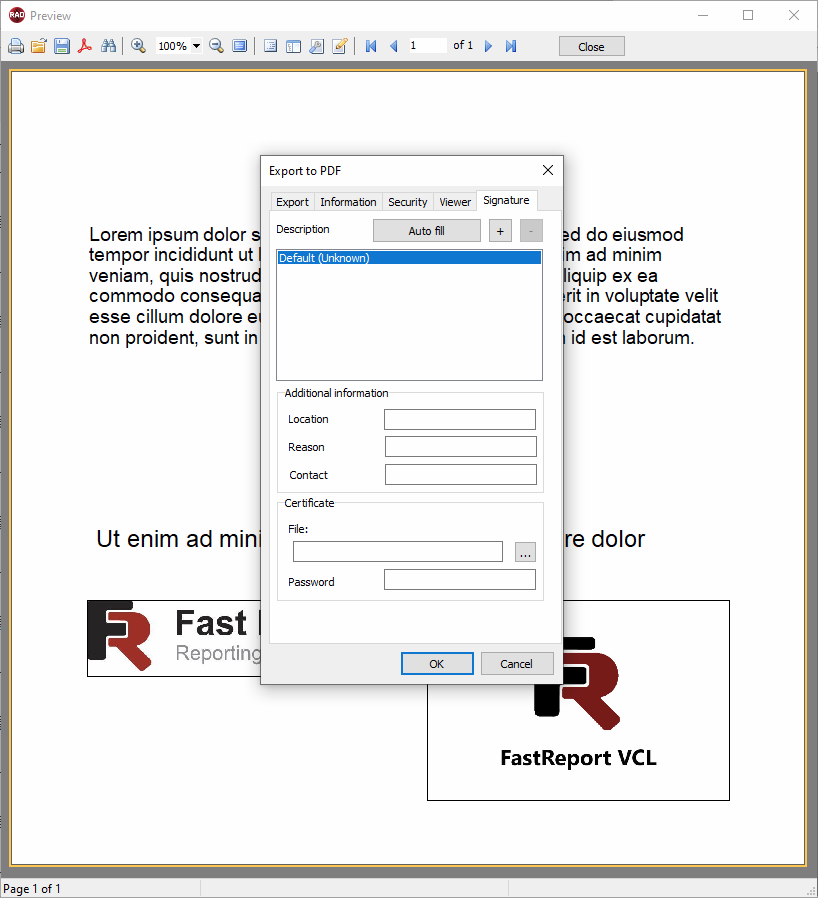
Step 6. Press the “Auto fill” button, after which all the signatures located on the template with the corresponding descriptions will appear in the list.
Step 7. Then we fill in the additional information fields, select the location for the certificate, and also enter the password.
Step 8. Let's do this for the first digital signature:

Step 9. Let's do this for the second digital signature:
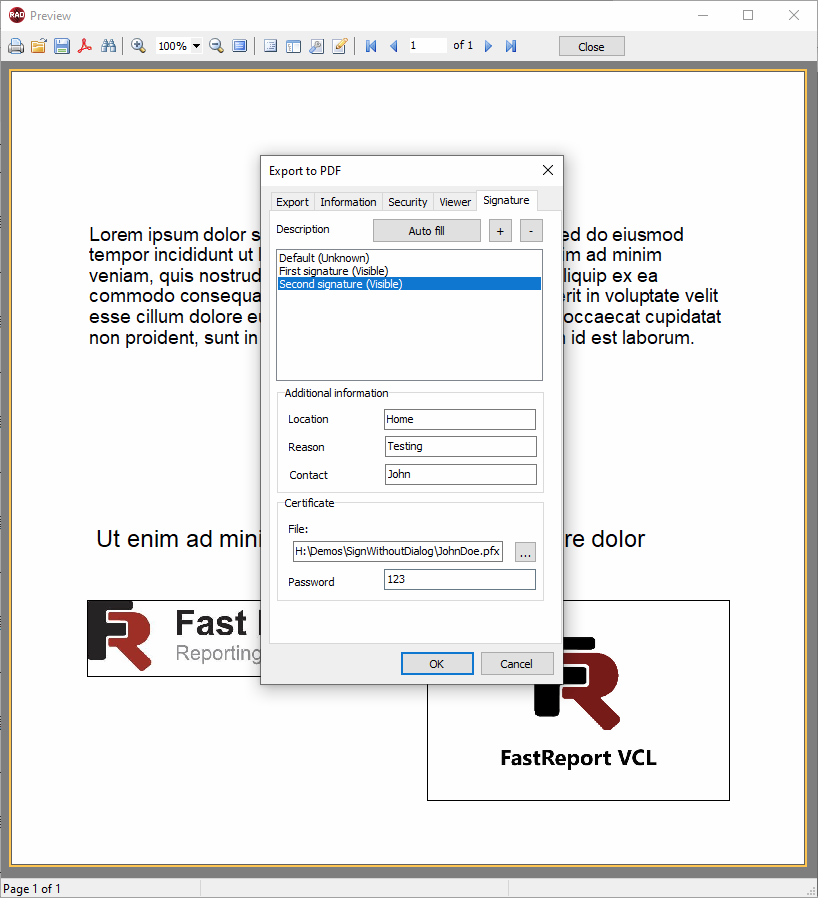
Step 10. Press the OK button and save our PDF document. Let's open the resulting file in Foxit Reader.

We see that the PDF document was successfully signed with two digital signatures. Thus, you can generate and sign PDF documents with multiple digital signatures using FastReport VCL 2022.1.