How to install FastReport Desktop
This product is designed for generating reports by database administrators, as well as exporting them to the popular electronic document format and sending them to print, uploading to cloud storages or sending by e-mail.
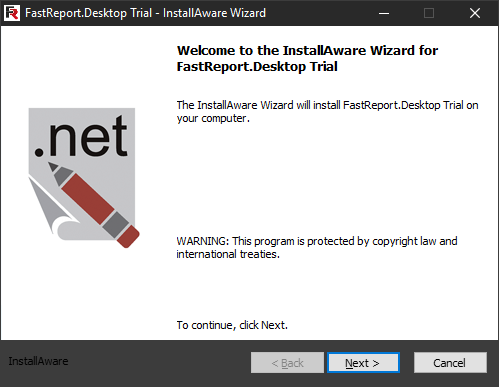
Run the msi extension installer downloaded from the developer’s website. The FastReport for DBA InstallAware Wizard displays a welcome window. Click Next to continue the installation:
The next step prompts you to read the license agreement. Read it and (if agreed) check “I accept the terms of the license agreement”. Otherwise, you cannot continue the installation.
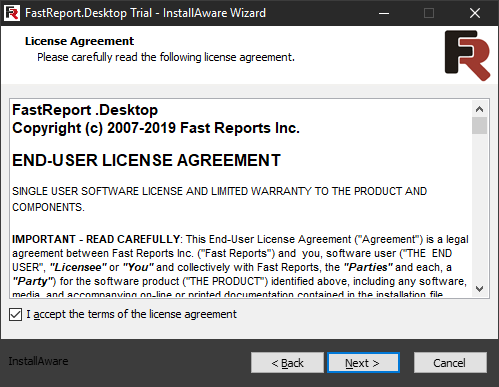
Click Next to continue the installation. The next InstallAware Wizard’s step prompts you to choose the type of the installation you want:
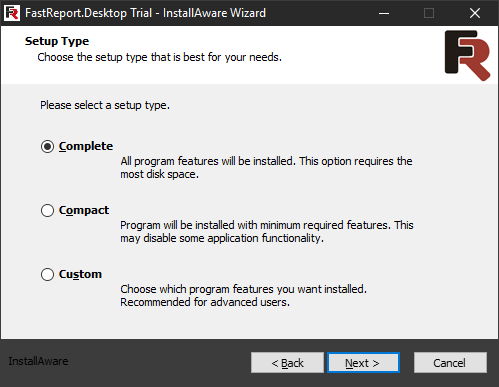
There are three types of installation available:
- Complete – installation of a complete software package;
- Compact – installation with the minimum set of features;
- Custom – installation with the ability to choose the features that should be installed.
For example, let’s choose the Custom installation type:
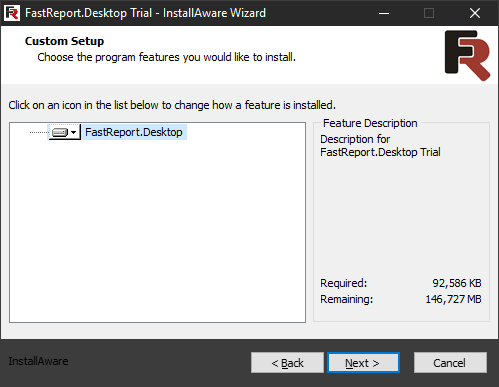
The current version of the program does not have individual components that can be included or excluded from the installation. Therefore, just click the Next button to continue.
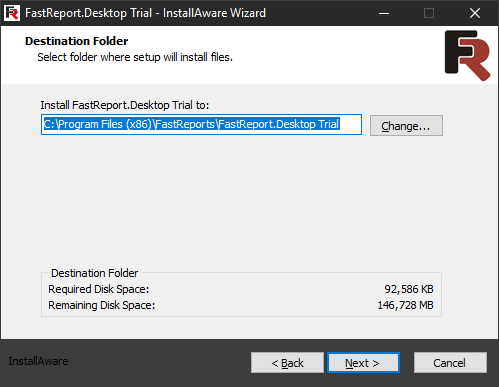
At this step, you can specify the destination folder. “Program Files (x86)” is the default directory for installing the product. You will go to this installation step immediately after choosing Complete or Compact installation type. Click the Next button:
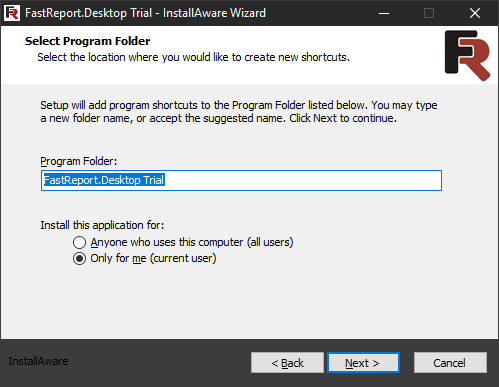
Here you can change the name of the program folder if you did not do this in the previous step. Click Next to continue the installation.
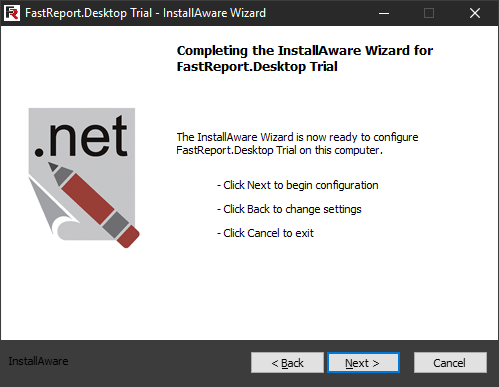
This is a preparatory step before actual installation. It allows you to go back and change the settings or cancel the installation. By clicking Next, you will start the installation:
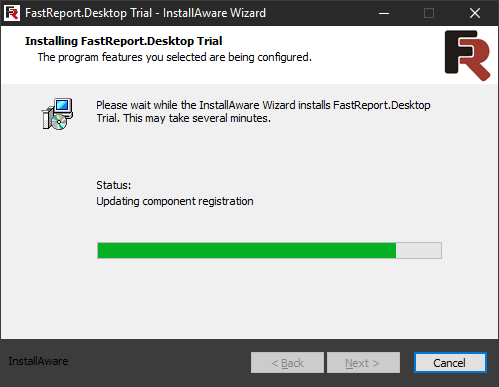
After the installation progress bar is full, you will see the completion window:
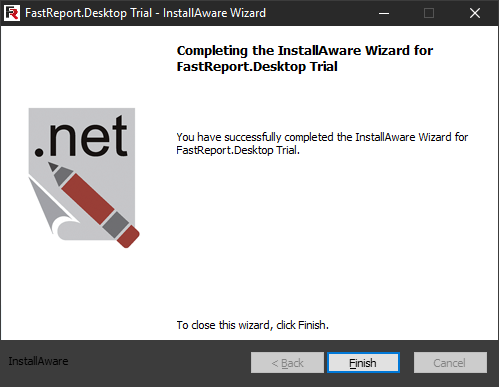
This step only indicates the successful installation of the program. By clicking the Finish button, you will exit the InstallAware Wizard.