How to filter data by date in the report using the dialogue form
The dialogue forms in a report are mainly needed to filter the data. As a rule, controls are placed on the form, with the help of which values are set. Then, these values are used to further filter the data. But most of the controls allow you to filter the data directly. That is, they can be linked to a data source using the properties of the DataColumn. The control value will be used for filtering. Also, there is another feature that sets the very condition of comparing the value of the control data - FilterOperation. This feature allows you to compare for equality, more, less, and a combination of these options.
Often, we want to filter data by date. Moreover, people usually filter by a date range.
Let's look at an example of creating a report with a similar filtration. Add a dialog form to the report:

On the form we will place two control elements DateTimePicker  . First one is needed to set the beginning of a date range, second one – for the end.
Let’s configure the properties of the first object DateTimePicker:

Here we set the Value property to set the beginning of the range by default. DateColumn property is set on the field OrderDate of the Orders table. A filter condition is GreaterThanOrEqual. This means that the date range will start with the control indicated date.
For the second DateTimePicker field, we set the following properties:

The default value remain unchanged - the current date. DataColumn property is the same as in the first DateTimePicker. A filter condition - LessThanOrEqual, that is less than or equal to the specified date.
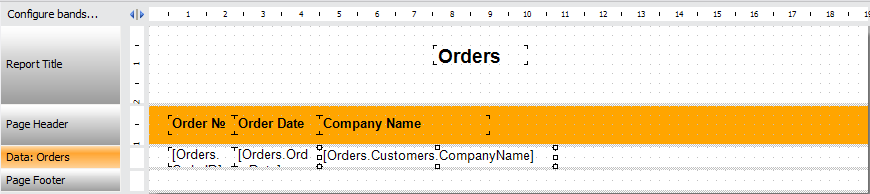
The report template may contain the above to filter the field, maybe not - it does not matter.
Even before the construction of the report data will be filtered according to a specified date range:

As a result, we will get the report containing only needed information:

As you can see, creating a filter in the dialogue form - it is one-minute task. It is enough to select the field in the data source and the filtering condition. Only two properties to set - and you have reached your goals.