Creating Master-Detail report from unrelated tables
It is often needed to create a Master-Detail report type, when the main table acts as a grouping one. One record in the main table corresponds to the number of records from the detail table.
To create this report, we need to create a relationship between the tables by a key.
Let us exam the procedure of creating such a report.
Create a blank report. Add a data source, where there will be two tables.
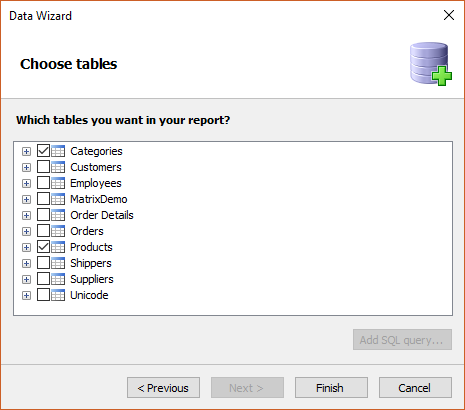
Detailed table must have n external key that will be correlated with the primary key of the Master table.
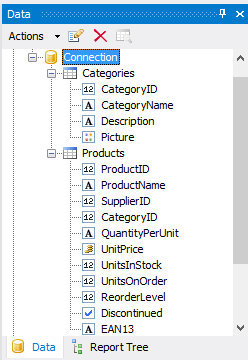
The primary key of the table “Categories” is “CategoryID”. “Detailed Products” table has the same name field. Usually the external key is also called as a primary key of the main table, but this is not required. For example, in this table, this field could be called “CatID” or “Category”.
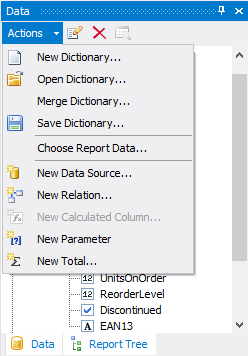
To create a relationship between tables, open the “Actions” menu in the "Data" window choose the “New Relation” option.
In relation editor, select the “parent” and “child” tables:
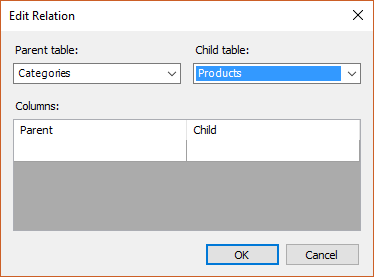
Choose the fields for relation below. For the Master table it is “CategoryID”. In the Detail table the key field also called “CategoryID”.
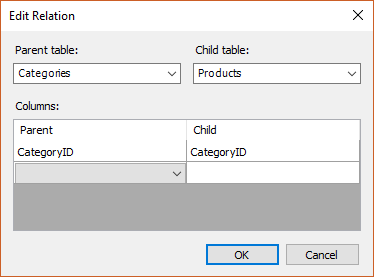
It must be mentioned, that after adding the fields, one more string was added to add relations in other fields. It is needed if the relation between the tables is performed by several fields. In our case this is not necessary.
Close the window by clicking “OK”.
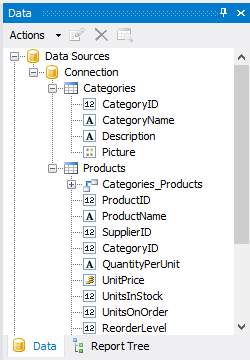
In the “Products” table there was a relationship “Categories_Products”. If you expand it, you will see the fields from the table “Categories”.
Now let us make a report template. A typical report has only one Data band. But we need one more special subordinate Data band.
To add it right-click on the data band.
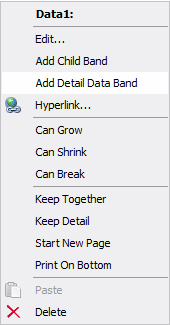
Select the menu item “Add Detail Data Band”. Add the Header band for the Detail data band. From the Reports menu select Configure bands.
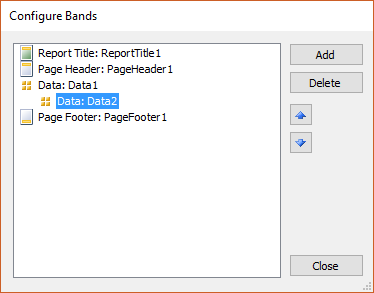
Select Detail data band and press the button “Add”. From the drop - down list select the Header.
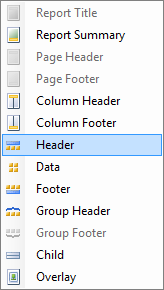
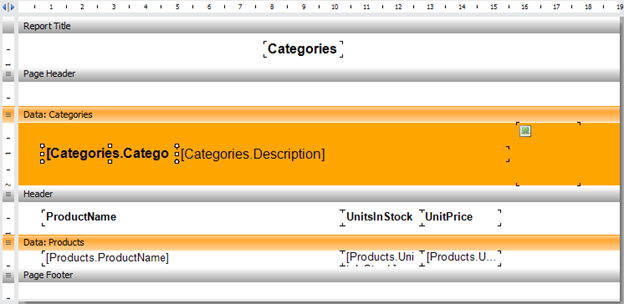
Now, place the fields from the “Categories” table on the Master data band and the “Products” table fields on the Detail data band.
The result is the following template:
Now run the report:
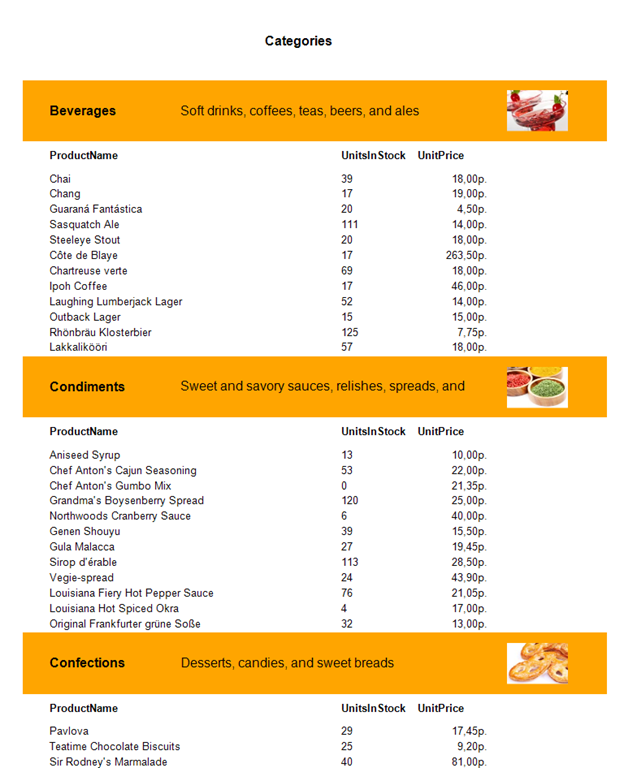
In this work a creation of a Master-Detail report type has been examined. Such a report requires creating a relation between the needed tables. Moreover, the level of nesting of the bands is not limited. It means that the detail band "data" may also have a detail band.