Connecting to a PostgreSQL database in .NET application

Our FastReport .NET offers rich features and wide functionality. Today we will look at how to connect to a database through the FastReport plugin for the report designer. This plugin is based on the Npsql.dll library.
First, let's figure out how to build the right plugin for FastReport .NET. After that, we will create a connection between our database and the report.
First, we should build a plugin to connect to PostgreSQL. For this, go to the directory where your FastReport .NET is installed and follow this path: Extras\Core\FastReport.Data\FastReport.Data.Postgres. Next, open the project FastReport.Data.Postgres.сsproj. Often you will see these errors when you open it for the first time:
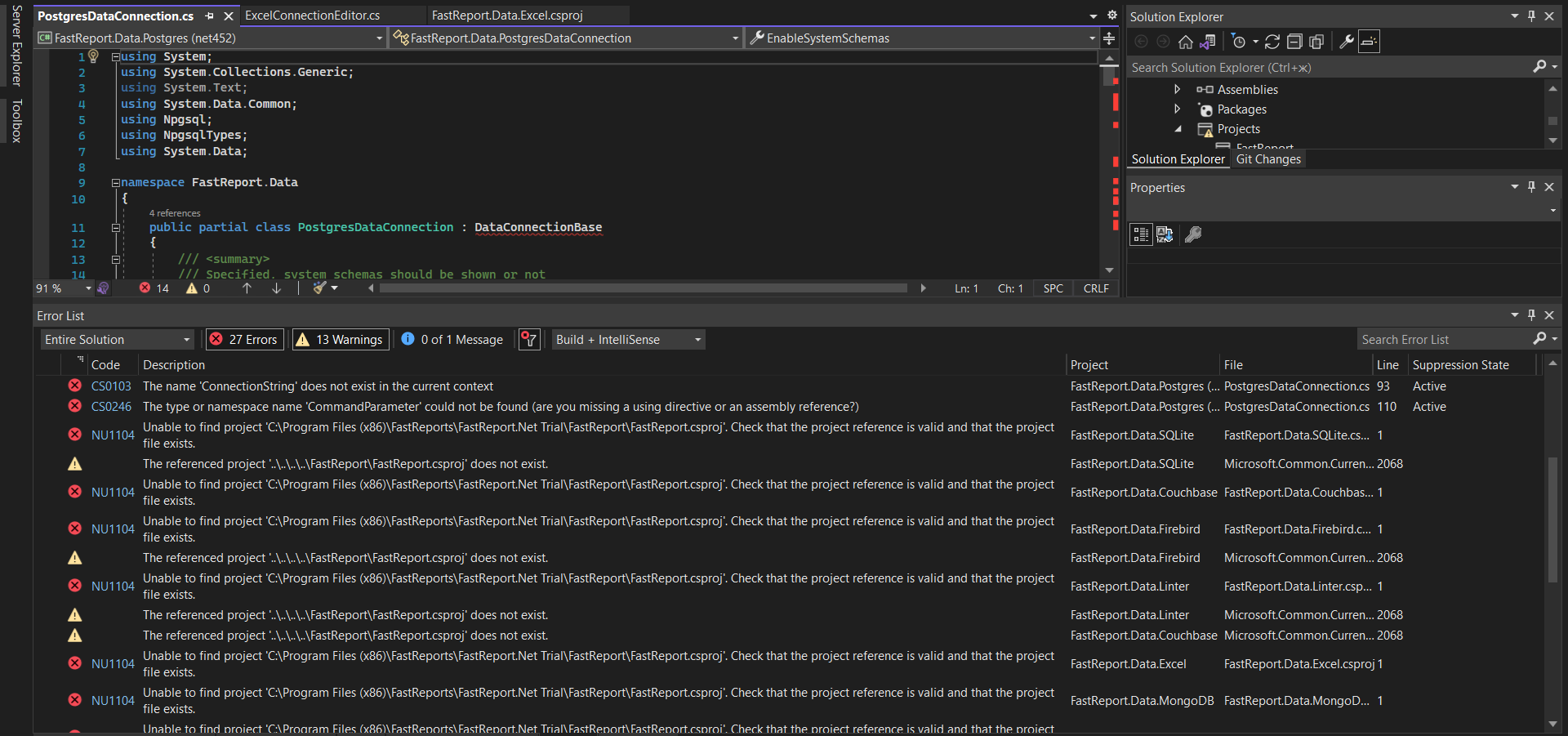
Don't worry. To deal with it, just remove the FastReport project from dependencies. Instead, add a reference to FastReport.dll, which is located in the folder with the installed FastReport .NET.
Step 1. Remove the project dependency.

Step 2. Go to the tab for adding references

Step 3. Click “Browse…” and go to the directory with the already installed FastReport.NET.

Step 4. Select FastReport.dll from the list of files.
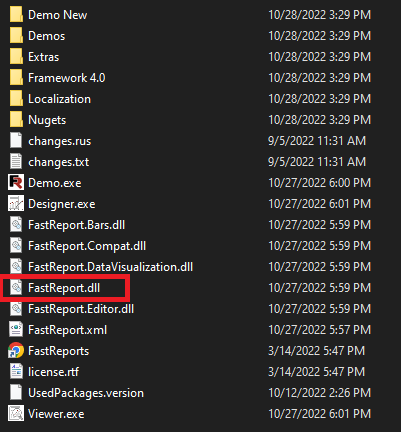
Step 5. Build the project and you will see that there are no errors.

We have successfully built the PostgreSQL connector, now let's add it to the report designer. It will be easy.
Open the report designer directly, go to its settings and connect the dll file to make our connector work properly.

Then we go via the following path: Extras\Core\FastReport.Data\FastReport.Data.Postgres\bin\Debug\net452 and select the FastReport.Data.Postgres.dll file, which we will add to the project.

Next, restart the report designer and select “Add Data Source” in the “Data” tab.

Now click on “Add Connection” and select the PostgreSQL connection.

Enter data and watch whether it is being connected properly.
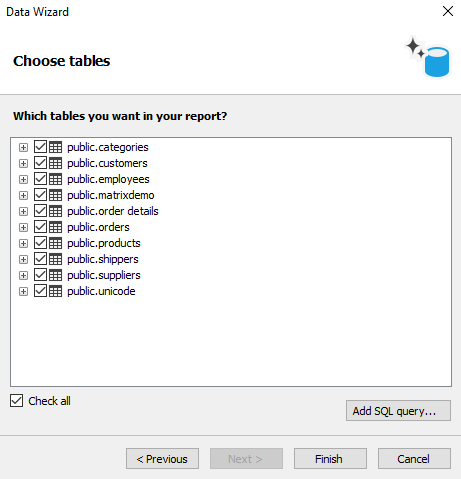
In this article, we have learned how to connect the PostgreSQL database to the report designer. As you can see, FastReport .NET allows to easily build and add various connectors to various databases.