The way to add a data field to a matrix row
In this article, we'll have a look at the way to create a dynamic matrix that is populated from the report's script code. The peculiarity of this matrix is that in addition to the data added from the script, we will insert the data field in the report cell using a text object.
Suppose you create a matrix with a variable number of columns, which will be added depending on any conditions, but some of the data you have is constant. They are always filled. It would be nice just to put these data fields simply in the matrix, and the remaining cells should be filled from the code. Despite the fact that the filling of the matrix data is provided only in two ways (from the code or automatically, the data fields) we will match them.
In fact, the technology is very simple. The data field is simply inserted into the cell as a separate text object. However, this is not all. When you add data to the matrix in the report, you must add the row number from the data set.
Let's have a look at the example.
Create a report and add the matrix to the "Data" band. Connect the data source - the demonstration database from the delivery, the Employees table.
The matrix template looks like this:

In the cell with a value of 2, we added a text object. In it, select the field Employees.LastName. This is exactly the "static" field about which we have spoken in above.

Create the AfterData event handler for the matrix.
1 2 3 4 5 6 7 8 9 10 11 12 13 |
private void Matrix1_AfterData(object sender, EventArgs e) { DataSourceBase rowData = Report.GetDataSource("Employees"); // we get the data source Employees. Matrix1.DataSource = rowData; // assign it to the DataSource matrix property rowData.Init(); // initialize the data source // we go through all records of the data source while (rowData.HasMoreRows) { Matrix1.Data.AddValue(new Object[] {"Phone" }, new Object[] { (string)Report.GetColumnValue("Employees.City"), (string)Report.GetColumnValue("Employees.FirstName")}, new Object[] {(string)Report.GetColumnValue("Employees.HomePhone") }, Report.GetDataSource("Employees").CurrentRowNo); // add another record rowData.Next(); //get the next record } } |
It is clear from the comments that when you add a data string, we define the title of Phone. Then we insert the data in order: city, name and phone. And also, we need to transfer the data line number to insert the last name from the current data record.
Now run the report:
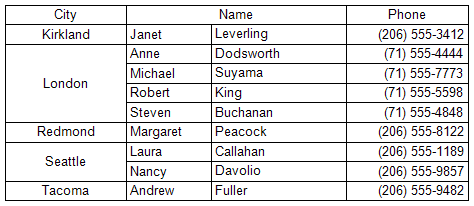
As you can see, you can make it easier for yourself and not add all the necessary data in the report script, but simply place them in the matrix template using a text object.