Configurator
An utility for creating task configuration files that define how reports are processed. Each configuration specifies one or more actions to be applied to a report:
- Export to a specific format
- Send via email
- Save to local storage, FTP, or cloud services (e.g., Dropbox, Google Drive, OneDrive, Box, FastReport Cloud)
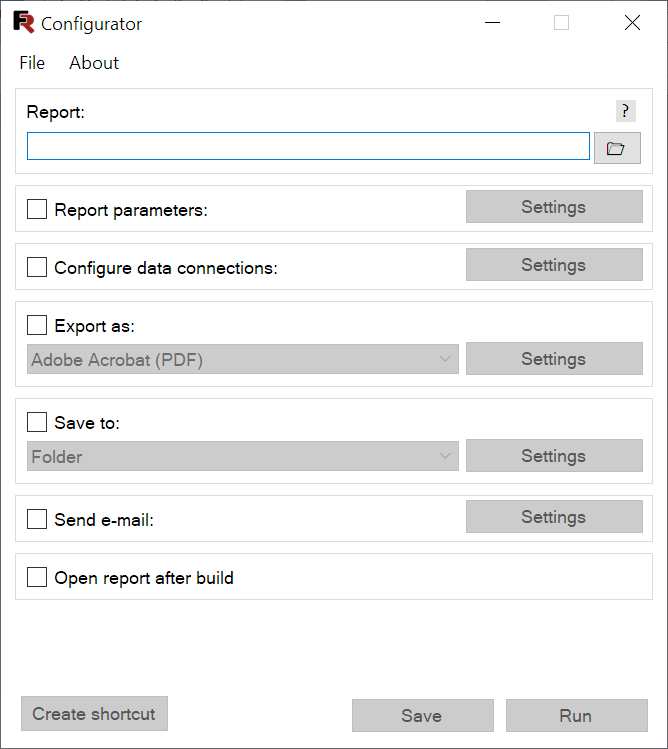
The main interface of the Configurator looks like this:
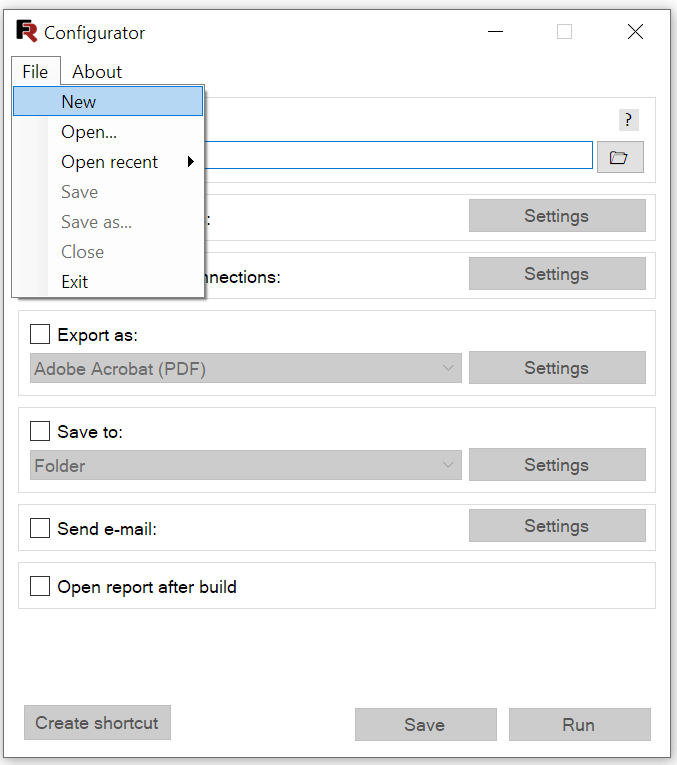
You can open an existing configuration file or create a new one using the File menu:
Configuration File Wizard
To create a new configuration, select File / New. The wizard guides you through the following steps:
1. Select Report File(s)
Choose one or more report files (.frx). Multiple selections appear in the input field separated by semicolons:
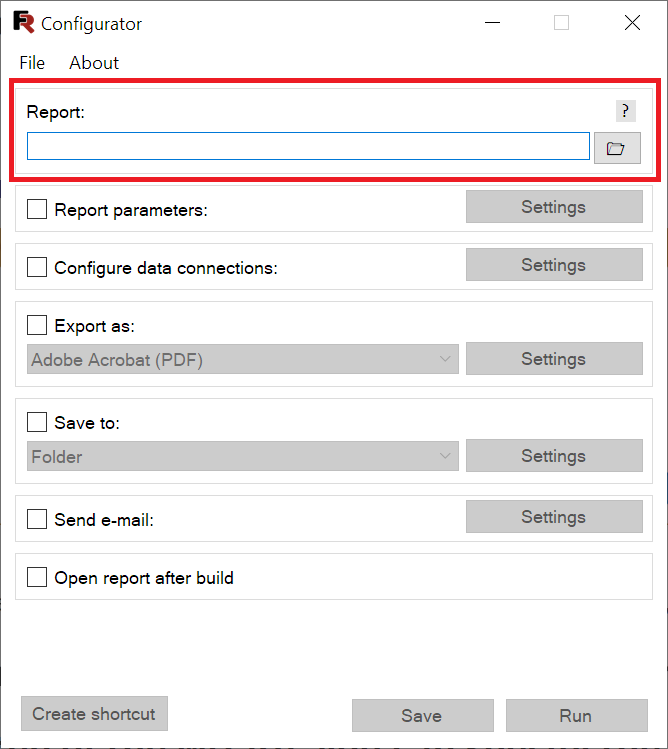
You can also use wildcards in the file path - for example, report*.frx - to match multiple files such as report1.frx or report-test.frx.
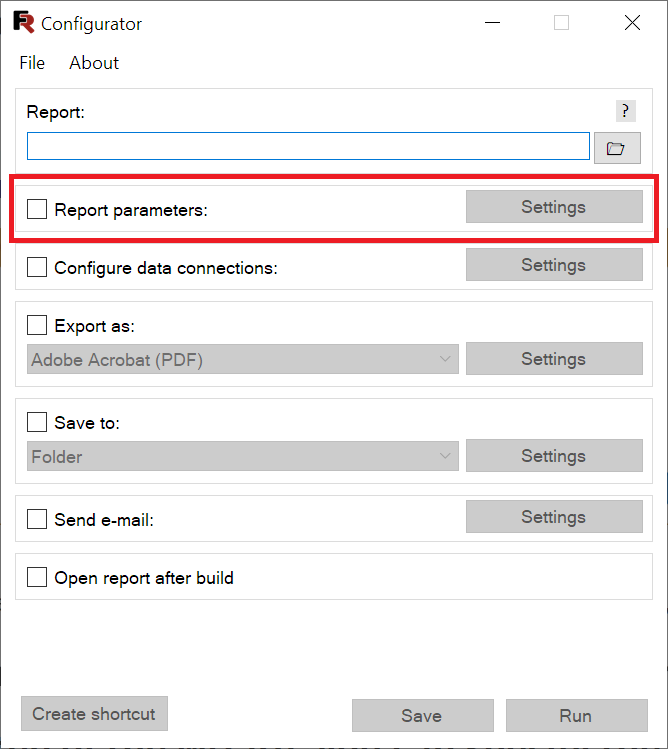
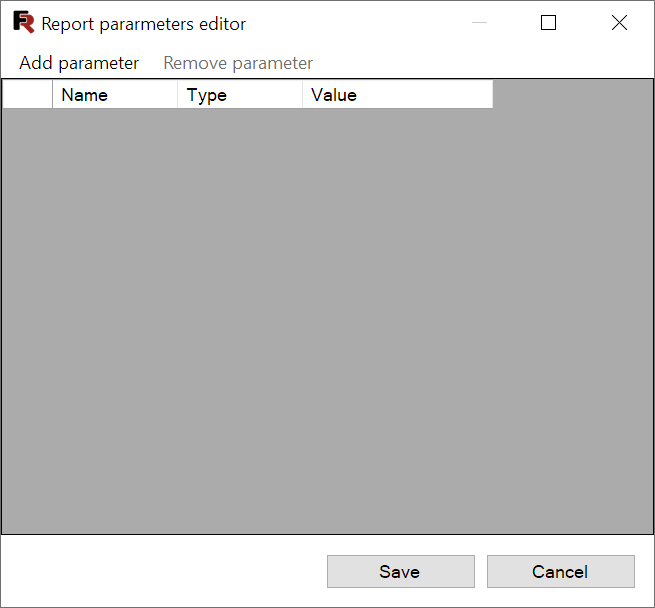
2. Configure Report Parameters
Set values for any report parameters defined in the selected report(s):
3. Configure Data Connections
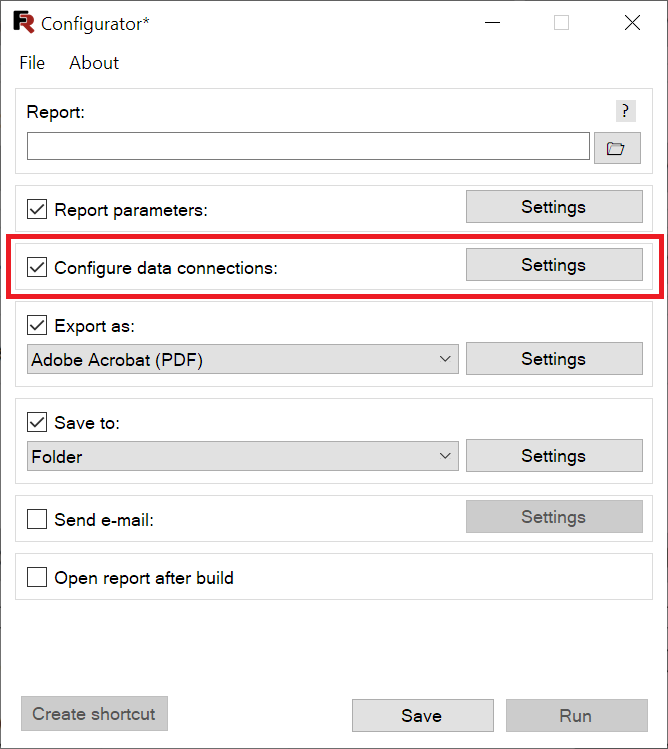
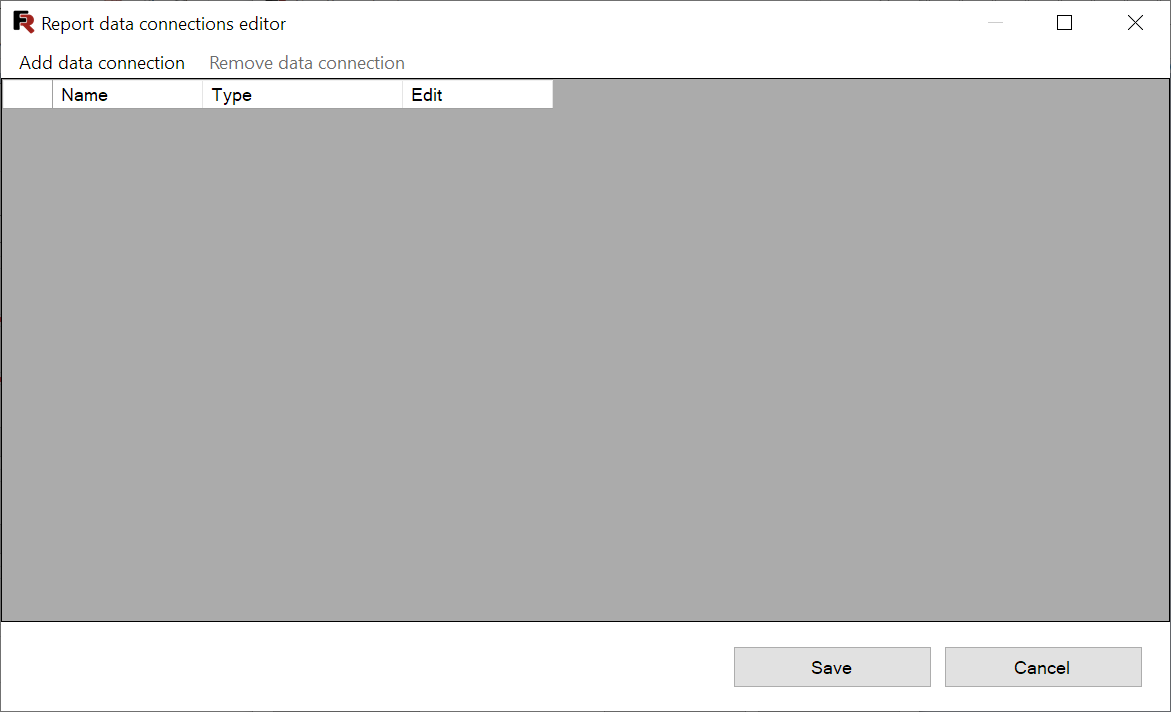
Define or modify data sources used by the report:
4. Choose Export Format
Enable the Export option to convert the report into a specific output format:
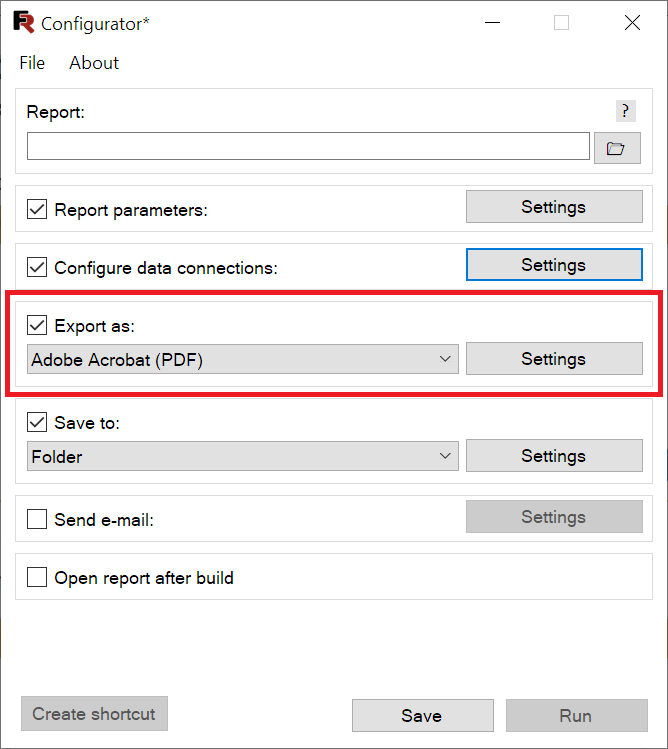
Available export formats include:
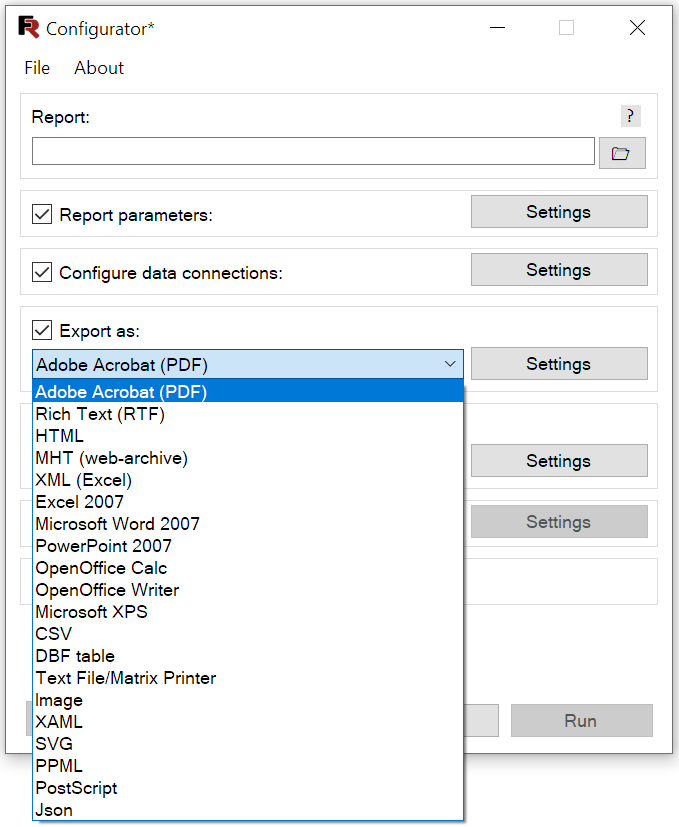
Each format offers customizable settings, accessible via the Settings button.
Note: If export is disabled but a save location is specified, the report will be saved in FastReport's native preview format (
.fpx).
5. Specify Save Location
Choose where to store the output file using the Save to dropdown:
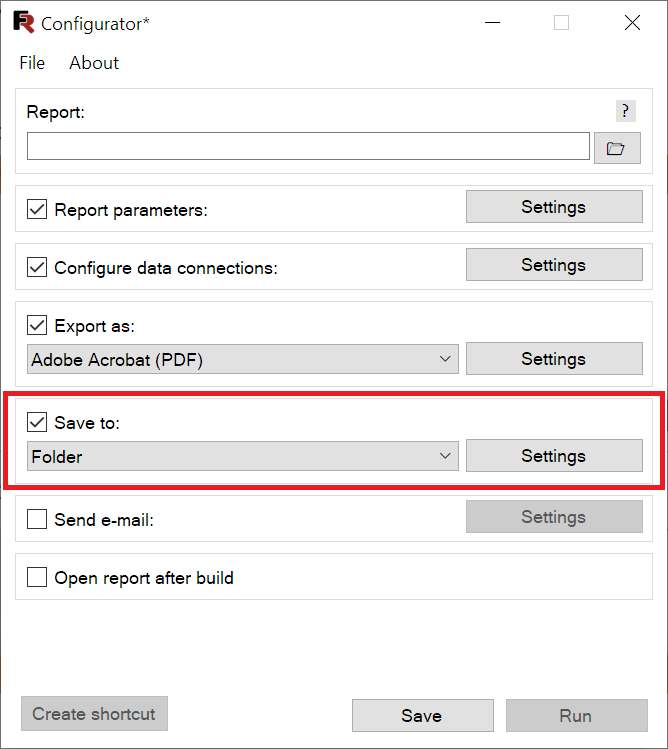
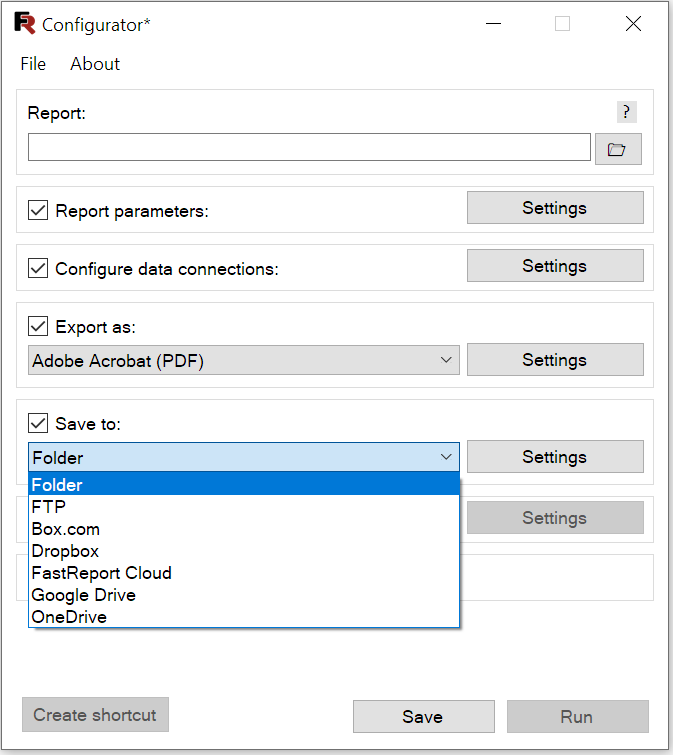
The available settings depend on the selected destination:
Folder: Select a directory on your local drive. Optionally, customize the file name (by default, it matches the report name). Enabling Add timestamp to filename appends the current date and time (e.g.,
Groups_2016-08-22_15-53-29.pdf).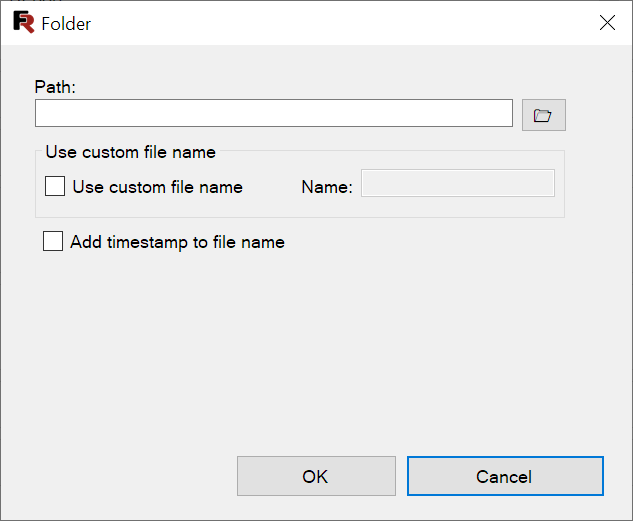
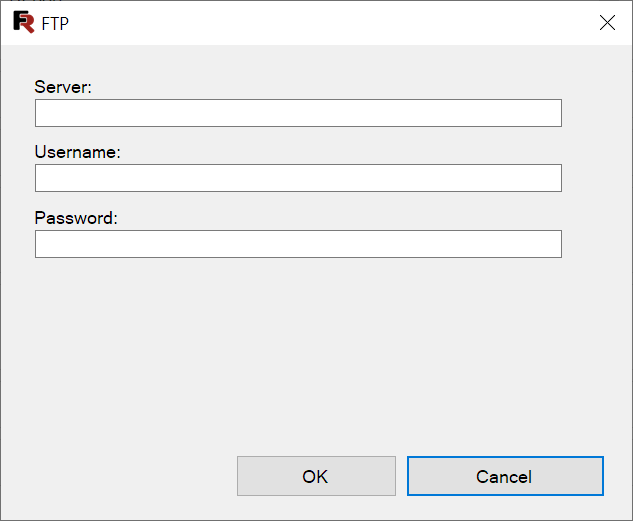
FTP:
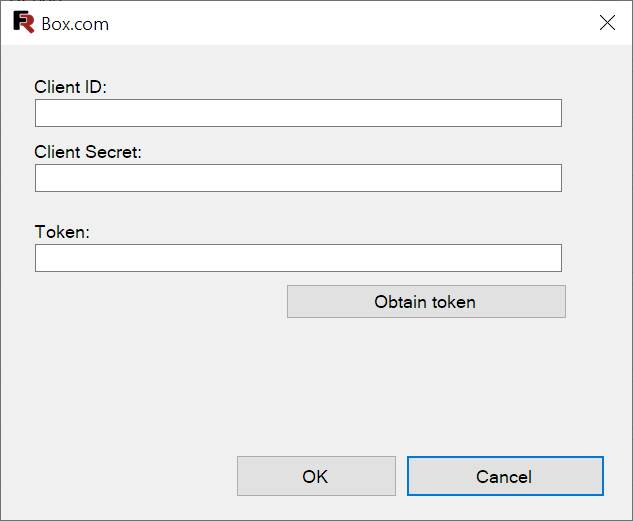
Box.com:
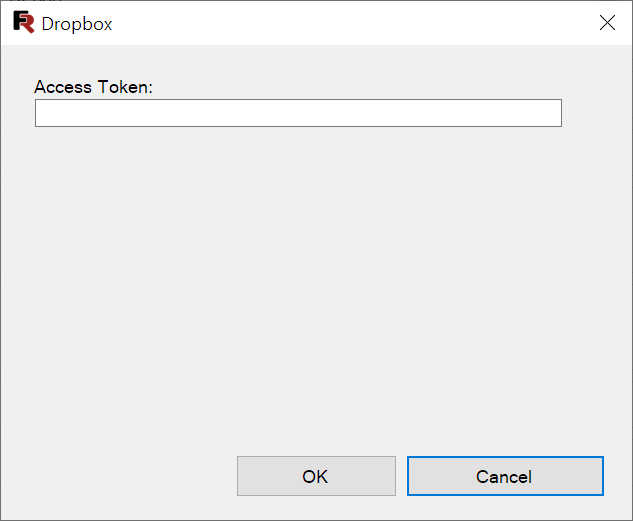
Dropbox:
FastReport Cloud:
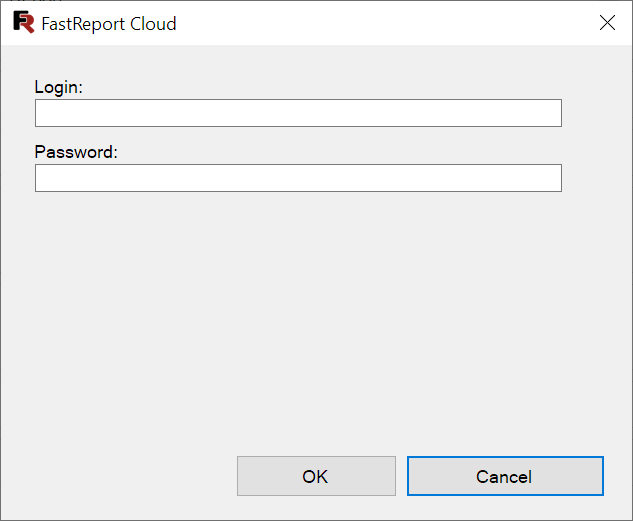
Google Drive:
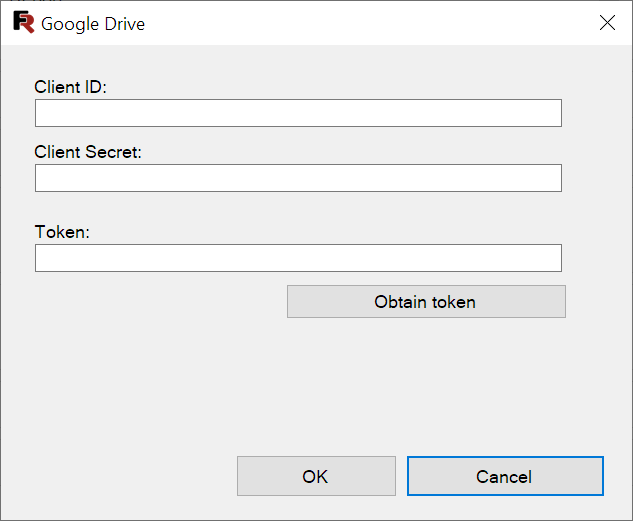
OneDrive:
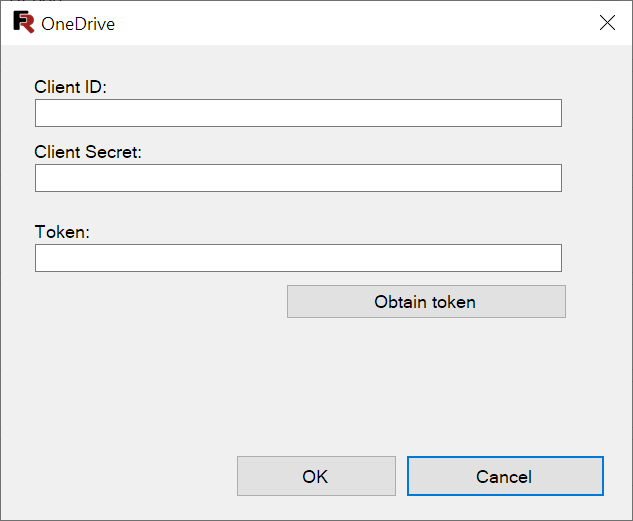
6. Configure Email Delivery (Optional)
Enable Send E-mail to automatically email the generated file:
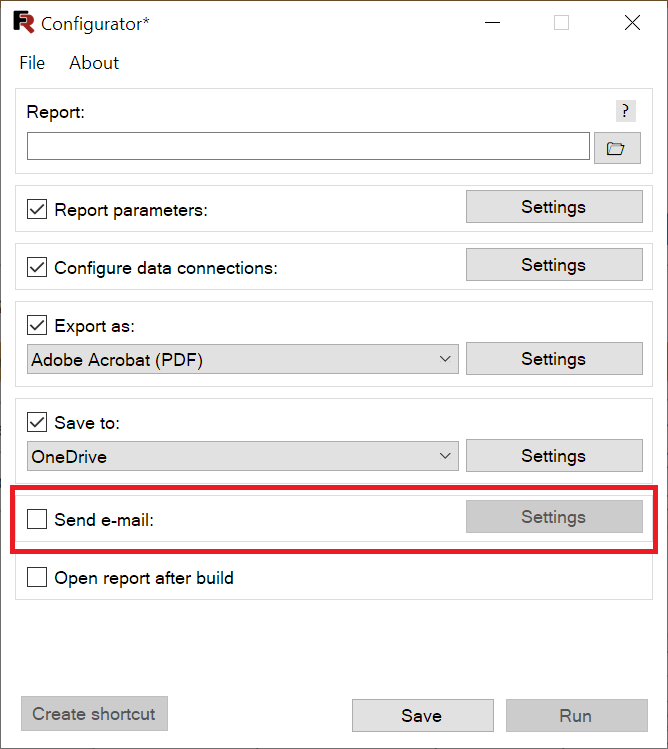
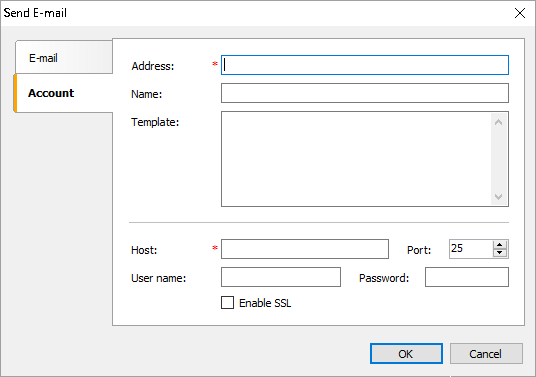
This opens the email configuration window:
Account settings:
Message settings (subject, recipients, body):
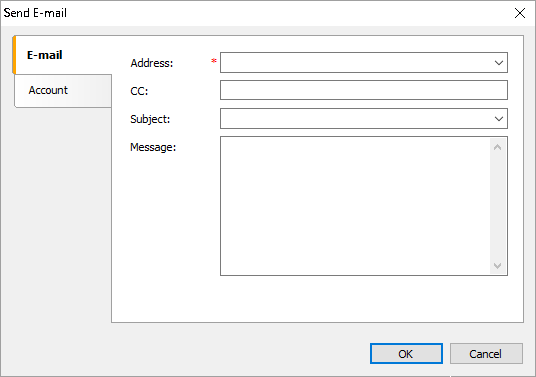
The exported file is attached automatically. If no export format is selected, the .fpx preview file is attached instead.
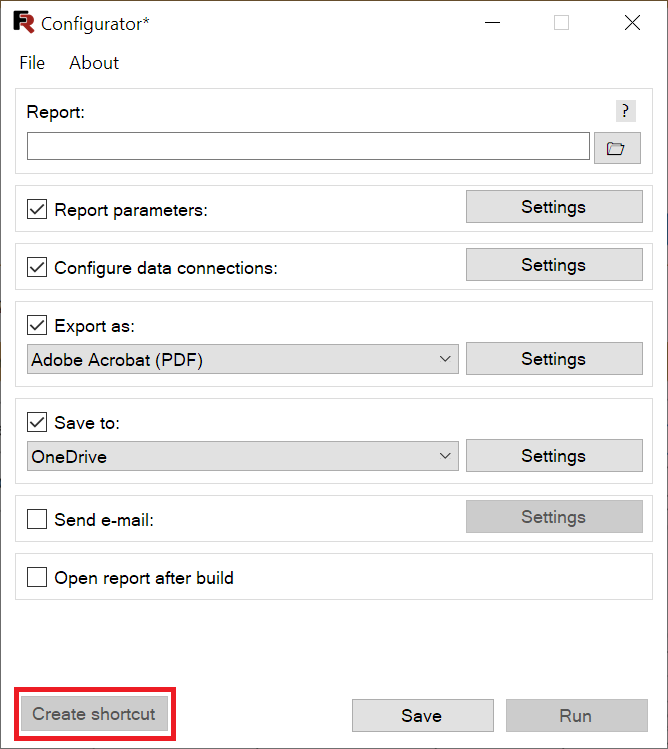
Create a Shortcut (Windows Only)
After saving a configuration file, you can generate a desktop shortcut for quick execution: