Installing FastReport Desktop on Windows
To install FastReport Desktop, download the installer from your Control Panel and run it.
If User Account Control (UAC) is enabled on your system, confirm the prompt to allow the program to run.
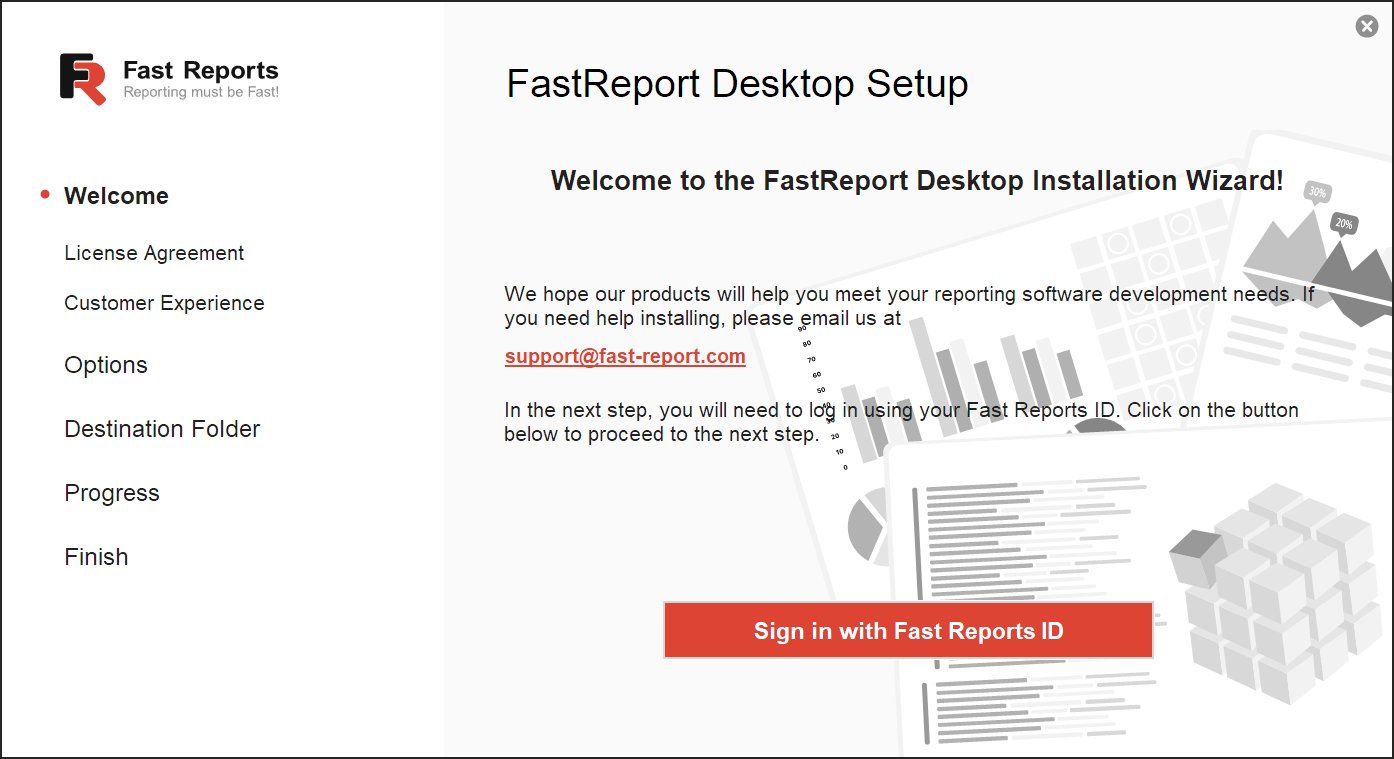
A browser window will open automatically. Log in using your account credentials.
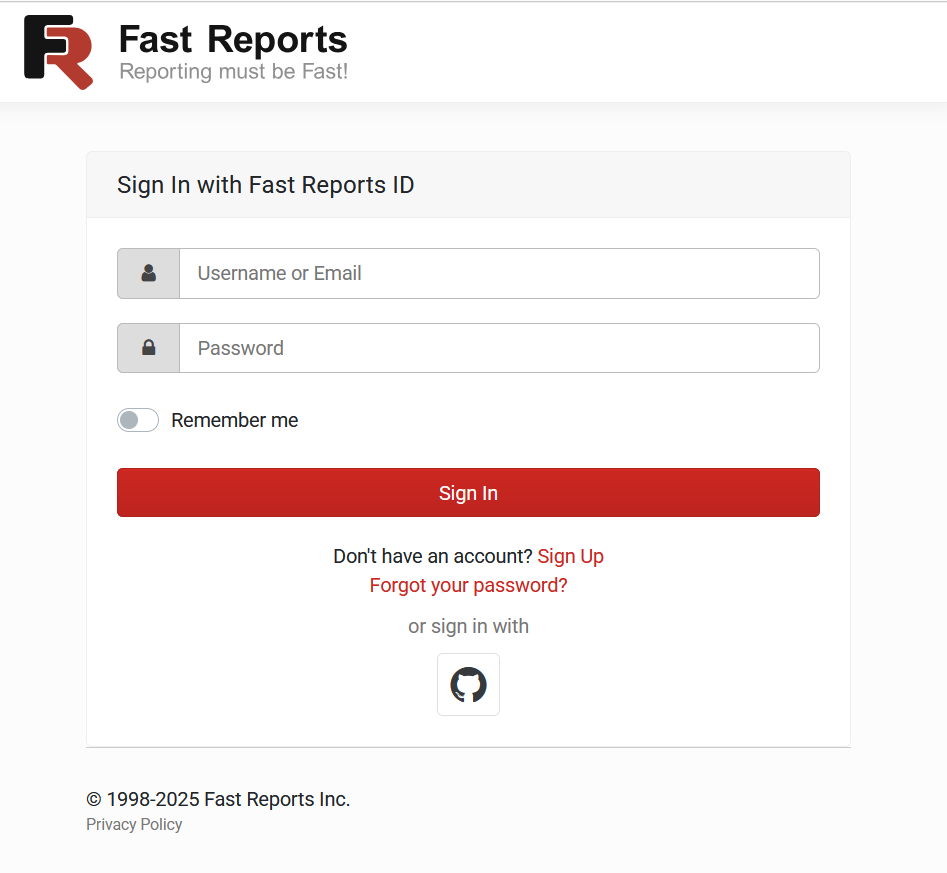
Once you see the confirmation message that authorization was successful, you may close the browser and return to the installer.
Troubleshooting: If you are unable to authorize, please contact technical support.
Next, review the license agreement. The current version of the agreement is available here.
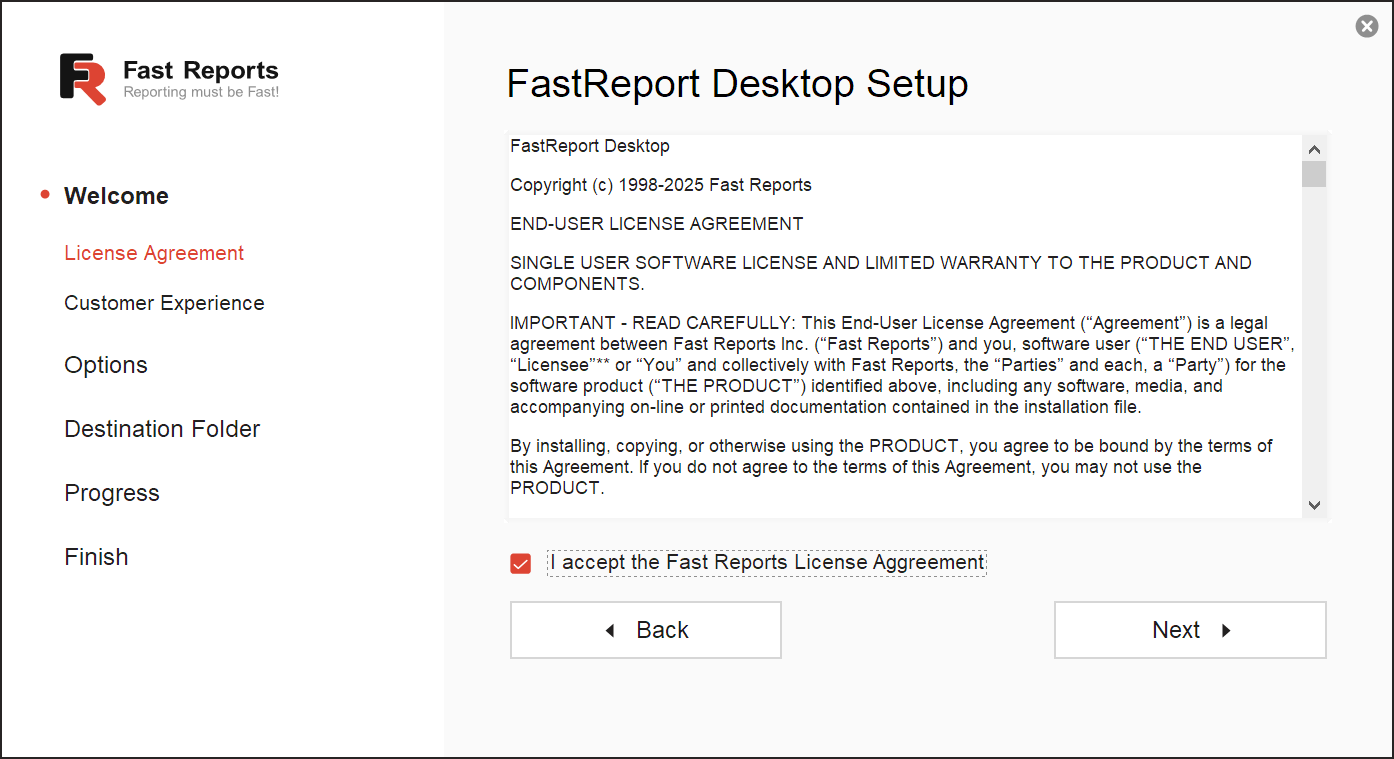
If you accept the terms, select "I accept the license agreement" and click Next.
If you do not agree to the terms, close the installer and delete the downloaded file.
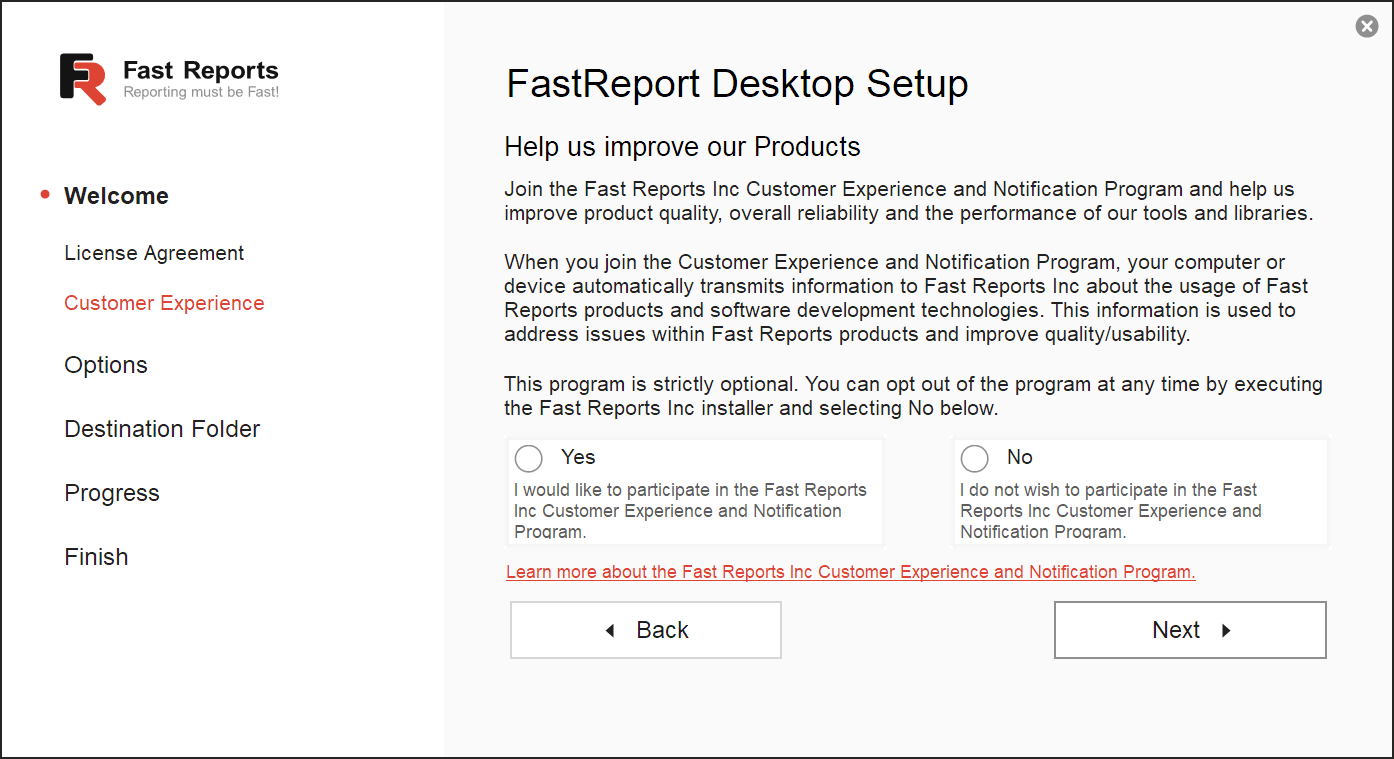
You will then be invited to join Fast Reports Inc. Product Improvement Program. Participation helps us enhance the quality, stability, and performance of our products and libraries.
- This step is optional - you may skip it.
- If you choose to participate, anonymized usage data will be sent to Fast Reports Inc.
- For details, see our privacy policy.
Select Yes or No to continue.
Now choose the product you wish to install:
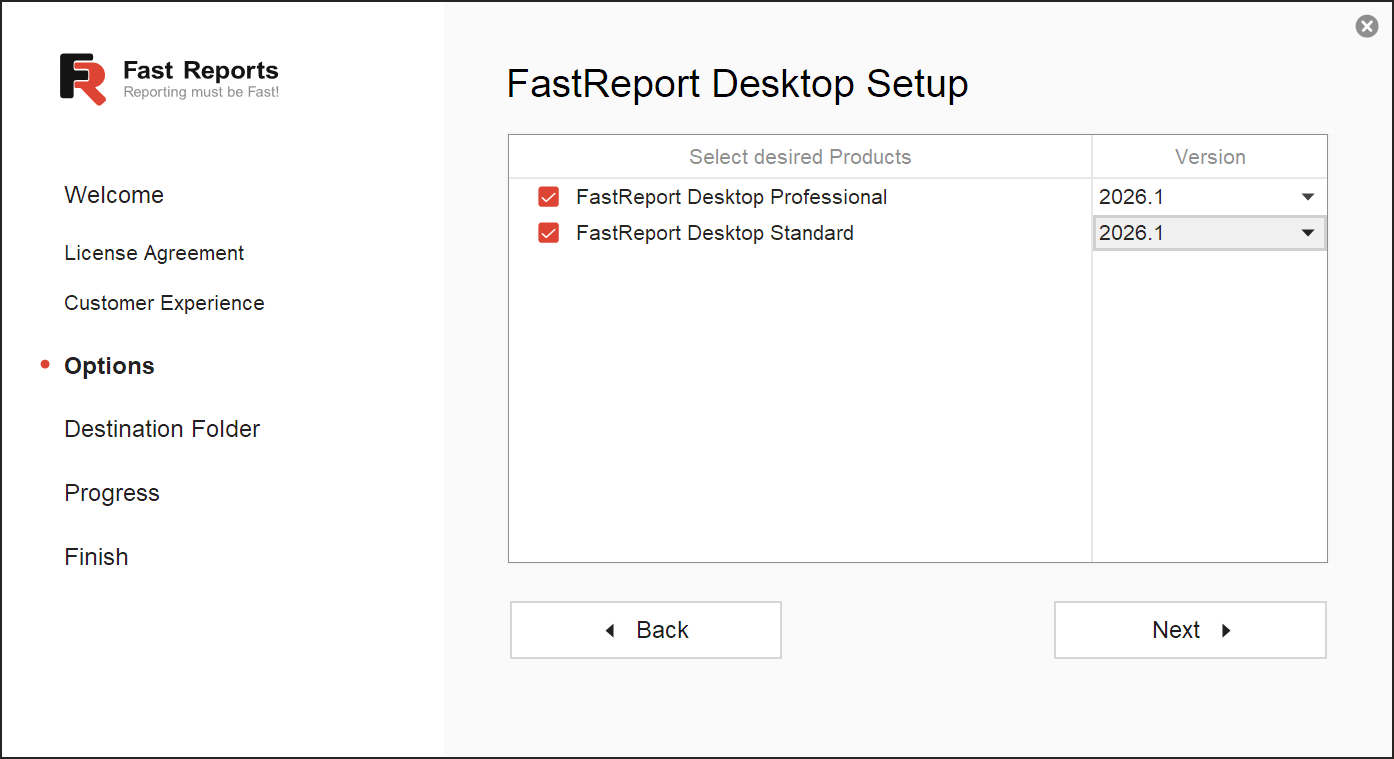
Note: If you see messages like "Not available" or "A previous version is already installed", it likely means an older version was installed using a different installer. To proceed with the update:
- Close the installer.
- Uninstall the existing version via Windows Settings > Apps > Installed apps.
- Re-run the installer.
If the issue persists after removing all previous versions, contact technical support.
Next, specify the installation folder (or keep the default):
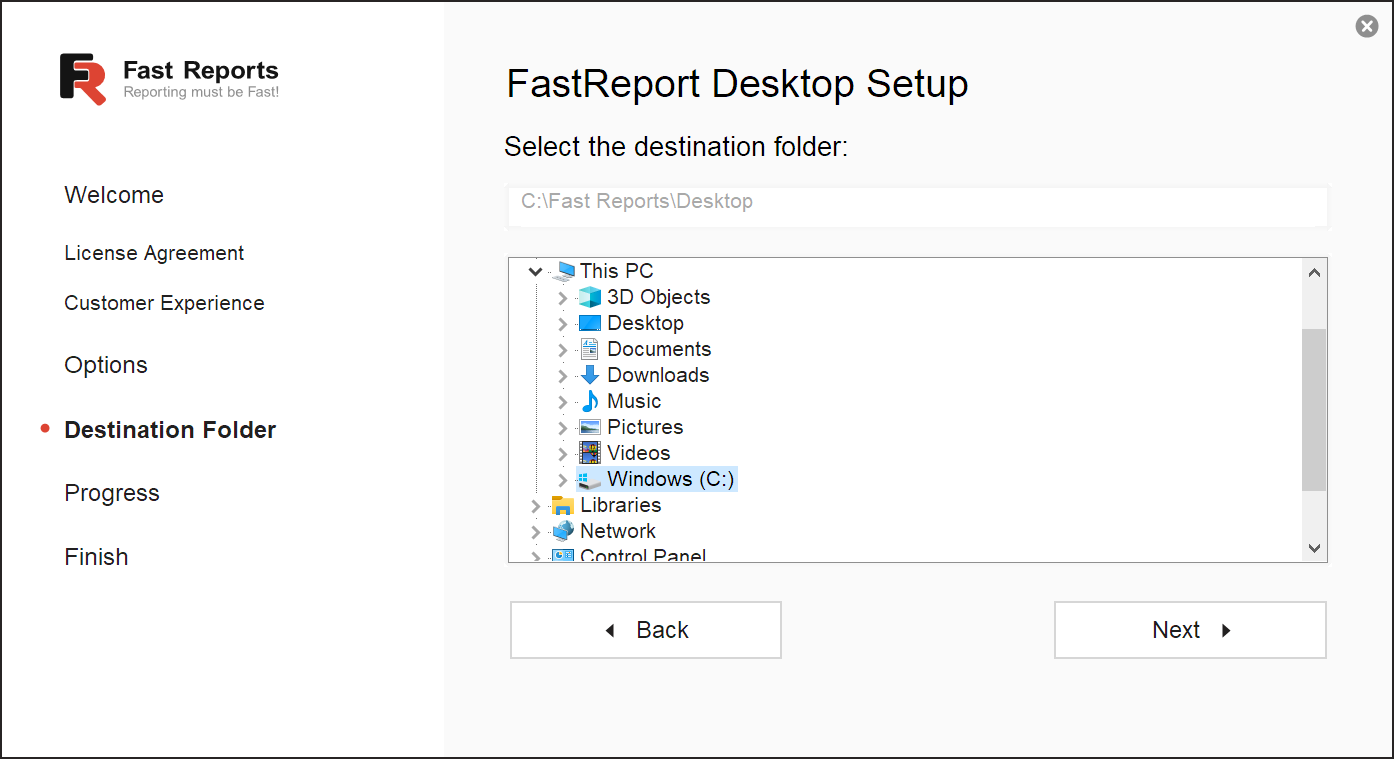
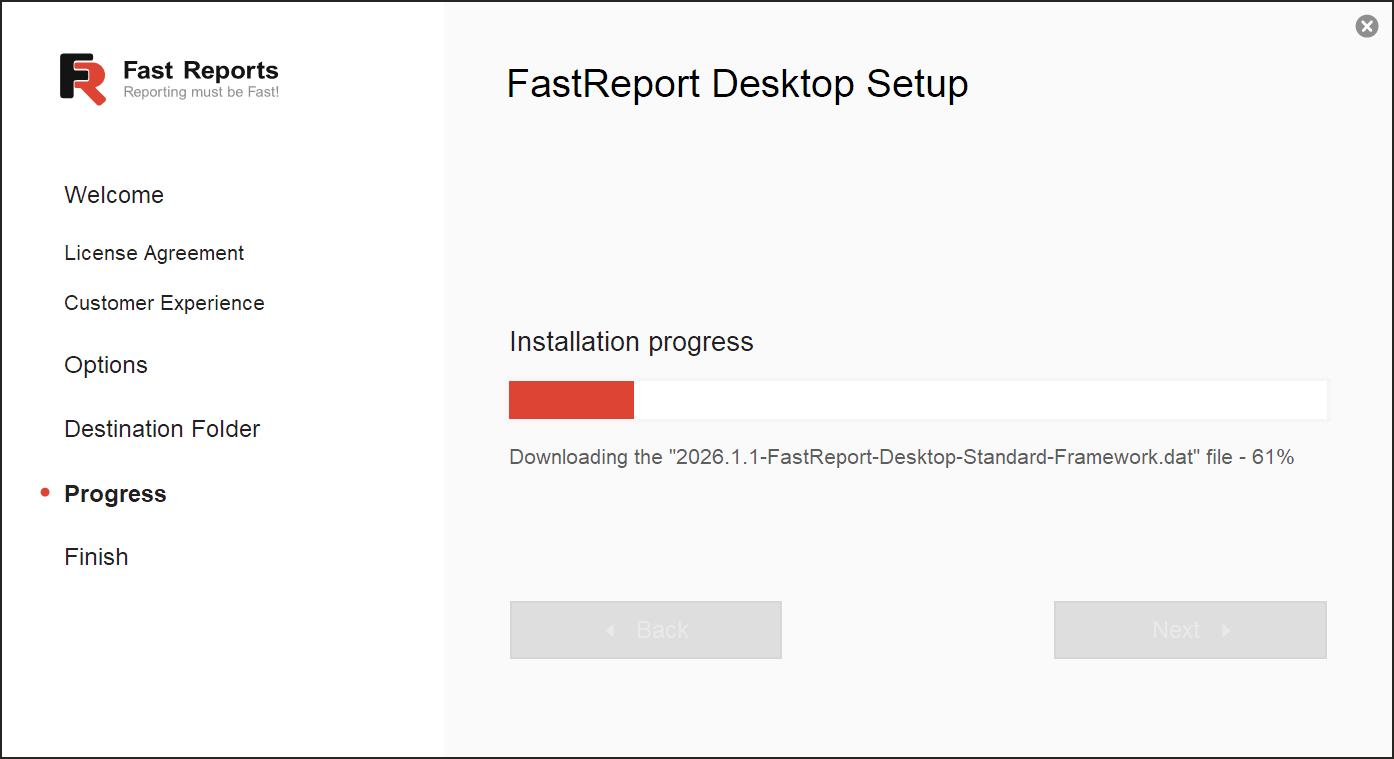
When ready, click Next to begin installation. The process may take a few minutes, depending on your internet speed.
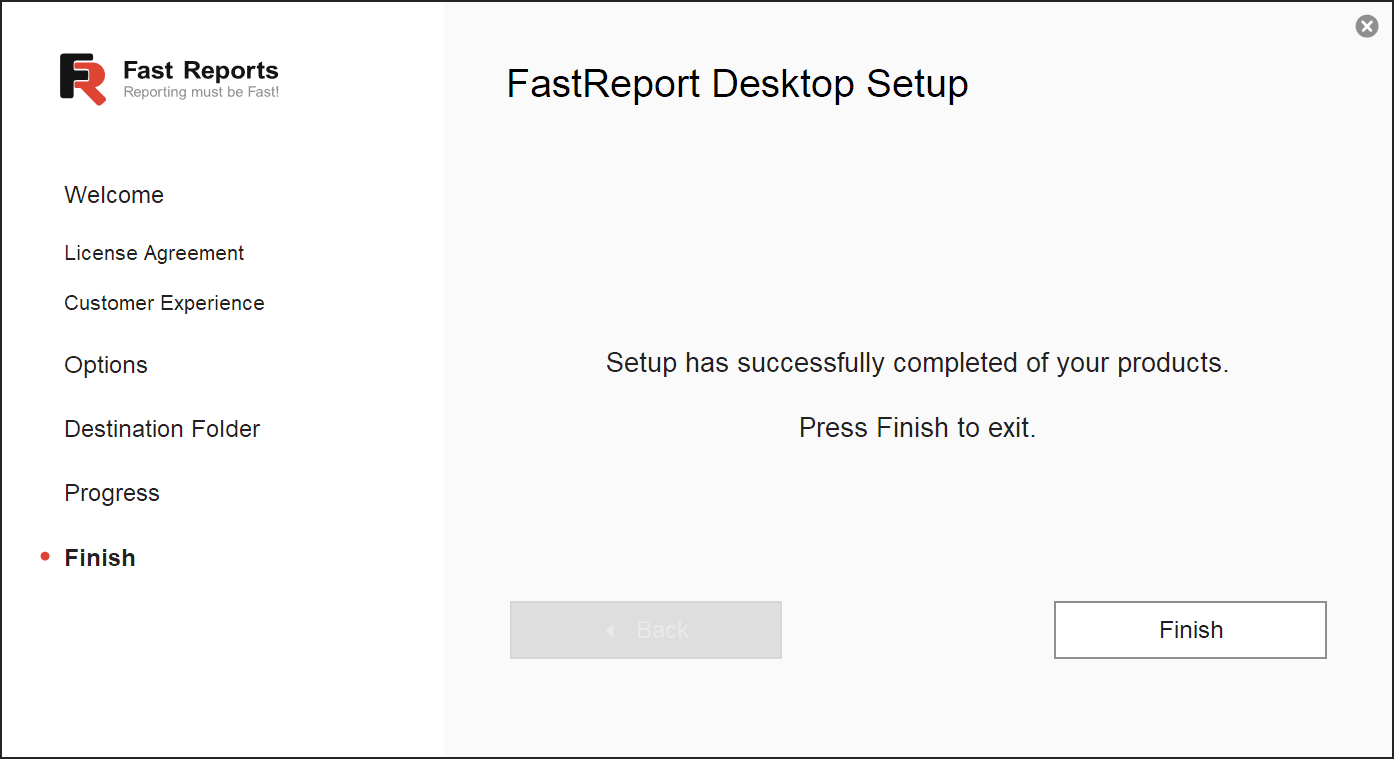
Once installation completes successfully, click Finish to close the installer.
Offline Installation
If the target machine has no internet connection, follow these steps:
- On a computer with internet access, run the installer and complete the installation.
- Navigate to the installation directory and copy the following files to removable storage:
setup.exe- All
.datfiles
- Transfer these files to the offline machine and run
setup.exe.
The installer will detect the lack of internet connectivity and display the following screen:
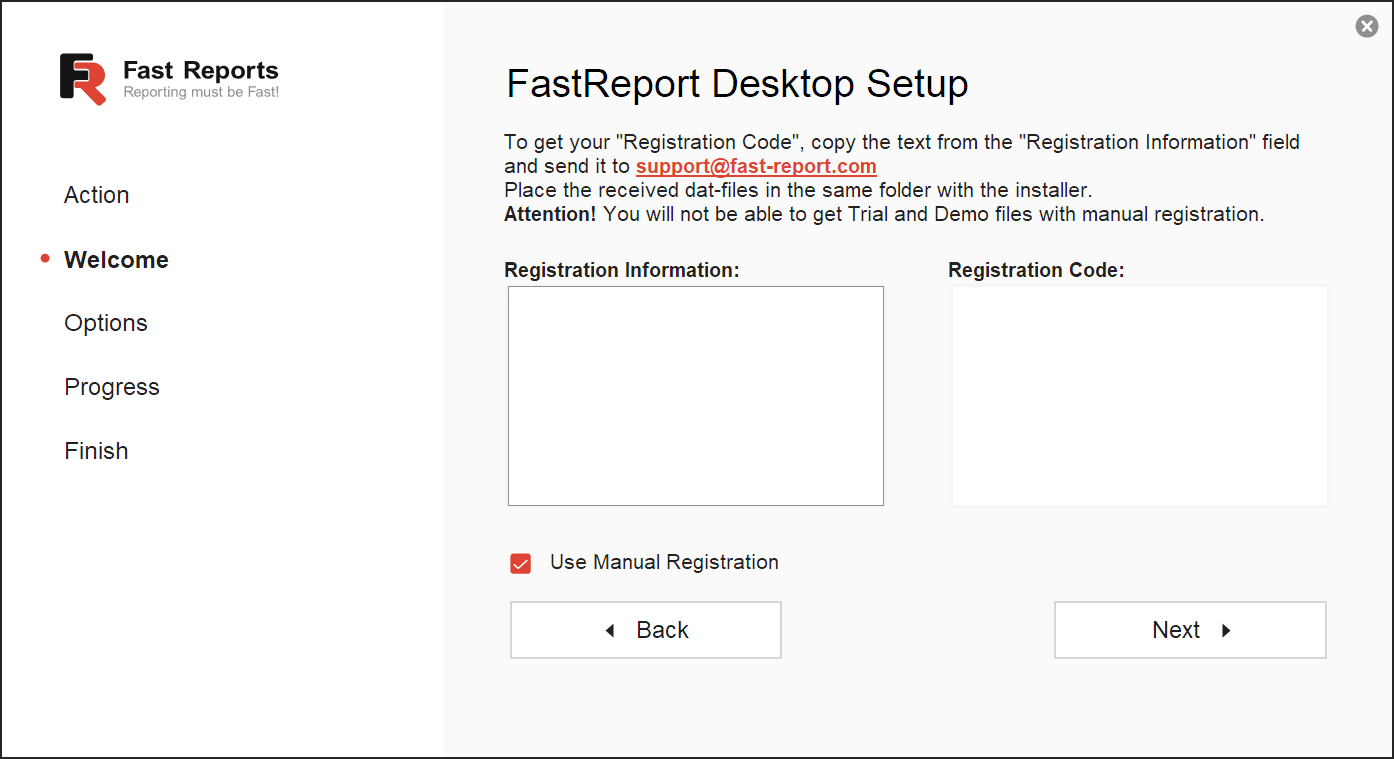
Select "Use manual registration", then copy the key from the "Registration information" field and send it to technical support to request an activation code.
Once you receive the activation code, paste it into the "Registration code" field and click Next. The installation will then proceed as described above.
Uninstalling FastReport Desktop
To remove FastReport Desktop, use the standard Windows uninstall process:
- Open Settings > Apps > Installed apps.
- Locate FastReport Desktop in the list.
- Click Uninstall and follow the prompts.