Tasks
Products: FastReport Cloud, FastReport Corporate Server, FastReport Publisher
Tasks - recurring complex actions that can include exporting, saving to a specified location, sending to email, and more.
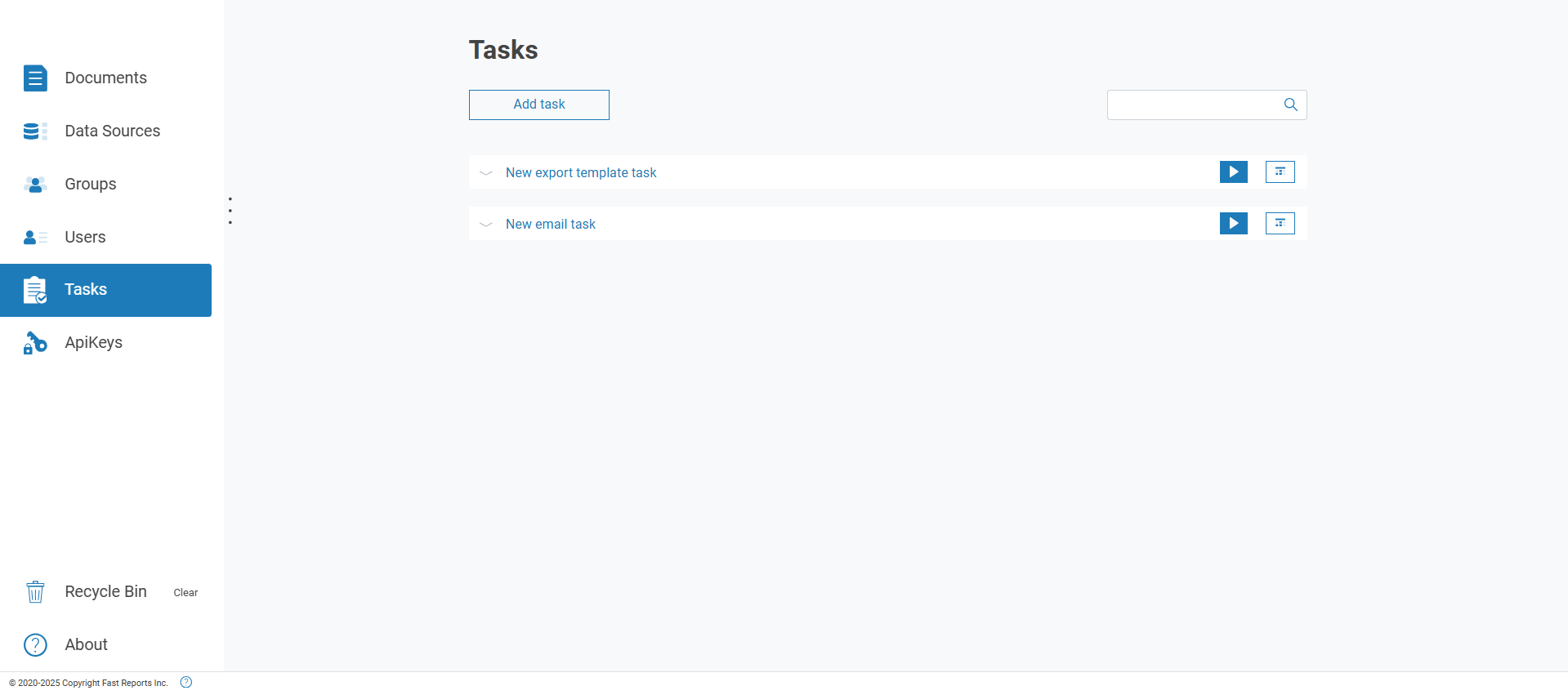
At the top of the page, there is a button to create a new task and a search field. In the central part of the page, there is a list of tasks. To the right of the task name are the buttons to run and set the schedule.
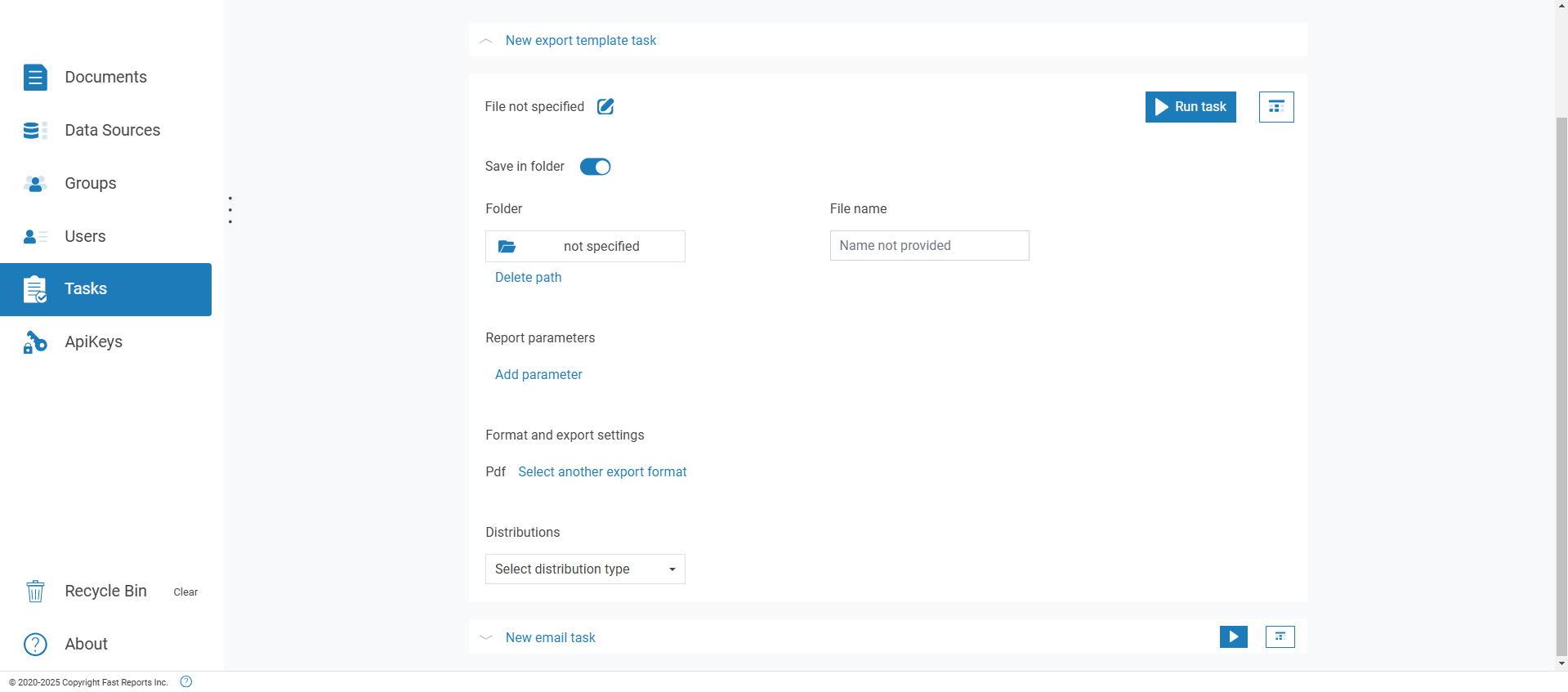
When you click on the dropdown element, the task settings are opened. At the top of each task are the source file, start and scheduling buttons. At the bottom are the task parameters.
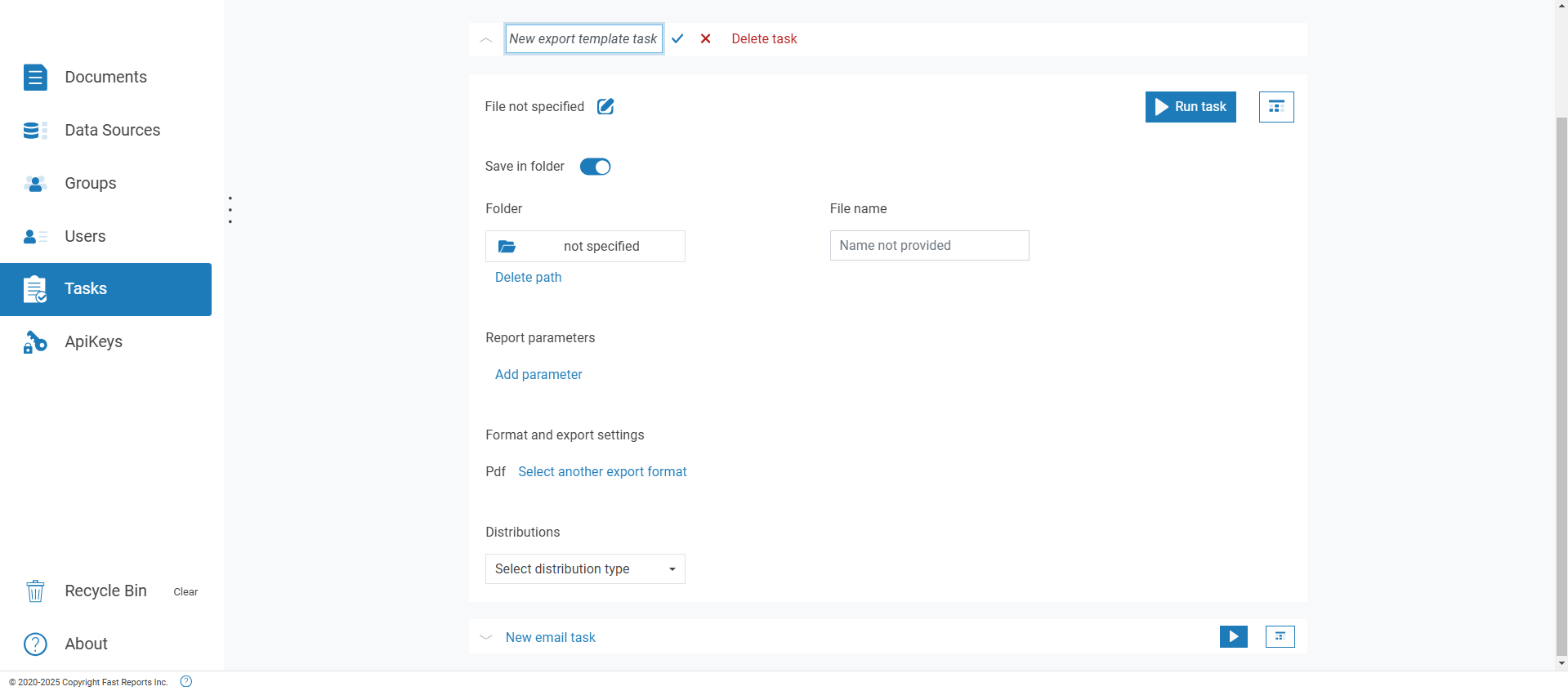
If you click on the task name, you can change it in the input field, as well as delete the task.
Transformers
The transformers are: template export, report preparation, and report export.
In the task parameters, the name and folder for saving the output file are located. Next, there are input fields for the parameters that are passed when generating the report, the selection of the format, and the export settings.
In report preparation, you cannot specify the export format, and in the case of report export, there are no report parameters.
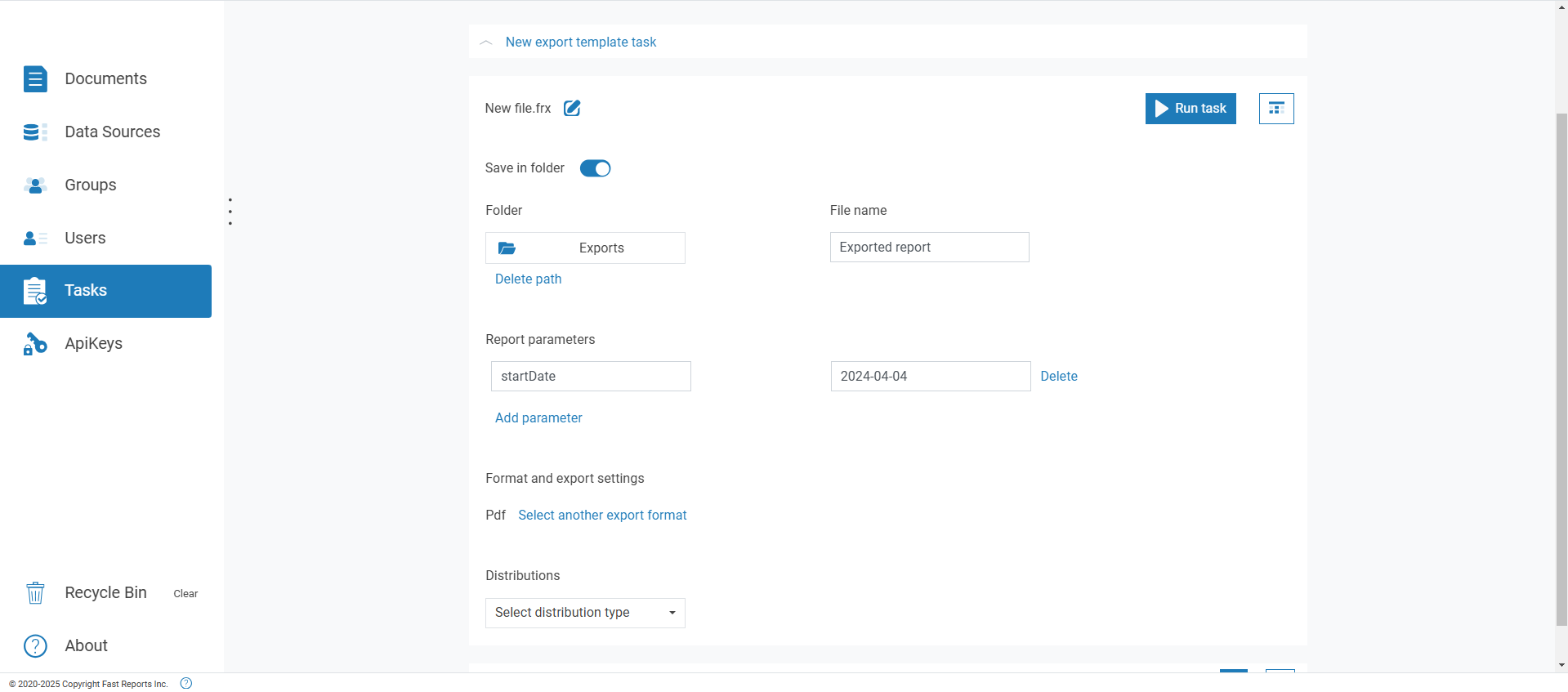
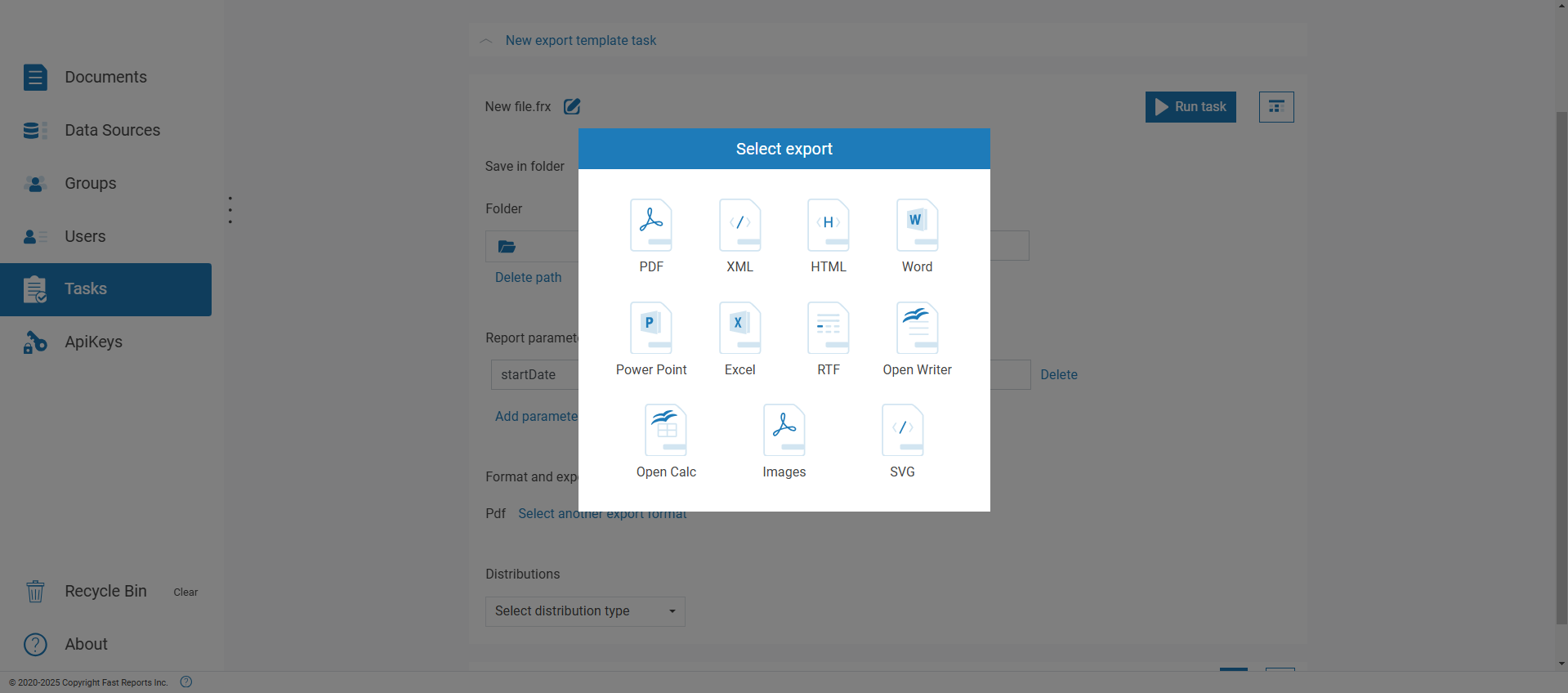
When you click on "Select another export format", a menu opens with a selection of available formats.
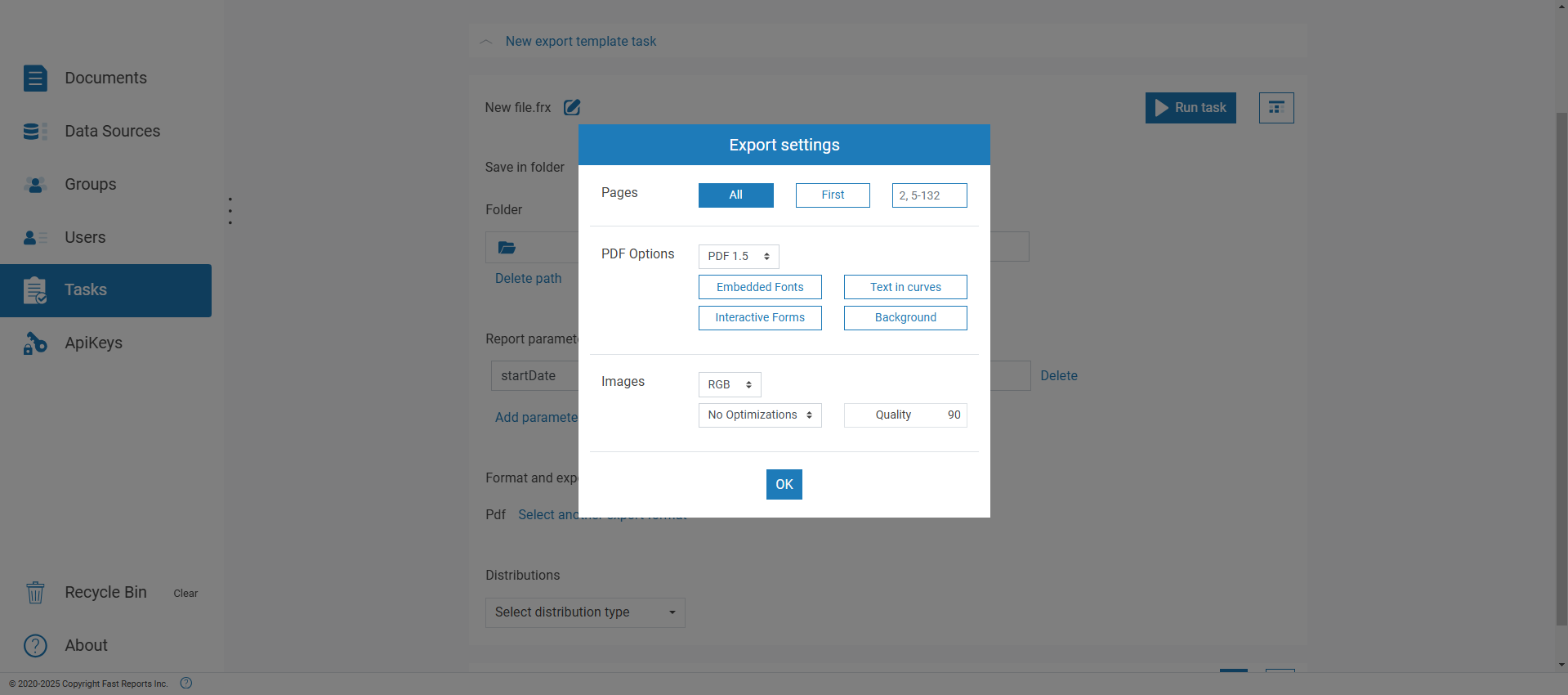
After selecting the format, a settings window opens and the required parameters are set.
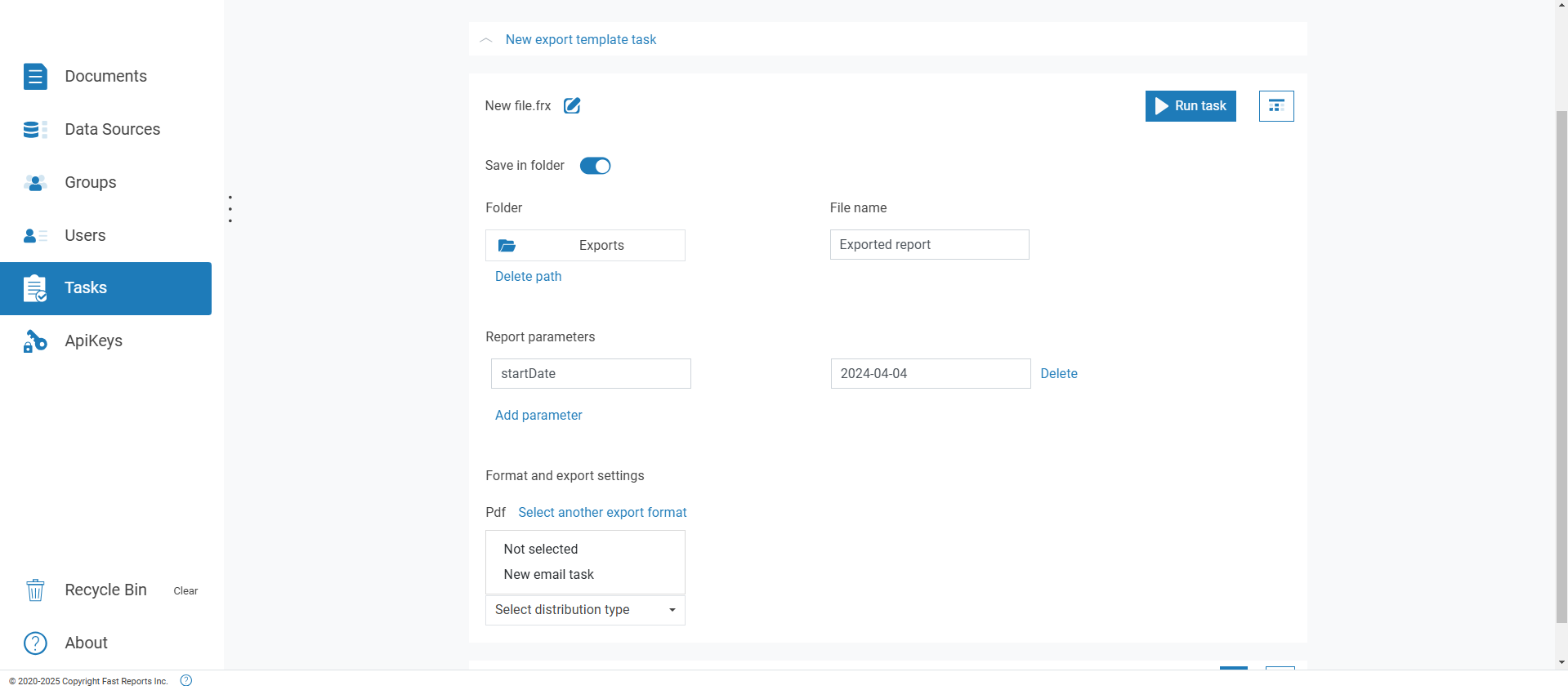
When you click on the dropdown email element, a list of the created transport tasks opens, which are intended to send the results of the execution of transformers.
Transport tasks
Email task
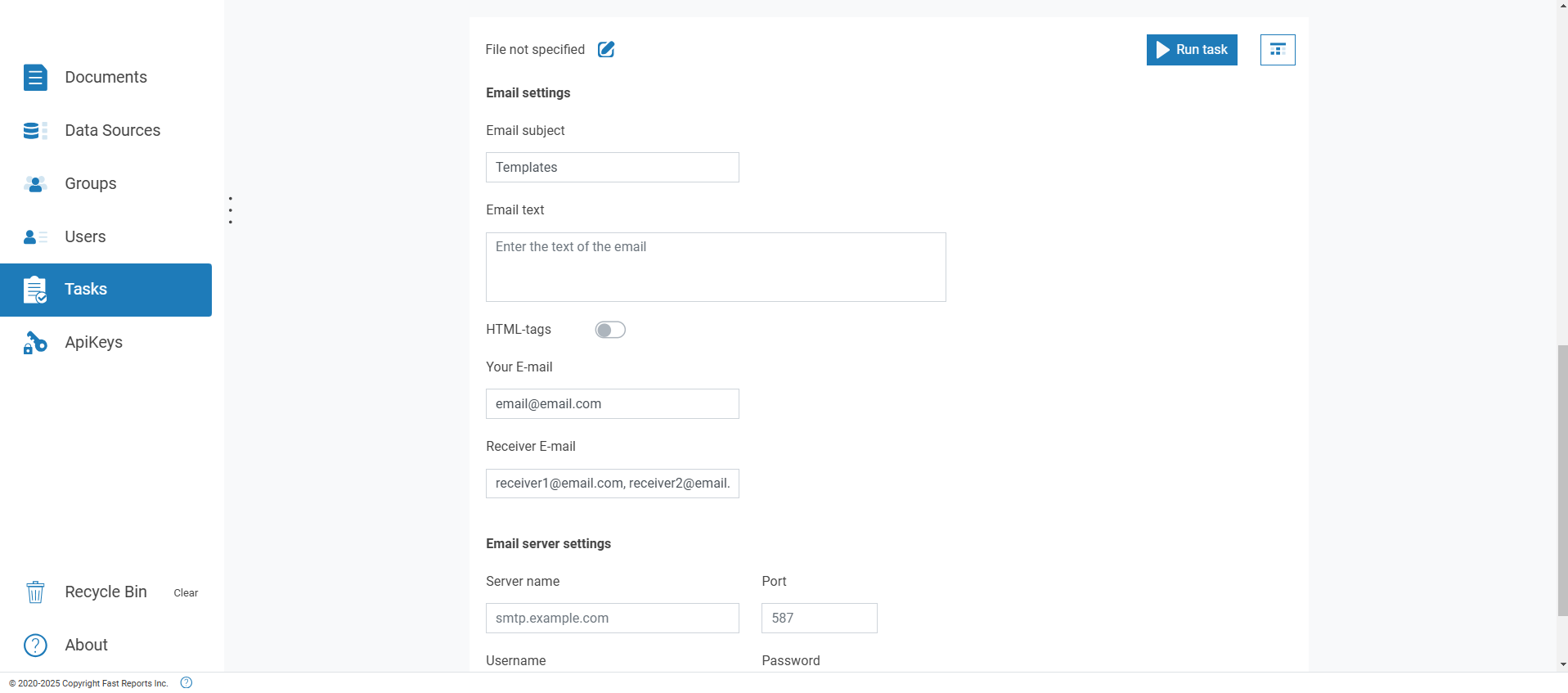
In the upper part of the task panel, there are email settings. In the "Your E-mail" field, you should enter your own email address from which the message will be sent. In the "Recipient E-mail" field, you need to specify the email address(es) of the recipient(s), separating them with a comma. Below are the fields for configuring the email server.
Webhook
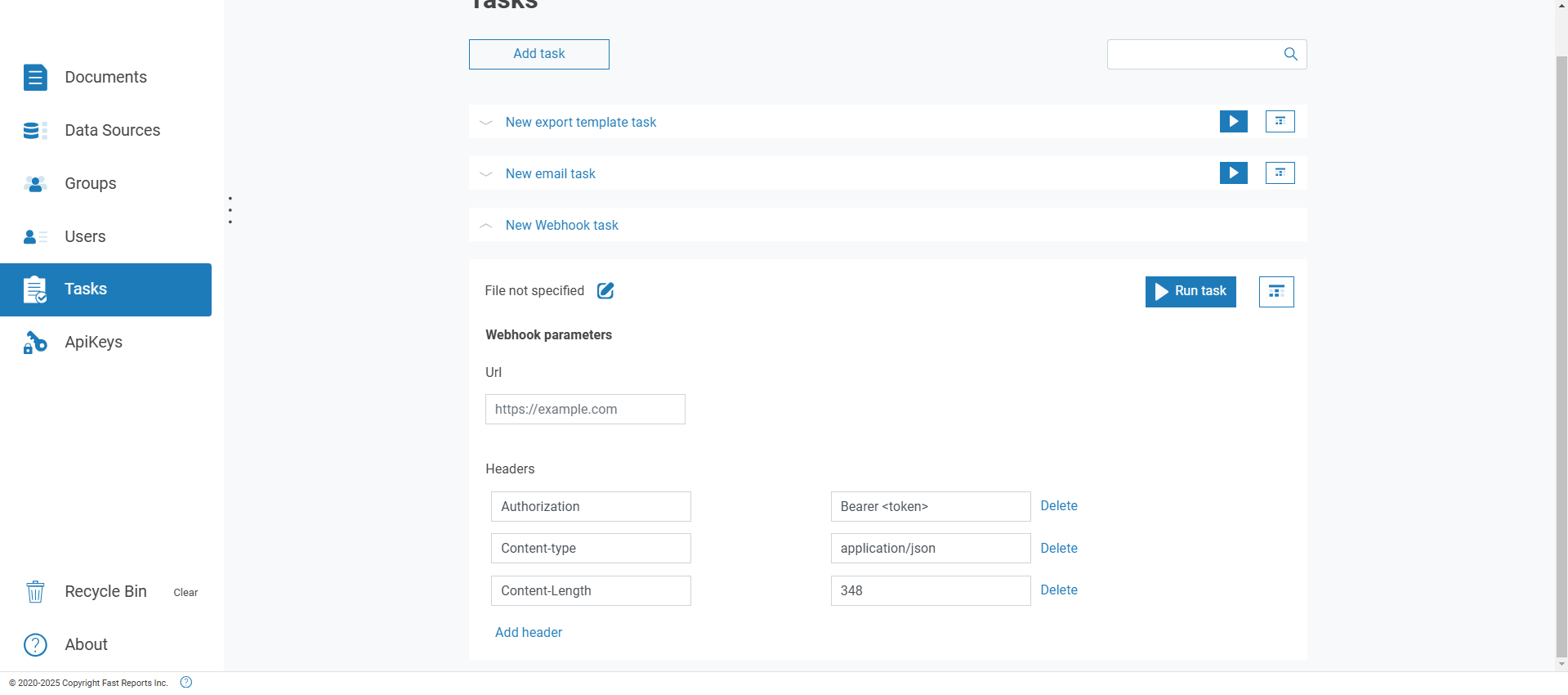
On the email to webhook task panel, there is a field for entering the URL address to which the requests will be sent. Directly below it is a field for entering the necessary headers for the service.
FTP Upload
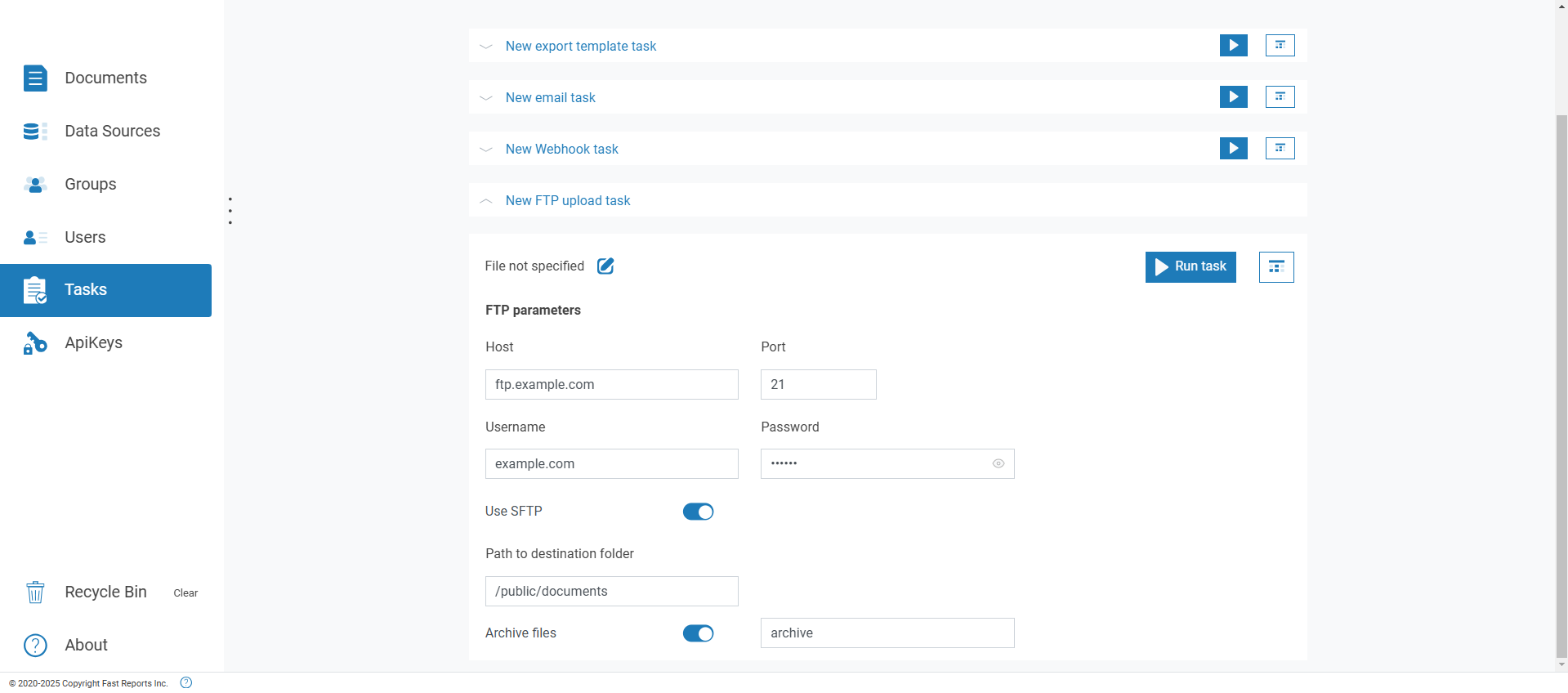
On the page, there are fields for entering the connection parameters to the FTP server, and selecting the encryption. At the bottom is a field for entering the destination folder where the file should be transferred. The option to archive the file is available.
S3 Upload
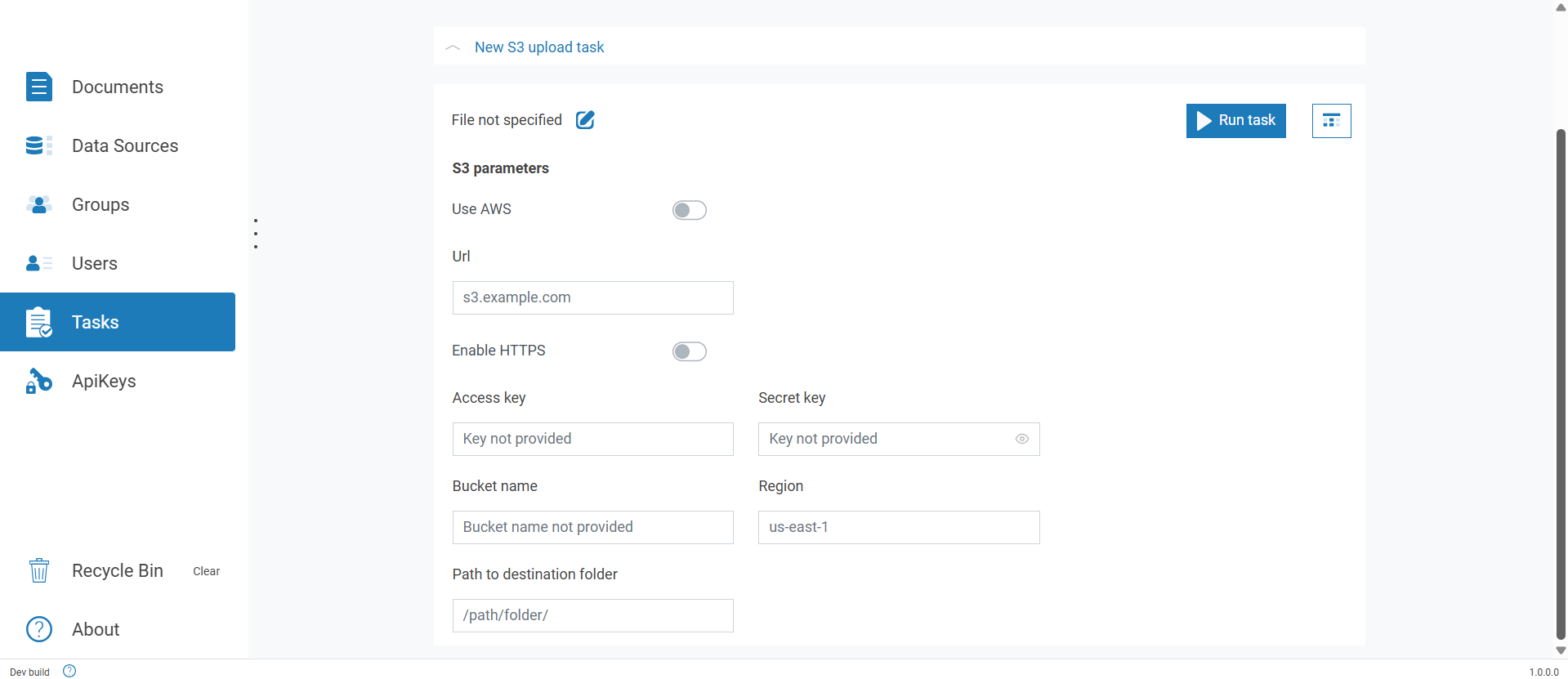
On the page, there are fields for entering the connection parameters to the S3 storage, and selecting the encryption. At the bottom is a field for entering the destination folder where the file should be transferred.