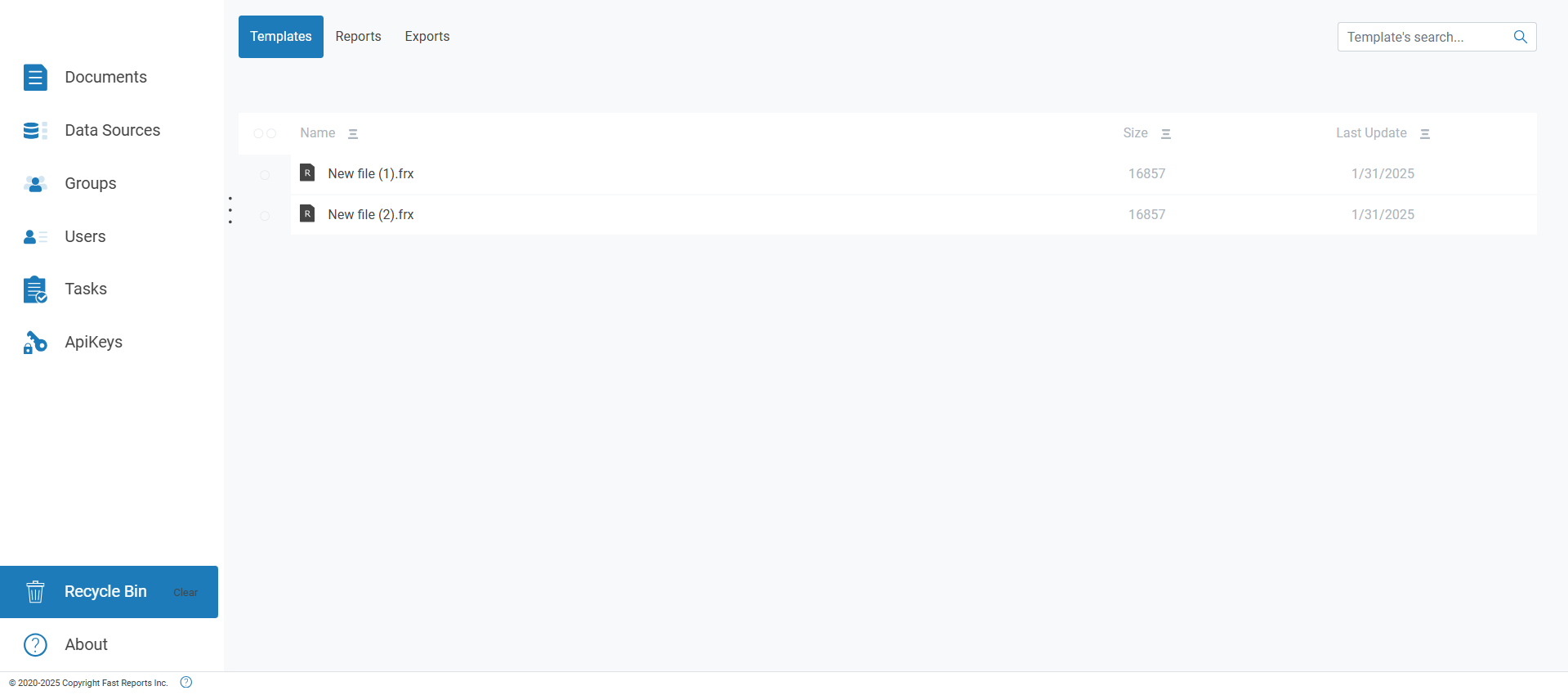
Documents
Products: FastReport Cloud, FastReport Corporate Server, FastReport Publisher
In the Service solution, there are 3 types of documents available: templates (.frx), reports (.fpx), and exports (various formats from pdf to html). Switching between file types is done through the panel located on the left side of the screen.
In the central part of the screen, you can see the list of files, a search field, and the recycle bin icon, where deleted files are placed.
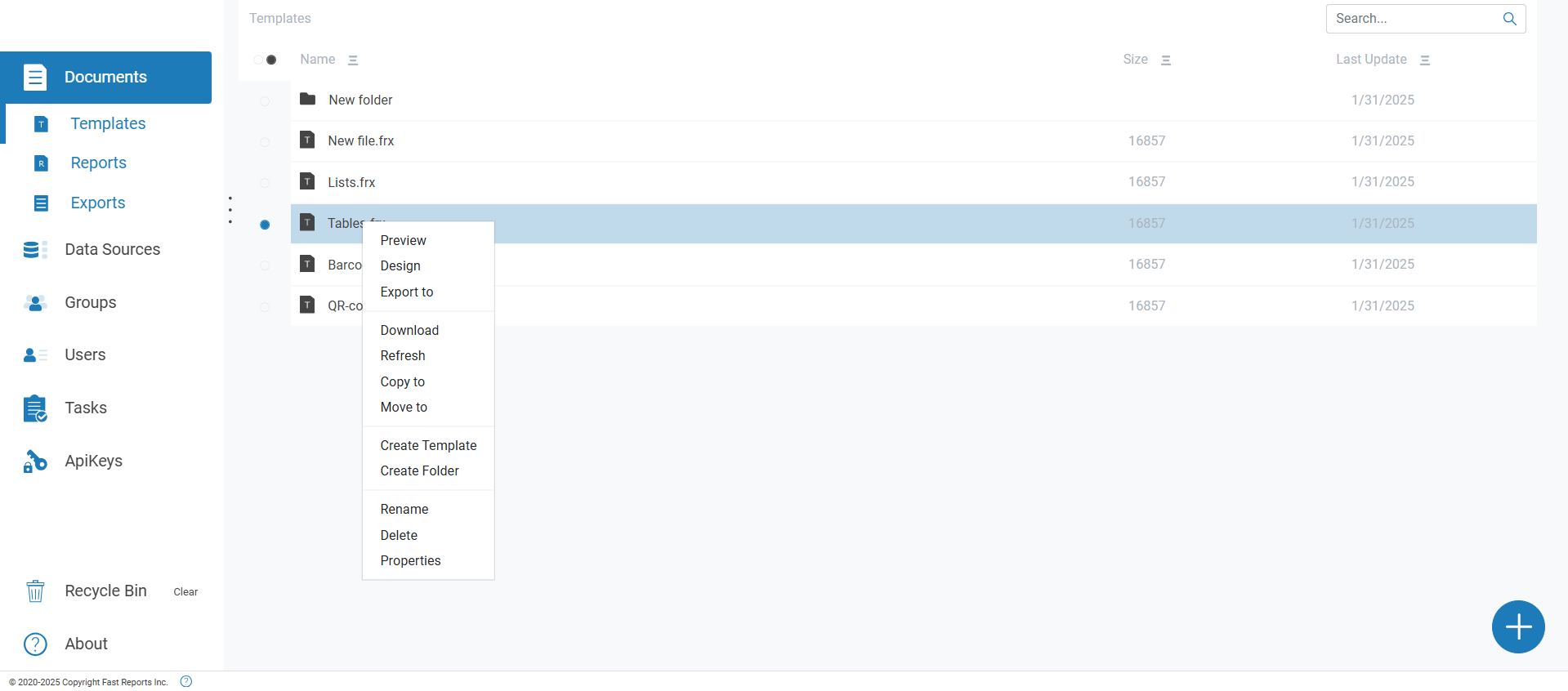
By clicking the "+" button in the bottom right corner of the screen, a creation menu opens: file upload, creating it in the designer, and creating a folder. Uploading is prohibited on the exports tab.
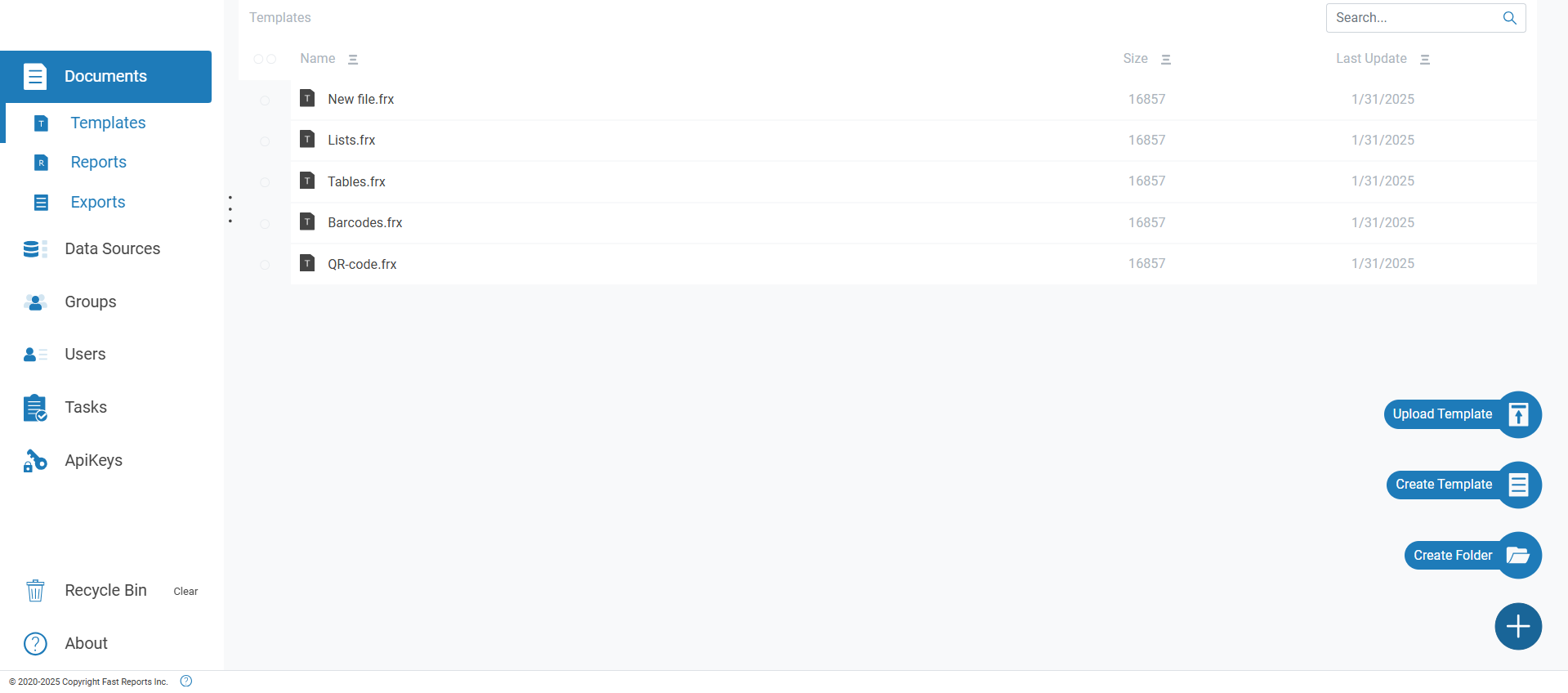
If you click on a file once, a panel will appear with information about it and a button to download it.
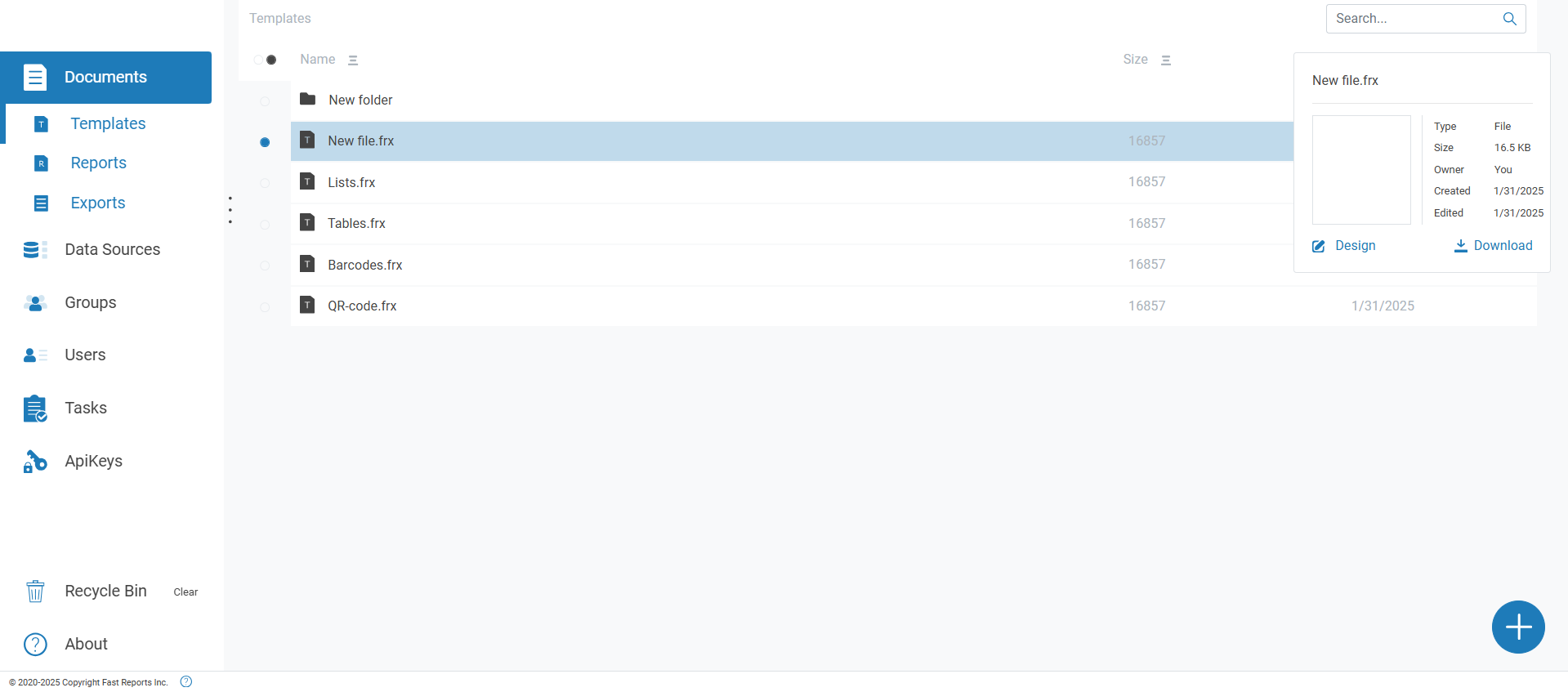
When you right-click on a file, a context menu appears with a list of actions that can be performed on the file.
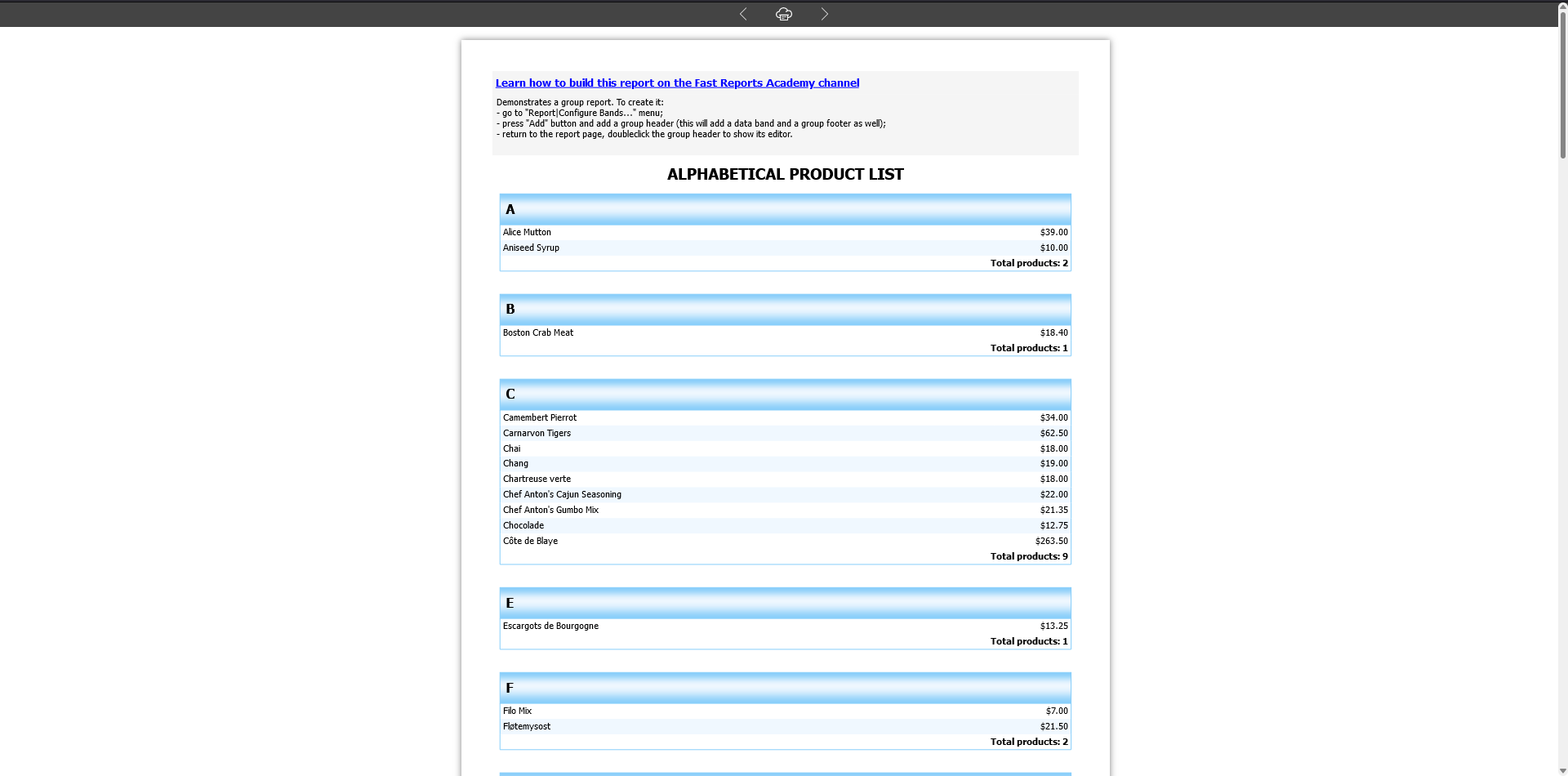
When you click the "View" button, a window opens that displays the template or report. From there, you can send the file to print.
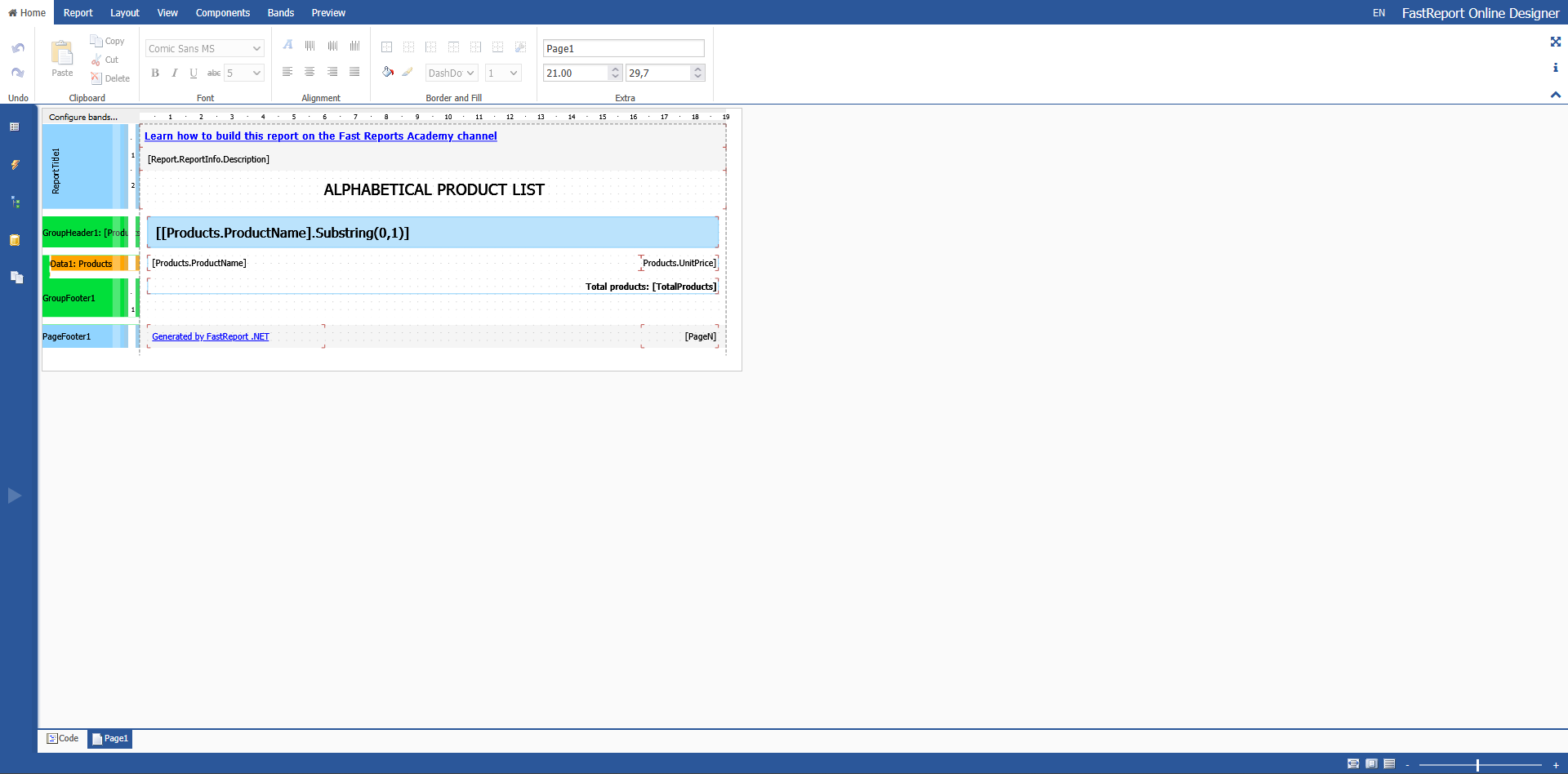
When you click on "Design", the Report Designer opens. It allows you to add various report objects, data sources, and perform report layout.
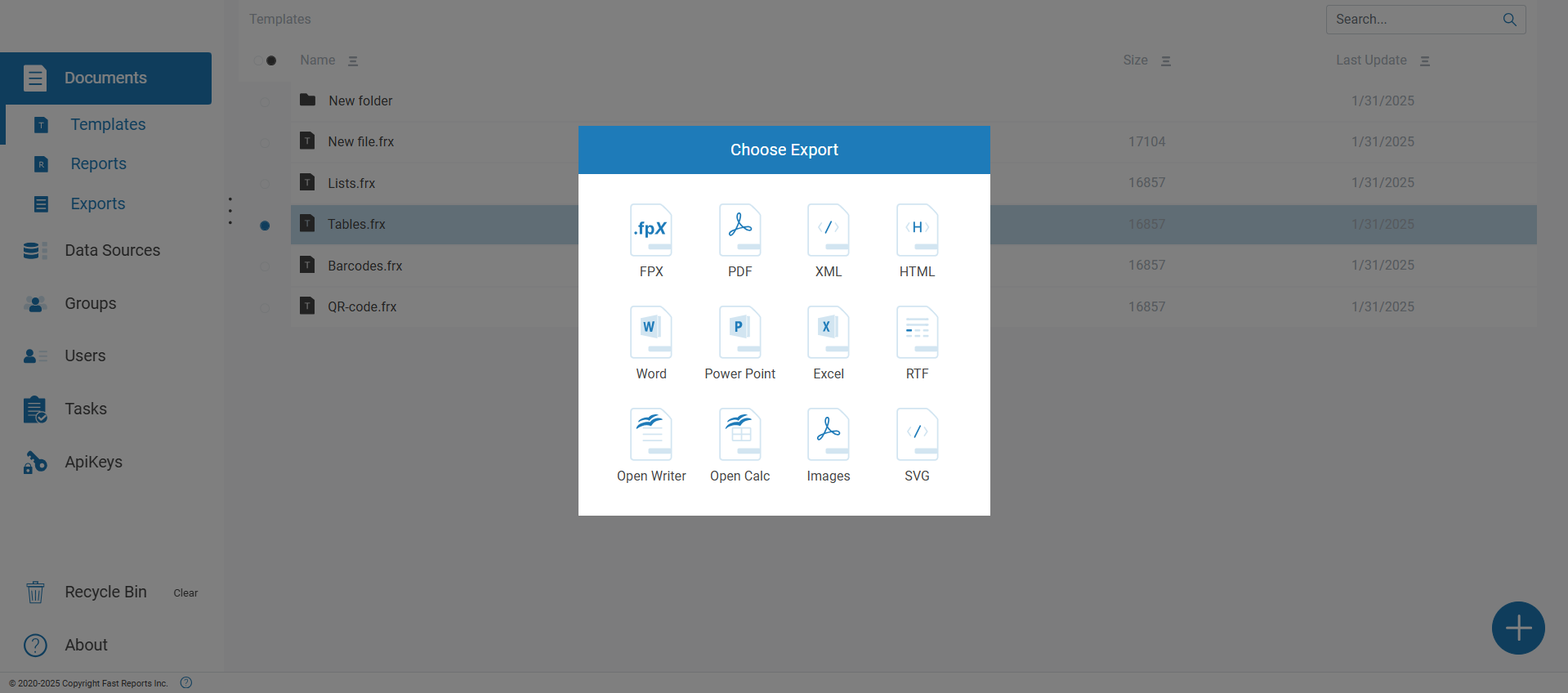
When the "Export" option is selected, a menu for choosing the export format is opened. The first element is the prepared report (.fpx), and the rest are external document formats. If the required export is not in the list, it can be used from the API.
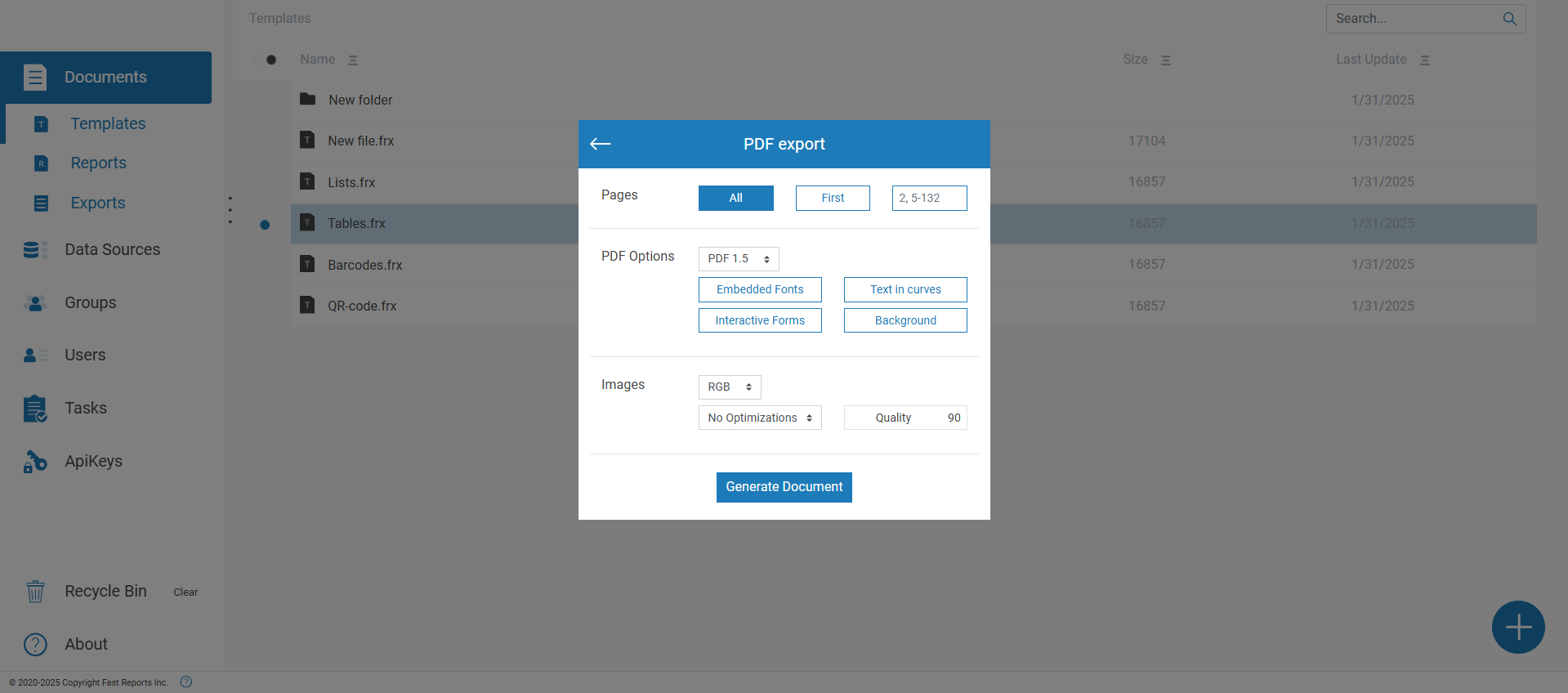
After selecting the export, a settings window opens and the required parameters are set.
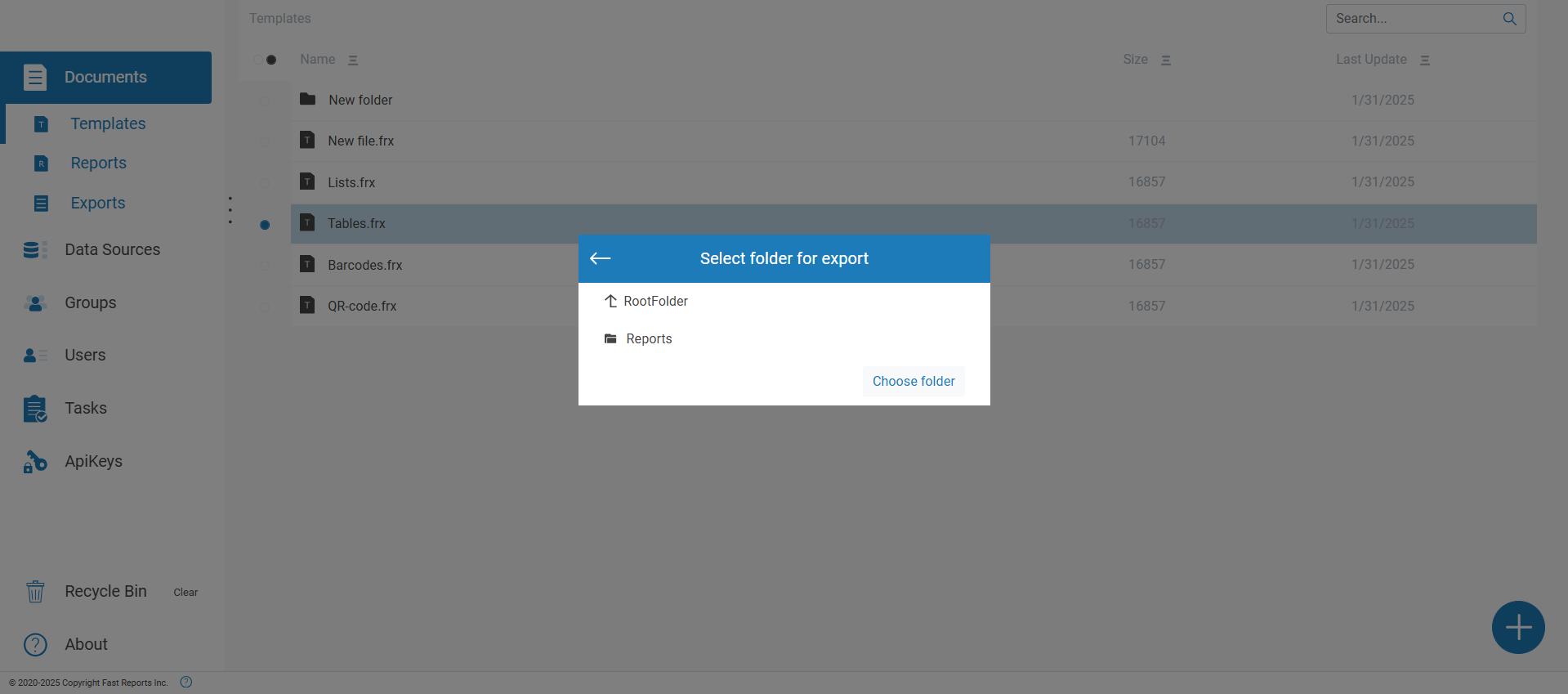
Then, a folder selection window opens, where the export will take place.
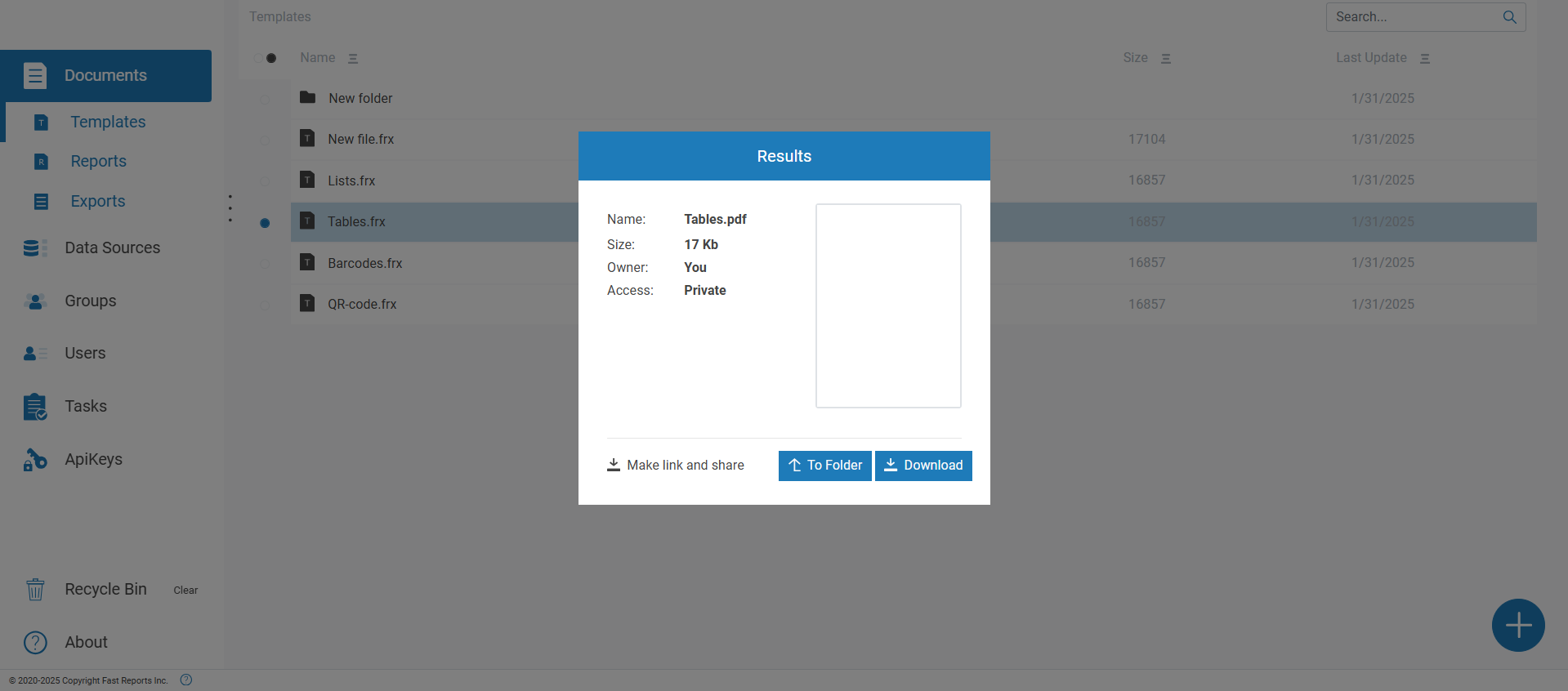
Further, after the export is successfully completed, you will see a window with a preview of the result and buttons allowing you to download the export or go to the folder where it is located.
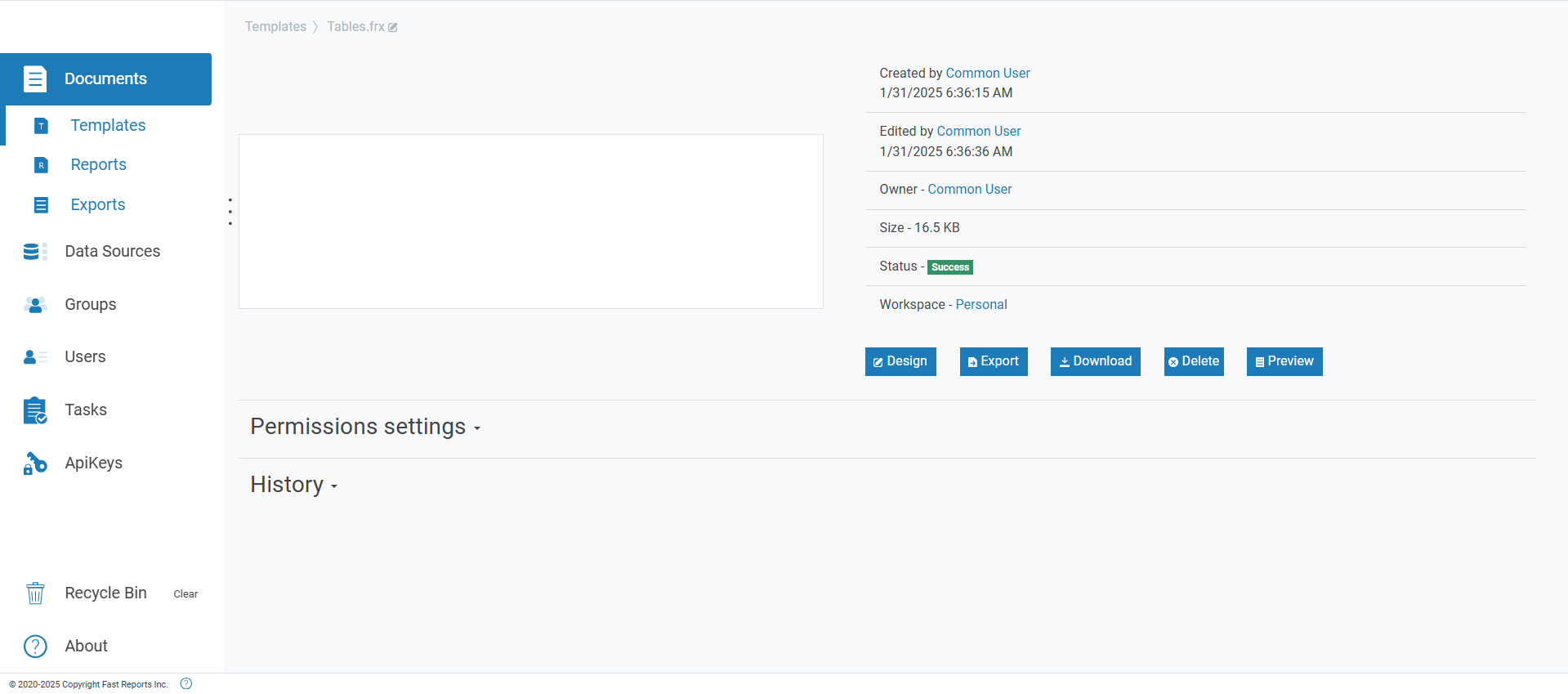
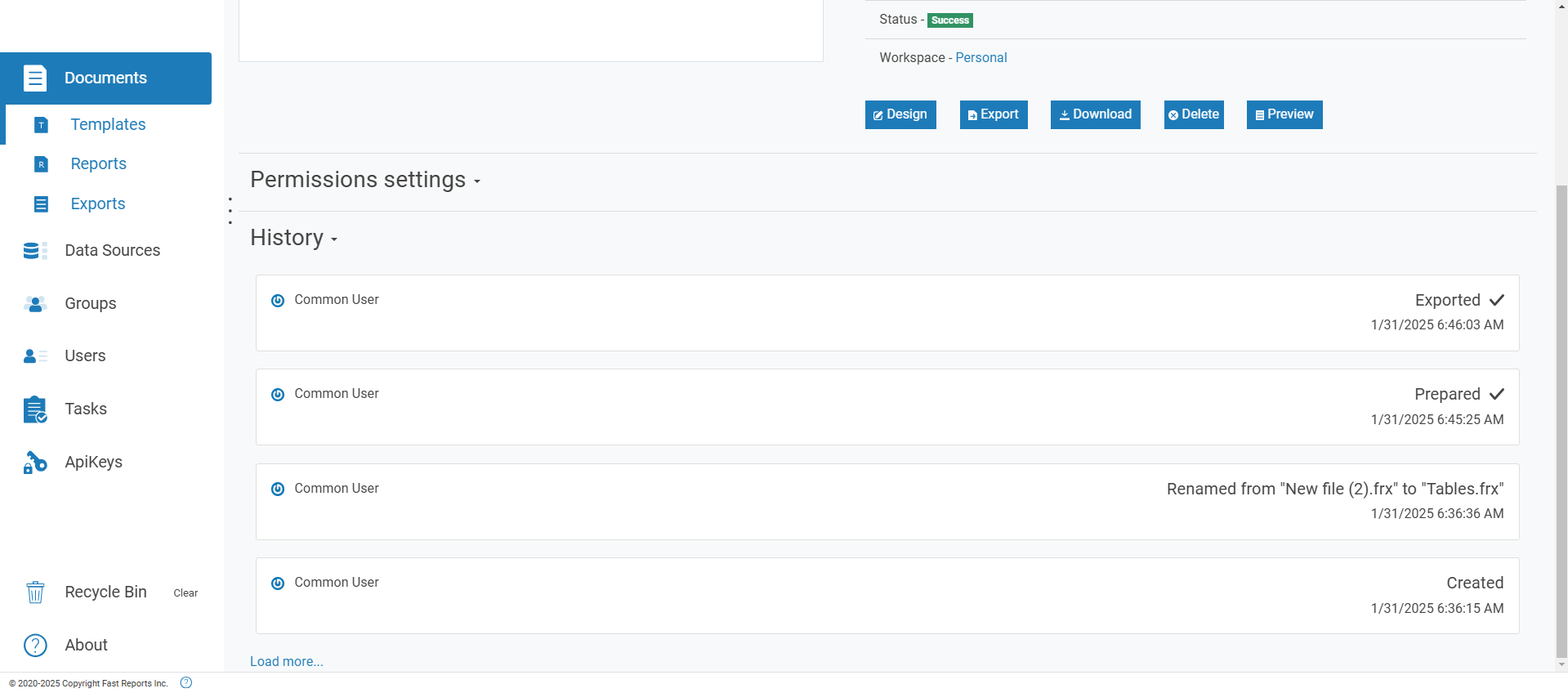
If you click on the "Properties" menu item, a new window will open where you can view detailed information about the file, as well as perform a number of actions on it.
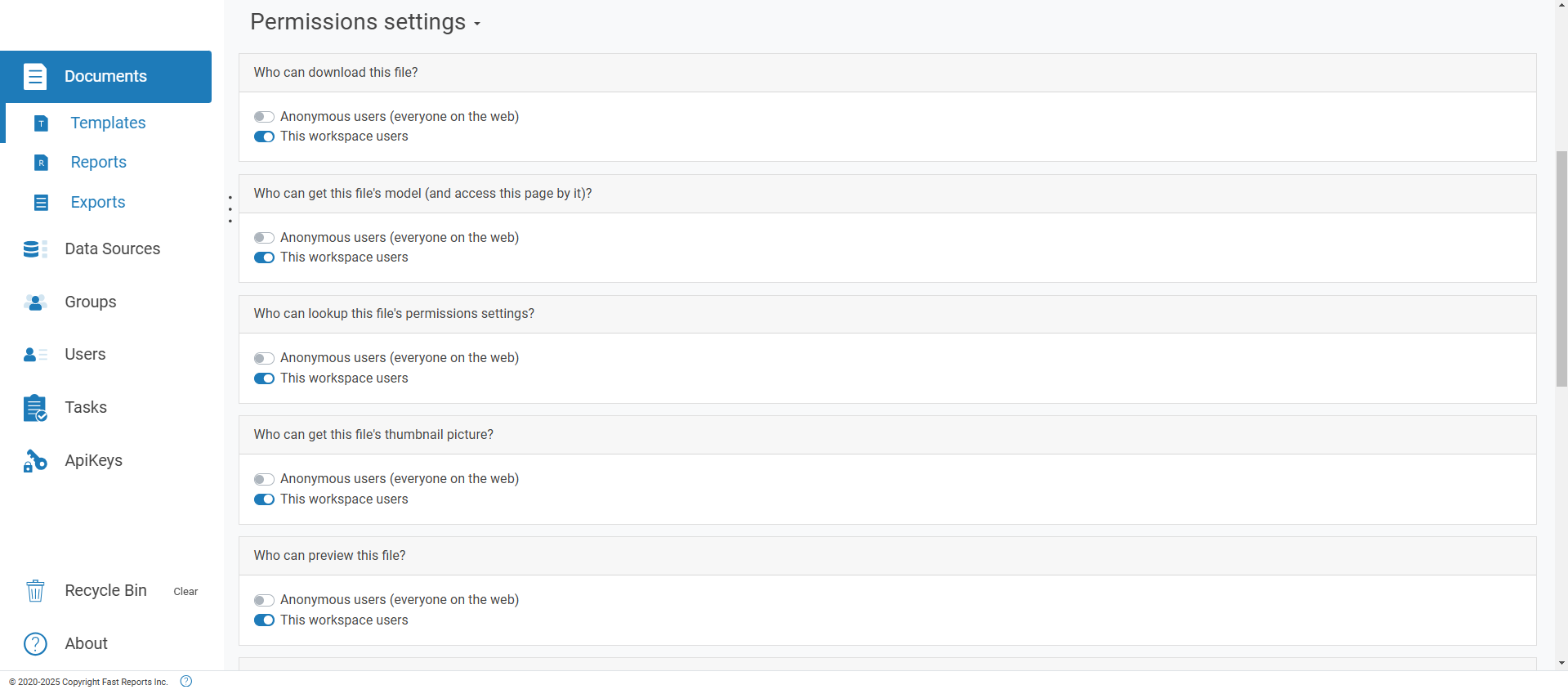
Further on the page, you can see the file access settings.
At the bottom of the page is the history of actions performed on the file.
Deleted files are stored in the recycle bin. You can access it by clicking on the recycle bin icon next to the file list. In the trash, you can delete or restore files.