Bulk Plan Editing
Products: FastReport Corporate Server, FastReport Publisher
Bulk plan editing is a tool that allows you to update restrictions, limits, and reference information for the current plan across all active workspaces simultaneously.
This feature is especially useful after system updates that modify the plan model structure—for example, granting users permission to run a new type of task.
It also provides a convenient way to revert manual changes made directly in individual workspaces, particularly when managing a large number of workspaces.
Page Location
You can access the bulk editing page either from the plan card in the general plans list or from the detailed view of a specific plan.
The direct URL is: /admin/plans/{plan_id}/bulkEdit
Usage
Unifying the workspaces
To reset all workspaces to the plan's default configuration:
- Open the bulk editing page.
- Click "Update" on any highlighted fields.
Updating Disk Space Limits for All Users
- Enter the desired value in the relevant field.
- Click "Update".
"Note": These changes are irreversible.
Page Overview
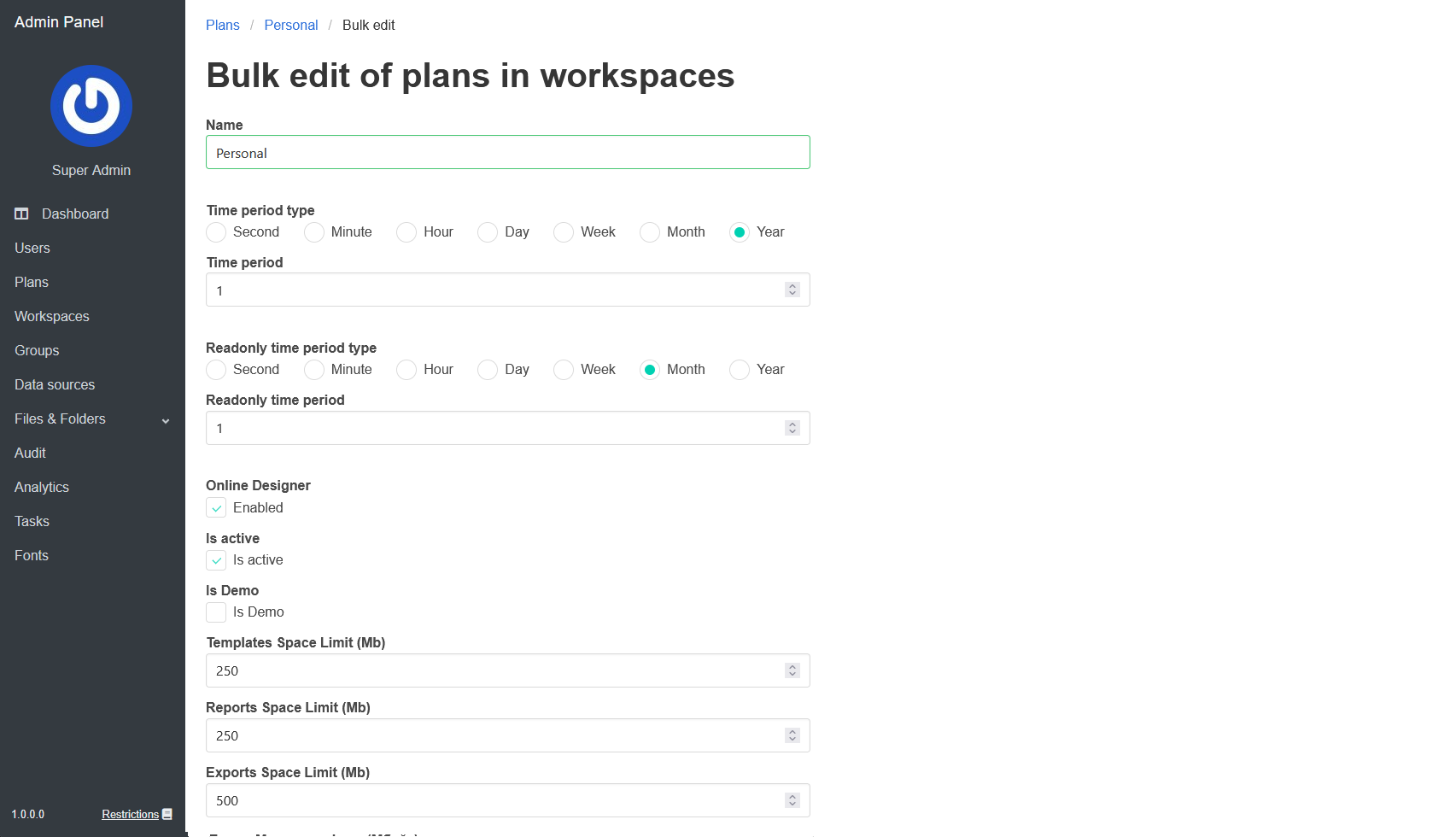
If the current restrictions in all workspaces match the plan’s configured values, the interface appears nearly identical to the standard plan editing page. The key difference is the absence of a global "Update" button at the bottom. Instead, each field may display its own "Update" button, which applies changes only to that specific field.
By default, the "Update" button for a field is hidden and appears only when the field’s current value differs from the value in at least one workspace using this plan.

Next to the button, the system displays the number of workspaces where the field’s current value does not match the value you’ve entered.
Note: When you click "Update", the change is applied to all active workspaces using the current plan—not only to those where the field differs. This action also updates the hidden metadata fields
editedTimeandeditorUserIdin every affected workspace, even if the visible field value remains unchanged. Note: If there are no active workspaces using the plan - the "Update" button will not appear, since there are no workspaces to update.